Order list and inventory management
Learn how to use the Shoporama order list to keep track of inventory, generate shopping lists and receive goods efficiently.
Shoporama's reorder list helps you keep track of which products need to be reordered. The system automatically calculates what you're running low on based on your minimum stock level, and you can export the list as a CSV file to your suppliers. You can also receive goods by uploading invoices or CSV files.
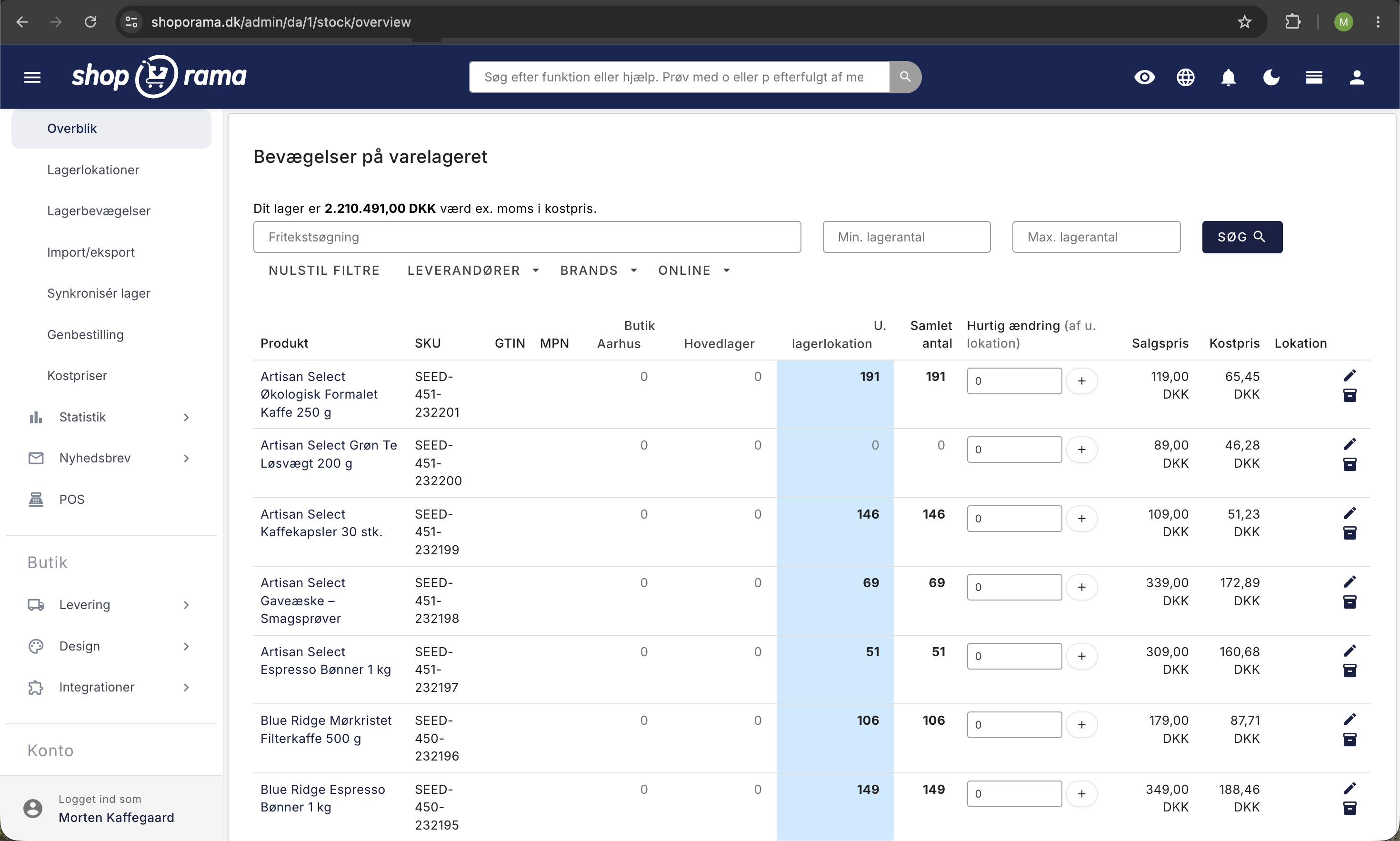
Reorder List
You’ll find the order list under Inventory > Reorder in the admin panel. Here, you’ll get an overview of all products that are running low:
- Current Inventory Status — View the current quantity in stock for each product
- Minimum Stock — The minimum quantity you want to keep in stock
- Calculated Order — The system automatically calculates how many you need to order
- Minimum Order Quantity — If you’ve set a minimum order quantity, the quantity is automatically rounded up
Filtering and searching
The order list can be filtered so you can easily order from one supplier at a time:
- Supplier — Filter by a specific supplier
- Brand — Filter by brand
- Online/offline status — Show only online or offline products
- Out of Stock Only — Show only products below minimum stock
- Free-text search — Search by product name, item number, etc.
You can also choose which columns to display in the list, such as item number, secondary item number, MPN, EAN, labels, and notes.
Export as CSV
Once your order list is ready, you can download it as a CSV file using the "Download order list (.csv)" button. The CSV file contains:
- Item number (SKU)
- Secondary item number
- MPN and EAN
- Quantity to order
- Product name
- Purchase Price
You can send this file directly to your suppliers or use it for internal planning.
Products with Variants
The order list supports products with variants (e.g., colors and sizes). Inventory is tracked by variant, so you can see exactly which variants are out of stock and order the correct quantity of each.
Receive Goods via CSV
When you receive goods from a supplier, you can upload a CSV file under Inventory > Reorder > Upload Order List. The system automatically matches the item numbers to your products and adds the received quantity to inventory. You’ll see a preview before the items are posted, so you can verify that everything is correct.
AI-Based Receiving
Shoporama has a smart feature that lets you upload PDF invoices or photos of packing slips. The system uses AI to automatically extract item numbers and quantities from the document. You’ll see a preview of the items found and can approve them before they’re added to inventory.
This feature supports:
- PDF invoices from suppliers
- Images of packing slips (JPG and PNG)
- Automatic extraction of item numbers and quantities
- Preview and approval before posting
Set minimum stock levels
To ensure the order list functions optimally, you should set minimum stock levels for your products. You can do this while editing each product in the Minimum Stock field. You can also specify a minimum order quantity if your supplier requires a certain minimum per order.
Tip
Combine the order list with supplier filtering to generate separate purchase lists for each supplier. This makes the ordering process much more manageable.
Related articles
Unsubscribe links in automatic emails
Give your customers the option to unsubscribe from automatic follow-up emails after purchases and product reviews - with a simple link in the email.
AI assistant in the text editor
Learn how to use Shoporama's built-in AI assistant to generate product texts, image descriptions and text suggestions.
Export customers who have purchased a specific product
Guide to export a list of customers who have purchased a specific product and send them an email.
Related features
Stock integrations
Stock records, stock locations, order list, stock value and automatic notifications. Avoid overselling with Shoporama inventory management.
Webshop til tøjbutik
Få en webshop til din tøjbutik med varianter, fælles lager for butik og web, returcenter, og gavekort. Dansk support. Prøv gratis i 30 dage uden...