Blacklist - Block unwanted orders
Learn how to use Shoporama's blacklist feature to block spam orders and unwanted customers by blacklisting email, phone number or IP address.
If your online store is targeted by spam orders or credit card testing, you can use Shoporama’s blacklist feature to block unwanted customers. You can blacklist customers based on their email address, phone number, or IP address. When a blocked customer attempts to complete a purchase, they are quietly redirected back to the shopping cart—without receiving an error message that reveals they have been blacklisted.
The blacklist feature is disabled by default and must be manually enabled for your store.
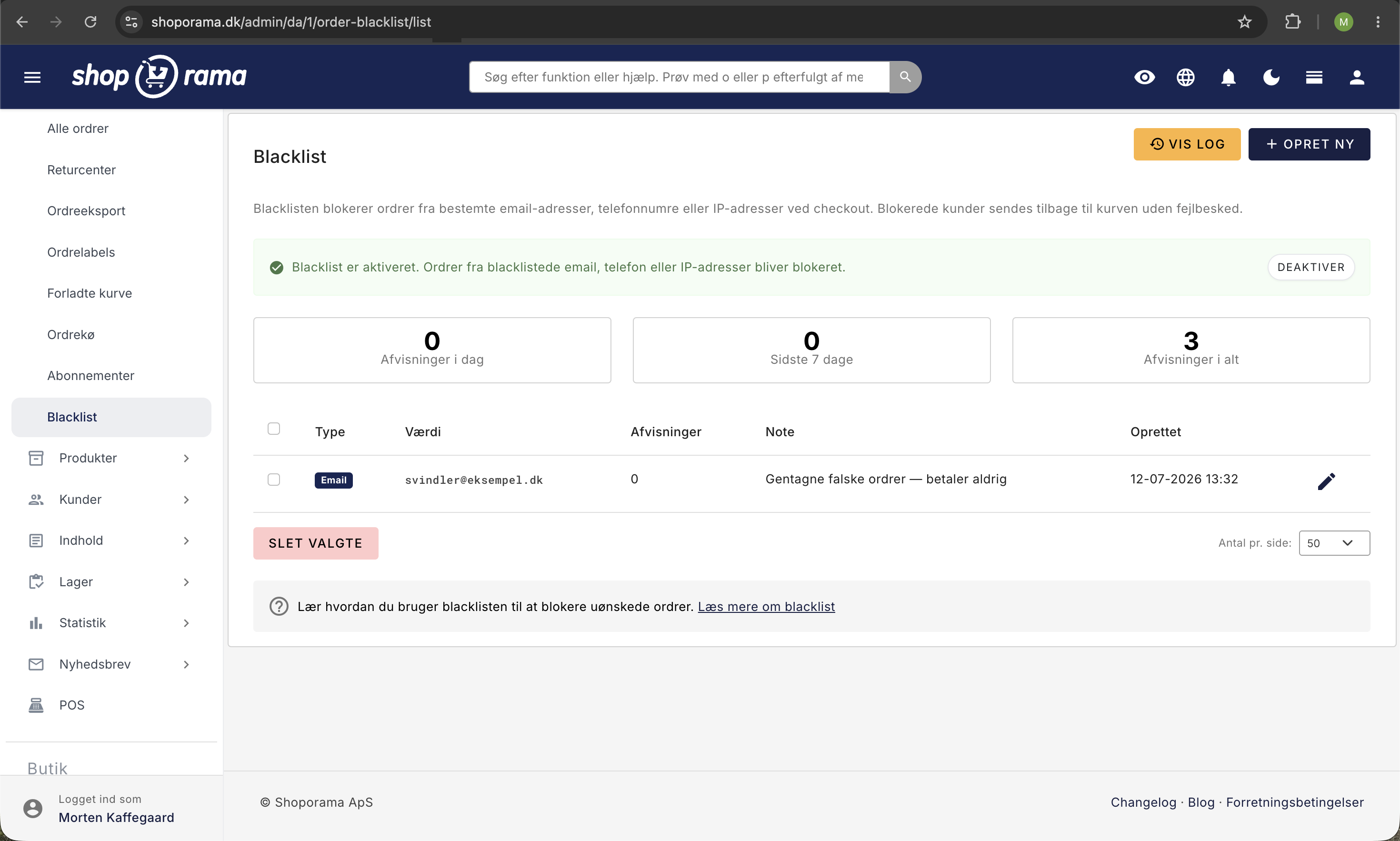
Enable the blacklist
- Go to Orders → Blacklist in the menu
- Click the “Enable Blacklist” button at the top of the page
- The status box turns green, indicating that blacklisting is active
You can disable blacklisting at any time by clicking " Disable Blacklist." Your blacklist entries will not be deleted—they simply won’t be checked at checkout, so you can safely turn the feature on and off.
Add a blacklist entry manually
- Go to Orders → Blacklist
- Click Create New
- Select type: Email, Phone, or IP Address
- Enter the value you want to block
- Optionally, add an internal note (e.g., why the customer is blacklisted)
- Click Save
Blacklist from order editing
When viewing a specific order, you can quickly blacklist the customer’s information directly from the edit page:
- Open the order you want to blacklist from
- Click " Blacklist " under the customer's information
- In the dialog, you’ll see the order’s email, phone number, and IP address, with a “Blacklist” button next to each one
- If desired, enter a note (if the field is left blank, the note is automatically saved as “From order #number”)
- Click “Blacklist” next to the information you want to block
The information is saved immediately, and the line changes to “Blacklisted” with a link to the new entry. You remain on the order page throughout the process. If a piece of information is already on the blacklist, it will be displayed as “Blacklisted” instead of a button, so you don’t accidentally create the same entry twice.
The buttons are only displayed when the blacklist feature is enabled for your store.
Blacklist from the order overview
You can also blacklist multiple orders at once directly from the order overview:
- Go to Orders → All Orders
- Select the orders you want to blacklist using the checkboxes
- Click the More dropdown menu
- Select " Blacklist " (the red button at the bottom of the menu)
- Confirm in the dialog
This action automatically blacklists the email address and phone number from the selected orders and cancels them. The IP address is not automatically blacklisted during bulk actions. The IP address on the order belongs to the customer, but it may be shared by multiple people (office network, public Wi-Fi, mobile network), and for orders created through our API, it belongs to the system that sent the order. Therefore, it’s too broad an approach for an action that affects many orders at once. If you want to blacklist an IP address, you can do so from the individual order or manually from the blacklist page, where you can review that specific address.
The button appears only when the blacklist feature is enabled for your store.
View blacklisted orders in the order overview
When the blacklist is enabled, Shoporama automatically flags orders whose email, phone number, or IP address is on your blacklist. The flag is a red “Blacklisted” label next to the order number, and it shows which piece of information matched.
Importantly, the label appears on all orders containing that specific piece of information, not just the order you blacklisted. So, if you block the IP address associated with a single fraudulent order, you can immediately see the other orders that came from the same address.
The label does not mean the order has been rejected. Orders that have already been created remain as they are—the blacklist only takes effect on the next purchase attempt. Think of the label as a signal that the order is worth taking a closer look at.
Show IP Address as a Column
You can display the customer’s IP address directly in the order overview:
- Go to Orders → All Orders
- Click “Customize View ” in the action bar at the bottom
- Turn on “IP Address”
- Choose whether the column should be displayed always, only in compact view, or only in expanded view
- Save
The column is turned off by default so the overview doesn’t get cluttered for stores that don’t need it. This setting applies to the entire online store—that is, to all users.
What happens when a blacklisted customer makes a purchase?
When a customer attempts to complete a purchase and their email, phone number, or IP address matches an entry on your blacklist, the following happens:
- The customer is redirected back to the shopping cart without any error message
- The customer is not informed that they have been blacklisted
- The attempt is automatically logged, so you can view it in the blacklist log
The check occurs after the customer has entered their shipping information, but before the order is created and payment begins.
Statistics and Log
On the blacklist overview, you can see three statistics cards:
- Rejections Today — number of blocked attempts today
- Last 7 days — number of blocked attempts in the past week
- Total Rejections — total number of blocked attempts
Each entry in the list also shows how many times that specific entry has blocked a customer.
Click View Log to see a detailed log of all blocked attempts. The log shows the date, the type that matched (email/phone/IP), the matched value, as well as the customer’s email, phone number, IP address, and browser information.
Edit and delete entries
You can edit the note on an existing blacklist entry by clicking the edit icon in the list. The type and value cannot be changed—if you want to change them, you must delete the entry and create a new one.
To delete entries, you can either delete them from the edit page or select multiple entries using the checkboxes in the list and click “Delete Selected.”
Related articles
What emails does Shoporama send to my customers?
Overview of automatic emails Shoporama sends to your customers - order confirmation, abandoned baskets, track-and-trace, product reviews, and more.
Which templates are used for which emails?
Complete overview of all email templates in Shoporama - order confirmations, abandoned baskets, return labels, product reviews and much more.
Order flow and automated emails
Understand the entire flow from checkout to order confirmation. Learn when automatic emails are sent, what happens with different payment methods...
Related features
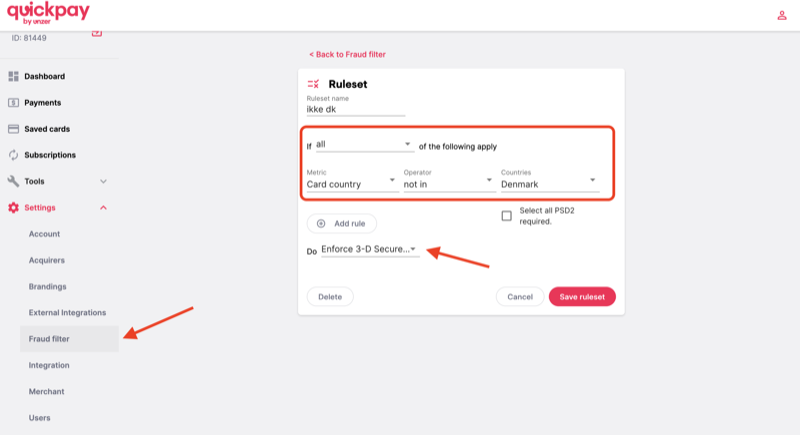
Protect your webshop against card fraud with QuickPay's Fraud Filter
Learn how to use QuickPay's free Fraud Filter to stop fraudsters. Block foreign cards, claim 3-D Secure and protect your business.
Blacklist / Fraud prevention
Protect your online store from fraud and spam with Shoporama's blacklist feature. Block unwanted orders based on email, IP address and phone number.
Chargeback fee
A chargeback fee hits your online shop when a customer disputes a payment. Learn what it costs, common causes and how to prevent chargebacks...