Implement tracking in a Shoporama theme
Developer Guide to E-commerce Tracking in a Shoporama Theme: Data Layer, Google Tag Manager, Custom Events, and Correct Product IDs Using getTrackingId().
Denne guide er til tema-udviklere og freelancere, der vil implementere e-commerce tracking i et Shoporama-tema. Vi gennemgår temaets data layer, opsætning af Google Tag Manager, korrekte produkt-id'er med getTrackingId(), og hvordan du fyrer custom events fra dit eget tema.
Vigtigt at vide, før du koder
Shoporamas indbyggede sporing injiceres server-side uden om temaet. Den virker i alle temaer, også helt custom temaer, og kræver ingen temakode. Som temaudvikler skal du altså ikke gøre noget for at den virker. Denne artikel er til shops, der bygger deres egen tracking-opsætning oveni eller i stedet for den indbyggede. Læs mere om den indbyggede sporing i Tracking i din Shoporama webshop.
1. Shoporamas indbyggede sporing kræver ingen temakode
Før du skriver kode selv, så overvej Shoporamas sporingsmodul. Du finder det i venstre sidebar under Webshop (tandhjul-ikonet) → Sporing. Sæt flueben i Aktiver sporing, vælg de platforme du vil sende data til, og indtast dine ID'er og access tokens.
Sporingsmodulet indsætter selv sine scripts og fyrer selv sine events. Det sker server-side, uden om temaets filer, så du skal hverken inkludere partials, indsætte scripts eller ændre en eneste linje i temaet. Modulet understøtter:
- Facebook Pixel og Conversion API
- Google Ads (inkl. offline conversions)
- Microsoft Ads
- Google GA4
- Pinterest, Snapchat, TikTok, og LinkedIn
- Server-side tracking via dit eget underdomæne (slipper for adblockers)
- Consent Mode v2
Skal shoppen kun bruge almindelig e-commerce tracking, er du som temaudvikler færdig her. Resten af artiklen handler om shops, der vil køre deres egen opsætning, typisk via Google Tag Manager, oveni eller i stedet for den indbyggede sporing.
2. Temaets data layer
Standardtemaerne (Delaware, Montana, Massachusetts m.fl.) inkluderer en partial der hedder partials/datalayer.html. Den pusher GA4-kompatible e-commerce events til window.dataLayer, så snart sporing er aktiveret på shoppen. Det er den, du bygger videre på, hvis shoppen skal have sin egen GTM-opsætning.
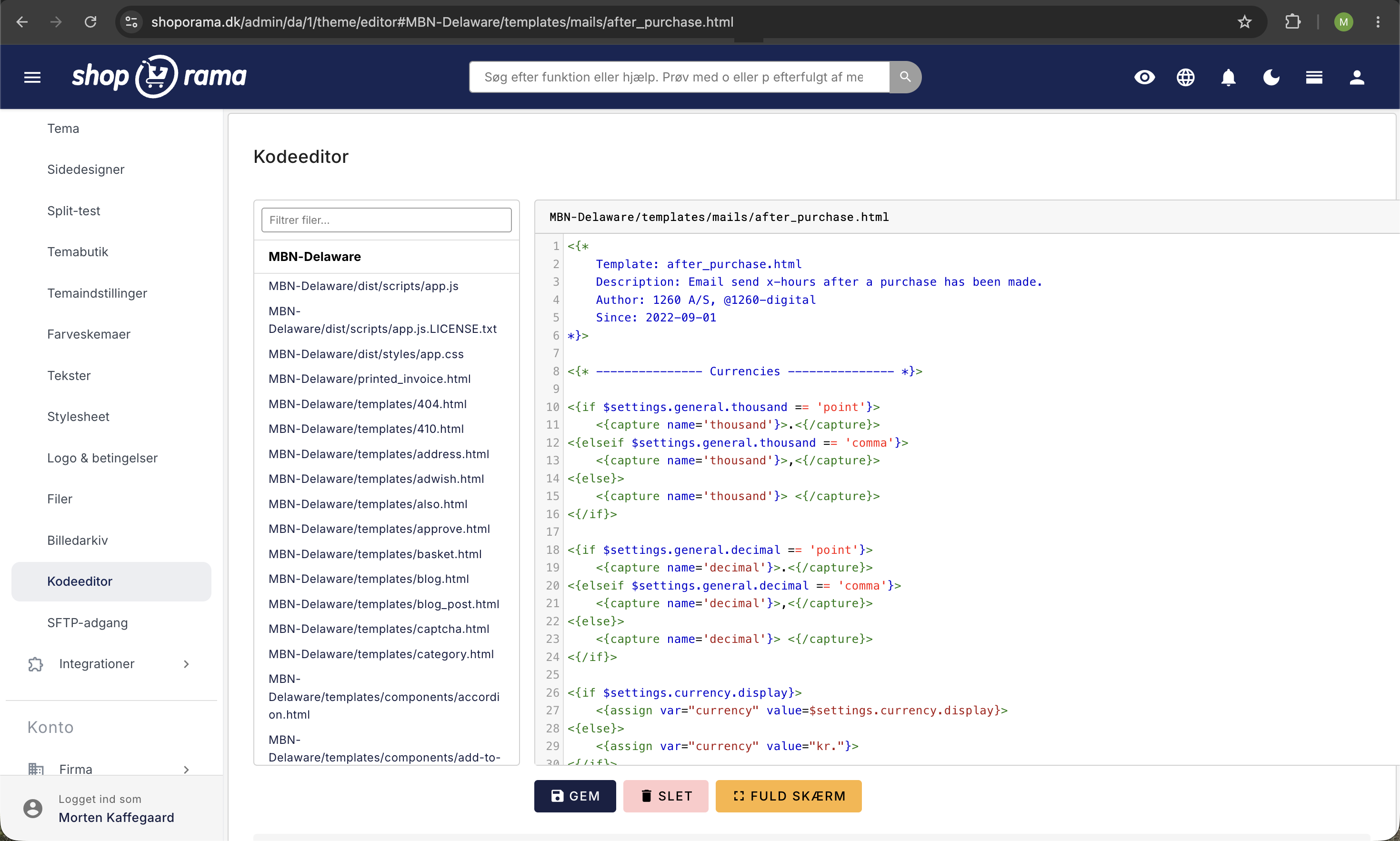
Følgende events fyres automatisk af temaet:
| Event | Hvornår |
|---|---|
| view_item | Produktside vises |
| view_item_list | Kategori- eller landingsside vises |
| select_item | Et produktkort klikkes |
| add_to_cart | Produkt lægges i kurven |
| remove_from_cart | Produkt fjernes fra kurven |
| view_cart | Kurv-side vises |
| begin_checkout | Adresseside vises (checkout starter) |
| add_shipping_info | Forsendelse vælges |
| add_payment_info | Betalingsmetode vælges |
| purchase | Tak-side (kvittering) vises efter gennemført køb |
| search | Søgeresultatside vises |
| customerInfo | Logget kunde med email |
| ShopOramaSettings | Indstillinger pushes ved page load (pixel-ID, currency, GA4-ID m.m.) |
Et view_item push på produktsiden bør se sådan ud i templaten:
<script>
window.dataLayer = window.dataLayer || [];
window.dataLayer.push({ ecommerce: null });
window.dataLayer.push({
  event: 'view_item',
  ecommerce: {
    currency: '<{$webshop->getCurrency()}>',
    items: [{
      item_id: '<{$product->getTrackingId()}>',
      item_name: '<{$product->getName()|escape:"javascript"}>',
      price: <{$product->getRealPrice()|number_format:2:".":""}>,
      quantity: 1
    }]
  }
});
</script>
Bemærk item_id: Det kommer fra $product->getTrackingId() og ikke fra et id, du selv sammensætter. Hvorfor det er afgørende, gennemgår vi i næste afsnit.
Bygger du dit eget tema fra bunden, kan du kopiere templates/partials/datalayer.html fra Delaware-temaet og inkludere den i din global.html:
<{include file="partials/datalayer.html"}>3. Produkt-id'et: brug altid getTrackingId()
Annonceplatforme som Meta og Google matcher dine events mod produktkataloget via produkt-id'et. Det betyder, at item_id i dine events skal være identisk med id'et (g:id) i shoppens produktfeed. Er de to forskellige, kan platformen ikke koble eventet til produktet i kataloget, og så fejler katalogmatch, dynamisk remarketing, og produktrapporterne.
Derfor skal du aldrig selv sammensætte produkt-id'er i dine templates. Brug i stedet getTrackingId(), som altid returnerer præcis det id, shoppens feed bruger:
item_id: '<{$product->getTrackingId()}>'Formatet afhænger af shoppens opsætning:
- Standard: det numeriske produkt-id, fx 154585.
- Varianter: produkt-id og variantværdiens id adskilt af kolon, fx 154585:45789.
- Shops med sprog- eller landefeeds: varenummeret (SKU) i stedet, da det er den stabile nøgle på tværs af landeshops. Variantens varenummer bruges, hvis det er udfyldt, ellers produktets. Har produktet slet ikke et varenummer, falder id'et tilbage til det numeriske format.
Alt det håndterer getTrackingId() automatisk pr. shop. Kender du variantværdiens id, fx i kurv-, checkout-, eller kvitteringssammenhæng, sender du det med som andet parameter:
item_id: '<{$product->getTrackingId(null, $attribute_value_id)}>'Første parameter er attributtens id. Det kan sættes til null, så slås det op automatisk ud fra variantværdien.
Advarsel: ældre datalayer-partials bytter om på variant-id'et
Arbejder du ud fra en ældre udgave af temaernes datalayer-partial, så vær opmærksom på en kendt skævhed: På produktvisninger sammensætter nogle ældre partials variant-id'et i omvendt rækkefølge (variantværdi-id:produkt-id), mens checkout- og purchase-delen bruger den rigtige rækkefølge (produkt-id:variantværdi-id). Det omvendte id matcher hverken feedet eller købseventet, så platformene ser det som et ukendt produkt. Løsningen er at erstatte alle håndbyggede id'er med getTrackingId().
Læs mere om id-skemaet, og hvordan du fejlsøger matchraten, i Produkt-id'er og katalogmatch hos Meta og Google.
4. Opsæt Google Tag Manager via HTML-felter
Hvis du har udfyldt feltet Google Tag Manager ID under shoppens indstillinger, indsætter Shoporama automatisk GTM-snippet'en for dig. Den ligger i bunden af partials/datalayer.html.
Vil du i stedet styre GTM (eller andre scripts som Cookiebot, Hotjar eller Klaviyo) manuelt, skal du bruge HTML-felter. Gå til Webshop → HTML-felter. Her kan du oprette navngivne felter og vælge, om de skal indsættes automatisk i head eller body, eller bruges manuelt i dit tema via et tagnavn.
Et typisk GTM-snippet i et HTML-felt sat til "Tilføj automatisk til head" ser sådan ud:
<!-- Google Tag Manager -->
<script>(function(w,d,s,l,i){w[l]=w[l]||[];w[l].push({'gtm.start':
new Date().getTime(),event:'gtm.js'});var f=d.getElementsByTagName(s)[0],
j=d.createElement(s),dl=l!='dataLayer'?'&l='+l:'';j.async=true;j.src=
'https://www.googletagmanager.com/gtm.js?id='+i+dl;f.parentNode.insertBefore(j,f);
})(window,document,'script','dataLayer','GTM-XXXXXXX');</script>
<!-- End Google Tag Manager -->
Husk også <noscript>-fallback'en i body-feltet:
<!-- Google Tag Manager (noscript) -->
<noscript><iframe src="https://www.googletagmanager.com/ns.html?id=GTM-XXXXXXX"
height="0" width="0" style="display:none;visibility:hidden"></iframe></noscript>
<!-- End Google Tag Manager (noscript) -->
Læs mere om hvordan HTML-felter virker i HTML-felter: Indsæt Cookiebot, GTM og andre scripts.
5. Tags og triggers i GTM
Med standard data layer aktivt kan du bruge GA4's indbyggede tags og custom event-triggers. En typisk opsætning ser sådan ud:
- GA4 Configuration Tag med dit Measurement ID, fyret på All Pages
- GA4 Event Tag for hvert e-commerce event, sat til at læse ecommerce-objektet fra data layer
- Custom Event triggers med navnene view_item, add_to_cart, begin_checkout, purchase osv.
- Brug Preview-mode i GTM til at verificere at events fyrer med korrekte data
For Google Ads-konverteringer linker du dit Google Ads Conversion ID/Label til purchase-eventet. Se også Google Analytics tracking af din webshop.
6. Custom events fra dit eget tema
Skal du fyre events der ikke er dækket af standard-datalayeret, fx en video-afspilning, et faneklik, en chat-åbning eller en custom CTA, så push direkte til window.dataLayer fra dit tema:
<button onclick="trackVideoPlay()">Afspil video</button>

<script>
function trackVideoPlay() {
  window.dataLayer = window.dataLayer || [];
  window.dataLayer.push({
    event: 'video_play',
    video_title: 'Produkt-demo',
    video_id: 'demo-123'
  });
}
</script>
På kvitteringssiden kan du fyre dit eget purchase-event med order-objektet og Smarty. Brug getTrackingId() til item_id, og pak det hele ind i duplikat-beskyttelsen getTrackingCalled() / setTrackingCalled(), så eventet kun fyres én gang pr. ordre, også hvis kunden genindlæser kvitteringssiden:
<{if $order && !$order->getTrackingCalled()}>
<{assign var="orderproducts" value=$order->getOrderProducts()}>
<script>
window.dataLayer = window.dataLayer || [];
window.dataLayer.push({ ecommerce: null });
window.dataLayer.push({
  event: 'purchase',
  ecommerce: {
    transaction_id: '<{$order->getWebshopOrderId()}>',
    value: <{$order->getTotalPrice()|number_format:2:".":""}>,
    currency: '<{$webshop->getCurrency()}>',
    coupon: '<{$order->getVoucherCode()|escape:"javascript"}>',
    items: [
      <{foreach from=$orderproducts item=op}>
        <{assign var="p" value=$op->getProduct()}>
        <{assign var="attributes" value=$op->getAttributes()}>
        {
          <{if $attributes|@count == 1}>
            <{foreach from=$attributes item=attr}>
              item_id: '<{$p->getTrackingId(null, $attr.attribute_value_id)}>',
              item_variant: '<{$attr.val|escape:"javascript"}>',
            <{/foreach}>
          <{else}>
            item_id: '<{$p->getTrackingId()}>',
          <{/if}>
          item_name: '<{$op->getName()|escape:"javascript"}>',
          price: <{$op->getPrice()|number_format:2:".":""}>,
          quantity: <{$op->getAmount()}>
        },
      <{/foreach}>
    ]
  }
});
</script>
<{$order->setTrackingCalled()}>
<{/if}>
Flaget er fælles for alle tracking-snippets på ordren, også temaets standard-datalayer. Har du flere konverterings-snippets på kvitteringssiden (fx en Pricerunner-pixel plus dit eget purchase-event), så tjek flaget med getTrackingCalled() i hvert snippet, men kald kun setTrackingCalled() ét sted, som det sidste, når alle snippets er fyret. Samme mønster bruges i guiden Implementér Pricerunner tracking.
7. Test og fejlfinding
- Brug Chrome-udvidelsen GTM/GA Debugger eller Tag Assistant til at se hvilke events der fyrer
- Skriv window.dataLayer i browser-konsollen for at se hele dataLayer-historikken
- Brug GTM's Preview-mode til at se tags fire i realtid
- Verificer purchase-events i GA4 DebugView
- Tjek katalogmatch hos Meta i Events Manager → Test Events eller med browser-udvidelsen Meta Pixel Helper. Fejlbeskeden "Der er ikke modtaget indholds-id'er" betyder typisk, at item_id mangler eller ikke matcher feedet. Se afsnittet om getTrackingId() ovenfor
- Hvis temaets datalayer ikke fyrer: tjek om Aktiver sporing er sat i Webshop → Sporing. Uden den er datalayer.html-blokken inaktiv
Ofte stillede spørgsmål
Skal jeg vælge mellem Shoporamas indbyggede sporing og min egen GTM-opsætning?
Nej, du kan sagtens køre begge dele samtidig. Det indbyggede sporingsmodul håndterer sine egne events uden om temaet, mens dit eget GTM-setup kører i temaet. Mange shops kører begge for at få den mest robuste sporing, især under Consent Mode, hvor klient-side events kan blokeres.
Hvilket format skal item_id have i mine events?
Samme format som id'et i shoppens produktfeed: numerisk produkt-id som standard, produkt-id:variantværdi-id for varianter, og varenummeret (SKU) på shops med sprog- eller landefeeds. Du skal ikke selv holde styr på det. Brug $product->getTrackingId(), så matcher id'et altid feedet. Se detaljerne i Produkt-id'er og katalogmatch.
Hvorfor er matchraten på mit Meta-katalog lav, selvom mine events fyrer?
Næsten altid fordi eventets item_id ikke er identisk med feedets id. Typiske syndere er håndbyggede id'er, varianter i forkert rækkefølge eller SKU det ene sted og numerisk id det andet. Skift til getTrackingId() alle steder, og verificér med Test Events i Meta Events Manager.
Hvor skal jeg lægge GTM-snippet'en hvis jeg ikke vil bruge HTML-felter?
Direkte i dit temas templates/global.html eller en custom header-partial. Vi anbefaler dog HTML-felter, da de overlever tema-opdateringer og kan ændres uden at deploye et nyt tema.
Kan jeg overskrive eller deaktivere de standard-events Shoporama fyrer?
Ja, for temaets datalayer. Hvis du har et helt custom tema, så lad være med at inkludere partials/datalayer.html. Bygger du videre på Delaware eller Montana og kun vil ændre enkelte events, så lav din egen partial og inkludér den i stedet for standard-versionen. Den indbyggede server-side sporing styres derimod fra Webshop → Sporing og påvirkes ikke af temaet.
Hvilke variabler har jeg adgang til i dataLayer-templaten?
De typiske: $webshop, $product, $category, $order, $basket, $customer, $voucher samt $inc der angiver hvilken template der renderes (fx basket.html, thanks.html).
Hvordan undgår jeg at fyre purchase-eventet to gange hvis kunden refresher kvitteringssiden?
Tjek $order->getTrackingCalled() før du fyrer, og kald $order->setTrackingCalled() når alle dine konverterings-snippets er fyret. Flaget gemmes på ordren, så det holder også ved refresh. Se det fulde eksempel i afsnittet om custom events ovenfor.
Skal jeg tage højde for Consent Mode i mit eget tema?
Ja. Hvis kunden ikke har givet samtykke, må du ikke fyre tracking-events der bruger cookies. Brug en cookie consent manager (Cookiebot, CookieInformation eller egen løsning) og lad GTM-tags afhænge af consent state. Shoporamas server-side sporing håndterer Consent Mode automatisk når du aktiverer Brug Consent Mode i sporingsmodulet.
Kan jeg sende egne dataLayer-events til andre platforme end Google?
Ja. dataLayer er platform-agnostisk. Du kan opsætte tags i GTM til Meta CAPI, TikTok Events API eller hvad som helst der understøtter dataLayer som kilde. Alternativt kan du fyre direkte til platformenes egne SDK'er (fx fbq() eller ttq.track()) fra dit tema. Husk at bruge getTrackingId() som produkt-id, uanset platform.
Har du brug for hjælp med implementeringen? Skriv til support@shoporama.dk.
Related articles
Implement Pricerunner tracking
Guide to implementing Pricerunner conversion tracking on your Shoporama online shop with proper Smarty code.
Set up Daisycon tracking on your webshop
Guide to implementing Daisycon conversion tracking on your Shoporama webshop with correct Smarty code.
SEO in Shoporama
Complete guide to the SEO features in Shoporama - from meta tags and sitemap to Google Shopping and AI Assistant.