The newsletter module
Complete guide to Shoporama's built-in newsletter module. Learn how to create campaigns, segment recipients, use A/B testing, set up automatic triggers and popup signup forms.
Shoporama’s built-in newsletter module gives you everything you need to send professional newsletters to your customers. You can create campaigns using a visual block editor, segment your recipients, run A/B tests, and set up automated triggers—all directly from your Shoporama admin panel.
Get Started
You’ll find the newsletter module under “Newsletter” in the admin menu. The first time you open the module, you’ll need to enable the internal newsletter system. After that, you’ll have access to campaigns, lists, segments, recipients, and sign-up forms.
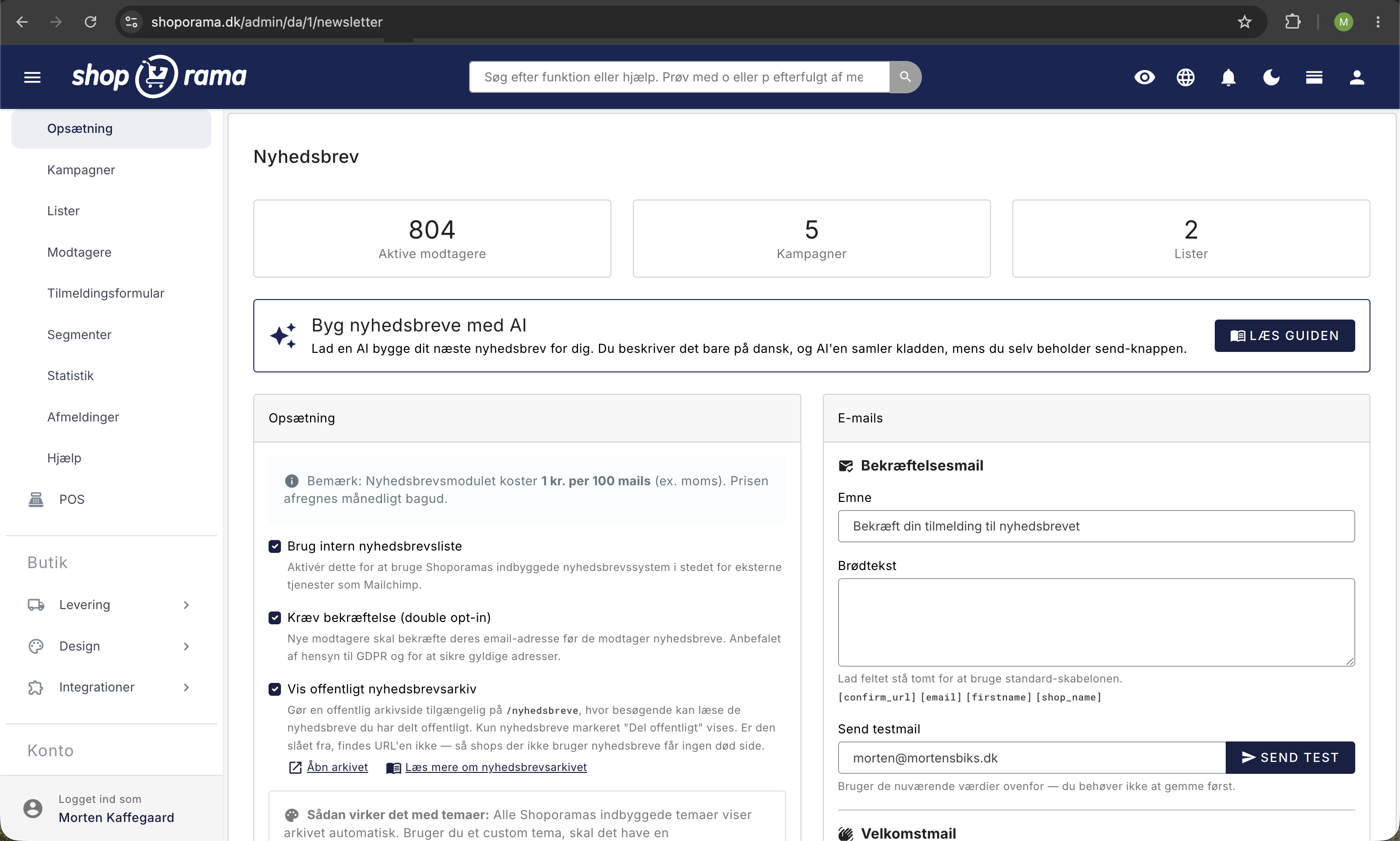
The price for the newsletter module is 1 DKK per 100 emails (excl. VAT), billed monthly in arrears.
Campaigns
A campaign is a newsletter you send to a group of subscribers. You create campaigns under Newsletter → Campaigns.
Each campaign has the following steps:
- Subject — Set the subject line and preheader, and enable A/B testing if desired
- Content — Build your newsletter using the visual block editor
- Settings — Give the campaign an internal name, and select recipient lists and segments
- Send — Send immediately or schedule delivery for a specific time
The Block Editor
Newsletters are built from blocks that you can add, move, and edit using drag-and-drop. The available block types are:
- Text — Free-form text with a headline and HTML formatting via the TinyMCE editor
- Products — Display products from a category, landing page, or manually selected products (2–4 per row, with optional price and call-to-action button)
- Image — Upload an image with an optional link
- Images in a Row — Display up to four clickable images side by side, where each image can have its own link
- Button — Call-to-action button with text and URL
- Separator — Horizontal line or blank space between sections
- Header/Logo — Store logo and name with a link to the homepage
- HTML — Plain HTML for full control over the layout. Note: Smarty tags are not evaluated in the HTML block—if you need conditional content or product data, use a custom theme template (see the section on the product block)
Personalization with shortcodes
You can personalize your newsletters with shortcodes that are automatically replaced with the recipient’s information:
- [firstname] — The customer’s first name
- [lastname] — The customer’s last name
- [name] — Full name
- [email] — Email address
- [order_count] — Number of orders the customer has placed
- [last_order_date] — Date of most recent purchase
- [total_spent] — Total amount spent in the store
- [days_since_order] — Number of days since the last purchase
- [shop_name], [shop_url], [shop_phone], [shop_email] — Store information
- [unsubscribe_url] — Unsubscribe link (GDPR requirement)
Lists and Subscribers
Subscribers are organized into lists. You can create multiple lists for different purposes, such as “General Newsletter,” “Special Offers,” or “Product News.” Subscribers can belong to multiple lists at the same time.
Under Newsletter → Recipients, you can:
- Search for and filter subscribers
- Add or remove subscribers from lists
- Import and export subscribers via CSV
- View the status of each subscriber (active, pending, unsubscribed, bounced)
- Perform bulk actions such as unsubscribing or deleting
You can also merge or clone lists to reorganize your subscribers.
Import recipients from a CSV file
If you already have a recipient list from another service, a spreadsheet, or a trade show, you can import it directly into the module. Go to Newsletter → Recipients and click Import.
The file must be a CSV file with semicolons as delimiters and a header row at the top. The column names must be:
- email: required. Rows without a valid email address will be skipped.
- firstname: optional. Used, among other things, by the [firstname] shortcode.
- lastname: optional.
Before clicking Import, check the boxes next to the lists to which the recipients should be added. Your default list is preselected. Once the import is complete, you’ll receive a confirmation showing how many were imported, how many were skipped, and which addresses were rejected.
Addresses that already exist in your recipient list will be updated rather than created from scratch, so you don’t end up with duplicates. Alternatively, you can export your active subscribers again using the Export button, which provides you with a CSV file containing email, first name, last name, source, and sign-up date.
Important: A CSV import reactivates previously unsubscribed recipients. If your file contains an unsubscribed address, the import will reactivate it and remove the unsubscribe date without asking the person for confirmation. This happens even if you have enabled “Require Confirmation” (double opt-in), because the import does not send a confirmation email: imported addresses become active immediately. Furthermore, no documentation of consent—such as the IP address and browser information from the sign-up process itself—is saved, as is the case when a customer signs up via the store’s forms or pop-ups. Therefore, clean your file by going to Newsletter → Unsubscriptions before importing, and keep your own record of where and when the recipients gave their consent.
If you want a complete walkthrough of the recipient list—including search, filters, bulk actions, and the import format step by step—read the guide “Recipients” in the newsletter module.
Segmentation
With segments, you can target campaigns to specific customer groups based on their behavior. Segments are dynamic—they update automatically based on the rules you define.
Available segmentation rules:
- Number of Orders — Customers with a specific number of purchases
- Total Spend — Customers who have spent more than a specific amount
- Latest order — Customers whose most recent purchase was X days ago
- Sign-up date — Customers who have been subscribers for X days
- Category purchases — Customers who have purchased from specific categories
- Product purchases — Customers who have purchased specific products
- Label purchases — Customers who have purchased products with specific labels
- List membership — Customers who are members of specific lists
The rules can be combined using either AND (all rules must match) or OR (at least one rule must match). You can see the current number of matching subscribers in real time while building the segment.
A segment is 100% rule-based. This means you cannot exclude a single recipient from a specific mailing, even if you want to skip that particular person. If you want to avoid sending to a specific person, you have three options: adjust the rules so that the person falls outside the segment, use a regular list instead of a segment for that specific mailing, or mark the recipient as unsubscribed under Newsletter → Recipients. Note that “unsubscribed” applies to all future mailings, not just this one.
A/B Testing
With A/B testing, you can test two different subject lines against each other to find the one that works best. Here’s how it works:
- Enable A/B testing on the campaign’s Subject tab
- Select a test size: 10%, 20%, or 30% of the recipients
- Write an alternative subject line (variant B)
- Choose what determines the winner: open rate or click-through rate
- Select the wait time: 2, 4, 8, or 24 hours before the winner is sent to the rest
The test group is automatically split 50/50 between variants A and B. After the wait time, the winning variant is sent to the remaining recipients.
Tip: Start with a test size of 10–20% to get a reliable result before the rest of the recipients receive the best newsletter.
Automatic Triggers
Triggers are automated campaigns sent based on customer behavior. You can create the following trigger types:
- After Purchase — Send automatically X days after a customer’s purchase. You can limit this to orders above a certain amount. Ideal for follow-ups, review requests, or upselling
- Inactive customer — Target customers who have shopped with you before but haven’t made a purchase in X days. Perfect for win-back campaigns
- Welcome (after sign-up) — Send automatically X days after a new newsletter sign-up. Great for a welcome series or an introductory offer
Triggers run automatically and keep track of which customers have already received the email, so no one gets the same trigger email twice.
Pop-up sign-up forms
With pop-up forms, you can collect new newsletter sign-ups directly on your online store. You’ll find this feature under Newsletter → Sign-up Form.
Important: Pop-up forms require that the internal newsletter system be enabled. Check the box for “Use internal newsletter list” under Newsletter → Setup, and save. If this option is not enabled, the pop-up won’t appear on your online store at all, and sign-ups cannot be completed. This applies even if the pop-up is listed as active.
Available pop-up types:
- Modal — Centered popup with a dark background
- Slide from the bottom — Slides up from the bottom of the page
- Slide from the left/right — Slides in from the side
You can set when the popup appears:
- Time delay — Display after X seconds
- Scroll depth — Show when the user has scrolled down X%
- Exit intent — Show when the user is about to leave the page
The pop-up can be customized with a headline, description, button color, image, and consent checkbox. When a user closes the pop-up, it won’t appear again for a configurable number of days (default 30 days). You can track conversions and impressions in the statistics.
Double opt-in
To comply with GDPR, you can enable double opt-in in the newsletter settings. When enabled, new subscribers receive a confirmation email that they must click to confirm their subscription. Subscribers who do not confirm remain in “pending” status and do not receive campaigns.
You can customize the subject line and content of the confirmation email. Use the shortcode [confirm_url] to insert the confirmation link.
Welcome Email
You can enable an automatic welcome email that is sent to new subscribers. The welcome email allows you to welcome new subscribers with, for example, a discount code, an introduction to the store, or information about what they can expect.
The welcome email is sent at different times depending on your setup:
- Without double opt-in — Sent immediately when the subscriber signs up
- With double opt-in — Sent after the subscriber has confirmed their email address
You can customize the subject line and body text in the newsletter settings. In the body text, you can use shortcodes such as [firstname], [email], [shop_name], and [shop_url].
Statistics
For each campaign, you can view detailed statistics:
- Sent — Number of emails sent
- Open rate — Percentage of recipients who opened the email
- Click-through rate — Percentage of recipients who clicked a link
- Orders — Number of orders generated from the campaign
- Revenue — Total revenue from the campaign’s orders
- Pending — Number of emails that have not yet been sent
For A/B test campaigns, the statistics are broken down by variant so you can see exactly which variant performed best.
Statistics overview of all campaigns
In addition to the figures for each individual campaign, you’ll find a consolidated overview under Newsletter → Statistics. Here, all your sent campaigns are listed in a single table, so you can compare them side by side instead of clicking into them one at a time.
The table includes the following columns:
- Campaign: the name of the campaign. Click on it to go to the campaign’s own statistics page.
- Sent: the date the campaign was sent.
- Recipients: the number of people on the mailing list.
- Opened and Open Rate: how many people opened the email and what percentage that represents.
- Clicks and Click-Through Rate: how many people clicked on a link in the email, and the percentage.
- Unsubscribed: How many people unsubscribed after receiving this specific campaign. This number links to the Unsubscriptions page.
The open rate and click-through rate are calculated based on how many emails were actually sent, not based on the “Recipients” column. For a campaign that has been fully delivered, the two figures are the same.
Unsubscriptions are attributed to the last campaign the recipient received before unsubscribing. A campaign may therefore still have unsubscriptions attributed to it days after it was sent if nothing new has been sent in the meantime.
The overview shows only campaigns that have been sent. Drafts, scheduled campaigns, and campaigns that are in the middle of a send or an A/B test will not appear until they are complete. The most recently created campaign appears at the top, and there are no page breaks: all your sent campaigns are listed on the same page. If you haven’t sent anything yet, it simply says “No campaigns sent yet.” You won’t find orders and revenue in the overview, but on the statistics page for each individual campaign.
Tip: Look down the “Unsubscribed” column, not just at the open rate. A newsletter with a high open rate but also many unsubscribes is a sign that the subject line promises more than the content delivers, or that you’re sending too often. It’s cheaper to correct this after a single mailing than to rebuild a list you’ve burned through.
If you have any questions about the newsletter module, feel free to contact us at support@shoporama.dk.
Preheader
The preheader is the short text that appears after the subject line in the recipient’s inbox. It provides additional context and can increase the open rate. You’ll find the field on the campaign’s “Subject” tab, right below the subject line.
The Product Block in Detail
The product block has several settings you can customize:
- Source — Choose between category, landing page, or featured products
- Number — How many products are displayed (1–12 or all)
- Per row — 2, 3, or 4 products per row
- Show price — Turn the price on or off per block
- Show button — Add a call-to-action button below each product with custom text and colors
Prices and buttons are automatically adjusted to align at the bottom of the row—even if the product titles are different lengths.
Featured Products
In addition to automatic sources (category, landing page), you can select “Featured Products” as a source. Search for products and add them manually. Drag the products to reorder them.
Customize the product block in your theme
If you have specific layout requirements—such as prices per meter, custom badges, or special colors—you can create your own newsletter/products.html file in your theme. This gives you full control over the markup. The following variables are available in the template:
- $products — List of product objects
- $webshop — The online store
- $currency — Currency code (e.g., "DKK")
- $per_row — Number of products per row
- $max_products — Maximum number of products
- $show_price, $show_button, $button_text, $button_bg_color, $button_text_color — Block settings
You have full Smarty access in the template and can, for example, display prices based on the product’s attributes:
<{if $product->getAttributeValueByName('Fabric') == "1"}>
    <{$product->getRealPrice()*100|number_format:2:",":"."}> <{$currency}>/m
<{else}>
    <{$product->getRealPrice()|number_format:2:",":"."}> <{$currency}>
<{/if}>
Place the template in [theme]/templates/newsletter/products.html. Other block types can be customized in a similar way using newsletter/text.html, newsletter/button.html, newsletter/image.html, newsletter/image-row.html, newsletter/header.html, and newsletter/divider.html.
Images in a Row in Detail
The " Images in a Row " block lets you display multiple images side by side in the same horizontal row, where each image can have its own link. It’s the easy way to create clickable banners and a beautiful, clean layout without having to fiddle with columns or widths yourself. Instead of the images being stacked one below the other and taking up a lot of vertical space, they sit neatly side by side.
When should you use this block?
Use “Images in a Row” when you want to design the graphics yourself and decide where each image links to. Each image functions as its own small ad, so customers can click on exactly what catches their interest. Typical examples:
- Two or three campaign banners side by side, each with its own link to a category, a campaign page, or a single product.
- Shortcuts to your most important categories, such as “Women,” “Men,” and “Kids.”
- A collage of inspirational images, where each image leads to the relevant section of the store.
The Four Image Slots
The block has four fixed image slots, and they’re all optional. You can use just one image or fill all four, depending on what you want your newsletter to display. Empty slots are simply skipped so there are no gaps in the row. For each slot, you can specify:
- Image: Upload a file in JPG, PNG, GIF, or WebP format.
- Link: An optional URL that the image will take the recipient to when clicked. If an image has a link, it becomes clickable in the recipient’s inbox. If you omit the link, the image will simply appear as a regular image.
- Alt text: A short description of the image. It appears if the image cannot be loaded, and it is read aloud by screen readers, thus improving accessibility and helping recipients with visual impairments.
The width adjusts automatically
You don’t need to calculate widths yourself. The row automatically distributes the space based on how many images you’ve added:
- One image fills the entire width.
- Two images each take up half the width.
- Three images each take up about one-third.
- Four images each take up one-fourth.
Empty spaces don’t count, so the layout always looks right. The row holds a maximum of four images, so there’s plenty of space for each one, even when the newsletter is opened on a mobile device. If you use images with roughly the same aspect ratio, they’ll align neatly next to each other.
Change or Remove an Image
To replace an image, simply select a new file for the same slot and save; this will replace the old one. To remove an image, check the “Remove image” box below the image and save. The checkbox only appears in slots that already have a saved image, so you won’t search for it in vain in an empty slot. If you upload a new file to the same location where you’ve checked the “Remove Image” box, the new file will take precedence, and the image will be replaced instead of removed. When an image is removed, the remaining images shift to fill the space, and the row adjusts its width again.
Built for email
The block is built as a simple and robust table that works in common email programs such as Gmail, Outlook, and Apple Mail. There are no advanced features involved, precisely because email programs are more finicky than a regular website. Just select your images, and the rest takes care of itself—the row will retain its layout when viewed by the recipient.
For theme developers: If you want to control the block’s appearance yourself, your theme can include the file newsletter/image-row.html. If it exists, it will be used instead of the default table, and you’ll have access to the variables `images ` (the filtered list of images, where each image has the fields `image`, `link_url`, and `alt_text`), `per_row ` (number of images in the row), and `webshop`. If the theme does not have such a file, the built-in, email-friendly table is used automatically.
Pause and Resume Campaigns
While a campaign is being sent, you can temporarily pause the delivery. Click “Pause” in the status box on the campaign’s “Settings” tab. The campaign will revert to draft status, allowing you to correct any errors before the remaining recipients receive the email. Please note that the recipient list is rebuilt from scratch when you resume sending the campaign: recipients who have already received the email will therefore receive it again. Contact support@shoporama.dk if you need a partially sent campaign to resume where it left off.
Customize the sender name and email
You can change the sender name and sender email address for your newsletters under Newsletter → Settings. If the fields are left blank, the online store’s default email and name will be used.
Custom button colors
In the campaign’s block editor, you can select the background and text colors for buttons using a color picker. This allows you to match the newsletter to your brand without editing HTML.
Welcome Email
You can enable a welcome email that is automatically sent to new subscribers. The welcome email is set up under Newsletter → Settings and can be customized with a personal message. It uses your theme’s email layout so it matches your other emails.
Share Your Newsletters Publicly
Once you’ve created a newsletter, you can publish it as a public, shareable web page that anyone can read, even those who haven’t subscribed. It’s perfect for sharing on Facebook, in an email, or on your website. The public version appears in your shop’s own design and says “Hello, reader” instead of a personal name, so “Hello First Name” never appears on the page.
You can also collect all your publicly shared newsletters in a newsletter archive at the address /newsletters, so new visitors can browse your entire back catalog in one place. You can enable the archive in the Setup tab under Newsletter, and you’ll find the full instructions in the guide “Share Your Newsletter as a Public Link.”
Unsubscriptions and the Block List
Under Newsletter → Unsubscriptions, you’ll find everyone who has unsubscribed from your newsletter, with the most recent unsubscription at the top. This page serves both as proof that unsubscriptions are honored and as a tool to identify which content is causing you to lose subscribers.
For each unsubscribe, you can see when it occurred, the email address and name, when the person originally subscribed, the source of the subscription, which lists they were on, and which campaign was the most recent one they received before unsubscribing. That last column in particular is worth its weight in gold: if unsubscriptions are clustered around the same newsletter, you’ll know exactly where to look.
You can narrow down the list to a specific time period using the From and To fields—for example, to track trends month by month—and you can choose to display 25, 50, 100, or 200 rows at a time. At the top, you’ll see the total number of unsubscriptions for the selected period.
Unsubscribed recipients are not deleted. They remain on a block list so you can always see who has unsubscribed, and they are not included in mailings, since only recipients with active status receive campaigns. An unsubscribed recipient will only be added back to the list if they re-subscribe in the shop themselves, or if you import the address from a CSV file. This is precisely why you must filter your import file against this list before importing. If a recipient requests that their personal data be permanently deleted, the entry must be manually removed under Newsletter → Recipients.
The entire unsubscribe process—from the unsubscribe link in the email to what you can and cannot do afterward—is described in the “Unsubscriptions” guide in the newsletter module.
Frequently Asked Questions
My pop-up isn’t showing up on my online store. What could be wrong?
The most common cause is that the internal newsletter system is not enabled. Check the following:
- "Use internal newsletter list " must be selected under Newsletter → Setup. Without it, the pop-up will never appear.
- The pop-up must be active in the list under Newsletter → Sign-up Form. Only one pop-up can be active at a time.
- The pop-up never appears during checkout (cart, address, shipping, confirmation, payment, and receipt) so that a customer isn’t interrupted in the middle of a purchase.
- If you’ve selected specific pages under “Show on these pages,” it will only appear there.
- If “Show on Mobile” is turned off, you won’t see it on a phone or tablet.
I can’t bring up the pop-up myself, even though it’s active. Is that because I’ve visited the page before?
Yes, most likely. When a visitor closes the pop-up, a cookie is stored so that it won’t appear again for a certain number of days (default 30). If you’ve already seen and closed it, it won’t reappear until that period has elapsed. Open your online store in a private/incognito window to view it as a new visitor.
How do I test the pop-up without waiting for a real customer?
Use the Preview button next to the pop-up under Newsletter → Sign-up Form to see the design immediately. If you want to test how it actually behaves on the store (delay, scroll, or exit intent), open your online store in an incognito window so you aren’t affected by a previous cookie.
How can I tell if a sign-up was successful?
You’ll find new subscribers under Newsletter → Recipients with the source “popup.” If you use double opt-in, a new subscription will appear as pending until the person has clicked the confirmation link in the email. Only then will it become active. You can also track the pop-up’s impressions and conversions in the statistics on the pop-up list.
Do I need to use double opt-in, and is documentation of consent saved?
Double opt-in is recommended to comply with the GDPR and to ensure valid email addresses. You can enable it in the newsletter settings. Regardless of whether you use double opt-in, Shoporama stores documentation for every consent received via the store’s own sign-up forms or pop-up, including the time, IP address, and browser information, so you can provide it if needed. However, for recipients you import yourself from a CSV file, this documentation is not stored because consent was given outside the store.
How much does it cost to use pop-ups and newsletters?
The pop-up itself and the collection of sign-ups do not incur any additional costs. You only pay to send newsletters: 1 DKK per 100 emails (excl. VAT), billed monthly in arrears.
Can I control which pages the pop-up appears on?
Yes. Under “Show on these pages,” you can select all pages or target specific page types:
- Product pages
- Category pages
- Landing pages
- Information pages
- Blog posts
Regardless of your choice, the popup will never appear on checkout pages.
Does the popup work on mobile and with my own theme?
Yes. You can enable or disable mobile display using “Show on Mobile.” If you choose “exit intent” as the trigger, it automatically switches to “scroll” on mobile, since there’s no mouse cursor that can leave the screen. The popup is automatically added to your pages and requires no special setup in the theme, so it also works in a custom theme.
What happens if I don’t have four images ready? Can I just use two?
Yes, that’s perfectly fine. All four image slots are optional, so just fill in the ones you want to use. The row adjusts automatically: one image fills the entire width, two split the space equally, and three each take up about one-third. Empty slots are simply skipped so there are no gaps in the row.
Can each image link the customer to a different campaign page?
Yes. Each of the up to four image slots has its own link field, so you can direct each image to the specific category, campaign, or product it’s about. Images without a link are simply displayed as regular images that can’t be clicked. You can also enter alt text for each image to describe the subject matter for customers who cannot view the images.
When should I choose “Images in a Row” instead of the product block?
Choose "Images in a Row" when you want to design the graphics yourself and decide where each image links to—for example, banners, a collage, or category shortcuts. The Product Block, on the other hand, retrieves actual products from your store with an image, price, and a link that updates automatically. In short: Use “Images in a Row” for your own custom visuals, and the Product Block for specific products with prices.
I have a list of customer emails in a spreadsheet. Can I just import it?
Yes. Save the spreadsheet as a CSV file with semicolons separating the columns, and make sure the top row is labeled email;firstname;lastname. Then select the file under Newsletter → Recipients → Import, check the boxes next to the lists you want to add them to, and click Import. Just be aware of one thing first: if the file contains addresses that have previously unsubscribed from your newsletter, they’ll be reactivated without their consent. Therefore, go through the list under Newsletter → Unsubscribes and delete those addresses from your file before importing.
Can I prove that my subscribers have given their consent?
It depends on how they were added. When a customer signs up themselves via a sign-up form or a pop-up on the store, Shoporama automatically saves the time, IP address, and browser information along with the sign-up. However, if you import recipients from a CSV file, that documentation isn’t available, since consent was given somewhere other than in the online store. If you need to provide proof, be sure to save the source of the imported addresses—that is, where and when they gave their consent—along with the file you imported.
Why doesn’t the open rate match the number of recipients in the overview?
Because the open rate and click-through rate are calculated based on how many emails were actually sent, not based on the “Recipients” column. “Recipients” refers to everyone on the mailing list, while “Sent” refers to those who actually received the email. For a mailing that has run its entire course, the numbers will be the same. If you paused or stopped a campaign along the way, there will be fewer “Sent” entries, and the rates will be calculated only based on those who actually received the email. This is actually an advantage: you get an accurate figure instead of an artificially low rate.
My campaign isn’t listed in the statistics overview. Where is it?
The overview under Newsletter → Statistics shows only campaigns that have been fully sent. Drafts, scheduled sends, campaigns currently being sent, and A/B tests that are still running will only appear once the send is complete. Until then, you’ll find them under Newsletter → Campaigns. If you run multiple stores, please also note that the overview only covers the store you’re logged into.
If you need help, you’re always welcome to email us at support@shoporama.dk.
Related articles
Unsubscribe links in automatic emails
Give your customers the option to unsubscribe from automatic follow-up emails after purchases and product reviews - with a simple link in the email.
Blacklist - Block unwanted orders
Learn how to use Shoporama's blacklist feature to block spam orders and unwanted customers by blacklisting email, phone number or IP address.
Export customers who have purchased a specific product
Guide to export a list of customers who have purchased a specific product and send them an email.
Related features
Email marketing
Integrate with Klaviyo, Brevo, Mailchimp, Ubivox or Campaign Monitor, or use Shoporama's own newsletter system. Automatic synchronization and event...
Newsletter system - send professional newsletters directly from Shoporama
Built-in newsletter system with A/B testing, segmentation, product blocks and statistics. Integrates with Brevo, Klaviyo and HeyLoyalty. Included...
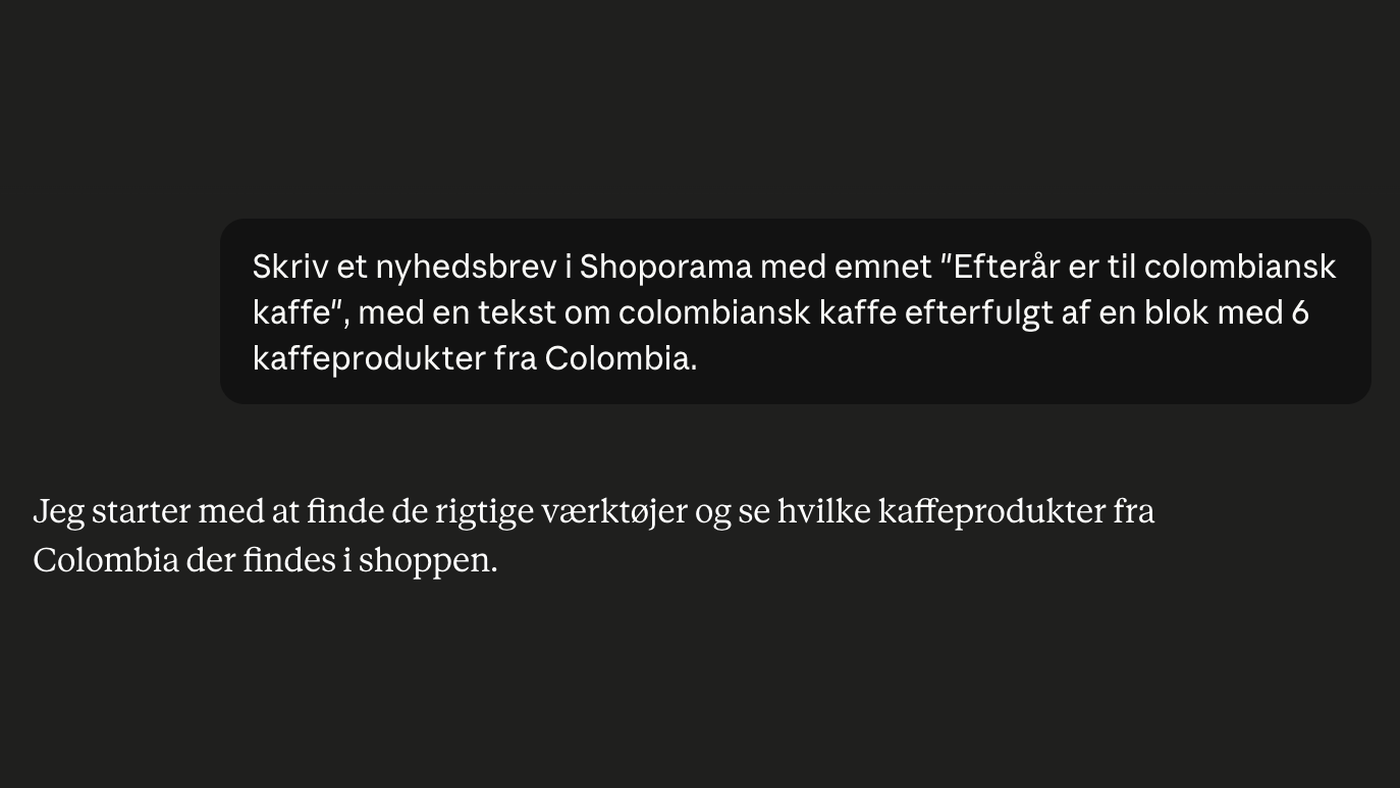
Build your newsletters with AI: you describe, the AI compiles, you send
Describe your newsletter in plain Danish, and the AI will put together the entire draft, including text and products. The AI can do everything...
Shoporama vs DanDomain
Compare Shoporama and DanDomain on price, speed, AI features and integrations. See which Danish webshop platform is best for your business.
Shoporama vs WooCommerce
Compare Shoporama and WooCommerce: price, security, speed, GDPR and maintenance. Find the best online shopping platform for your business.