Set up Dinero integration
Guide to setting up Dinero integration with Shoporama to automatically transfer sales to the accounts.
Dinero is a popular Danish accounting program. With Shoporama’s Dinero integration, you can automatically transfer orders to Dinero as invoices. This guide shows you how to set up the integration.
Prerequisites
- A Pro subscription with Dinero
- An active Shoporama online store
Step-by-Step Setup
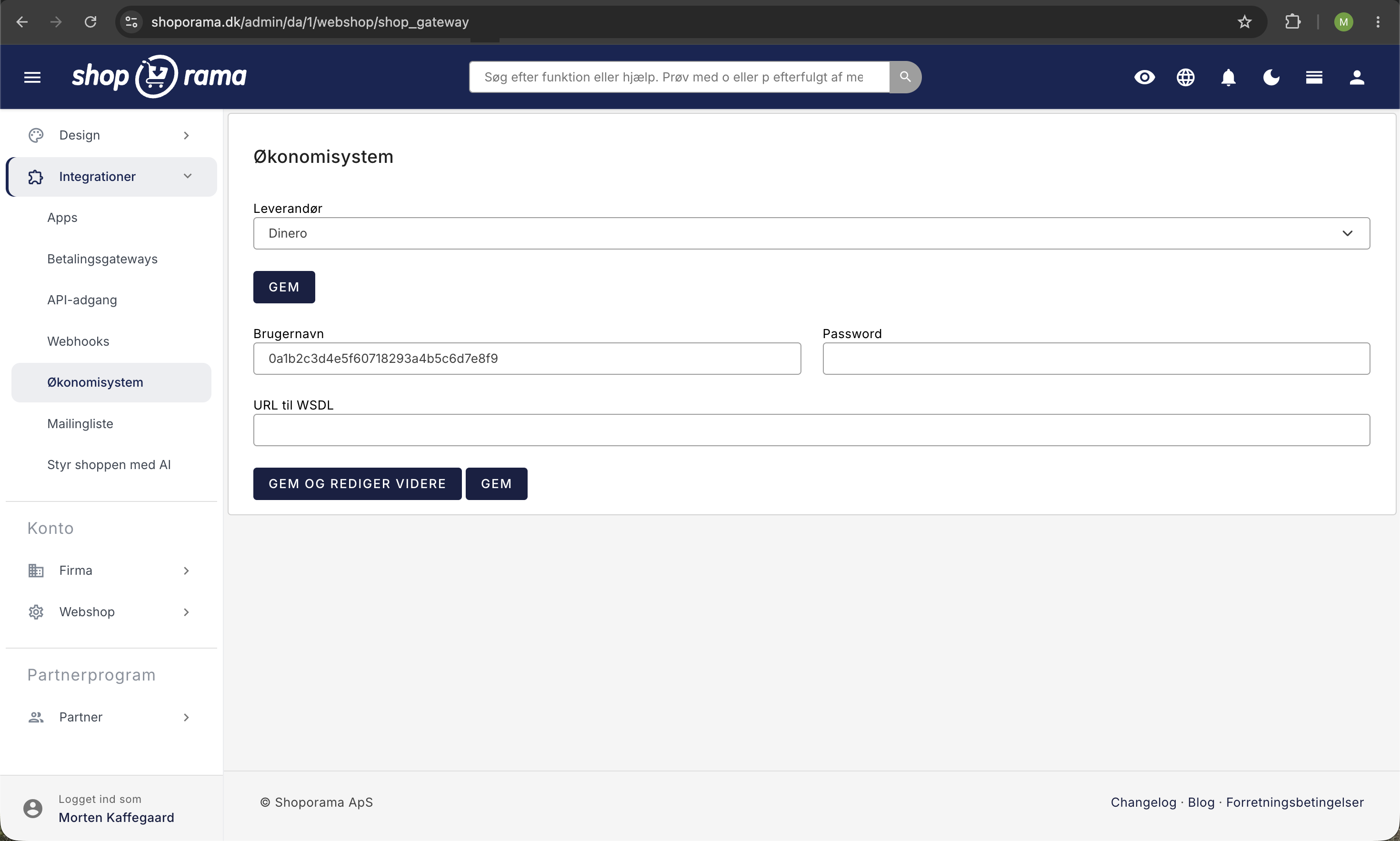
- Log in to Shoporama and click " Integrations " in the left-hand menu
- Click "Accounting System"
- Select “Dinero” from the Accounting System dropdown
- Click “Save and Continue Editing”
- Click "Accounting System" in the gray menu at the top
- Click the "Connect to Dinero" button
- You’ll be redirected to Dinero’s website—authorize the Shoporama app
- You’ll be automatically redirected back to Shoporama
Configure the integration
Once the connection is established, configure the following:
- Click "Save and continue editing"
- Select your organization in Dinero (you typically have only one)
- Select when orders should be transferred —upon payment or upon shipment
- Select the accounting account — e.g., "accounts receivable" or "online store sales"
- Click Save
Recommendation for the accounting account
We do not recommend posting transactions directly to your bank account. The reason is that you typically do not receive the full amount—fees for NETS, Clearhaus, and others are deducted. If you sell for 249 kr., you might only receive 241 kr. in your bank account. Instead, use an intermediate account such as “webshop sales.”
How the integration works
When an order is processed in your online store, the following happens automatically:
- The customer is created in Dinero (using their email address as the key—only the first time)
- An invoice is created in Dinero with the customer as the contact
- The invoice is posted at the selected time
- The sale is recorded in the selected account
What can the integration do—and what’s coming next?
Here’s what the integration does today
- Automatically creates customers in Dinero (using email as the key)
- Creates invoices in Dinero with order lines
- Automatically posts entries to the selected account
- Supports transfers upon payment or shipment
What the integration cannot do yet
- Does not post to different accounts based on payment type (e.g., Dankort, MobilePay, Klarna)
- Does not support account-specific posting based on VAT type or product type (e.g., used VAT, shipping without VAT)
- Does not automatically mark payment types as "paid" vs. "unpaid"
- Does not support automatic transfer of Shoporama’s own subscription invoices to Dinero
Coming soon
- Improved line-by-line transfer with correct account references
- Ability to control bookkeeping based on payment type and VAT rate
Do you need help with the Dinero integration? Contact us at support@shoporama.dk.
Related articles
Set up E-conomic integration
Step-by-step guide to install Shoporama's e-conomic app from the App Store and set up automatic transfer of orders.
Billy's Billing integration
Guide to setting up Billy's Billing in Shoporama. Automatically transfer orders to your accounts, synchronize products and post payments.
Troubleshooting E-conomic integration
Guide to troubleshooting the e-conomic app in Shoporama. Fix sync issues, failed transfers and incorrect posting.
Related features
Webshop with Dinero
Integrate Shoporama with Dinero and have orders and credit notes transferred automatically. Here's how to set up the integration - quickly and...
Accounting programs
Automatic posting of orders in e-conomic, Dinero or Billys Billing. Products, customers and VAT are transferred automatically.