Set Up a Google Shopping Feed
Guide til at opsætte Google Shopping Feed i Shoporama: kategorier, custom labels, produkt-id og katalogmatch samt lands- og sprogfeeds.
The Google Shopping Feed is built into Shoporama and updates completely automatically. Below, you can read about how to set it up and customize it, as well as what it supports. If you need a feed in a different format, you can also build your own feeds.
What does the shopping feed require?
To get the most out of Google Shopping, your products should be assigned a category. These are categories selected by Google. You can view all categories here.
You can assign a Google Shopping category to your product in two ways:
You can choose to have the product share the same shopping category as its main category. This is the easiest and fastest way to do it, since you’ve likely already selected a main category for your product. Here, you select which Google Shopping category your main category should belong to. Once you’ve done that, your products will automatically “inherit” the same category. This is one method.
If you have individual products that need a different category, you can go into the product details and assign a specific Google Shopping category to those particular products. This is the second method for assigning a different Google Shopping category.
Here’s how to do it for categories:
- Go to Navigation → Categories
- Edit the category you want to assign a value to.
- Scroll down to "Google Category" and enter a keyword in the field, e.g., "goggles," then click "Search."
- A pop-up will now open showing all Google Shopping categories. Select the one that best fits and click "Save." The pop-up will then close.
- Click “Save” on the category.
Here’s how to do it for products:
- Go to Products
- Edit the product you want to assign a value to.
- Select the "Fields" tab.
- Scroll down to "Google Category" and enter a keyword in the field, e.g., "goggles," then click "Search."
- A pop-up will now open showing all Google Shopping categories. Select the one that best fits your product and click "Save." The pop-up will now close.
- Click "Save" on the product.
Note: If the product has both a main category with a Google Shopping category associated with it and a Google Shopping category associated with the product itself, the latter will be displayed in your feed.
Activate your shopping feed
Now all you need to do is activate your feed. Here’s how:
- Go to Account in the left-hand menu
- Select " Webshop " and open " General"
- Click the Feeds tab
- Check the box next to "Enable Google Shopping Feed?"
- If you want your best-selling products marked as “bestsellers” with a label, you can select a number. If you enter 30, we’ll mark the 30 best-selling products from the past 24 months.
- If you only want products with a specific markup in your feed, you can fill in the field that says "Include only products where the markup is at least." Here, you must enter the amount in the store’s currency (not as a percentage). For example, enter 30 if you want a markup of 30 on the product. This requires that you have entered the cost price for your products.
- Click “Save.”
The URL for your Google Shopping feed is located directly below the setup section.
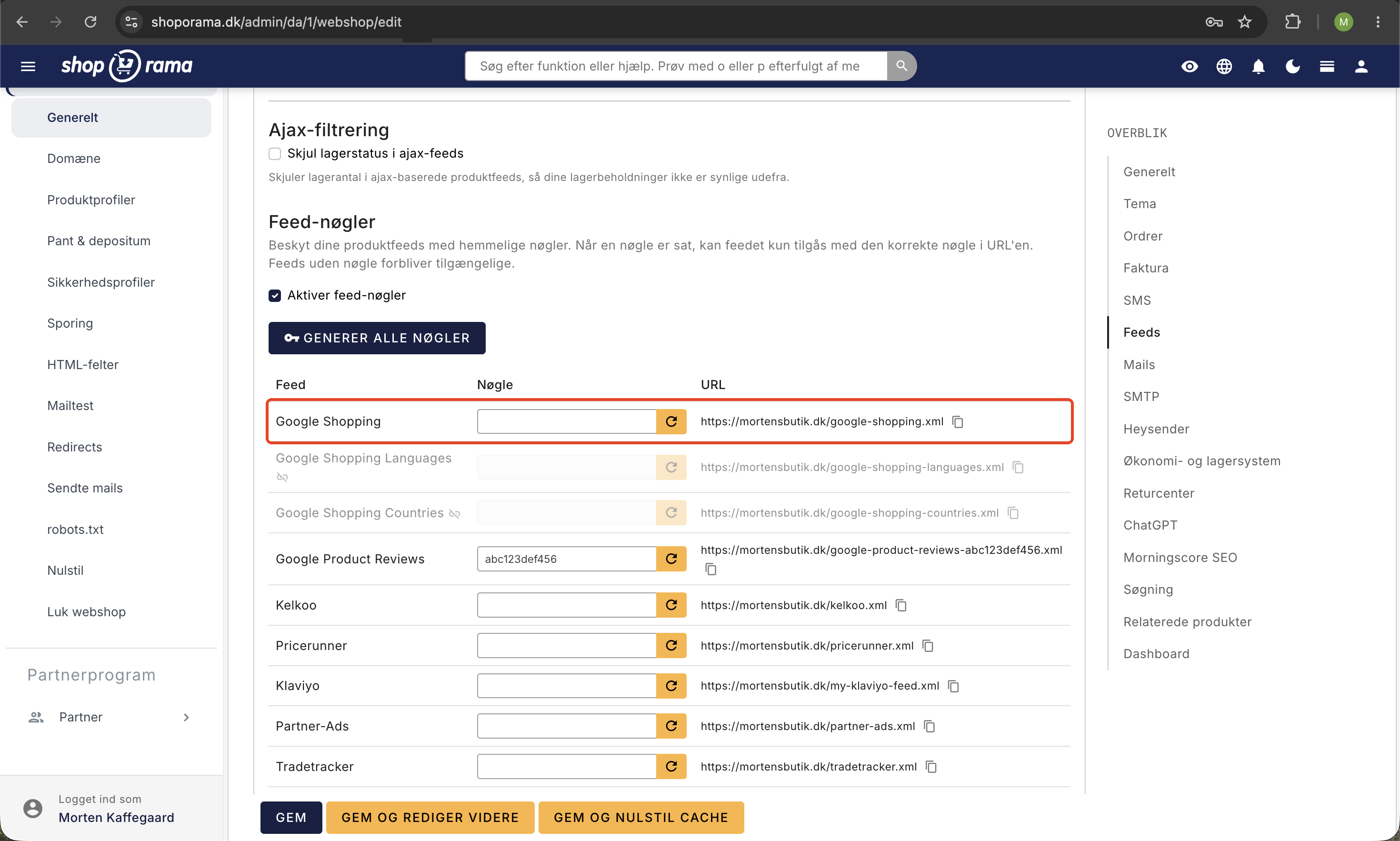
The product ID in the feed is the key to catalog matching
Each product in the feed has a unique ID in the g:id field. This ID is more important than it might seem at first glance: It’s the key that both Google and Meta (Facebook and Instagram) use to link ads and tracking events to the correct products in the catalog. If your tracking sends an ID different from the one in the feed, the platforms cannot match your events with the products, and dynamic ads and catalog sales will not work.
By default, the feed uses the product’s numeric ID in Shoporama. Variants are assigned an ID consisting of the product’s ID and the variant’s ID, separated by a colon. You usually don’t need to worry about this, because Shoporama’s built-in tracking automatically sends the same ID in all events, ensuring that the feed and tracking always match. You can read more about this relationship in “Product ID and Catalog Match” and about setting up Meta tracking in the Facebook Conversions API.
Country and Language Feeds: Product Number as ID
If you have multiple online stores on the same Shoporama account—for example, a Danish and a Swedish store—you can enable country and language feeds. This setting is located in the same place as the rest of the feed setup: Go to Account → Webstore → General, click the Feeds tab, and check the box next to “Enable country and language feeds?”. Note that this setting only appears if your account contains more than one online store, and that it must also be enabled for the other online stores in the account.
When country and language feeds are enabled, two things happen:
- The feed changes its ID scheme. Instead of the numeric ID, the product’s stock-keeping unit (SKU) is used as the ID. For variants, the variant’s own SKU is used, if it has been entered. The SKU is the stable key that links the same product across your country-specific stores.
- You’ll get two additional feeds: a country feed and a language feed that aggregate products from your stores. Links to both feeds appear right below the setting in the admin panel.
Shoporama’s built-in tracking is automatically included: When the feed uses SKUs, your tracking events also send SKUs, so catalog matching continues to work without any additional setup.
Important: Products without an SKU will receive an empty ID in the feed when country and language feeds are enabled, and therefore cannot be catalog-matched by either Google or Meta. Make sure all products and variants have an SKU before you enable this setting.
How often is the feed updated?
The feed updates automatically in the background. You don’t need to press a button or take any action to reflect your changes. There is no manual “update feed” function in Shoporama because it runs entirely on its own.
Here’s how it works in practice:
- When you edit a product (price, inventory, images, description, categories, etc.), the product’s data in the feed is updated immediately after you save. The entire feed is also marked as outdated, so the next time someone fetches the feed, a fresh version is delivered.
- The entire feed is also automatically rebuilt in the background every two hours if there have been changes to your products. If there have been no changes, Shoporama skips this rebuild to conserve resources.
- The cache for each product in the feed typically lasts 2 to 6 hours, but is refreshed immediately when you edit the individual product. So changes to a product appear faster than the time limit might suggest.
Tip: The frequency with which your products actually appear in Google Shopping and on price comparison sites (PriceRunner, Heureka, etc.) depends on how often they fetch your feed. Google Merchant Center typically fetches the feed once a day, and price comparison sites often do the same. Even though Shoporama delivers an updated version within a few minutes, it can take up to 24 hours for the change to be visible to the end user. You don’t control this in Shoporama, but rather in Google Merchant Center and with each individual price comparison site.
If you, as a store owner, want to ensure the fastest possible update on Google, you can set up a daily feed fetch in Google Merchant Center at a time that suits you (e.g., early in the morning). For critical corrections, Google also offers a “Fetch Now” feature in Merchant Center that forces an immediate retrieval of your feed URL.
Additional Customization
By default, the product name will appear in the title field of your feed. But this isn’t always the most appropriate choice. For example, you might have some dark blue shorts from Ralph Lauren called “Polo Ralph Lauren Prepster.” But that won’t trigger your ad when a user searches for “blue Ralph Lauren shorts.” That’s why you can enter a different text to use in your shopping feed. You do this under the product. Select the “Fields” tab and then enter a different title in the “Optional Google Shopping Title” field. This way, the new title will appear in your feed instead, allowing you to outrank your competitors.
Variants
If you have variants, they must all be listed as a single item_group.
Which products are included in the feed?
The feed contains the products that are online in your store and that a customer can actually purchase. This is not the same as “products with stock greater than zero.” Three groups:
- Items with stock: are always included and listed as “in stock.”
- Items out of stock that customers can still order: These are also included. These are the products for which you’ve checked the “Allow negative stock” box under the product’s “Stock” tab. They’ve always been included in the feed.
- Items without stock that cannot be ordered: are excluded. If you want to include them anyway, check the box for “Include out-of-stock products ” under the Feeds tab. They will then be listed as “out of stock.”
In addition, products where you’ve checked “Do not show in Google Shopping” on the product page itself, as well as gift cards and similar items, are excluded. If you’ve set a minimum profit margin requirement under the Feeds tab, products that don’t meet that requirement and products with no purchase price at all are excluded.
Items that can be ordered but are not in stock
If you have items that customers can buy now and have delivered later, Google has a special inventory status for exactly that: backorder. This tells Google that the item can be ordered but isn’t currently in stock. Items on backorder are still eligible for both Shopping ads and free product listings.
You can enable this under Settings → Online Store → the Feeds tab:
- Check the box for “Send backorder items as ‘backorder’ instead of ‘in stock.’”
- Fill in the Expected delivery time for backordered items (days). Google requires an expected delivery date for backorders, and we calculate it as today’s date plus the number of days you enter. If you enter 14, the item will be assigned a date 14 days from now, and it will automatically adjust so that the date never falls in the past.
- Save. The change will take effect in the feed with the next update.
Why this is beneficial: Google compares the inventory status you submit in the feed with the inventory status listed on the product page itself. If the two don’t match, Google may deactivate the item, and it will disappear from both ads and free product listings. If you report “in stock” for an item that’s listed as out of stock on the product page, that’s exactly what happens. With “backorder,” the feed and the page show the same information.
This setting is turned off by default, so you decide when to enable it. If you’re using one of Shoporama’s themes, the product page is already set up. If you have your own theme, the stock status on the product page must be updated so that it also says “backorder.” This is described in “Implement Structured Data.”
Additional things you should know
Discounted products
If your product has both a price and a sale price, both will appear in the feed.
There will also be a label labeled “on sale” on the product.
Other
If your product has a GTIN, an MPN, or a brand associated with it, these will also be included in the feed.
If you’ve marked a profile attribute with a “Special Purpose” (size, color, or gender), we’ll be able to extract this into the <g:size>, <g:color>, and <g:gender> fields. Note that for <g:gender>, there are only three valid values: Male, Female, and Unisex.
The product’s main category will appear as <g:product_type>
Custom Labels for Google Ads
The Google Shopping feed supports custom labels (custom_label_0 through custom_label_4). Custom labels are used in Google Ads to segment your products into campaigns and manage bidding, so you can, for example, bid higher on bestsellers or discounted items.
Automatic Custom Labels
Shoporama automatically sets two custom labels for you:
- custom_label_0 is automatically set to “on sale ” for products with a sale price.
- custom_label_1 is automatically set to “bestseller” for the best-selling products, if you’ve configured the bestseller count under the Feeds tab (see the section on activation above).
Custom labels via product labels
custom_label_2, custom_label_3, and custom_label_4 can be managed via product labels. Here’s how:
- Go to Products → Product Labels in the menu.
- Create a new label (or edit an existing one).
- On the label’s edit page, select a Google Shopping custom label slot (custom_label_2, 3, or 4).
- All products with that label will automatically have the label name as the custom label value in the feed.
You can easily apply labels to multiple products at once directly from the ABC Analysis and Inventory Statistics overview, so you can, for example, mark all your A-products or dead stock with a specific label.
Alternative method: You can still use additional fields (google-custom-label-2, google-custom-label-3, google-custom-label-4) to assign custom labels on a per-product basis. However, product labels are easier to manage in bulk, as you can assign and remove them from multiple products at once.
Also display star ratings on your Shopping ads
In addition to product data, you can submit your product reviews to Google so that star ratings appear alongside your products in Google Shopping and Shopping ads. This is a separate feed that you sign up for under “Product reviews” in Merchant Center. Learn how in “Get stars in Google Shopping with product reviews.”
Frequently Asked Questions
Do I need to click a button to update the feed?
No. The feed updates automatically as soon as you save a change to a product. There is neither an “update feed” button nor a setting for how often the feed should be regenerated. It runs automatically in the background.
How long does it take from the time I save a price until it appears in the feed?
The feed itself on Shoporama is typically updated within a few seconds to a few minutes after you save the product. How quickly the change appears in Google Shopping or on a price comparison site depends on how often they fetch the feed, which you control in their systems (typically once a day).
How often does Google Merchant Center fetch my feed?
You set the frequency yourself in Google Merchant Center, but the most common setting is once a day. You can also use the “Fetch Now” feature in Merchant Center to force a fetch if you’ve made an important correction and don’t want to wait until the next scheduled fetch.
I just corrected a spelling error. How do I get it updated quickly in Google?
Save the product in Shoporama. The feed itself is updated immediately. If it’s urgent for Google, log in to Google Merchant Center and use “Fetch Now” on your feed. Then Google will fetch the latest version right away instead of waiting for the scheduled fetch.
Do price bots respond faster than Google?
It varies from price bot to price bot. Most major price bots retrieve feeds daily, often overnight. Some have more frequent intervals for large customers. It’s the individual price bot’s configuration that determines the speed, not Shoporama.
If I perform a bulk update of many prices, will the feed be updated for all products?
Yes. Every time a product is saved (including via bulk tools or import), its data in the feed is updated. The entire feed is simultaneously marked as outdated and rebuilt during the next fetch or during the automatic background update.
Can I see when the feed was last built?
The clearest way to check is to open the feed URL in a browser and view the content. You can also check in Google Merchant Center to see when Google last fetched the feed and whether there were any issues with it. Shoporama does not display a timestamp feature directly in the admin panel.
Does a cache delay affect my ads?
It’s possible that a product’s price or inventory status in Google Shopping may be a few hours behind your online store. This is usually due to Google’s own fetch frequency, not Shoporama. Make sure to set realistic buffer times, especially leading up to campaigns and sales periods, so that a product isn’t listed as available for purchase on Google when it’s actually sold out.
What happens if I take a product offline?
The product will be removed from the feed during the next update, because the feed only includes products that are online. It will therefore disappear from Google Shopping during the next crawl.
What ID do my products have in the feed?
By default, it’s the product’s numeric ID in Shoporama, and variants are assigned the product ID followed by the variant ID, separated by a colon. If you’ve enabled country and language feeds, the stock-keeping unit (SKU) is used instead. Shoporama’s built-in tracking always sends the same ID as the feed, so you don’t need to keep them synchronized yourself.
Why aren’t my products being matched in Meta’s catalog?
Meta matches your tracking events against the catalog using the product ID, so the event ID must be identical to the feed ID. With Shoporama’s built-in tracking, they match automatically. If you use country and language feeds, all products must have a product ID; otherwise, the ID field will be empty in the feed, and the product cannot be matched. Read more in Product ID and Catalog Matching.
My products are in the feed, but Merchant Center shows far fewer active products. Why?
Count the number of products in the feed file itself and compare it to the number of active products in Merchant Center. If there’s a significant difference, the products have been submitted but rejected by Google. The most common reason is that the feed shows “in stock,” while the product page shows “out of stock.” Check under Diagnostics in Merchant Center for an error regarding a mismatched inventory status. The solution is the backorder setting described above.
We sell a lot of items on backorder. Should we enable backorders?
If you have many products that customers can buy even when they’re out of stock, then yes. That’s the inventory status that fits the situation, and it keeps the products visible instead of risking Google deactivating them. If you only have a few such products, it matters less.
Does it cost me money to have out-of-stock items in the feed?
Not in and of itself. In addition to paid Shopping ads, Google also displays products in free product listings, where you don’t pay per click. If you don’t want to advertise out-of-stock items, you can manage this in Google Ads instead of excluding the products from the feed—that way, you’ll retain the free visibility.
What should I enter in the “number of days” field?
Enter the delivery time you can realistically meet for backordered items. If it’s typically two weeks, enter 14. The date is calculated based on the day the feed is generated, so it updates automatically. If you leave the field blank, the item will be sent as a backorder without a date, but Google prefers to include the date.
I’m using my own theme. Will backorders still work?
The feed itself works regardless of the theme. However, the stock status on your product page comes from your theme, and it must match the feed; otherwise, the discrepancy that Google reacts to will occur. See Implement Structured Data for the correct code.
Need help? Contact us at support@shoporama.dk.
Related articles
Include color and size in Partner Ads feed
Guide to adding color, size and gender to your Partner Ads feed in Shoporama via product profiles and extra fields.
Set up Partner Ads in Shoporama: getting started
Introduction to Partner Ads in Shoporama. Understand what it is, what you get out of it, and get started quickly with product feed and tracking.
Google Shopping category ID on products
Guide to adding Google Shopping category IDs to products in Shoporama via extra fields.
Build your own feeds
Guide to building your own product feeds in CSV, XML or JSON format with Shoporama's custom feed feature.
Google Ads conversion tracking
How to set up Google Ads conversion tracking in Shoporama. Target Add to Cart, Begin Checkout and Purchase with Conversion ID and labels, as well...
Product IDs and Catalog Match: How to Ensure Your Ads Match Your Product Feed
An explanation of which product ID Shoporama’s tracking sends, why it always matches the Google Shopping feed, what “catalog match” means for your...
Implement structured data (Schema.org) in your Shoporama theme
Complete guide to JSON-LD structured data in a Shoporama theme. Smarty examples for Product, Store, BreadcrumbList and AggregateRating with proper...
Related features
Google Shopping feed is included in your Shoporama shop
Get an automatic Google Shopping feed with all required fields. Included for free in your Shoporama shop. Also Pricerunner and custom feeds.
Agentic Trading with Google UCP
Gør din webshop klar til AI-handel. Shoporama understøtter Googles UCP, så Gemini og Google AI Mode kan finde og købe dine varer direkte. Slå det...
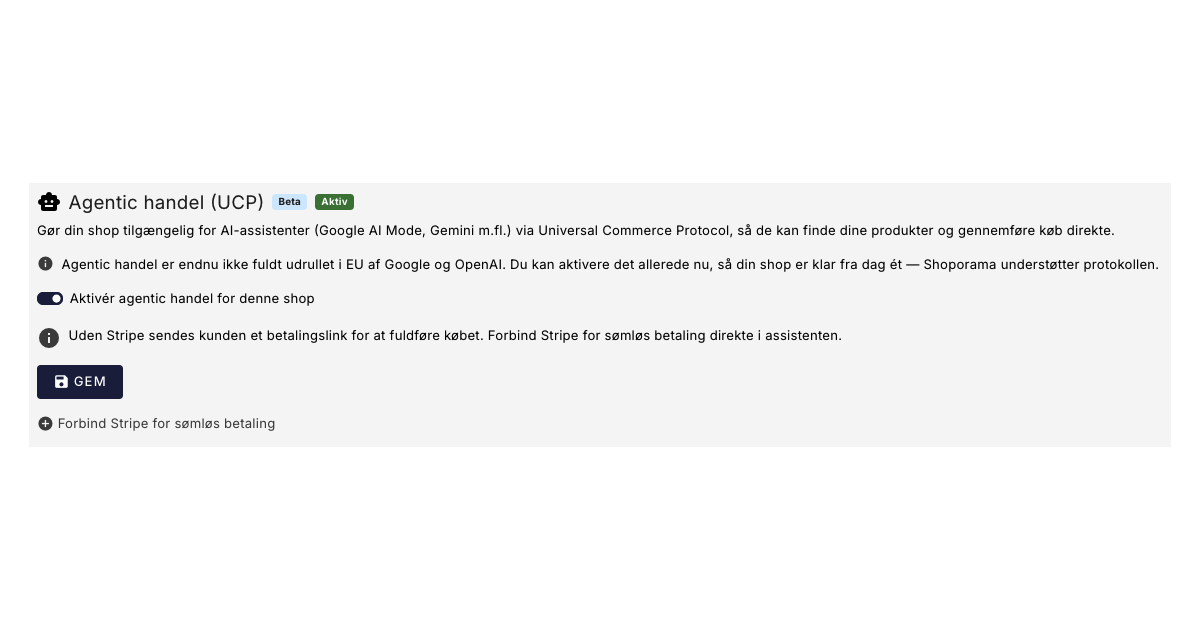
Dine kunder kan snart shoppe via AI: Shoporama er klar til Googles nye protokol (UCP)
Google has launched UCP, so AI assistants like Gemini can find and purchase your items directly. Shoporama already supports this feature. See how...
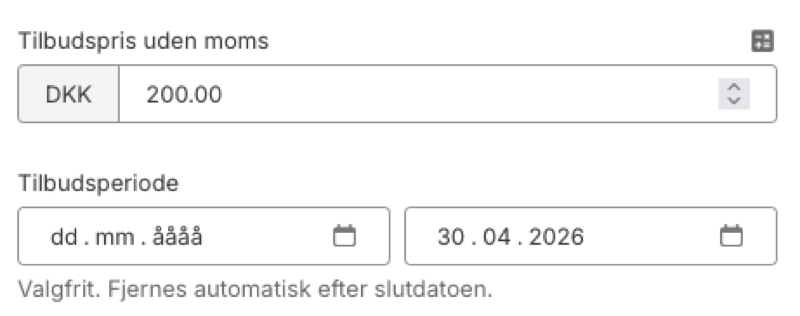
Plan Black Friday now: Deals that turn themselves on and off
Set start and end dates for your offers in Shoporama. The system automatically activates and stops the sale price, also in your Google Shopping feed.
From analytics to advertising: label products directly from statistics
Label products directly from ABC analysis and dead stock - and use them automatically in your Google Shopping feed for targeted campaigns.
Feeds
Ready-made feeds for Google Shopping, Pricerunner, Partner Ads, Kelkoo and TradeTracker. Or build your own custom feeds in XML or CSV.