Set up a split test in Shoporama
Detailed guide to setting up a split test in Shoporama with step-by-step instructions.
Split-test (også kaldet A/B-test) lader dig afprøve to varianter af en side for at finde ud af, hvilken der konverterer bedst. I Shoporama kan du opsætte split-tests direkte i admin og lade dem køre, til du har nok data til at vælge en vinder.
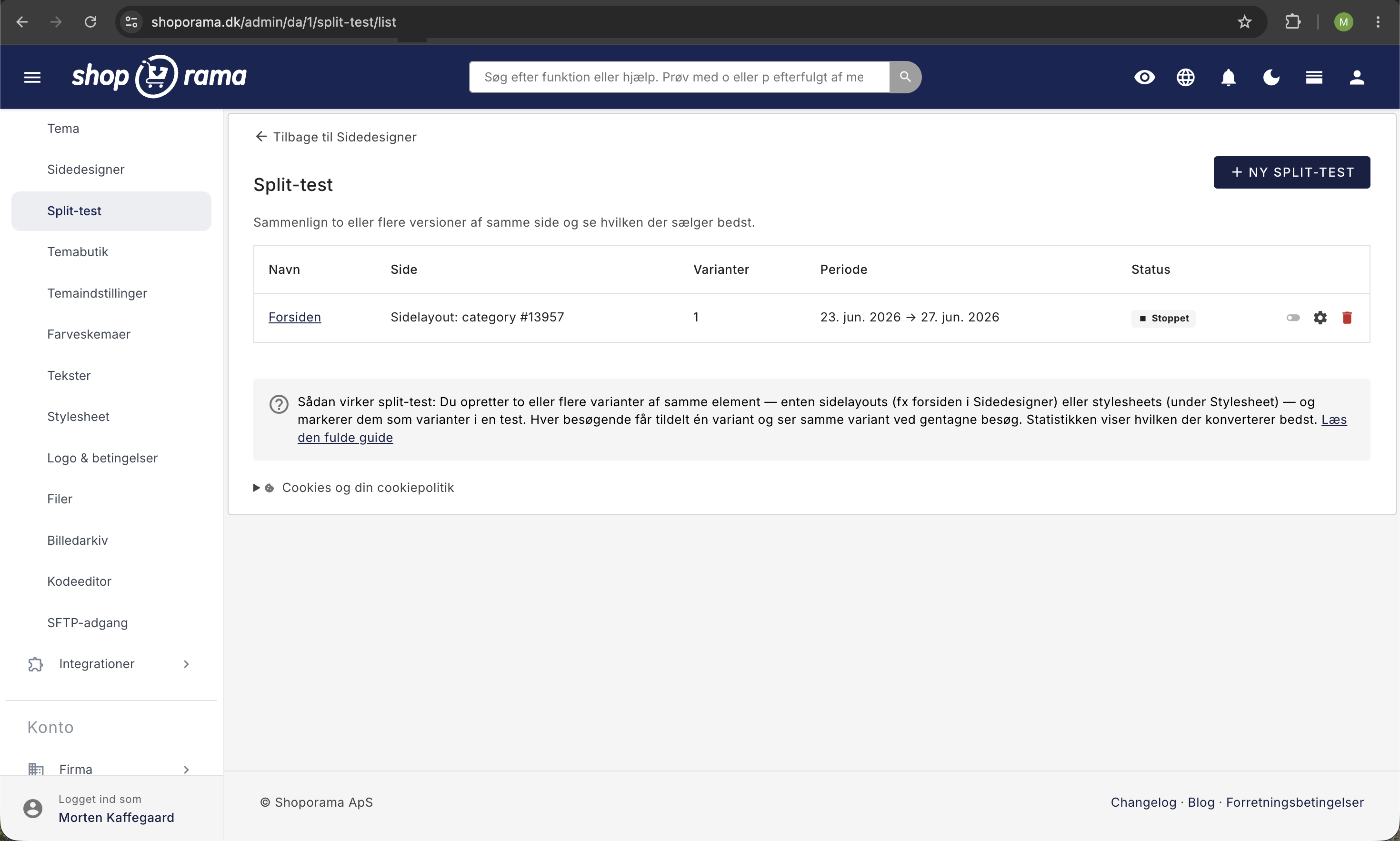
Sådan opsætter du en split-test
- Gå til Tema i venstre menu
- Vælg Webshop og klik på Temaer
- Klik "Opret nyt tema"
- Giv dit tema et navn (fx "Læg i kurv-test")
- Angiv evt. antal ordrer, hvorefter testen skal låses (fx 500)
- Scroll ned og markér den fil, du vil split-teste
- Klik Opret
Opret dine varianter
- Du har nu en kopi af din fil, giv den et navn som "Kontrol" eller "Original"
- Klik Gem
- Markér filen og vælg "Kopier de valgte templates"
- Klik på blyanten ud for den nye kopi
- Navngiv den (fx "Variant B") og lav de ændringer, du vil teste
- Klik Gem
Vigtigt
Du skal deaktivere caching, når du kører en split-test. Ellers risikerer du, at alle besøgende ser den samme variant, og testen bliver ugyldig.
Kør og evaluér testen
Når dine varianter er oprettet, fordeler Shoporama automatisk trafikken ligeligt mellem dem. Du kan følge resultaterne i admin:
- Konverteringsrate for hver variant
- Antal besøgende der har set hver variant
- Antal ordrer fra hver variant
Lås testen
Når du har nok data (vi anbefaler mindst 500 ordrer totalt), kan du "låse" testen. Herefter vises kun den vindende variant til alle besøgende.
Hvis du angav et antal ordrer ved oprettelsen, låses testen automatisk, når dette antal er nået.
Tip
Læs mere om split-test-strategier i vores artikel Split-test i din Shoporama-webshop.
Har du brug for hjælp? Kontakt os på support@shoporama.dk.
Related articles
Set up Daisycon tracking on your webshop
Guide to implementing Daisycon conversion tracking on your Shoporama webshop with correct Smarty code.
Set Up a Google Shopping Feed
Guide til at opsætte Google Shopping Feed i Shoporama: kategorier, custom labels, produkt-id og katalogmatch samt lands- og sprogfeeds.
Set up Partner Ads in Shoporama: getting started
Introduction to Partner Ads in Shoporama. Understand what it is, what you get out of it, and get started quickly with product feed and tracking.