Setting up PensoPay
Step-by-step guide to setting up PensoPay as a payment gateway on your Shoporama online shop.
PensoPay is a Danish payment gateway that allows you to accept online payments in your Shoporama online store. PensoPay supports the most widely used payment cards and offers competitive rates.
Create a PensoPay account
Before you can accept payments, you must create an account with PensoPay:
- Go to pensopay.com and create an account
- Complete the verification process with PensoPay
- Once your account is approved, you can find your API keys under Settings in the PensoPay dashboard at app.pensopay.com
Setup in Shoporama
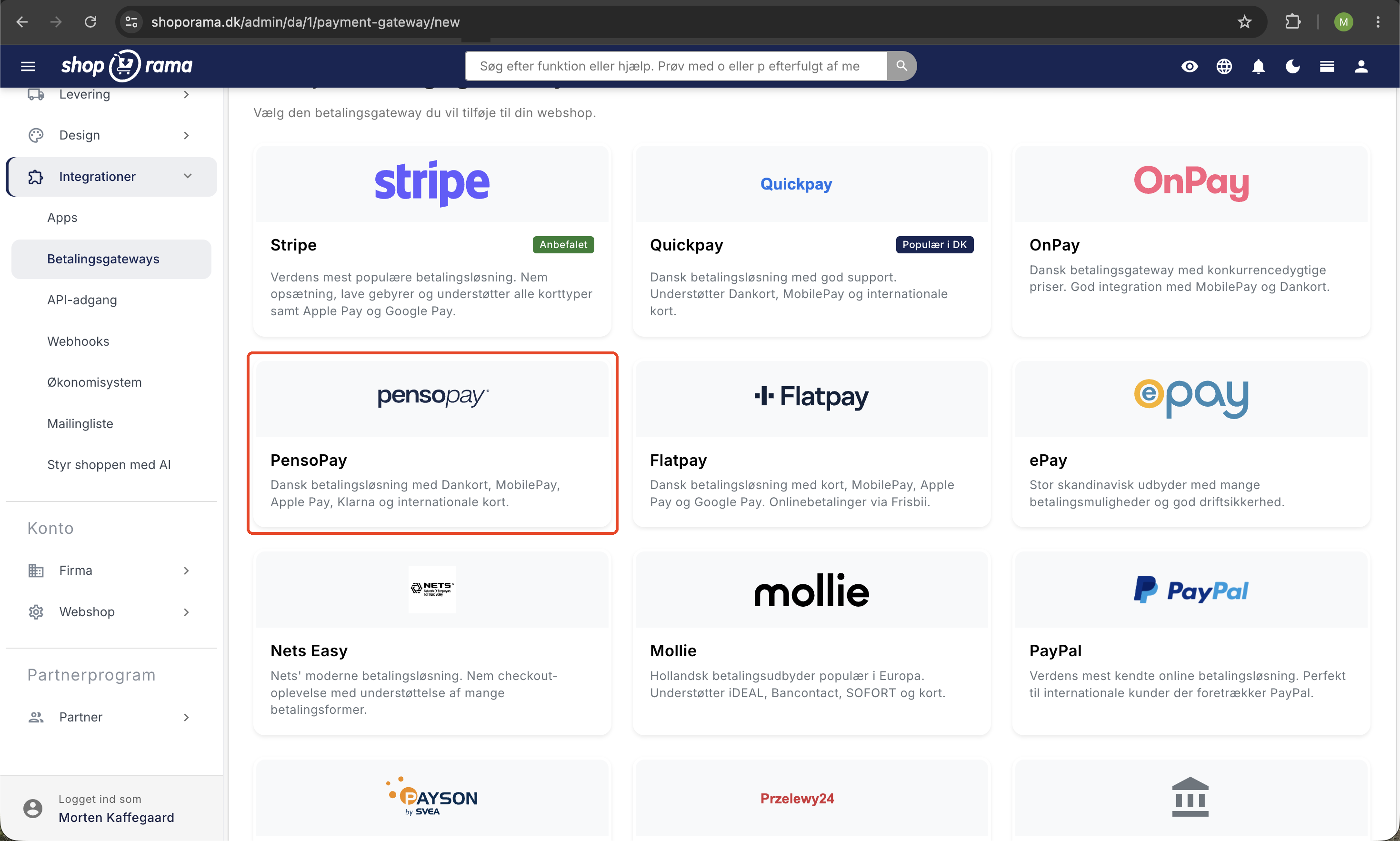
- Log in to Shoporama and go to Integrations → Payment Gateways
- Click Add New Payment Gateway and select the type PensoPay
- Give your gateway a name, e.g., "Card Payment"
Configuration
Once the gateway has been created, fill in the following fields:
- API token — your API key from the PensoPay dashboard
- Private key — used to verify callbacks from PensoPay so that payments cannot be forged
- Payment Methods — specify which payment methods you want to offer, e.g. , Visa, Mastercard
- Language — the language of the payment page, e.g., da_DK for Danish or en_US for English
Settings
- Test mode — enable this to test payments without charging real money. Use PensoPay’s test card to simulate payments
- Autocapture — automatically debit the amount as soon as the customer pays (recommended for digital goods)
- Automatically charge upon shipment — the amount is automatically charged when the order is marked as shipped or picked up
Callback Setup
Shoporama automatically sets up the callback URL when a payment is created. You do not need to configure anything manually in the PensoPay dashboard. The callback URL is used to notify your online store when a payment is completed.
Supported features
- Card payments — Visa, Mastercard, and other cards via PensoPay
- Payment links — send payment links to customers directly from the order page
- Capture — process the payment manually or automatically upon shipment
- Refund — issue a full or partial refund directly from Shoporama
- Cancel — cancel a payment that has not yet been processed
- Subscriptions — supports recurring payments for subscription orders
- Open and closed cart — works with both checkout types
- REST API — create payment links via Shoporama’s REST API
Security
All callbacks from PensoPay are verified with an HMAC-SHA256 signature. This ensures that payment notifications cannot be forged. Additionally, the amount in each callback is verified against the order amount to prevent fraud regarding paid amounts.
Test Cards
When test mode is enabled, you can use the following test cards:
- 5500120801422221 — Mastercard (authorized payment)
- 4000112401172221 — Visa (authorized payment)
- 4242120802091112 — Visa (authorization error)
Use any future expiration date and any 3-digit CVV number.
Help
If you need help with setup, feel free to contact us at support@shoporama.dk.
Related articles
Setting up Nets Easy
Guide to setting up Nets Easy (Nexi) as a payment gateway on your Shoporama online shop.
Setting up OnPay
Step-by-step guide to setting up OnPay as a payment gateway on your Shoporama online store. Supports payment links, capture, refund and cancel.
Setting up QuickPay
Guide to setting up QuickPay as a payment gateway on your Shoporama online shop. Supports Dankort, MobilePay, Visa, Mastercard and many more.
Related features
Subscription webshop
Create a subscription online store on Shoporama. Offer monthly or weekly deliveries, let the customer take control and get stable revenue every month.
13+ payment gateways for your webshop
Choose from OnPay, Quickpay, Stripe, Mollie, Nets Easy, ePay and many more. Automatic capture, country restrictions and partial payment.