PDF invoice on orders
Learn how to enable and customize automatic PDF invoices on orders in your Shoporama online store.
Shoporama can automatically generate PDF invoices for your orders and send them to customers along with the order confirmation. You can customize the invoice content with your own payment terms and footer.
Enable PDF Invoices
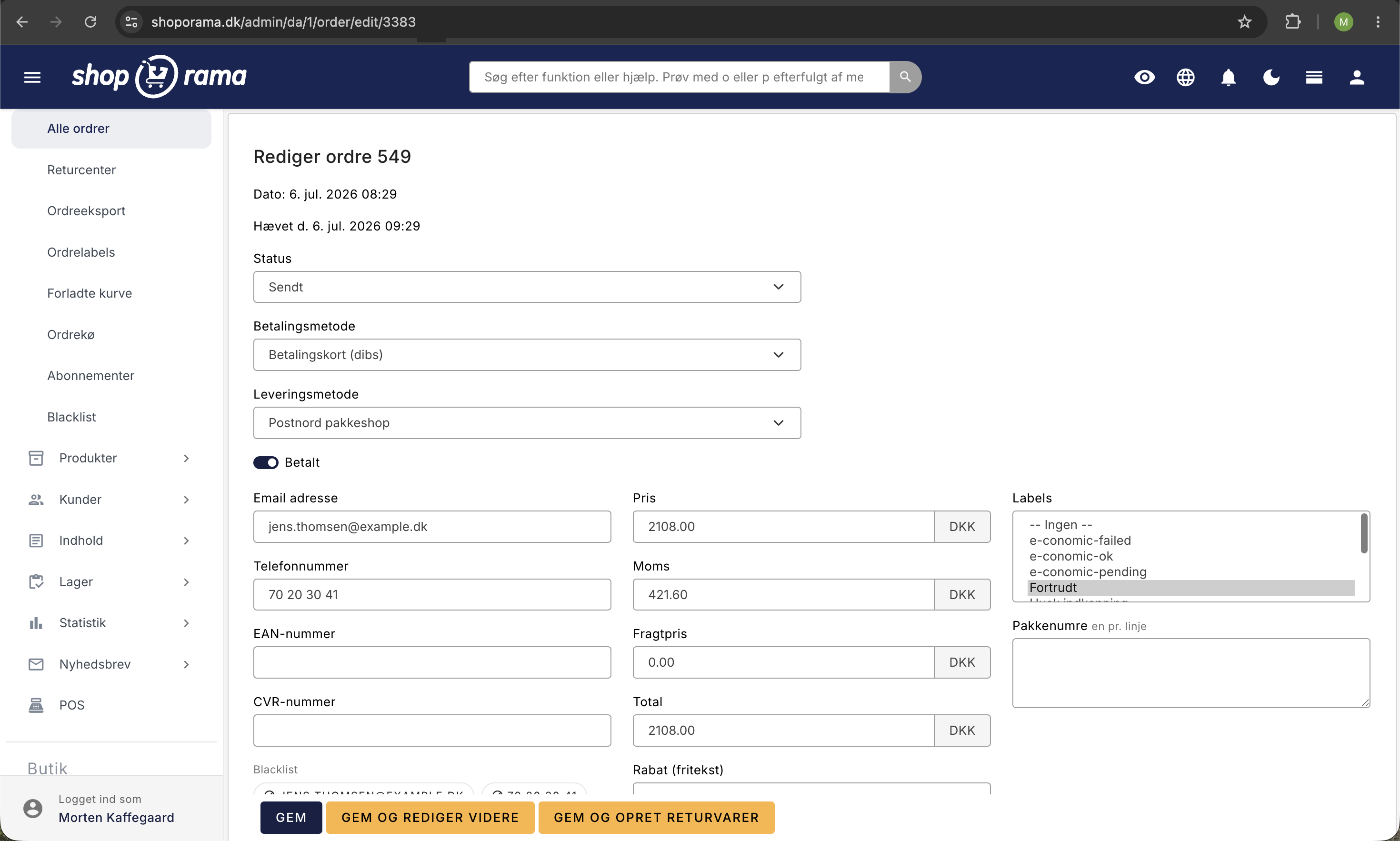
You can enable PDF invoices in your online store’s settings in the admin panel. Once the feature is enabled, Shoporama automatically generates a PDF invoice when an order is marked as shipped. The invoice is automatically attached to the email the customer receives.
Customize the invoice content
You can customize two text fields on the invoice:
- Payment Terms — Text regarding payment terms that appears on the invoice (e.g., “Payment: Net 8 days”)
- Footer — Additional text that appears at the bottom of the invoice (e.g., business registration number, bank details, or other relevant information)
When is the invoice generated?
The PDF invoice is generated automatically when the order status changes to “Shipped.” The invoice is attached to the email the customer receives notifying them that the order has been shipped. The invoice includes:
- Order number and date
- Customer’s billing address
- Shipping address (if different)
- All order lines with item number, name, quantity, and price
- Sales tax and total amount
- Your payment terms and footer
Attach additional files
In addition to the PDF invoice, you can attach up to two additional files to invoice emails. These could include terms and conditions, return forms, or other relevant documents.
Credit Notes
When you create a credit memo for an order, a PDF credit memo is also automatically generated. This is sent to the customer in the same way as the original invoice.
Tip
Remember to fill in the payment terms and footer with your company information (CVR, bank account, etc.) so that the invoice complies with the requirements of the Danish Bookkeeping Act.
Related articles
Billy's Billing integration
Guide to setting up Billy's Billing in Shoporama. Automatically transfer orders to your accounts, synchronize products and post payments.
Troubleshooting E-conomic integration
Guide to troubleshooting the e-conomic app in Shoporama. Fix sync issues, failed transfers and incorrect posting.
Handle returns
Guide to Shoporama's returns center - handle returns, create credit notes, and manage customer return requests.