Profile fields (customer fields)
Guide to creating custom profile fields on customers in Shoporama. Add extra fields to customer profiles to collect additional information.
With profile fields, you can create custom fields on customer profiles in your online store. This allows you to collect additional information beyond the standard fields such as name, address, and phone number.
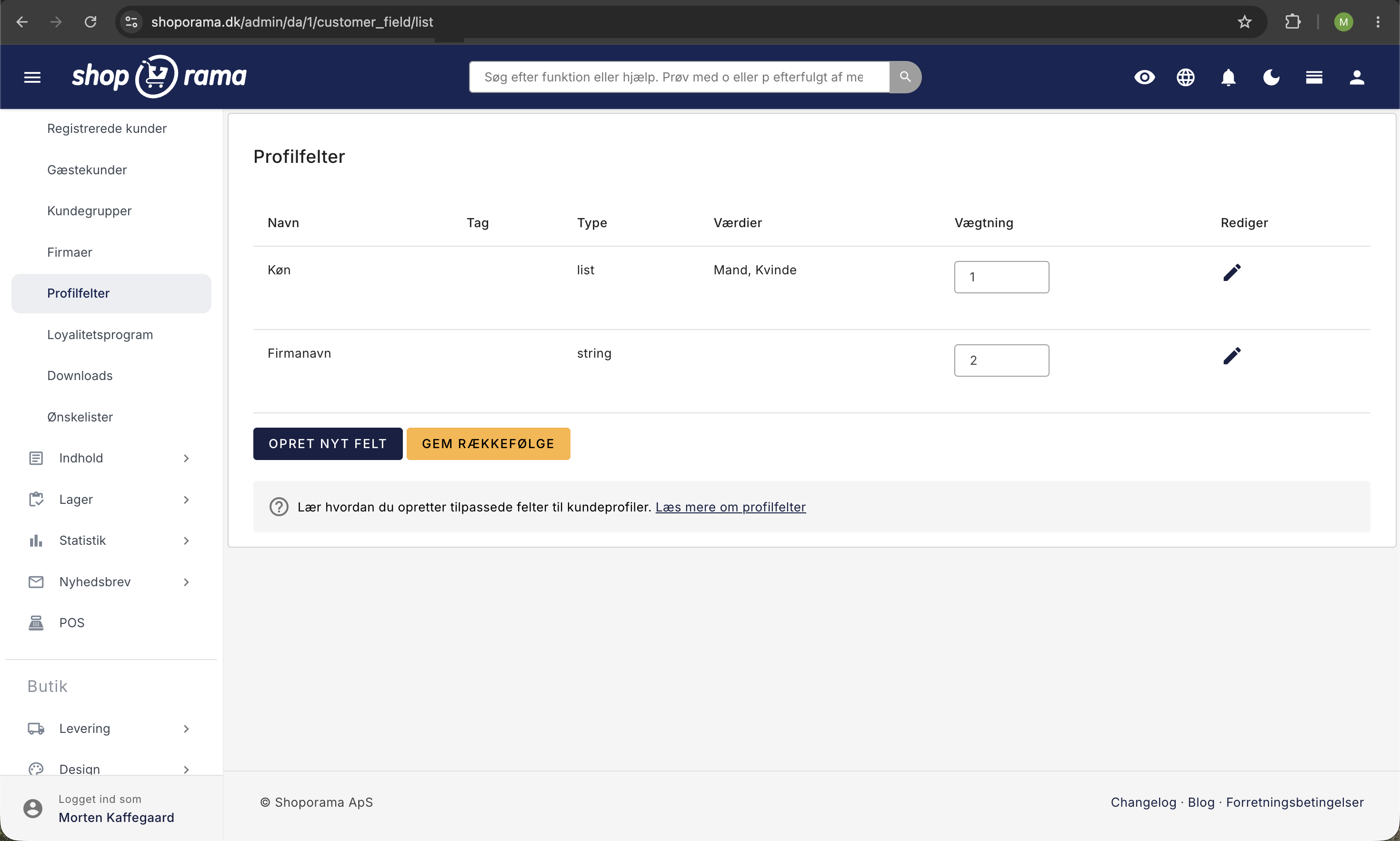
Create a profile field
- Go to Customers → Profile Fields in the admin panel
- Click Create New Field
- Fill in the following:
- Name — The field label that the customer sees (e.g., “Preferred Size”)
- Tag — An internal ID that can be used in templates
- Type — Choose between Text Field (free text) or List (dropdown)
- Values — If you select List, enter the options separated by commas
- Save the field
Where are the fields displayed?
Profile fields appear under "Additional Information" on the customer’s profile page in the online store. Customers can fill out the fields themselves when they edit their profile.
In the admin panel, you can view and edit the profile fields on each customer’s edit page.
Sorting
You can change the order of the fields by adjusting their weight under Customers → Profile Fields. Fields with a lower weight are displayed first.
Import and Export
Profile fields are supported in customer import and export. When you export customers as a CSV, all profile fields are included as additional columns. During import, you can populate profile fields by using the field name as the column header.
Examples of Use
- Industry — Select from a list (e.g., “Retail,” “Wholesale,” “Restaurant”)
- Customer number in external system — Free-text field for a reference number
- Preferred contact method — List including “Email,” “Phone,” “SMS”
- Allergens/preferences — Relevant for grocery stores
Tip
Profile fields can also be accessed via the REST API, allowing external systems to read and update customers’ additional fields.
Related articles
Subscriptions
Learn how to set up subscriptions in Shoporama so your customers can create recurring orders with automatic payment and delivery at set intervals.
Unsubscribe links in automatic emails
Give your customers the option to unsubscribe from automatic follow-up emails after purchases and product reviews - with a simple link in the email.
AI assistant in the text editor
Learn how to use Shoporama's built-in AI assistant to generate product texts, image descriptions and text suggestions.