Shoporama Tracking Engine: Server-side tracking for all major platforms
Shoporama's tracking engine (developed with 1260 A/S) sends data from your webshop directly to Facebook, Google Ads, GA4, Pinterest, Snapchat, TikTok, LinkedIn and Microsoft Ads. Server-side tracking, Consent Mode and Conversion API in one module.
Shoporama’s tracking engine was developed in collaboration with the agency 1260 A/S and consolidates all your e-commerce tracking into a single module. You activate it in one place, and then purchase data, page views, and cart actions are automatically sent to the advertising platforms you’ve selected.
The module is designed to solve the problems that have arisen as browsers, ad blockers, and iOS tighten restrictions on third-party cookies: the Facebook pixel misses conversions, Google Ads doesn’t track all sales, and GA4 only shows a portion of the traffic. With server-side tracking, Consent Mode, and Conversion APIs, you’ll get accurate data again without having to maintain scripts, pixels, and container configurations yourself.
What’s the difference between this article and the general introduction to tracking?
This article focuses specifically on the tracking engine (the module itself, the 1260 integration, and platform setup). If you’re looking for a broader overview of all tracking options in Shoporama (in-house GTM, manual pixels, Google Analytics, etc.), start with Tracking in Shoporama.
How to find the tracking module
The tracking engine settings are located in the admin menu on the left-hand side:
- Log in to the Shoporama admin
- Click on “Webshop” in the left sidebar (the menu item with the gear icon)
- Select Tracking from the submenu
This is the same page whether you’re activating the module for the first time or adjusting an existing setup.
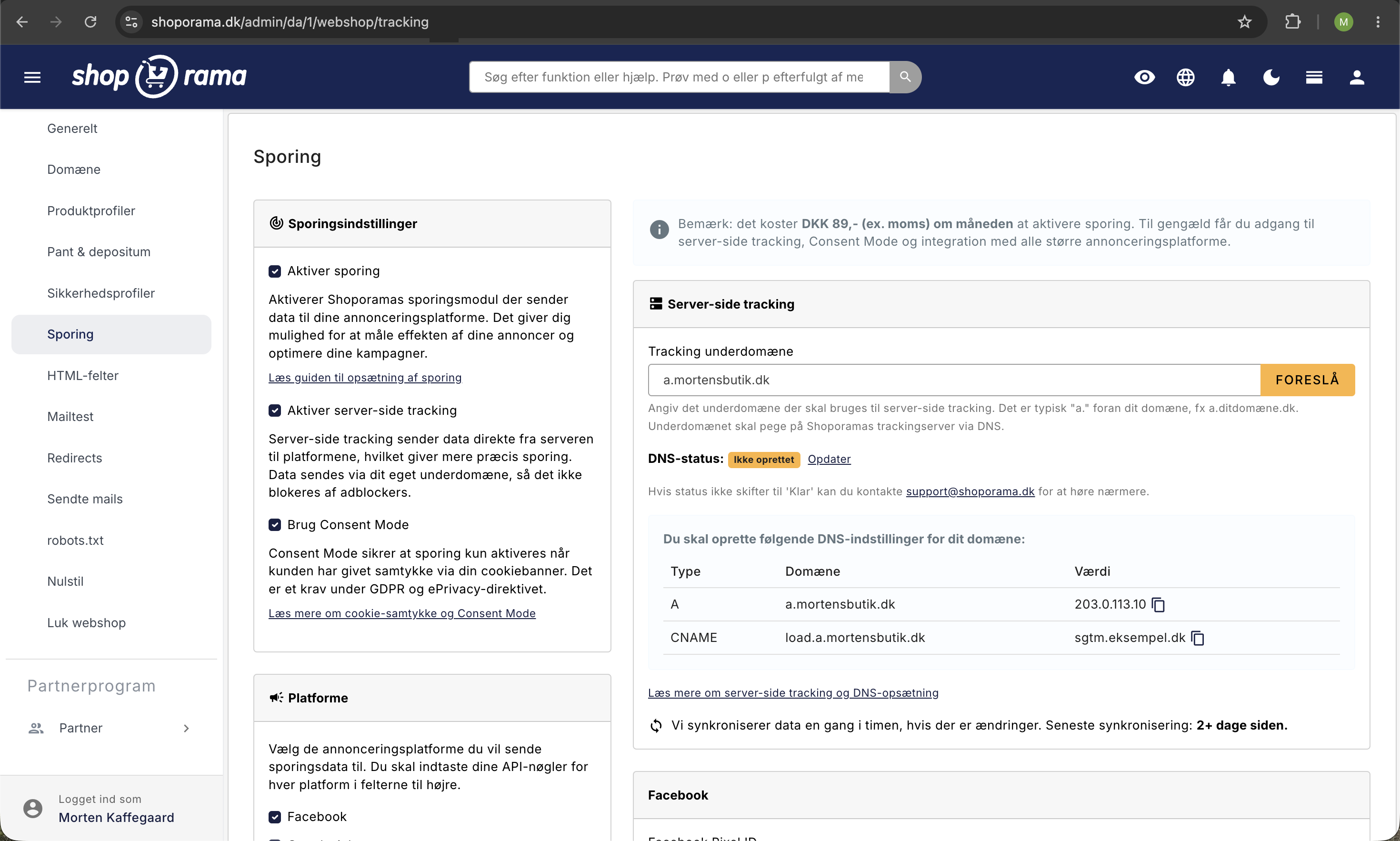
Enable tracking
The activation itself takes just one click:
- Check the box next to “Enable Tracking”
- Click Save
Price: The tracking engine is a paid add-on with a fixed monthly fee. The current price is displayed directly in the admin panel on the Webshop → Tracking page before you enable it. In return, you get access to server-side tracking, Consent Mode, and Conversion APIs for all supported platforms at no additional cost per platform.
Server-side tracking
Server-side tracking means that data is sent from Shoporama’s servers directly to Facebook, Google, and others, rather than from the browser. This offers three major advantages:
- Ad blockers don’t block it because requests come from your own subdomain
- More accurate data, because you don’t lose events when the browser clears cookies or blocks scripts
- Better compliance with privacy regulations, because you have control over which data is sent
How to enable server-side tracking
- Check the box next to “Enable server-side tracking”
- Enter a tracking subdomain (click “Suggest” to use the recommendation a.yourdomain.dk)
- Click Save
- Create the two DNS records shown on the page with your DNS provider
- Wait until the status changes to Ready (usually a few minutes, but it can take up to 24 hours)
DNS records you need to create
Once you’ve saved the subdomain, the admin panel will display the exact values you need to enter with your DNS provider. The structure looks like this:
| Type | Domain | Value |
|---|---|---|
| A | a.yourdomain.dk | IP address shown in admin |
| CNAME | load.a.yourdomain.dk | Load domain displayed in admin |
The A record points your subdomain to Shoporama’s tracking server. The CNAME record handles load balancing. If the status does not change to Ready after a few hours, please email support@shoporama.dk, and we’ll help you troubleshoot your DNS setup.
Consent Mode (consent to tracking)
By default, Shoporama sends tracking data to the enabled platforms as soon as a customer visits your online store. This is not compliant with the GDPR and the ePrivacy Directive if you are subject to EU cookie consent regulations.
With Consent Mode enabled, the tracking engine waits for the customer to give consent via your cookie banner before sending data to third parties. We use Google’s Consent Mode v2, which is also supported by Facebook, Microsoft Ads, and other major platforms.
- Check the box next to “Use Consent Mode”
- Make sure your theme uses a cookie solution that supports Consent Mode (e.g., Cookiebot, Cookie Information, or Openli)
- Click Save
Read more about setting up consent in the article “Cookie Consent and GDPR.”
Supported platforms
You activate each platform individually and enter the required keys. The fields only appear once the platform is activated.
Facebook (Meta)
Used for: Facebook and Instagram ads, retargeting, lookalike audiences.
- Facebook Pixel ID — a string of approximately 15 digits that you can find in Facebook Events Manager
- Facebook Access Token — enables the Conversion API (server-side events sent directly to Meta); created in Events Manager under your pixel’s settings
Google Ads
Used for: Search ads, Performance Max, Shopping campaigns, and remarketing.
- Conversion ID — typically starts with AW-
- Conversion Label - Purchase — required; tracks completed purchases and is used to measure ROAS
- Conversion Label - Add to Cart and Begin Checkout — optional additional labels for cart and checkout actions
Microsoft Ads (Bing)
Used for: Bing search ads and the Microsoft Audience Network. The module uses only offline conversions (CSV) for Microsoft Ads, so there are no pixel fields to fill out here. See the section on offline conversions below.
Google Analytics 4 (GA4)
Used for: Web analytics, e-commerce reports, audiences, and funnels.
- Measurement ID — starts with G- and can be found in your GA4 data stream
Used for: Pinterest ads, recipe and product pins, retargeting.
- Tag ID — found in Pinterest Ads Manager under Conversions
- Access Token — enables the Pinterest Conversion API; created in Pinterest Business Manager
Snapchat
Used for: Snap ads targeting younger audiences.
- Pixel ID — found in Snapchat Ads Manager under “Events”
- API Token — activates the Snapchat Conversions API; created in Snapchat Ads Manager
TikTok
Used for: TikTok ads, Spark Ads, and Shop integrations.
- Pixel ID — found in TikTok Ads Manager under “Events”
- Access Token — enables the TikTok Events API; created in TikTok Ads Manager
Used for: B2B ads, targeting by job titles, industries, and companies.
- LinkedIn Insight Tag ID — a number such as 1234567, found in LinkedIn Campaign Manager
Conversion APIs — why they’re important
For Facebook, Pinterest, Snapchat, and TikTok, you can enter an access token in addition to the pixel ID. This activates the platform’s Conversion API, where events are sent server-to-server.
In practice, this means:
- You won’t lose conversions due to iOS restrictions, ad blockers, or browser tracking protection
- The algorithms receive more data, so your campaigns optimize better for ROAS
- Match quality improves because server-side events can include more customer information (with consent)
We always recommend creating and entering an access token if the platform offers this feature.
Offline conversions for Google Ads and Microsoft Ads
The tracking engine automatically generates a CSV file containing your purchases, which Google Ads and Microsoft Ads can retrieve. This ensures that the platform receives all sales, even when pixel tracking fails.
Google Ads offline conversions
- Invite ads@shoporama.dk as an administrator with the highest permission level to your Google Ads account
- Create a conversion event of the type “Import from clicks ” in Google Ads
- Find the Conversion Action ID in the URL (the parameter is called ctId) and enter it in Shoporama under “Conversion Action”
- Enter the Customer ID (find yours in Google’s guide)
- If you manage the account through an MCC (Manager Account), also enter the Operating Customer ID
- Configure Google Ads to retrieve the CSV file from the link displayed in the admin console (use the username “ads” and the password shown on the page)
The conversion point will not begin receiving data until approximately 6 hours after creation, and only after we have accepted the invitation to the account.
Microsoft Ads Offline Conversions
Microsoft Ads uses the same principle: a CSV file containing your purchases, which Microsoft either retrieves automatically or you upload manually. On the Webshop → Tracking page, you’ll find the link to the CSV file and the password you’ll need in Microsoft Ads.
Synchronization and Status
The tracking engine synchronizes your settings and DNS status with Shoporama’s tracking infrastructure once an hour if there are any changes. On the Webshop → Tracking page, you can see the time of the most recent synchronization.
If you’ve changed a pixel key or DNS record and the data doesn’t seem to be coming through, it’s always a good idea to check when the last synchronization took place.
Frequently Asked Questions
Do I need to remove my existing tracking when I activate the module?
Yes. If you’ve already manually added Facebook pixels, Google tags, or GA4 to your theme or Google Tag Manager, you should remove them when you activate the Shoporama module. Otherwise, you risk double tracking, where each purchase is recorded twice and your ROAS appears artificially high.
How much does it actually cost?
The current monthly price is displayed in the admin panel under Webshop → Tracking, right when you open the page. It’s a flat monthly fee regardless of how many platforms you send data to or how many orders you have.
My DNS status is “Not set up” even though I’ve created records—what should I do?
DNS changes can take up to 24 hours to propagate. First, check that the A record and CNAME record exactly match the values in the admin panel (without any extra periods or spaces). If the status still hasn’t changed to “Ready” after 24 hours, please email support@shoporama.dk, and we’ll check the DNS on our end.
How much data ends up with 1260 A/S?
The tracking engine was developed in collaboration with 1260 A/S, but data about your customers and purchases is sent directly from Shoporama’s servers to the advertising platforms you’ve selected. The agency does not handle your conversion data. 1260 A/S helped build the engine itself, ensuring it follows best practices for modern e-commerce tracking.
Can I send data to my own Google Tag Manager?
Yes. The tracking engine exposes a standard data layer (Google Analytics 4 syntax) that you can use with your own GTM container alongside the module. This allows you, for example, to add tags yourself to smaller platforms that aren’t directly integrated. See the more comprehensive article “Tracking in Shoporama” for guidance on GTM setup.
My theme uses AJAX for the cart and search—does the module still send the correct events?
For page views, category views, product views, checkout start, and purchases, everything is sent automatically. However, if your theme adds items to the cart or performs searches without reloading the page, your developer must send the `add_to_cart` and `search` events manually via the dataLayer. It’s a small coding task, and your developer can use the article “Implement Tracking in a Shoporama Theme” as a starting point.
What happens to tracking if the customer rejects cookies?
If you’ve enabled Consent Mode and your cookie banner is set up correctly, the module won’t send marketing events to Facebook, Google, and others when the customer has denied consent. Google receives an aggregated “consent denied” signal, which they use to model missed conversions. This is the legally compliant way to handle this under the GDPR.
Can I turn off the tracking engine again?
Yes. Uncheck the box next to “Enable Tracking ” and click “Save.” Billing will then stop as of the next month-end, and no more data will be sent to the connected platforms. Remember to re-enable your own tracking if you don’t want to be without measurement.
Which platform should I start with if I’m new?
Always enable Google GA4, as it’s your analytics platform. Then add the advertising platforms where you’re actually running campaigns. If you use Facebook and Instagram ads, Facebook is the next step. If you use Google Search Ads or Performance Max, you should add Google Ads. You can always add more platforms later at no extra cost.
Need help?
Email support@shoporama.dk, and we’ll help you with the setup. If you’d like a broader introduction to the tracking options in Shoporama, start with Tracking in Shoporama. For more in-depth guides on each platform, see the related articles below.
Related articles
Google Analytics 4 (GA4) on your Shoporama online store
How to set up Google Analytics 4 on your Shoporama online store. Built-in GA4 integration with e-commerce events, server-side tracking and Consent...
Implement Pricerunner tracking
Guide to implementing Pricerunner conversion tracking on your Shoporama online shop with proper Smarty code.
Implement tracking in a Shoporama theme
Developer Guide to E-commerce Tracking in a Shoporama Theme: Data Layer, Google Tag Manager, Custom Events, and Correct Product IDs Using...