The search function in Shoporama
Everything you need to know about Shoporama's search function - how it works, what is searched and how to optimize it.
Shoporama has a built-in search function. It can be used in various ways, and here we’ll try to address any questions you may have about the search function.
What does the search function look for?
When a user performs a search on your online store, the search is conducted in:
- Products
- Categories
- Landing pages
- Blog posts
By default, the search looks at names, descriptions, and any additional keywords you’ve added to the product. If you’d also like to search by SKU, GTIN, and other fields, you can enable this in the settings.
For stores in Danish or English, the search also takes into account inflections and word stems. For example, if a customer searches for “efterspil,” it will also find products named “Efterspillet.” If they search for “løber,” it will also find “løbet.” This means you don’t need to add all inflected forms manually.
Search Settings
You’ll find the search settings under Settings (the gear icon) and then “Search” on the left-hand side. Here, you can customize how the search behaves:
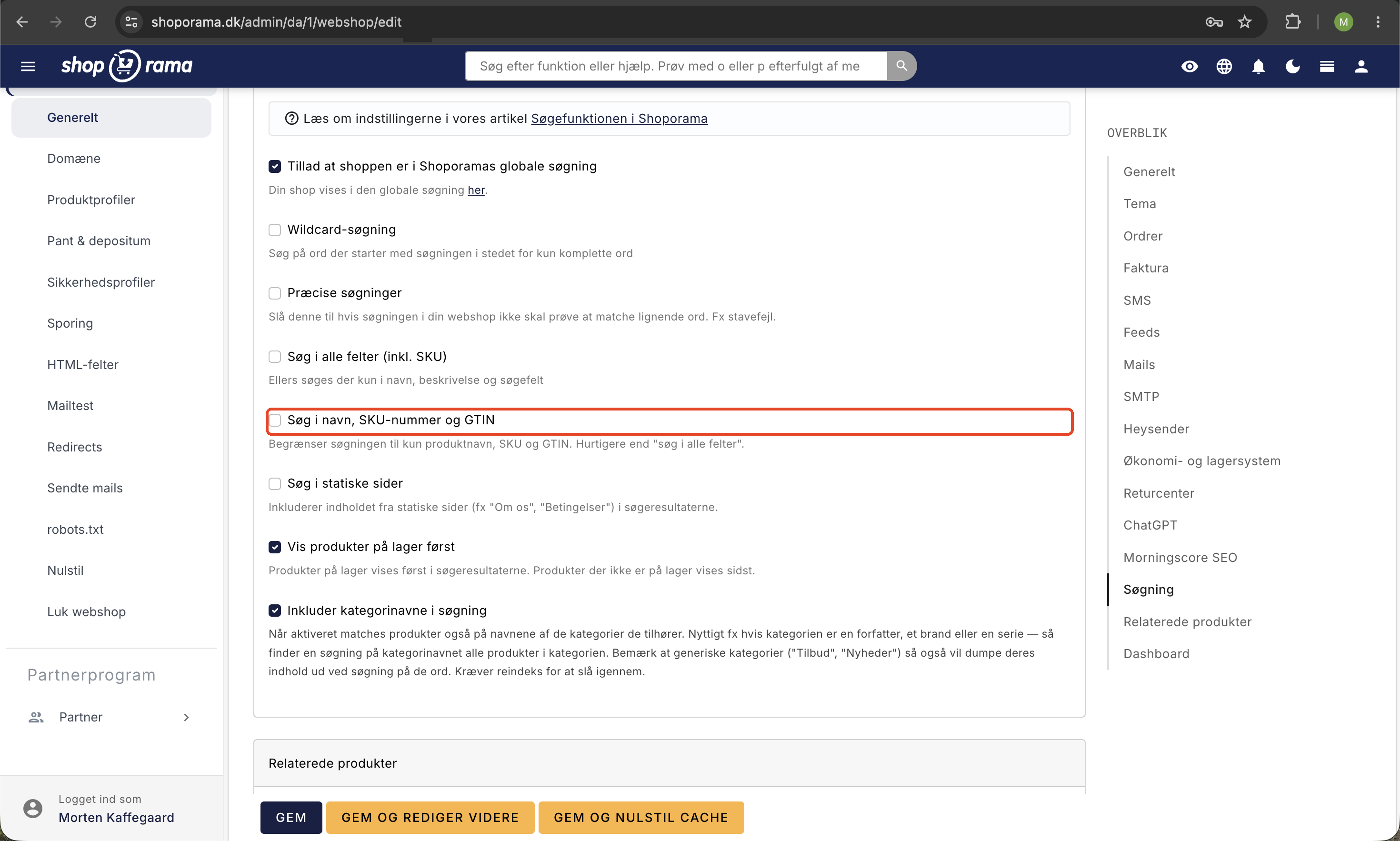
- Wildcard Search —Search for words that start with the search term instead of just complete words. If a customer searches for “kjol,” it will also find “kjole” and “kjoler.”
- Exact searches - Enable this if you don’t want the search to try to match similar words or misspellings. Useful if you have products with very specific names.
- Search all fields (including SKU) - Expands the search to include all product fields. Note that this may slow down the search slightly.
- Search by name, SKU number, and GTIN - A faster option that searches only the product name, SKU number, and GTIN. Well-suited for B2B stores where customers often search by SKU number.
- Search static pages - Includes content from static pages (e.g., "About Us," "Terms and Conditions") in search results.
- Show in-stock products first —When enabled, products that are in stock are always displayed before out-of-stock products in search results. The relevance order is maintained within each group, so the most relevant in-stock items are displayed first, followed by the most relevant out-of-stock items.
- Include category names in search —When a customer searches for a category name, products in that category are also matched. This is useful if your categories are authors, brands, or series—for example, a search for “Timm Vladimir” will find all books in that category. Please note that generic categories such as “Special Offers” or “New Arrivals” will also appear when searching for those terms.
How to Improve Your Search Function
People search in many different ways. What you call a “morning robe,” they might call a “bathrobe.” When you factor in misspellings and plural forms, there are many search variations to consider.
That’s why you can add additional keywords to your products. Go to the product page, select the “Search” tab, and enter your additional keywords in the “Optional keywords for internal store search” field. Enter one keyword per line and click “Save.”
Note
When you change search settings or add search terms, all your products are queued to be reindexed. It typically takes a few minutes—up to an hour or two for very large stores—before the changes are fully reflected in the search results.
Can I exclude products from the search?
Yes. Go to the product, click the "Search" tab, and check the box next to "Ignore in store search."
Can I enable Ajax search on my store?
Yes, Ajax search (live search results as you type) is available in our newer themes, such as Delaware and Montana. If you have an older theme, a developer can implement it.
Search Analytics and Zero-Result Searches
Shoporama has built-in search analytics that let you see what your customers are searching for and which searches return no results. Read more in our article on zero-hit searches and search analytics.
Need help? Contact us at support@shoporama.dk.