Customize emails based on shipping method
Guide to display different content in your emails depending on the shipping method - e.g. shipping vs. pickup.
In Shoporama, you have various templates for your transactional emails. Sometimes it makes sense to customize the email text based on the shipping method the customer has chosen—for example, if the customer has selected “in-store pickup” instead of delivery.
Why customize emails based on the shipping method?
Imagine a customer has selected “In-Store Pickup” as the shipping method. When you mark the order as shipped, the customer receives an email saying “Your order has now been shipped.” But that doesn’t make sense—the customer has to pick up the order themselves.
By customizing the email, you can instead write “Your order is ready for pickup” to customers who have chosen pickup, and keep the standard text for other shipping methods.
1. Find the shipping method’s ID
First, you need to find the ID of the shipping method you want to target. Do the following:
- Go to Store → Shipping → Shipping Methods
- Click Edit next to the shipping option you want to work with
- Look at the URL in your browser—it ends with a number, e.g., /shipping/edit/7664
- Write down this number—it’s the shipping method’s ID
2. Customize the email template
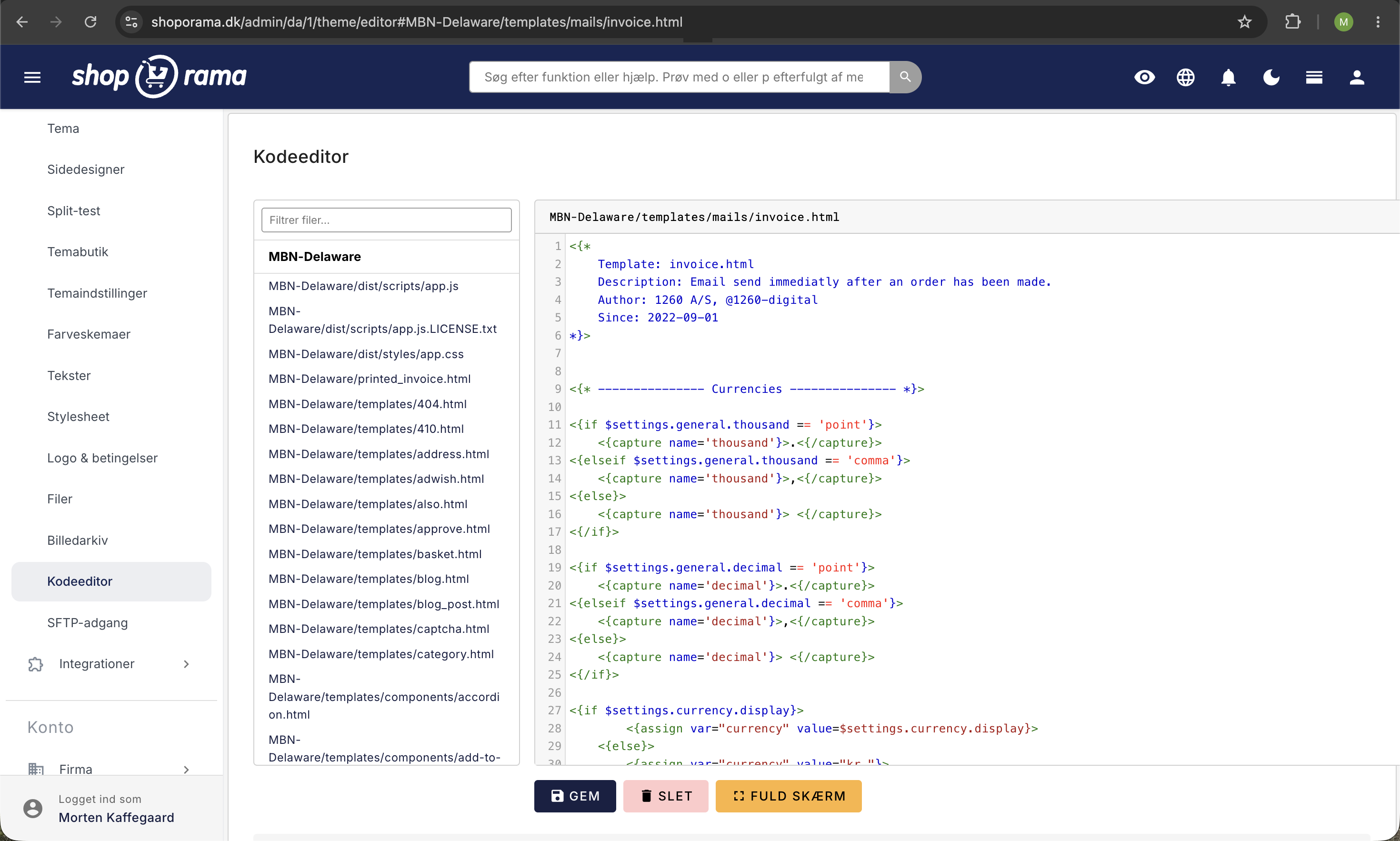
Now you need to edit the relevant email template. For the “order shipped” email, this is the file order_sent.html in your theme.
Insert an if statement that checks the shipping method’s ID:
<{if $order}>
  <{$shipping = $order->getShipping()}>
  <{if $shipping->getShippingId() == 7664}>
    <p>Your order is ready for pickup!</p>
    <p>Stop by the store during our business hours.</p>
  <{else}>
    <p>Your order has been shipped!</p>
    <p>You’ll receive a tracking email shortly.</p>
  <{/if}>
<{/if}>
Important
Remember to replace 7664 with the ID you found in step 1. You can add more `elseif` blocks if you have multiple shipping methods with different messages.
3. Available Variables in Email Templates
In email templates, you have access to the order and all its data. Here are the most useful ones:
| Variable | Description |
|---|---|
| $order | The order object |
| $order->getShipping() | The shipping method for the order |
| $shipping->getShippingId() | The shipping method's ID |
| $shipping->getName() | The shipping method's name (e.g., "PostNord") |
| $order->getTrackingNumber() | The tracking number |
4. Examples of Advanced Customization
You can also use the shipping method’s name instead of the ID, if you prefer:
<{$shipping = $order->getShipping()}>
<{if $shipping->getName()|strstr:'pickup'}>
  <p>Your order is ready for pickup</p>
<{elseif $shipping->getName()|strstr:'pakkeshop'}>
  <p>Your order has been sent to your selected pickup location</p>
<{else}>
  <p>Your order has been shipped via <{$shipping->getName()}></p>
<{/if}>
Tip
You can customize all email templates this way—not just order_sent.html. For example, you can also customize the order confirmation (invoice.html) with shipping information based on the shipping method.
How to edit the email templates
The email templates are located in your theme’s templates/mails/ folder. You can edit them via:
- Theme Editor — directly in the Shoporama admin under Themes
- SFTP — download and edit in your preferred program (requires a Pro subscription)
Need help customizing your emails? Contact us at support@shoporama.dk.
Related articles
Unsubscribe links in automatic emails
Give your customers the option to unsubscribe from automatic follow-up emails after purchases and product reviews - with a simple link in the email.
Change the content of your emails
Guide to customize the content of the automatic emails your Shoporama webshop sends, either via admin or theme templates.
What emails does Shoporama send to my customers?
Overview of automatic emails Shoporama sends to your customers - order confirmation, abandoned baskets, track-and-trace, product reviews, and more.