Tracking in your Shoporama webshop
Enable Shoporama's built-in tracking and send precise tracking data to Facebook, Google Ads, GA4, TikTok, and more. Server-side, GDPR-compliant, and with automatic e-commerce events.
Tracking handler om at vide, hvad der virker. Hvilke annoncer giver salg? Hvilke kampagner skal du skrue op for, og hvilke skal slukkes? Shoporama har et indbygget sporingsmodul, der gør det enkelt at samle data fra alle de store annonceplatforme uden at skulle rode med Google Tag Manager eller manuel kode i temaet.
Denne guide viser, hvordan du aktiverer sporing i Shoporama, hvad server-side tracking og Consent Mode er, hvilke e-commerce events der sendes automatisk, og hvor du finder API-nøgler til Facebook, Google Ads, Microsoft Ads, GA4, Pinterest, Snapchat, TikTok, og LinkedIn.
Sådan finder du sporings-siden
Sporings-modulet ligger i venstre sidebar i admin. Følg denne sti:
- Log ind i Shoporama admin
- I venstre sidebar klikker du på Webshop (sektionen med tandhjul-ikonet)
- Vælg Sporing i undermenuen
Nu er du på siden, hvor al sporing styres samlet ét sted.
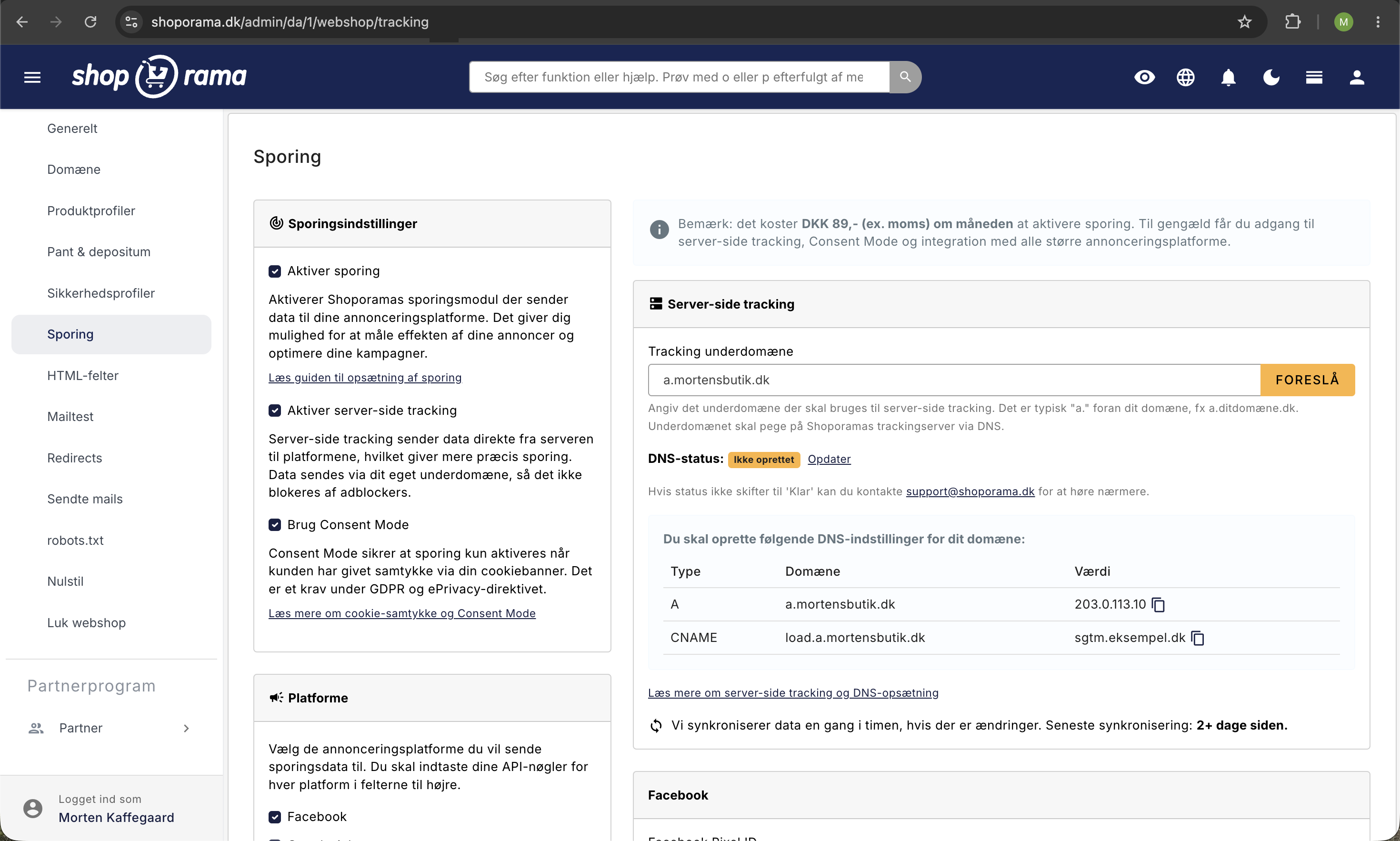
Aktiver Shoporamas sporingsmodul
Det første du gør er at sætte flueben i Aktiver sporing. Det aktiverer hele sporingsmodulet, så Shoporama kan begynde at sende data til de annonceplatforme, du vælger.
Sporingsmodulet kræver, at din webshop er på en Pro- eller Flex-pakke, og aktivering koster et månedligt gebyr (den aktuelle pris vises på sporings-siden). Til gengæld får du adgang til server-side tracking, Consent Mode, og integration med alle de store annonceplatforme.
Bemærk
Hvis du ikke ønsker at bruge Shoporamas indbyggede sporing, kan du i stedet indsætte din egen tracking-kode via HTML-felter eller bygge din egen opsætning i Google Tag Manager. Det er dog langt nemmere at bruge den indbyggede løsning, og du får server-side tracking ud af kassen.
Server-side tracking
Når du har aktiveret sporing, kan du sætte flueben i Aktiver server-side tracking. Det er den vigtigste forskel mellem klassisk pixel-baseret tracking og det, Shoporama tilbyder.
Forskellen er, hvor data sendes fra:
- Klassisk tracking sender data fra kundens browser. Adblockers, browser-restriktioner, og cookie-blokering betyder, at en stor del af dine konverteringer aldrig når frem.
- Server-side tracking sender data direkte fra din webshop-server til annonceplatformen. Det er mere præcist, mere sikkert, og adblockers kan ikke blokere det.
For at server-side tracking kan virke, skal data sendes via dit eget underdomæne. Det er typisk noget i stil med a.dindomæne.dk. Shoporama foreslår automatisk et underdomæne og giver dig de to DNS-records (en A-record og en CNAME-record), du skal oprette hos din domæneudbyder.
- Sæt flueben i Aktiver server-side tracking
- Klik Foreslå for at få et underdomæne
- Gem siden
- Opret de to viste DNS-records (A og CNAME) hos din domæneudbyder
- Vent et par minutter og opdater siden. Status skifter til Klar, når DNS er på plads
Ændringer i dine sporingsindstillinger synkroniseres automatisk til tracking-serveren cirka en gang i timen. Du kan finde en mere detaljeret gennemgang af DNS-opsætningen i guiden til server-side tracking.
Hvis status ikke skifter til Klar inden for et døgn, er der typisk noget galt med DNS-opsætningen. Skriv til support@shoporama.dk, så hjælper vi.
Consent Mode og GDPR
Du må ifølge GDPR og ePrivacy-direktivet ikke spore dine besøgende, før de har givet samtykke i din cookiebanner. Det gælder for alle annonceplatforme, ikke kun Google.
Sæt flueben i Brug Consent Mode. Når den er aktiv, sender Shoporama først data til annonceplatformene, når kunden har accepteret cookies. Hvis kunden afviser, sendes der ikke persondata.
Google kan stadig modellere konverteringer ved hjælp af Consent Mode v2, så du får et estimat for de besøg, hvor samtykke ikke blev givet. På den måde mister du ikke al indsigt, selvom mange siger nej til cookies. Læs mere i artiklen om cookie-samtykke og Consent Mode.
Vælg dine annonceplatforme
Under Platforme sætter du flueben ved de platforme, du bruger. For hver platform du aktiverer, dukker et felt op i højre side, hvor du indsætter API-nøgler. Du kan have lige så mange platforme aktive på én gang, som du vil.
Facebook (Meta)
Til Facebook- og Instagram-annoncer skal du bruge to felter:
- Facebook Pixel ID finder du i Facebook Events Manager. Det er et tal med 15 cifre.
- Facebook Access Token bruges til Conversions API (server-side). Den oprettes i Events Manager under indstillingerne for dit pixel.
Læs mere i artiklen om Facebook Conversions API.
Google Ads
Til Google Ads kan du tracke flere events:
- Conversion ID starter typisk med AW- og findes under Konverteringer i Google Ads.
- Conversion Label - Purchase er påkrævet, hvis du vil måle salg og ROAS.
- Conversion Label - Add to Cart og Begin Checkout er valgfri, men giver dig mere indsigt i din konverteringstragt.
Du kan også sætte offline conversions op, hvor Shoporama sender købsdata direkte til Google Ads via en CSV-fil. Det kræver, at du inviterer ads@shoporama.dk som administrator i din Google Ads-konto, og opretter et konverteringspunkt af typen "Import from clicks". Sporings-siden viser den præcise URL til CSV-filen sammen med brugernavn og adgangskode. Læs mere i artiklerne om Google Ads-konverteringssporing og offline konverteringer.
Microsoft Ads (Bing)
Microsoft Ads understøttes udelukkende via offline conversions. Der er ingen pixel eller API-nøgle at indtaste. Shoporama genererer i stedet en CSV-fil med dine konverteringsdata, og sporings-siden viser URL, brugernavn, og adgangskode til filen. Du kan enten uploade filen manuelt i Microsoft Ads eller sætte Microsoft op til at hente den automatisk. Læs mere i artiklen om offline konverteringer.
Google GA4
For at tracke besøg og e-commerce events i Google Analytics 4 skal du indsætte dit Measurement ID. Det starter med G- og findes i GA4 under Data Streams. Alle events i tabellen længere nede sendes automatisk til GA4. Læs mere i guiden til GA4-opsætning.
Pinterest bruger to felter:
- Tag ID findes i Pinterest Ads Manager under konverteringer.
- Access Token bruges til Pinterest Conversion API og oprettes i Pinterest Business Manager.
Snapchat
Snapchat bruger:
- Pixel ID findes i Snapchat Ads Manager under events.
- API Token bruges til Snapchat Conversions API og oprettes i Snapchat Ads Manager.
TikTok
TikTok bruger:
- Pixel ID findes i TikTok Ads Manager under events.
- Access Token bruges til TikTok Events API og oprettes i TikTok Ads Manager.
LinkedIn er den enkleste at sætte op. Du skal kun indsætte dit Insight Tag ID, som er et tal du finder i LinkedIn Campaign Manager.
E-commerce events sendes automatisk
Du behøver ikke tænke på at sende events selv. Når du har valgt en platform og indsat dine nøgler, sender Shoporama automatisk ti e-commerce events, efterhånden som kunden bevæger sig gennem din webshop:
| Event | Hvornår det sendes |
|---|---|
| view_item | En kunde ser en produktside |
| view_item_list | En kunde ser en kategoriside eller en landingsside med produkter |
| search | En kunde søger i webshoppen |
| add_to_cart | Et produkt lægges i kurven, også når det sker uden sideskift |
| view_cart | Kunden ser indholdet af sin kurv |
| begin_checkout | Kunden starter checkout og udfylder sine adresseoplysninger |
| begin_checkout_shipping | Kunden vælger fragtmetode |
| begin_checkout_approval | Kunden godkender sin ordre |
| begin_checkout_payment | Kunden går til betaling |
| purchase | Købet er gennemført, og kunden ser kvitteringssiden |
De fire checkout-events giver dig et detaljeret billede af, hvor kunderne eventuelt falder fra i købsprocessen. Purchase-eventet sendes kun én gang pr. ordre, også selvom kunden genindlæser kvitteringssiden, så dine salgstal tælles ikke dobbelt.
Alle events bruger samme produkt-id som dit Google Shopping-feed. Det betyder, at dine events automatisk matcher produktkataloget hos både Meta og Google, så funktioner som dynamisk remarketing virker uden ekstra opsætning. Læs mere i artiklen om produkt-id og katalogmatch.
Hvornår skal jeg bruge Google Tag Manager?
Du behøver ikke Google Tag Manager for at få professionel tracking i Shoporama. Det indbyggede sporingsmodul dækker de fleste behov, og er hurtigere at sætte op.
GTM kan være relevant, hvis du:
- Har specielle, ikke-standardiserede tags du selv vil styre
- Skal integrere med en platform Shoporama ikke understøtter
- Allerede har et komplet GTM-setup, du ønsker at bevare
I så fald kan du indsætte din GTM-container via Webshop › HTML-felter i admin. Se artiklen om HTML-felter, Cookiebot, og GTM. Husk at aktivere Consent Mode i GTM, så dine tags overholder GDPR.
Sådan tester du, om sporingen virker
- Facebook: Brug Meta Pixel Helper, en browser-extension der viser, hvilke events der affyres. Du kan også bruge Test Events i Meta Events Manager til at se events i realtid.
- Google Ads og GA4: Brug Google Tag Assistant til at se aktive tags, og GA4 DebugView til at følge events live.
- Realtime-rapporter: Test også i de respektive ads managers ved at se, om dine egne testbesøg dukker op som realtime-data.
- Server-side: Husk at server-side events ikke altid kan ses i pixel helpers, da de ikke går gennem browseren. Tjek Events Manager direkte for at verificere.
Ofte stillede spørgsmål
Skal jeg være teknisk for at bruge sporingsmodulet?
Nej. Du skal kunne kopiere og indsætte API-nøgler fra dine annoncekonti. Hvis du vil bruge server-side tracking, skal du oprette to DNS-records hos din domæneudbyder, og der findes en kort vejledning for det. Er du i tvivl, så skriv til support@shoporama.dk.
Hvad koster det?
Sporingsmodulet kræver en Pro- eller Flex-pakke og koster derudover et fast månedligt gebyr. Den aktuelle pris vises på sporings-siden, før du aktiverer modulet. Prisen er den samme uanset, hvor mange platforme du tilkobler.
Hvilke events sender Shoporama automatisk?
Ti e-commerce events, der dækker hele kunderejsen: produktvisning, kategori- og landingssidevisning, søgning, læg i kurv, kurvvisning, fire checkout-trin, og køb. Se tabellen længere oppe for en beskrivelse af hvert event.
Virker katalogmatch hos Meta og Google automatisk?
Ja. Alle events sendes med samme produkt-id som dit Google Shopping-feed, så platformene selv kan matche events mod dit produktkatalog. Læs mere i artiklen om produkt-id og katalogmatch.
Behøver jeg Google Tag Manager?
Nej. Shoporamas indbyggede sporing dækker de mest brugte annonceplatforme uden GTM. GTM er kun relevant, hvis du har helt specielle krav eller allerede har et eksisterende setup, du vil beholde.
Hvorfor mangler der konverteringer i Facebook eller Google Ads?
Manglende konverteringer skyldes oftest adblockers, browser-restriktioner (fx Safaris ITP), eller manglende cookie-samtykke. Server-side tracking løser de to første problemer, fordi data sendes direkte fra serveren. Consent Mode v2 sørger for, at Google kan modellere de manglende konverteringer.
Skal jeg bruge en cookiebanner sammen med sporingen?
Ja. GDPR kræver, at du indhenter samtykke, før der sendes persondata til annonceplatforme. Shoporama har en indbygget cookiebanner, du kan aktivere, eller du kan bruge en tredjeparts-løsning som Cookiebot eller Cookie Information.
Hvor lang tid tager det at se data?
Når sporingen er aktiveret og DNS er på plads, begynder data at flyde med det samme. I de fleste platforme er der en forsinkelse på et par timer, før konverteringer vises korrekt. Google Ads offline conversions skal du dog vente cirka 6 timer på, fra konverteringspunktet er oprettet.
Kan jeg tracke flere konti for samme platform?
Sporings-siden er bygget til ét sæt nøgler per platform. Hvis du har brug for at tracke flere Facebook-pixels eller flere Google Ads-konti samtidigt, kan du supplere med GTM via HTML-felter. Skriv til support@shoporama.dk, hvis du er i tvivl om, hvordan du kombinerer tingene.
Hvad sker der, hvis jeg slukker for sporing igen?
Du kan til enhver tid fjerne fluebenet ved Aktiver sporing og gemme. Så stopper Shoporama med at sende data til platformene fra det øjeblik. Dine nøgler bliver bevaret, så du kan tænde igen senere uden at indtaste dem på ny.
Brug for hjælp?
Skriv til support@shoporama.dk, hvis du støder på problemer med opsætningen. Vi hjælper gerne med DNS-records, API-nøgler, og at fejlsøge manglende konverteringer.
Related articles
Set up Daisycon tracking on your webshop
Guide to implementing Daisycon conversion tracking on your Shoporama webshop with correct Smarty code.
Google Analytics 4 (GA4) on your Shoporama online store
How to set up Google Analytics 4 on your Shoporama online store. Built-in GA4 integration with e-commerce events, server-side tracking and Consent...
SEO in Shoporama
Complete guide to the SEO features in Shoporama - from meta tags and sitemap to Google Shopping and AI Assistant.
Product IDs and Catalog Match: How to Ensure Your Ads Match Your Product Feed
An explanation of which product ID Shoporama’s tracking sends, why it always matches the Google Shopping feed, what “catalog match” means for your...