Cost Prices and Inventory Value
Fill in any missing cost prices to get a more accurate inventory value and profit margin. Guide to the Cost Prices page.
Under Inventory → Cost Prices, you’ll find a comprehensive overview of the cost prices for your entire product range. From here, you can quickly identify items that are missing a cost price, correct errors, and ensure that both your profit margin and your inventory value are as accurate as possible. This guide explains what the page does, how to use it, and why the numbers you see sometimes don’t match reality.
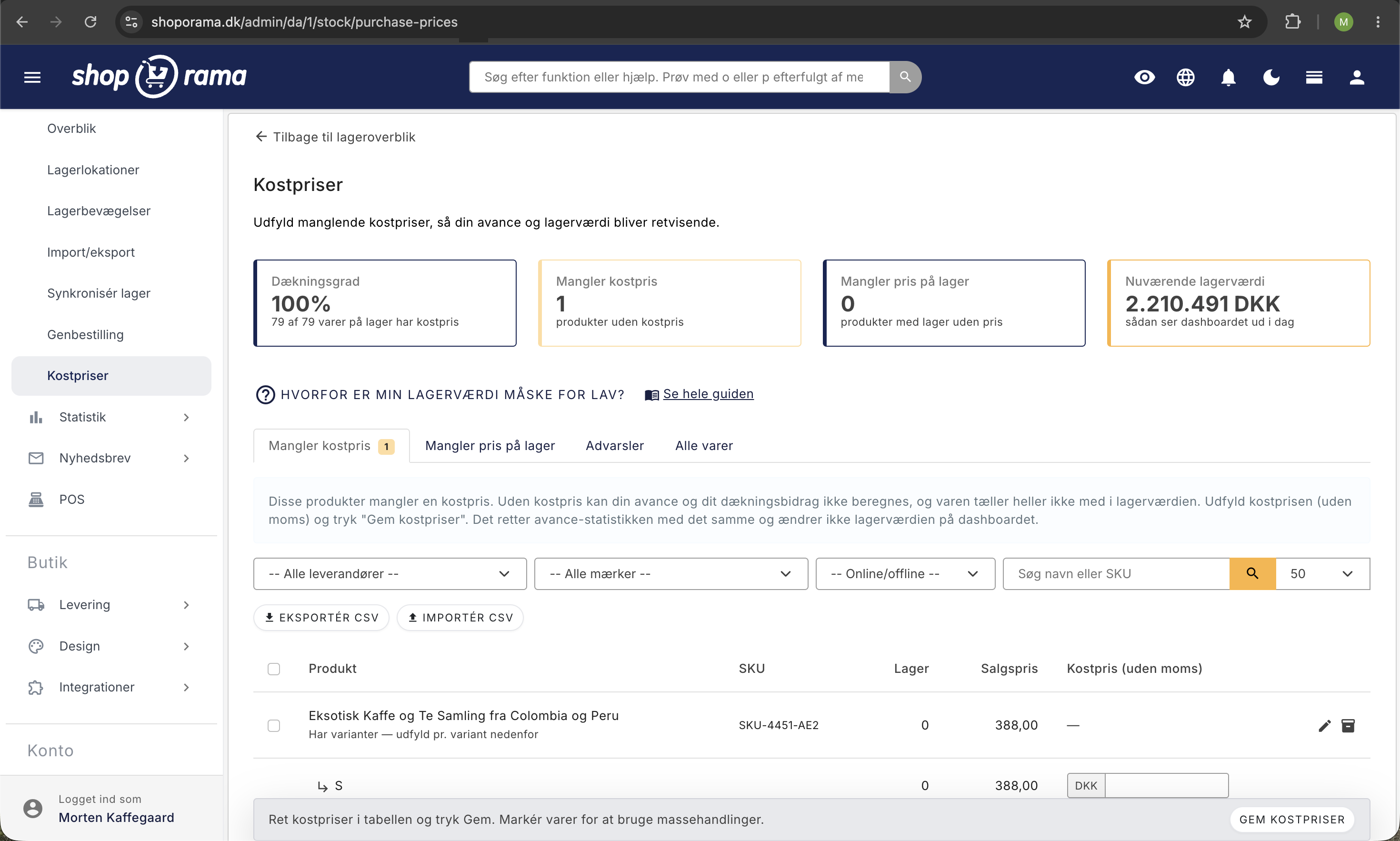
The most important thing to know first: Feel free to explore the Cost Prices page. Changes won’t take effect until you save them yourself. "Update Inventory Value " adjusts the inventory value immediately after you confirm. "Save Cost Prices " saves the cost price for the item, and it will be reflected in the inventory value during the next nightly calculation for items where the goods receipts are missing a price.
Why does my inventory value often appear too low?
Many store owners find that the inventory value shown on the dashboard under “Specified Inventory Value” and in Inventory Statistics is far too low. The reason is that there are actually two different prices at play, and they’re only partially related:
- The cost price of the product or variant. This is the price you paid for the item, and it determines your profit margin and contribution margin in the sales statistics.
- The price on the inventory entries. Every time you receive goods into inventory (a goods receipt), you can enter a price for that specific receipt. If this field is filled in, that is the price used to calculate your total inventory value.
Most users never enter a price for the goods receipt itself. In that case, Shoporama instead uses the cost price listed for the product or variant. The problem arises when the item doesn’t have a cost price either. In that case, it’s counted as 0 DKK, and the inventory value is displayed as too low. The Cost Prices page is designed to correct both issues so that your numbers finally add up.
The two figures explained in plain language
Think of it as two questions the system asks about every single item:
- How much do I make on this item? The product’s cost price answers this. If you have a cost price, Shoporama can calculate how much you earn every time the item is sold. That’s your profit and your contribution margin.
- What is my inventory worth right now? This corresponds to the price of the incoming shipments. For each item you have in stock, the quantity is multiplied by the price at which it was received. If the price of an incoming shipment is missing, the item’s current cost price is used instead. Added together, this gives you the total inventory value.
Inventory value is calculated as a rolling average price weighted by quantity, not on a FIFO basis. The average only covers the items currently in stock. If you sell out of an item completely, the calculation starts over with the next purchase. This is explained in more detail in Calculating Inventory Value. Entered cost prices are still a prerequisite for the figure to be useful at all.
The two figures are related, but they are not the same. The cost price of the product only affects the inventory value for those goods receipts that lack a price, and only during the next nightly calculation, unless you click “Update Inventory Value.” Incoming goods with a price retain that price. Therefore, the inventory value may differ from the cost price listed on the item, for example, if an incoming goods entry was recorded at a different price. The Cost Prices page lets you decide when the price should be recorded on the goods receipts.
Here’s how: Fill in missing cost prices
The most common task is to enter cost prices for items that are missing them. This corrects your profit margin statistics for the next night’s calculation. If the item is in stock and the goods receipts are missing a price, the inventory value is updated simultaneously.
- Go to Inventory → Cost Prices.
- Select the Missing Cost Price tab. Here you’ll find the products and variants that do not yet have a cost price.
- Enter the cost price directly in the field next to each item. All cost prices are entered excluding sales tax.
- Click Save Cost Prices. The inventory value on the dashboard will not change at this time. During the next nightly calculation, your profit margin statistics will use the new cost price, as will the inventory value for items where the receiving entries are missing a price.
If you’ve previously received the item with a purchase price, the page will often suggest the most recent known price, so you can accept it with a single click instead of entering it manually.
Here’s how: Adjust your inventory value
If you want the inventory value to be accurate, you must enter the price for items that are in stock but for which the inventory receipts are missing a price.
- Select the “Missing In-Stock Price” tab. Here you’ll find products that are in stock but for which the stock receipts lack a price. Until a price is entered, they’re calculated using the item’s current cost price, or 0 DKK if the item doesn’t have a cost price either.
- Enter the cost price (excluding VAT) for each item, or accept the suggested price displayed on the page.
- Select the items and click “Update Inventory Value.” You’ll receive a confirmation showing exactly what will happen before any changes are made.
- Confirm. The cost price will now be entered into your goods receipts, and the inventory value on the dashboard will be updated. The days already saved under “Inventory Value Over Time” will not be changed. The correction will take effect starting with the next night’s report.
This action only affects your goods received—that is, the entries where goods have been added to inventory. It never affects your sales. In other words, your historical sales figures will not be rewritten.
The difference between the two buttons is as follows: “Save Cost Prices” only saves the cost price of the item, and the inventory value will reflect this starting the next night for those goods received entries that are missing a price. If you correct the cost price again later, the inventory value will also be updated accordingly. “Update Inventory Value ” locks the price on the goods receipts and updates the inventory value immediately. After that, the price remains fixed on those goods receipts, even if you later change the cost price of the item.
The Four Tabs
The page is divided into four tabs so you can quickly go to exactly what you need:
- Missing Cost Price. Products and variants without a cost price. Fill them in and click “Save Cost Prices.” Starting with the next night’s calculation, this will correct the profit margin statistics, and the inventory value will be updated for items where the goods receipts are missing a price.
- Missing price in inventory. Products that are in stock but for which stock receipts are missing a price. They are calculated using the item’s current cost price, or 0 DKK if it’s missing. Enter the cost price and click “Update Inventory Value” to save the price.
- Warnings. Products where the cost price is equal to or higher than the sales price excluding tax. This results in zero or negative profit and is usually an entry or import error that you should investigate further.
- All Items. Your entire product range in one place, so you can correct any cost price, whether it’s missing or not.
Key figures, filters, and sorting
At the top of the page, you’ll find four key metrics that give you an immediate overview:
- Coverage rate. What percentage of the items you have in stock have a cost price. The closer to full coverage, the more you can rely on your inventory value.
- Missing Cost Price. Number of items without a cost price.
- Missing inventory price. The number of items for which the inventory receipts are missing a price.
- Current inventory value. The inventory value your dashboard shows today, based on the latest calculation.
To make it easy to work with many items, you can filter by supplier, brand, and whether the item is online or offline, as well as search by name or SKU. The columns can be sorted, and you can choose how many items to display per page. Your selection will be saved for your next visit to the page. Clicking on a product name highlights the row. Next to it are separate icons that take you directly to edit the product or view its inventory entries.
Price Suggestions and Bulk Actions
You don’t need to enter every single price manually. The page helps you in several ways:
- Price suggestions. If an item has previously been received with a purchase price, the page suggests the most recent known price, which you can accept with a single click.
- Set the same fixed price. Select multiple items and assign them all the same cost price at once.
- Calculate based on the selling price. Let the cost price be calculated as the selling price multiplied by a factor you choose. This is handy if you typically have a fixed markup for a product group.
- Apply suggestions. Accept the price suggestions for all selected items in a single action.
Import and export cost prices using CSV
If you need to update many cost prices at once, it may be faster to do so in Excel. The page can both export your cost prices to a file and import them back again.
- Export a CSV file from the page. The file is semicolon-separated and has four columns: SKU;Name;Cost Price;Selling Price_excl_VAT.
- Open the file in Excel or a similar program and enter the cost prices. Remember that the cost price must be exclusive of tax.
- Save the file and import it back. The system matches each row by SKU, and both product SKUs and variant SKUs work.
This way, all your cost prices are updated at once, without you having to go in and correct them one by one.
Who can view and edit cost prices?
Cost prices show what you pay for your items. Users with the “Full Access” role can always view cost prices. For users with other roles, access depends on the “Cost Prices and Markup” option:
- Employees with this add-on can use the entire page, including saving cost prices, updating inventory value, and importing CSV files.
- Roles that can only view inventory—such as Bookkeeper—can open the page and view the figures with this add-on, but cannot save anything.
- Suppliers can be granted the add-on and can then view and edit the cost price of their own products, but cannot open the Cost Prices page. Marketing and Developer roles cannot be granted the add-on.
- Without this add-on, the cost price is also hidden on the product page, in the product list, on the inventory pages, and on orders, and the front-page modules “Contribution Margin” and “Specified Inventory Value” are not displayed. The “Reorder” page under “Inventory” also requires this add-on. In Statistics, Product Consumption & Profit, ABC Analysis, Inventory Statistics, and Products Without Sales all require both this add-on and the Revenue and Statistics add-on. This also applies to the Inventory Value Over Time tab under Inventory Statistics and its CSV files.
- If a user saves a product without this add-on, the existing cost price will not be changed.
The company administrator selects roles and add-ons under Company → Users. Read more in Roles and Permissions.
Important to Know
- Cost prices are always listed excluding sales tax.
- The cost price is used internally for inventory value, markup, and accounting. It is never displayed on your online store. The only way it can be shared externally is if you or another user with product editing permissions selects it as a field in a product feed.
- The inventory value is recalculated every night based on your inventory entries and cost prices. If you adjust a cost price, the figure may therefore change the next day for items where the goods receipts are missing a price. “Update Inventory Value” updates the figure immediately.
- "Update Inventory Value" only updates goods received (items that have been received), never sales. Your historical sales are never overwritten.
- Once the cost prices are in place, all new sales going forward will automatically receive the correct cost price, so that profit margins and inventory value remain accurate.
- The inventory value is a rolling average calculation, not a FIFO calculation. If there are multiple batches at different prices in stock at the same time, the value is the average of those, weighted by quantity. The system does not track whether the expensive or the inexpensive items were sold first.
Frequently Asked Questions
I’m not very tech-savvy. Will anything go wrong if I just click around on the page?
No. You can safely look around. Nothing changes until you actively click “Save Cost Prices” or “Update Inventory Value,” and “Update Inventory Value” even asks you to confirm first.
Will the cost price be displayed in my store so customers can see what I paid for the item?
No. The cost price is never displayed on your online store, and customers only see your selling prices.
There is one exception: if you or a colleague create a product feed under Products> Product Feeds, you can select “Cost Price (excl. VAT) ” as one of the fields. If you do this, remember to password-protect the feed; otherwise, anyone who knows the URL can see your purchase prices. Shoporama will warn you if this field is selected in an unprotected feed. Read more in “Build Your Own Feeds.”
Can my employees see what I paid for the items?
That depends on their role. With the “Full Access” role, they can see the cost prices. Other roles must have the “Cost Prices and Markup” option enabled to view the cost price of products and on the “Cost Prices” page. The company administrator enables this under Company → Users.
Should I enter the cost price with or without sales tax when preparing my financial statements?
Always exclude VAT. Both the inventory value and the markup are calculated based on amounts excluding VAT, so the figures match what your accountant expects to see.
If I update the inventory value now, will that change my old sales figures or my previous accounting records?
No. “Update Inventory Value” only affects goods received—that is, the items that have been added to inventory. Your historical sales will never be changed, so previously closed periods remain as they are. The same applies to the days already saved in “Inventory Value Over Time.” The correction will be reflected starting with the next nightly report.
I have several thousand items. Can I update cost prices in bulk instead of one at a time?
Yes. You can select multiple items and set the same fixed price, calculate the cost price based on the sales price multiplied by a factor, or apply price suggestions in a single step. If you need to manage your entire product range, you can export to CSV, fill in the data in Excel, and import it back.
How does the CSV import match my products, and does it also work for variants?
The import matches by SKU, and both product SKUs and variant SKUs work. The file is semicolon-separated with the columns SKU, Name, Cost Price, and Sales Price (excluding tax). Make sure each line has the correct SKU so the price is assigned to the right product.
I receive products from multiple suppliers at different prices. How do I find their specific products?
Use the supplier filter at the top of the page, possibly in combination with the brand filter. That way, you’ll only see the items in question. If you’ve previously received an item at a specific price, the page will also suggest the most recent known purchase price, which you can accept with a single click.
I’m new and need to correct cost prices. Where do I start if I don’t know what’s missing?
Start with the “Missing Cost Price” tab and work your way through it. Then look at the “Warnings” tab, which lists items with a cost price equal to or higher than the sales price—in other words, likely errors. The key figures at the top show you at all times how much is still missing.
What does the coverage ratio at the top of the page mean?
The coverage ratio shows what percentage of the items you have in stock have a cost price. The higher it is, the more accurate your inventory value is. Aim for full coverage so you can trust the number.
Need help?
If you’re unsure about how to set up your cost prices or inventory value, you’re always welcome to email us at support@shoporama.dk. We’ll be happy to help you get started.
Related articles
Inventory value without cost price
What to do if your inventory value is not correct because you missed the cost price when registering stock.
Calculating inventory value
Explanation of how the inventory value is calculated in Shoporama. Weighted average, cost price, bundles, variants and credit notes.
Update the cost price of multiple products at once
Guide to mass edit the cost price (purchase price) of multiple products in the Shoporama admin.
Update stock with CSV file
Guide to updating inventory on many products via CSV import in Shoporama.
Build your own feeds
Guide to building your own product feeds in CSV, XML or JSON format with Shoporama's custom feed feature.
Inventory Value Over Time: View the inventory value on a specific date
Shoporama saves the inventory value every night. Track the trend on a graph, look up the value for a specific date—for example, as of December...
Related features
Cost price
The cost price is the amount it cost to purchase or manufacture an item, always excluding VAT. Find out what the cost price is used for and why it...
Cost Prices
If you don't have cost prices, your inventory value and profit margin will be incorrect. See why cost prices are worth their weight in gold for...
Inventory value
Inventory value is the total value of your goods in stock, calculated at cost. See how it is reported in the financial statements and why it may be...
Loss leader
A loss leader is a product sold below cost to attract customers. Learn about the strategy, the risks and when it makes sense for your online store.
Contribution margin
Contribution margin is the difference between selling price and variable costs (typically cost price). It shows how much each product contributes...
POAS - Profit on Ad Spend
POAS measures profit instead of revenue per ad dollar. Learn why POAS is better than ROAS and how to implement profit-based advertising.