Extensions from the theme (theme extensions)
Learn how theme extensions work in Shoporama. Themes can define additional product fields such as YouTube video, badges, color selectors, and repeat fields that the store owner fills in per product. Guide for both store owners and theme developers.
Hvad er tema-udvidelser?
Tema-udvidelser (extensions) er ekstra felter, som dit tema stiller til rådighed på bl.a. produkter, kategorier, landingssider, statiske sider og blogindlæg. Det er temaudvikleren, der definerer felterne, og som butiksejer udfylder du dem direkte i admin, fx på produktets redigeringsside.
Typiske eksempler er et felt til en YouTube-video-ID, et badge med tekst og farve, eller en liste af features med titel, beskrivelse og ikon. Felterne vises automatisk i admin under sektionen Udvidelser, fra dit tema, og de data du indtaster, bruges af temaet til at vise ekstra indhold i webshoppen.
Tip
Ikke alle temaer bruger udvidelser. Hvis du ikke kan se sektionen "Udvidelser, fra dit tema" på produktsiden, betyder det at dit nuværende tema ikke har defineret nogen. Temaer som Delaware og Montana har udvidelser til bl.a. video, badges og bundlevisning.
For butiksejere: Sådan bruger du udvidelserne
Når du redigerer et produkt, finder du udvidelserne i en akkordeon-sektion kaldet Udvidelser, fra dit tema. Klik på sektionen for at folde den ud. Her ser du de felter, som temaet har defineret, grupperet efter kategori (fx "Video Settings", "Badge Settings" osv.).
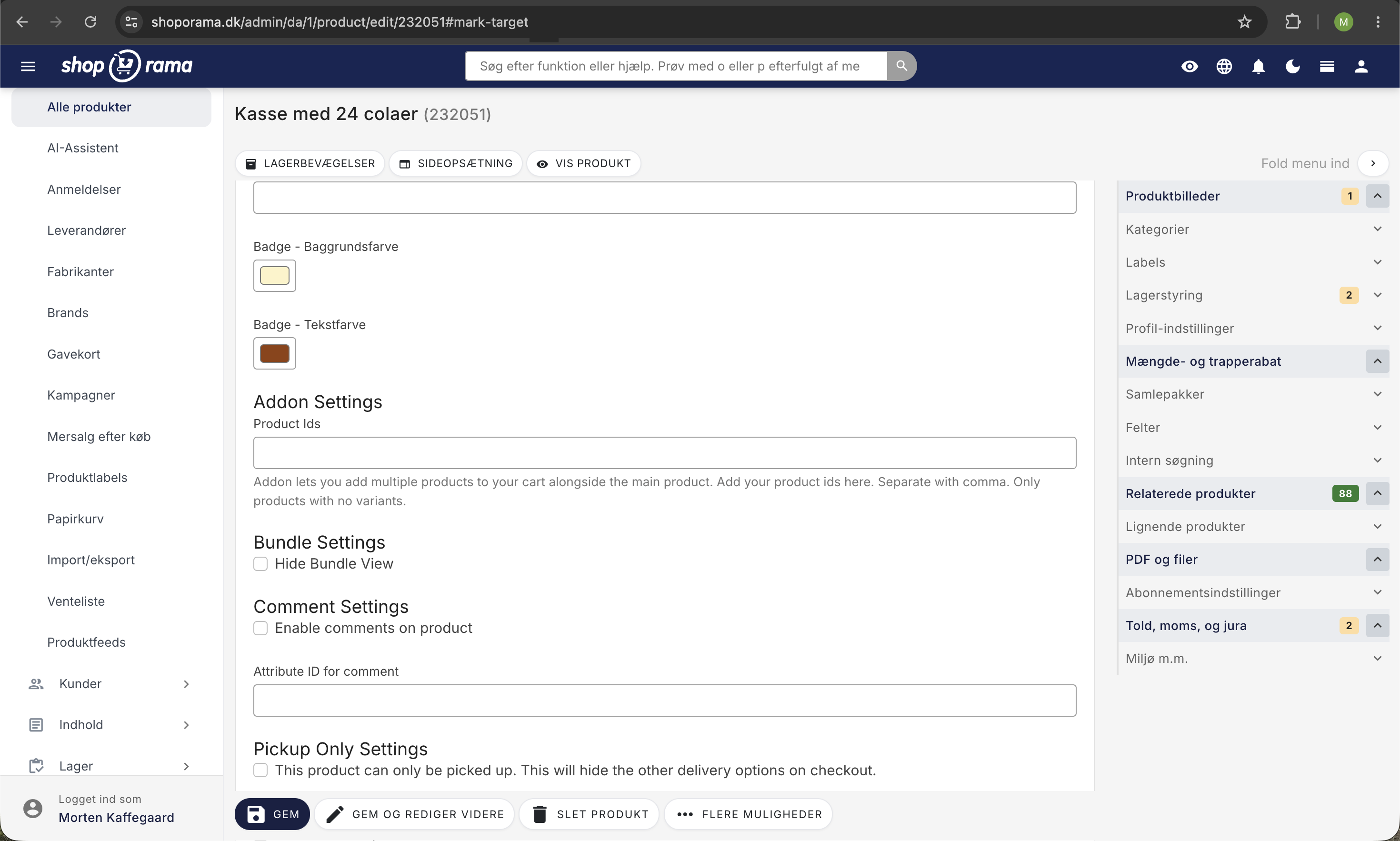
Udfyld felterne efter behov. Nogle felter er simple tekstfelter, andre er farvevælgere, billede-uploads eller afkrydsningsfelter. Hvert felt har typisk en titel og eventuelt en beskrivelse, der forklarer hvad det bruges til.
Når du gemmer produktet, gemmes udvidelsesdataene, og temaet bruger dem til at vise det relevante indhold i webshoppen. Fx vil et udfyldt YouTube-ID typisk vise en videoafspiller på produktsiden.
Understøttede felttyper
Tema-udvidelser understøtter en lang række felttyper:
- text - Et enkelt tekstfelt til korte værdier (fx et video-ID eller en badge-tekst).
- richtext - En HTML-editor med formateringsmuligheder til længere tekster med fed, kursiv, links m.m.
- longtext - Et stort tekstfelt (textarea) til længere tekster uden HTML-formatering.
- number - Et talfelt til numeriske værdier.
- bool - En afkrydsningsboks til ja/nej-værdier (fx "Vis badge" eller "Kun afhentning").
- color - En farvevælger til at vælge farver visuelt (fx baggrundsfarve for et badge).
- list - En dropdown-menu med foruddefinerede valgmuligheder.
- multi - Flere afkrydsningsbokse til at vælge flere muligheder samtidigt.
- image - Upload af et enkelt billede.
- images - Upload af flere billeder (fx et galleri).
- date - En datovælger.
- datetime - En dato- og tidsvælger.
- repeater - Gentagelsesfelter, som gør det muligt at tilføje et dynamisk antal grupper af felter (se separat afsnit nedenfor).
For temaudviklere: Definering af udvidelsesfelter
Udvidelsesfelter defineres i JSON-filer i temaets extensions/ mappe. Filen hedder efter den type objekt, felterne gælder for:
- extensions/product.json - Produkter
- extensions/category.json - Kategorier
- extensions/landing_page.json - Landingssider
- extensions/static_page.json - Statiske sider
- extensions/blog_post.json - Blogindlæg
JSON-filen er et array af grupper, hvor hver gruppe har et navn og en liste af felter. Her er et eksempel:
[
  {
    "name": "Video Settings",
    "fields": [
      {
        "title": "YouTube Id",
        "description": "Indtast YouTube Video ID",
        "id": "youtube_id",
        "type": "text"
      }
    ]
  },
  {
    "name": "Badge",
    "fields": [
      {
        "title": "Badge - Tekst",
        "id": "badge",
        "type": "text"
      },
      {
        "title": "Badge - Baggrundsfarve",
        "id": "badge-bg",
        "type": "color",
        "default_value": "#fef3c7"
      },
      {
        "title": "Badge - Tekstfarve",
        "id": "badge-color",
        "type": "color",
        "default_value": "#92400e"
      }
    ]
  }
]
Hvert felt understøtter disse egenskaber:
- id (påkrævet) - Unikt ID, bruges til at hente værdien i templates.
- title (påkrævet) - Label der vises i admin.
- type (påkrævet) - Felttypen (se listen ovenfor).
- description - Hjælpetekst der vises under feltet.
- placeholder - Placeholder-tekst i inputfeltet.
- default / default_value - Standardværdi.
- options - Valgmuligheder for list og multi typer (objekt med key/value-par).
For temaudviklere: Brug af udvidelsesdata i templates
I Smarty-templates hentes udvidelsesdata med metoden getExtensionValue('felt_id'). Metoden er tilgængelig på produkter, kategorier, landingssider, statiske sider og blogindlæg.
Simpel tekstværdi:
<{$product->getExtensionValue('youtube_id')}>Betinget visning (bool):
<{if $product->getExtensionValue('show_badge')}>
    <span style="background:<{$product->getExtensionValue('badge-bg')}>; color:<{$product->getExtensionValue('badge-color')}>">
        <{$product->getExtensionValue('badge')|escape}>
    </span>
<{/if}>
Enkelt billede:
<{if $img = $product->getExtensionValue('img')}>
    <img src="<{$img->getSrc(400, 400, 'fit')}>">
<{/if}>
Flere billeder (galleri):
<{foreach $product->getExtensionValue('gallery') as $image}>
    <img src="<{$image->getSrc(200, 200, 'box')}>">
<{/foreach}>
Dato med formatering:
<{$product->getExtensionValue('release_date')|date_format:'%d/%m/%Y'}>Gentagelsesfelter (repeater)
Repeater-felter giver mulighed for at tilføje et dynamisk antal grupper af felter. Det er nyttigt til fx en liste af features, specifikationer eller fordele ved et produkt, hvor hvert element kan have sin egen titel, beskrivelse og eventuelt et ikon.
JSON-definition af et repeater-felt:
{
  "title": "Features",
  "id": "features",
  "type": "repeater",
  "field_title": "Feature",
  "description": "Tilføj features til produktet",
  "fields": [
    { "id": "title", "type": "text", "title": "Titel", "placeholder": "Fx: Vandtæt" },
    { "id": "description", "type": "longtext", "title": "Beskrivelse" },
    { "id": "icon", "type": "image", "title": "Ikon" }
  ]
}
Repeater-felter har disse ekstra egenskaber:
- fields - Et array af underfelter (understøtter text, richtext, longtext, number og image).
- field_title - Titlen der vises for hvert element i admin (fx "Feature").
I admin vises repeater-felter som kort, der kan tilføjes, slettes og flyttes via drag-and-drop. Som butiksejer klikker du på "Tilføj"-knappen for at oprette et nyt element og udfylder underfelterne.
Brug af repeater-data i templates:
<{foreach $product->getExtensionValue('features') as $feature}>
    <h3><{$feature.title|escape}></h3>
    <p><{$feature.description|escape|nl2br}></p>
    <{if $feature.icon}>
        <img src="<{$feature.icon->getSrc(64, 64, 'fit')}>">
    <{/if}>
<{/foreach}>
Udvidelser til andre objekttyper
Udvidelser fungerer ikke kun på produkter. Temaet kan definere udvidelsesfelter for flere objekttyper. Metoden getExtensionValue() er tilgængelig på alle understøttede objekter:
- Kategorier - Defineres i extensions/category.json. Brug: $category->getExtensionValue('felt_id')
- Landingssider - Defineres i extensions/landing_page.json. Brug: $landing_page->getExtensionValue('felt_id')
- Statiske sider - Defineres i extensions/static_page.json. Brug: $page->getExtensionValue('felt_id')
- Blogindlæg - Defineres i extensions/blog_post.json. Brug: $blog_post->getExtensionValue('felt_id')
JSON-strukturen og felttyperne er identiske for alle objekttyper.
AJAX-filtrering med udvidelsesfelter
Produkter kan filtreres efter udvidelsesværdier via AJAX-filtrering. Det giver mulighed for at bygge filtre i webshoppen baseret på tema-specifikke felter.
Syntaksen bruger extension. som prefix i URL-parametrene:
?extension.youtube_id=abc123
?extension.show_badge=1
Det giver temaudviklere mulighed for at bygge avancerede filtreringsoplevelser, der er skræddersyet til den enkelte webshops behov.
Tip til temaudviklere
Brug beskrivende og unikke ID'er til dine felter, fx youtube_id i stedet for bare id. Tilføj altid en hjælpsom description så butiksejeren ved, hvad feltet bruges til. Læs mere om variabler i Shoporama-temaer for en komplet oversigt over tilgængelige template-data.
Har du spørgsmål om tema-udvidelser? Kontakt os på support@shoporama.dk.