How to add a background video to your front page
A background video at the top of the homepage creates a dynamic and professional first impression. In the Montana theme, you can place a video behind your large banner (the hero section) directly in Page Builder, without any coding. The video plays automatically, silently, and on a loop on both computers and mobile devices.
How to add a background video
- Go to Page Designer and edit the homepage’s large banner section (hero).
- Find the “Background Video” field.
- Click “Upload Video” to select a file from your computer, or “Select Video” to reuse a video you’ve already uploaded.
- Select an image in the same section. This will be used as the placeholder—the still image that appears while the video is loading.
- Click Save (or press Cmd+S / Ctrl+S).
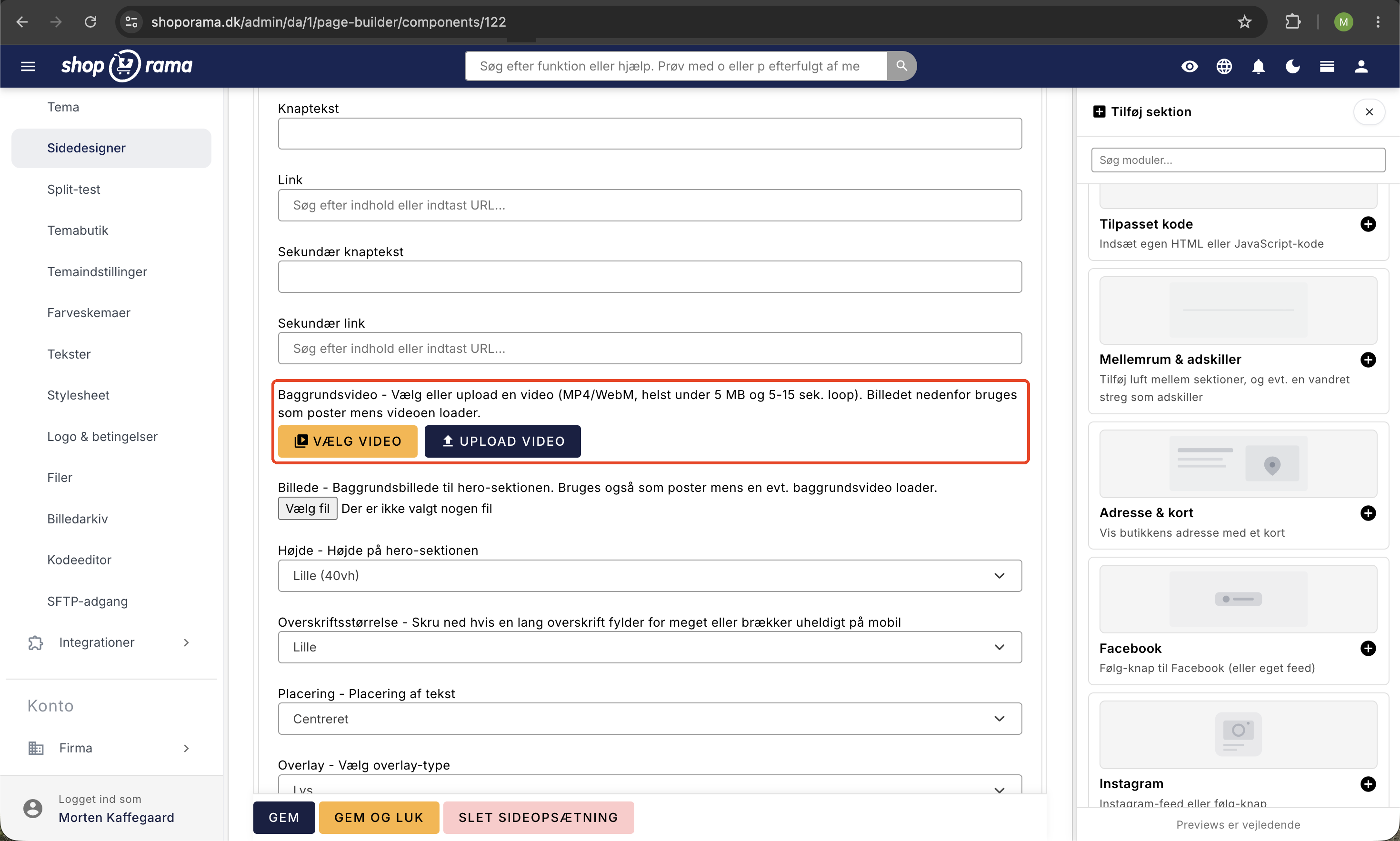
Upload or reuse a video
You have two options in this field:
- Upload video: Select an MP4 or WebM file from your computer. The file will be added to the store’s file library.
- Select video: Choose a video you’ve previously uploaded so you don’t have to upload it again.
Once a video is selected, you’ll see a small preview with a “Remove Video” button. If you remove the video, the image will appear as the background instead, just as before.
Thumbnail
The image field in the hero section is used as a placeholder. This is the still image the customer sees while the video is loading or if the connection is slow. Therefore, always choose a good image that matches the video so the banner is never left blank.
Recommendations for your video
- Format: MP4 (H.264) offers the widest support. WebM also works.
- Length: A short loop of 5 to 15 seconds works best.
- Size: Preferably under 5 MB, so the homepage loads quickly, especially on mobile.
- Audio: Not required. The video always plays without sound.
The video is saved in full quality without being compressed by the system. Therefore, compress your video yourself before uploading so the file doesn’t become unnecessarily large.
Here’s how it looks to the customer
The video starts automatically, loops, and plays silently without a play button. It works on all screen sizes, including mobile. Your headline, body text, and buttons appear on top of the video, just as they do on top of a background image. You can still choose a light or dark overlay so the text is easy to read no matter what’s happening in the video behind it.
Frequently Asked Questions
Where do I find the background video field?
Go to Page Designer and edit the large banner/hero section on the front page. There’s a field called Background Video. “Upload Video” lets you select a file from your computer, while “Select Video” uses a video you’ve already uploaded.
Do I have to start the video myself, or does it start on its own?
It starts playing automatically as soon as the customer opens the homepage. There’s no play button, and it loops continuously. It plays silently on both computers and mobile devices, so you don’t need to do anything.
How large and how long can the video be?
We recommend a short loop of 5 to 15 seconds, preferably under 5 MB. Use the MP4 format. The video is saved at full resolution, so feel free to compress it before uploading to ensure the homepage loads quickly.
Which format and codec offer the best compatibility?
Use H.264 in an MP4 container. It plays widely in all modern browsers and on mobile devices. WebM is also supported, but MP4 is the safe choice.
Does the video play automatically on mobile devices?
Yes. The video plays silently, automatically, and on a loop on all devices, including mobile. Precisely because it’s silent and plays within the page, mobile browsers allow autoplay without the customer having to press play.
Does the video interfere with the readability of my text and buttons?
No. Headings, body text, and buttons are displayed on top of the video, just like on top of a background image. Choose a light or dark overlay so that your text and buttons stand out clearly, no matter what’s happening in the video.
What happens if I upload the wrong file or want to remove the video?
If you upload the wrong file type—such as a PDF or an image—it will be rejected with a message instructing you to use MP4 or WebM. If you want to remove the video, click “Remove Video,” and the image will appear as the background instead.
Can I reuse the same video in multiple places?
Yes, within the same shop. An uploaded video is stored in the shop’s own file library and can be selected again via “Select Video” without having to upload it again. Each shop has its own library, so in a different shop, the video must be uploaded again.
Related articles
Page designer
Lær hvordan du bruger Sidedesigner i Shoporama til at opbygge sidelayouts med blokke som hero-sektioner, produktlister, bannere og meget mere, helt...
Setting up the front page
Lær hvordan du sætter forsiden op i din Shoporama-webshop. Forsiden er en kategori, som du kan tilpasse med Sidedesigner i understøttede temaer.
Optimizing images for mobile
Guide to using responsive images with srcset in your Shoporama theme to provide optimized images for mobile users.
Related features
Page Builder - build professional pages without coding
Build professional pages with Shoporama's visual Page Builder. Drag and drop modules, live preview and responsive design. Included at no extra charge.
Full design freedom - your design, your rules
Design your online store freely with full access to HTML, CSS and templates. Use templates, Page Builder or build from scratch.
Build your homepage in the page builder
The Shoporama homepage is a category. Build it using sections in the page designer, display the right products, and make sure the layout doesn't...
Montana and MontanaB2B: All Modules in the Page Designer
A guide to all 25 modules in the page designer for Montana and MontanaB2B: banners, products, categories, text, content items, and...