Share your newsletter as a public link
Have you just sent out a great newsletter to your subscribers? With Shoporama, you can publish that exact same newsletter as a public webpage and get a link that you can share on Facebook, Instagram, in an email, or on your website. That way, the content also reaches everyone who hasn’t subscribed yet, and you get more value out of the work you’ve already put into the newsletter.
In short: Turn on “Share the newsletter publicly” for a newsletter, copy the link, and share it wherever you like. The public version appears in your shop’s own design and says “Hello, reader” instead of a personal first name, so “Hello, First Name” never appears on the page.
How to publish a newsletter publicly
- Go to Newsletter → Campaigns in the menu.
- Click on the newsletter you want to share.
- Find the “Share the newsletter publicly” button. It’s located on the newsletter’s edit page and on the statistics page, so you can find it regardless of whether the newsletter is a draft, scheduled, or already sent.
- Turn on the “Show as public page ” toggle.
- Click " Copy " to copy the link, or " Open " to view the page in a new tab.
The link typically looks like this: https://dinshop.dk/nyhedsbrev/sommernyt-15-06-2026. The address is automatically generated based on the newsletter’s subject and date, so it’s both neat and easy to recognize.
How to Share the Link
Once you’ve copied the link, you can share it wherever your customers are:
- As a post on Facebook or Instagram.
- In an email or newsletter.
- As a link on your website or in a menu.
- In a text message or message to selected customers.
Collect all your newsletters in an archive
If you share multiple newsletters publicly, you can gather them all on a single archive page in your online store. The archive is located at /newsletters and displays your public newsletters in a list with the most recent one at the top. This way, new visitors can browse your entire back catalog in one place, instead of seeing only the one newsletter you just shared.
How to enable the archive
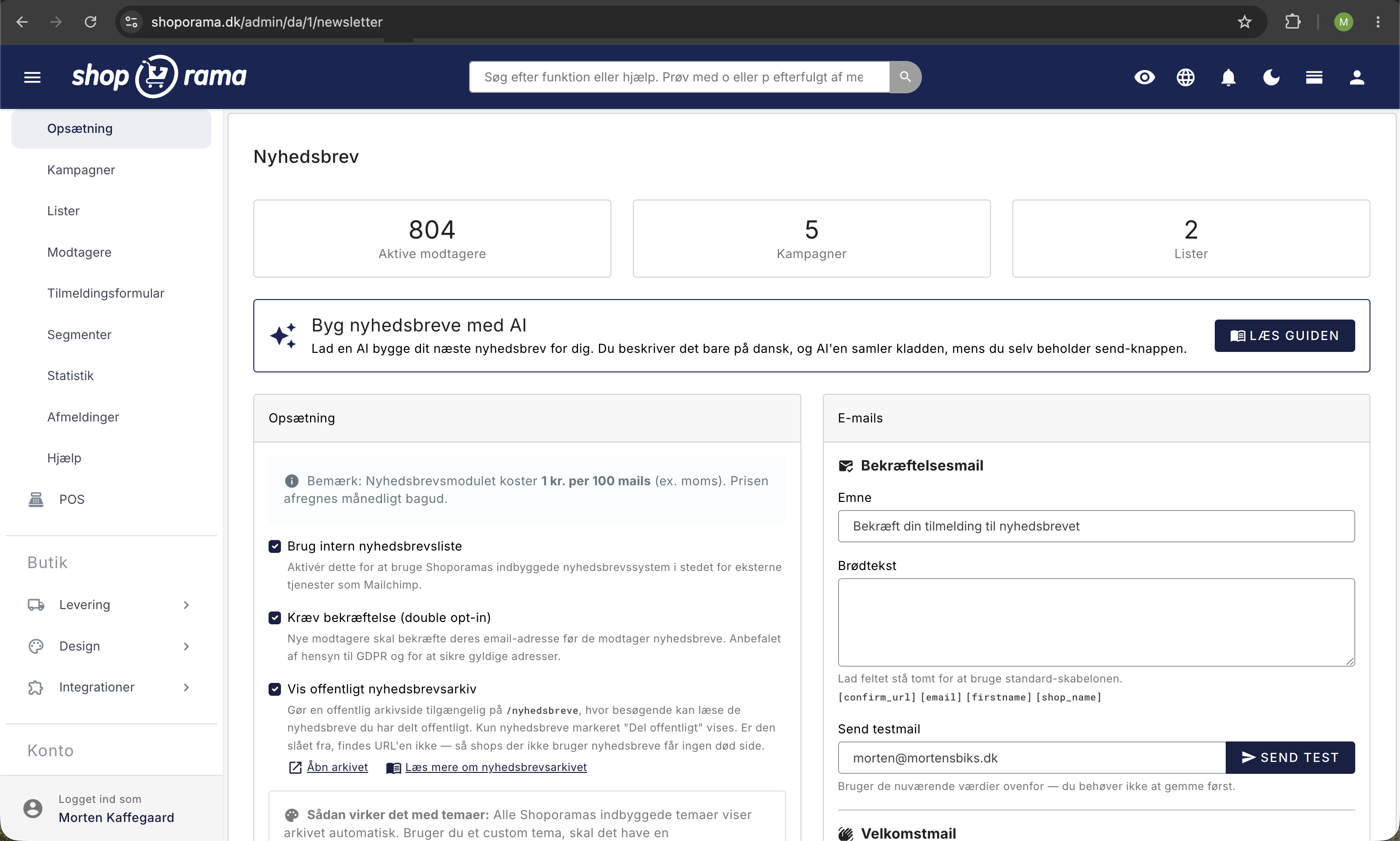
- Go to “Newsletter” in the menu and find the settings page.
- On the “Setup ” tab, check the box next to “Show public newsletter archive.”
- Click Save. An “Open Archive” link will now appear, allowing you to view the page immediately.
Two things must be in place: The archive must be enabled (the setting above), and each individual newsletter must be marked as “Show as public page.” Only the newsletters you’ve shared publicly will appear in the archive. If you haven’t shared any newsletters yet, the archive page won’t exist at all, so you won’t get an empty or dead page while you’re setting things up.
A menu item for the archive won’t appear automatically. If you want customers to be able to access it via the menu, you’ll need to add a menu item yourself that links to /newsletters, for example in the top menu or in the footer. Of course, you can also simply share the link directly on social media or in an email.
No “Hello First Name” on the public page
When you send a newsletter to your subscribers, you can use personalized greetings like “Hi Anne.” On the public version, there is no specific recipient, so the page says “Hi reader” instead. So you don’t need to edit the text before sharing it. There will never be any blank fields or strange codes on the public page.
The page appears in your store’s own design
The public newsletter page opens within your online store with the same header and footer as the rest of the store. This creates a recognizable, professional experience and makes it easy for the reader to click through to the store. If you share the link on social media, Shoporama automatically retrieves a title and description from the newsletter’s subject line and preheader, so the post looks attractive and clickable.
Are you using one of Shoporama’s themes?
The feature is ready to use and already built into all of Shoporama’s standard themes, including Delaware, Montana, and California. Here, the public newsletter page automatically displays in your theme’s design with your header and footer. If you have a custom theme, the shareable link still works, but the page will appear in a simple default layout without your theme’s header and footer. If you want the public page to match your theme perfectly, your theme developer can add a template named newsletter.html to the theme. Similarly, the archive page uses a template named newsletters.html (plural). If you have any questions, please email us at support@shoporama.dk.
How to Stop Sharing Again
If you change your mind or simply want to stop sharing after a campaign, go to the same place and turn off the “Show as public page” toggle. The link will then stop working, and the page will become inaccessible. If you turn it back on later, the same link will be reused, so you’ll avoid broken links in old posts.
Frequently Asked Questions
Where do I find the button to share the newsletter?
Go to Newsletter → Campaigns, and click on the newsletter you want to share. Find the “Share the newsletter publicly” card, turn the toggle on, and click “Copy.” The card is available both on the newsletter’s edit page and on the statistics page.
Can people who aren’t subscribed to my newsletter see it too?
Yes, and that’s the whole point. The link can be opened by anyone, even those who aren’t subscribed. That’s why it’s a great idea to share it on Facebook or your website, where you can reach entirely new readers.
Will it say “Hi First Name” on the page?
No. On the public version, it says “Hello, reader” instead of a name, so empty fields or placeholders never appear. You don’t need to change the text before sharing.
Does the newsletter have to be sent before I can share it?
No. You can share a newsletter whether it’s a draft, scheduled, or already sent. The “Share the newsletter publicly” button is available throughout the entire process.
Can I share old newsletters that I sent a long time ago?
Yes. You can publish both old and new newsletters. The link is generated automatically the first time you enable sharing, even for newsletters that have never had a public link before. So you can gradually make your back catalog available.
What happens if I turn sharing off again?
Then the link will no longer work, and the page will become inaccessible. If you turn it back on later, the same link will be reused, so you can safely share it externally without risking broken links.
How do I know if a newsletter has already been shared publicly?
In the campaign list, there’s a small green globe icon next to the newsletters that have been shared publicly. If you click the icon, the public page will open.
Does this work with my own (custom) theme?
The shareable link always works. In Shoporama’s default themes, the page automatically displays in your theme’s design. If you have a custom theme, the page will display in a simple default version until your theme developer adds a newsletter.html template to the theme.
Can I control sharing via the API? (for developers)
Yes. On a newsletter-campaign object in the REST API, you can read the is_online and public_url fields. This allows you to check the status and the public URL programmatically.
What’s the difference between sharing a single newsletter and enabling the archive?
When you share a single newsletter, that specific newsletter gets its own public link. The archive is a collection page at /newsletters that displays all your publicly shared newsletters in a single list. You can easily share individual newsletters without using the archive. If you want to use the archive, enable it under “Newsletter” and mark the individual newsletters as public.
Is a menu item for the archive added automatically?
No. The archive page is located at /newsletters, but a menu item isn’t created automatically. If you want customers to be able to find the archive via the menu, you’ll need to add a menu item yourself that links to /newsletters—for example, in the top menu or the footer.
I’ve enabled the archive, but /newsletters is empty or cannot be found. What should I do?
Two things are required for a newsletter to appear: the archive must be enabled, and each individual newsletter must be marked as “Show as public page.” Go to the newsletters you want to display and enable this option for each one. If no newsletter has this option enabled, the archive page doesn’t exist yet.
Can Google find the archive?
Yes. /newsletters is a regular public page in your online store and can be found and indexed by search engines just like your other pages. The title and description for search results and sharing are automatically generated based on your shop’s name. This makes the archive a great way to repurpose content from your campaigns.
Can I change the order of the newsletters in the archive?
No. The archive always displays the most recent newsletter at the top and older ones below, and the order cannot be changed manually. If there are many newsletters, they are split across multiple pages with the most recent one first.
Can I build my own archive layout in the theme? (for developers)
Yes. In a theme, you can retrieve the store’s public newsletters using $webshop->getNewsletters() and the most recent one using $webshop->getLatestNewsletter(). Each item has methods such as getTitle(), getDate(), getExcerpt(), getImage(), and getUrl(), so you can build your own list or display a teaser of the latest newsletter anywhere you like. Use $webshop->hasNewsletters() to hide the link if there are no newsletters.
If you’d like to learn more about how to create and send newsletters from Shoporama, you can read about the newsletter module. If you have any questions, feel free to email us at support@shoporama.dk.