Set up LinkedIn tracking (Insight Tag) on your online store
Guide to LinkedIn Tracking in Shoporama: Find your Insight Tag ID in LinkedIn Campaign Manager, enter it under "Webshop," "Tracking," and use it for conversion tracking, retargeting audiences, and demographic insights.
LinkedIn is the most important advertising platform if you’re selling to businesses. Nowhere else can you target ads so precisely by job title, industry, and company size. If you run a B2B online store or sell products where the decision-maker works in an office, LinkedIn ads can be worth the investment, even though click prices are typically higher than on other platforms.
To measure whether your LinkedIn ads are driving traffic and orders, LinkedIn’s tracking tag—called the Insight Tag—must be installed on your store. Shoporama’s built-in tracking module handles this automatically. This guide shows you how to set it up.
What You’ll Need
- Shoporama’s tracking module enabled. This requires a Pro or Flex plan and costs DKK 89 per month (excl. tax). See the guide “Tracking in Your Shoporama Webshop.”
- An ad account in LinkedIn Campaign Manager.
- See also the guide to server-side tracking if you want the full setup of the tracking module for all your platforms.
Step 1: Find your Insight Tag ID on LinkedIn
LinkedIn only needs one piece of information: your Insight Tag ID, also known as your partner ID. It’s a number, such as 1234567.
You can find it in LinkedIn Campaign Manager in the Insight Tag section, where you can also create the tag if you don’t already have one. If you open the setup guide with the tag code, the ID is the number listed as the partner ID in the code. You don’t need the code itself—just the number.
Step 2: Enter the ID in Shoporama
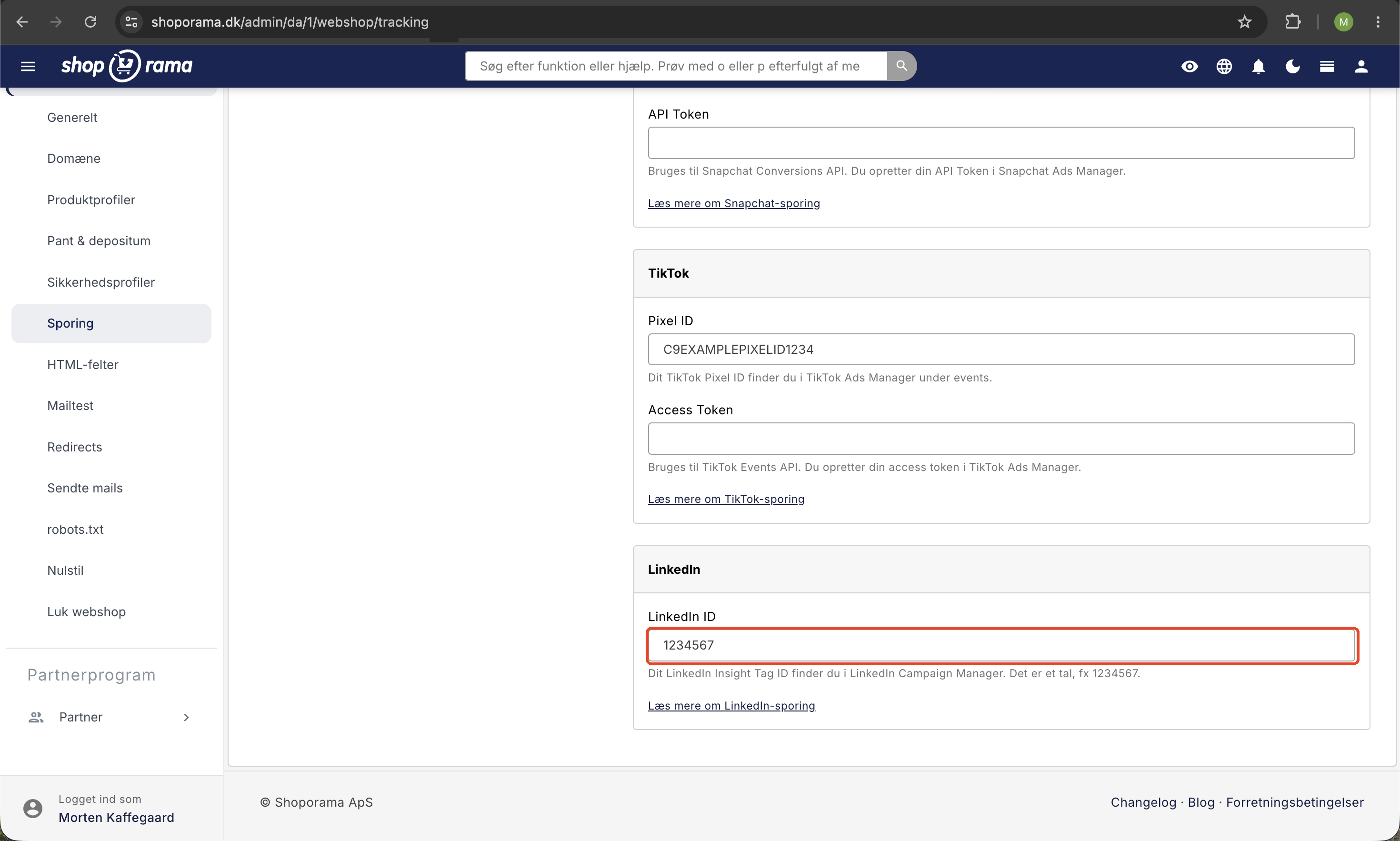
- Go to Webshop in the left-hand menu in the admin panel, and select Tracking.
- Check the box next to “Enable Tracking” if you haven’t already done so.
- Under “Platforms,” check the box next to “LinkedIn.”
- Enter the number in the “LinkedIn ID” field in the LinkedIn box on the right.
- Click Save.
Note that it may take up to an hour for new settings to become fully active on Shoporama’s tracking server.
What LinkedIn tracking can and cannot do
The LinkedIn integration differs from the other platforms in the tracking module. It runs exclusively in the customer’s browser via LinkedIn’s own Insight Tag, and no access token or server-side connection is used. In practice, this means:
- The Insight Tag tracks page views across your entire store.
- You can build audiences in LinkedIn Campaign Manager, for example, to retarget people who have visited specific pages.
- You can measure conversions by setting up conversion rules in Campaign Manager, typically based on which page the customer lands on, such as your confirmation page.
- You can view demographic insights about your visitors, such as industries and job titles, in Campaign Manager.
However, Shoporama does not send product catalog events to LinkedIn, as it does to platforms such as Meta, Pinterest, Snapchat, and TikTok. LinkedIn therefore does not receive product lines, product IDs, or order values, and purchases are not reported server-side. This is a limitation of how LinkedIn’s tracking is designed—it’s not something you can change through additional settings.
Troubleshooting
- In LinkedIn Campaign Manager, you can check the Insight Tag section to see if the tag is registered as active on your domain. It may take a little while for LinkedIn to show the tag as active after it’s been set up.
- If you’re using Consent Mode, data isn’t sent until consent is given. So be sure to accept the cookie banner when testing.
- If you’ve just saved your ID, wait about an hour and try again.
- Make sure you’ve only entered the number, not the entire code snippet from LinkedIn.
If you’re still having trouble, please email support@shoporama.dk.
Frequently Asked Questions
Do I need to insert LinkedIn’s code snippet into my theme?
No. You only need to enter the number from LinkedIn into the field in the Shoporama admin, and the tracking module will automatically add the Insight Tag to your entire store.
Why doesn’t LinkedIn require a token like the other platforms?
Because the LinkedIn integration runs exclusively in the browser via the Insight Tag. The other platforms have server-side APIs where Shoporama sends orders directly, and that requires a token. This, in turn, makes the LinkedIn setup extra simple.
Can I see revenue per campaign on LinkedIn?
You can measure the number of conversions—such as completed purchases—using a rule on your checkout page, but LinkedIn does not receive order values or line items. If you want to see revenue by channel, GA4 with Shoporama tracking is a better place to look.
Can I retarget people who have visited my store?
Yes. When the Insight Tag is active, you can create audiences of visitors in LinkedIn Campaign Manager—for example, everyone who has viewed a specific page—and use them in your campaigns.
Does LinkedIn tracking make sense for a typical B2C online store?
Rarely. LinkedIn’s strength lies in targeting professionals, and its click prices are relatively high. If you primarily sell to consumers, you’ll usually get better results from platforms like Meta, Google, TikTok, or Pinterest.
Related articles
Tracking in your Shoporama webshop
Enable Shoporama's built-in tracking and send precise tracking data to Facebook, Google Ads, GA4, TikTok, and more. Server-side, GDPR-compliant,...
Server-side tracking in Shoporama
A Complete Guide to Server-Side Tracking in Shoporama. Better data quality, fewer ad-blocker losses, product IDs that match your feed, and...