Set up Snapchat tracking on your online store
Step-by-step guide to Snapchat tracking in Shoporama: Find the Pixel ID and API token in Snapchat Ads Manager, enter them under "Webshop," "Tracking," and see which events Snapchat receives, including server-side purchases via the Snapchat Conversions API.
Snapchat has one of the youngest audiences among the major advertising platforms. Many users are under 30, and they use the app daily. Ads appear in full-screen mode between friends’ snaps and stories, typically as short videos. If you sell fashion, beauty, accessories, or gadgets to a young target audience, for example, Snapchat ads can give you a reach that’s hard to achieve on other channels.
For Snapchat to optimize your ads for people who actually make purchases, the platform needs to know about visits, shopping carts, and purchases on your shop. Shoporama’s built-in tracking module handles this automatically. This guide shows you how to set it up.
What You’ll Need
- Shoporama’s tracking module enabled. This requires a Pro or Flex plan and costs DKK 89 per month (excl. tax). See the “Tracking” guide in your Shoporama online store.
- A Snapchat ad account with access to Snapchat Ads Manager.
- Recommended: server-side tracking enabled so your tracking isn’t blocked by ad blockers. See the guide to server-side tracking.
Step 1: Find your Pixel ID and API token on Snapchat
Shoporama needs two pieces of information from Snapchat:
- The Pixel ID is the ID of your Snap Pixel. You’ll find it in Snapchat Ads Manager in the “Events” section, where you can also create the pixel if you don’t already have one.
- The API token is a key that allows Shoporama to send your orders directly to Snapchat via the Snapchat Conversions API. You also create this in Snapchat Ads Manager. Look for the Conversions API in connection with your pixel.
Snapchat regularly updates its menus, but both items are located in the “Events” section of Snapchat Ads Manager. Copy both values so you have them ready for the next step.
Step 2: Enter the information in Shoporama
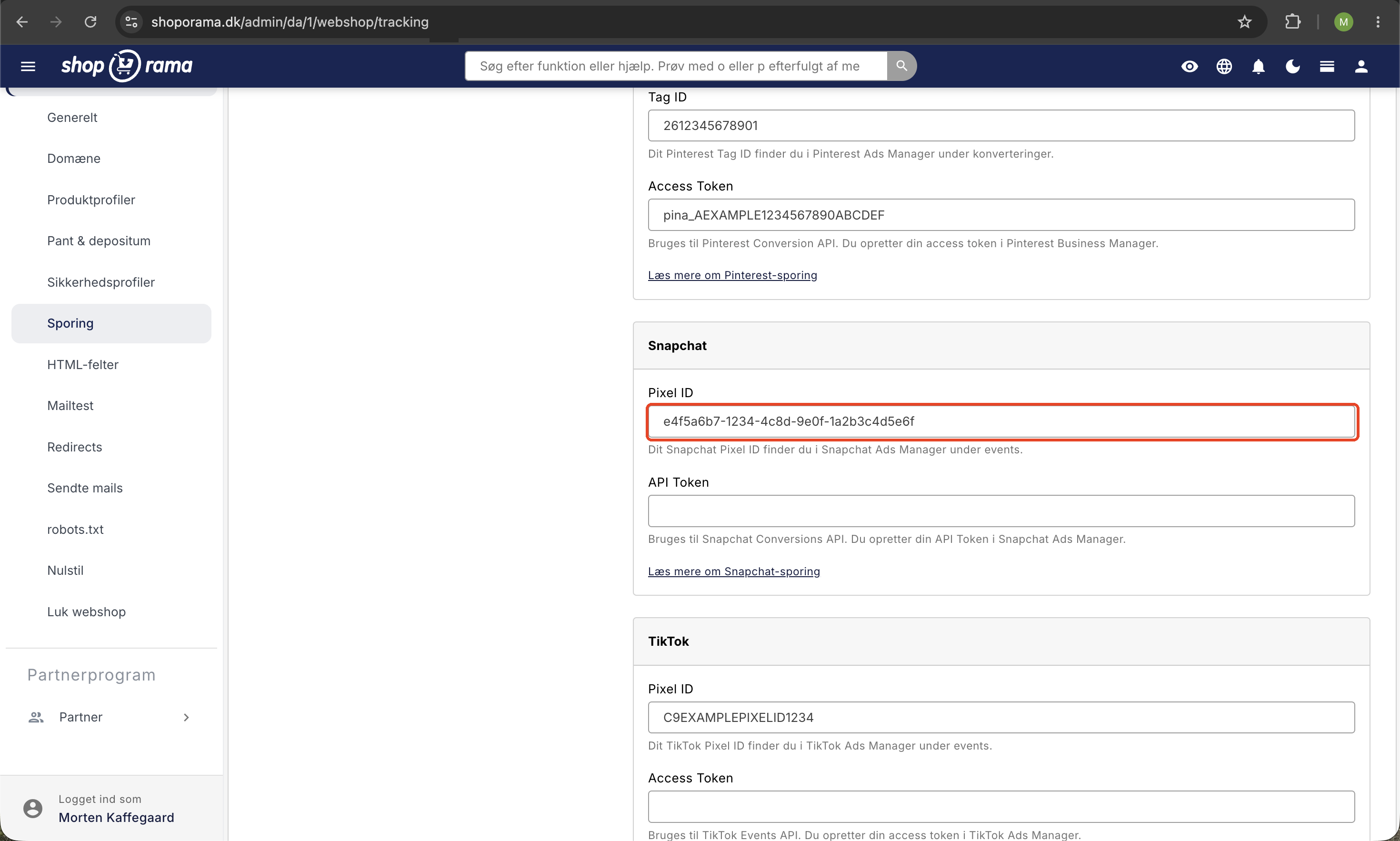
- Go to Webshop in the left-hand menu in the admin panel, and select Tracking.
- Check the box next to “Enable Tracking” if you haven’t already.
- Under “Platforms,” check the box next to “Snapchat.”
- Fill in the Pixel ID and API Token fields in the Snapchat box on the right.
- Click Save.
Note that it may take up to an hour for new settings to become fully active on Shoporama’s tracking server.
Shoporama sends this to Snapchat
You do not need to add any code to your store yourself. The tracking module automatically records customer behavior and sends events such as the following from the browser:
- Product views and category page views
- Searches in the store
- Items added to the cart and cart views
- The individual steps in the checkout process (address, shipping, authorization, and payment)
- Completed purchases with order value and line items
Once an order is paid for, Shoporama’s server also sends the purchase directly to Snapchat via the Snapchat Conversions API. This happens outside the customer’s browser, so the purchase is still recorded even if the customer closes the window too quickly or an ad blocker blocks the tracking. The order number is included in both events, so Snapchat automatically removes duplicates if both the browser and the server manage to report the same order.
The product IDs in your events are the same as those in your Google Shopping feed. If you use the feed for your product catalog on Snapchat, events can therefore be matched directly against the catalog. Read more in the article about product IDs and catalog matching.
Troubleshooting
- Install the Snap Pixel Helper browser extension in Chrome. It shows which Snapchat events are triggered as you click around your store.
- If you’re using Consent Mode, data isn’t sent until consent is given. So be sure to accept the cookie banner when testing.
- If you’ve just saved your keys, wait about an hour and try again.
- Make sure the Pixel ID and API token are entered without any spaces before or after them.
- In Snapchat Ads Manager, you can see which events Snapchat has received in the “Events” section.
If you’re still having trouble, please email support@shoporama.dk.
Frequently Asked Questions
Do I need to know how to code to use Snapchat tracking?
No. You just need to copy two values from Snapchat Ads Manager and paste them into Shoporama. Shoporama automatically adds the rest to your store.
Is Snapchat included in the price of the tracking module?
Yes. The DKK 89 per month covers all platforms in the tracking module, such as Facebook, Google, TikTok, Pinterest, and LinkedIn. You don’t pay extra per platform.
Can Snapchat see which products customers are buying?
Yes. Purchase events contain line items with the same product IDs as your Google Shopping feed. If you use the feed for your catalog on Snapchat, the events and catalog will automatically match.
What exactly does the server-side component do for me?
It ensures that completed purchases are reported from Shoporama’s server, even when ad blockers or closed browser windows prevent standard tracking. This gives Snapchat a more complete picture and thus allows for better optimization of your campaigns.
How do I check that it’s working?
Click around your store with Snap Pixel Helper installed, and add an item to your cart, for example. Then check in Snapchat Ads Manager to see if events have been received. Remember to accept cookies if you’re using Consent Mode.
Related articles
Tracking in your Shoporama webshop
Enable Shoporama's built-in tracking and send precise tracking data to Facebook, Google Ads, GA4, TikTok, and more. Server-side, GDPR-compliant,...
Server-side tracking in Shoporama
A Complete Guide to Server-Side Tracking in Shoporama. Better data quality, fewer ad-blocker losses, product IDs that match your feed, and...
Product IDs and Catalog Match: How to Ensure Your Ads Match Your Product Feed
An explanation of which product ID Shoporama’s tracking sends, why it always matches the Google Shopping feed, what “catalog match” means for your...