Setting Up Flatpay
Step-by-step guide to setting up Flatpay as a payment gateway on your Shoporama online store.
Flatpay is a Danish payment provider with competitive rates. With Flatpay, you can accept online payments in your Shoporama online store, and your customers can pay with a card, MobilePay, Apple Pay, and Google Pay. Flatpay’s online payments are handled by its Nordic payment partner, Frisbii, but you only need to deal with Flatpay.
Set up a Flatpay agreement
Before you can accept payments, you must have an agreement with Flatpay:
- Contact Flatpay and set up an agreement for online payments at flatpay.com.
- Complete Flatpay’s verification of your business.
- Once your agreement is ready, Flatpay will provide you with a private API key. It starts with “priv_” and is the only information you need to get started.
Setup in Shoporama
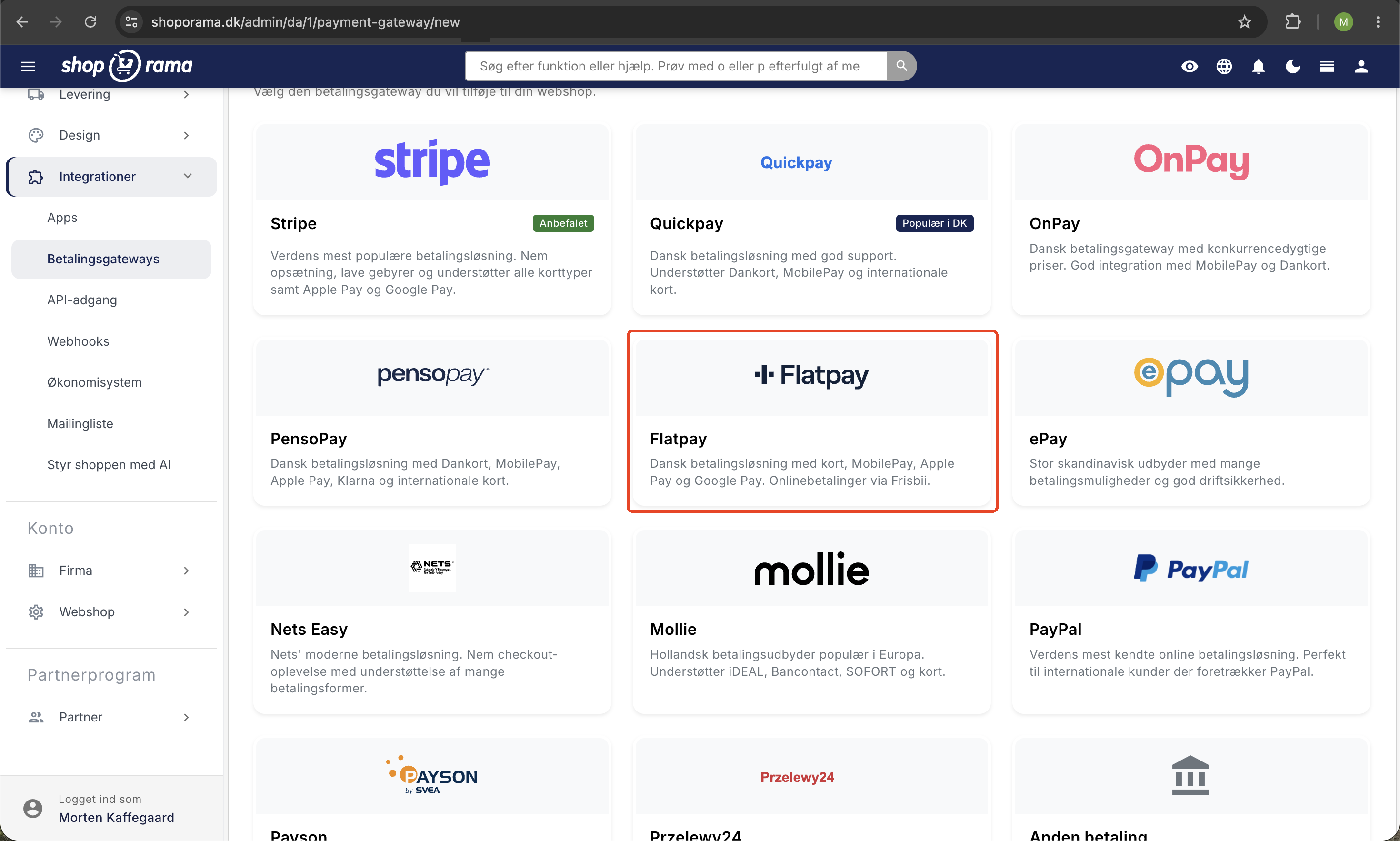
- Log in to Shoporama and go to Integrations → Payment Gateways.
- Click Create New Payment Gateway and select the Flatpay type.
- Give your gateway a name that the customer won’t see, such as “Card Payment.”
- Enter your private API key from Flatpay in the Private API Key field.
- Save. You’re all set. Shoporama will handle the rest automatically.
Fields and Configuration
On the setup page, you can fill in the following:
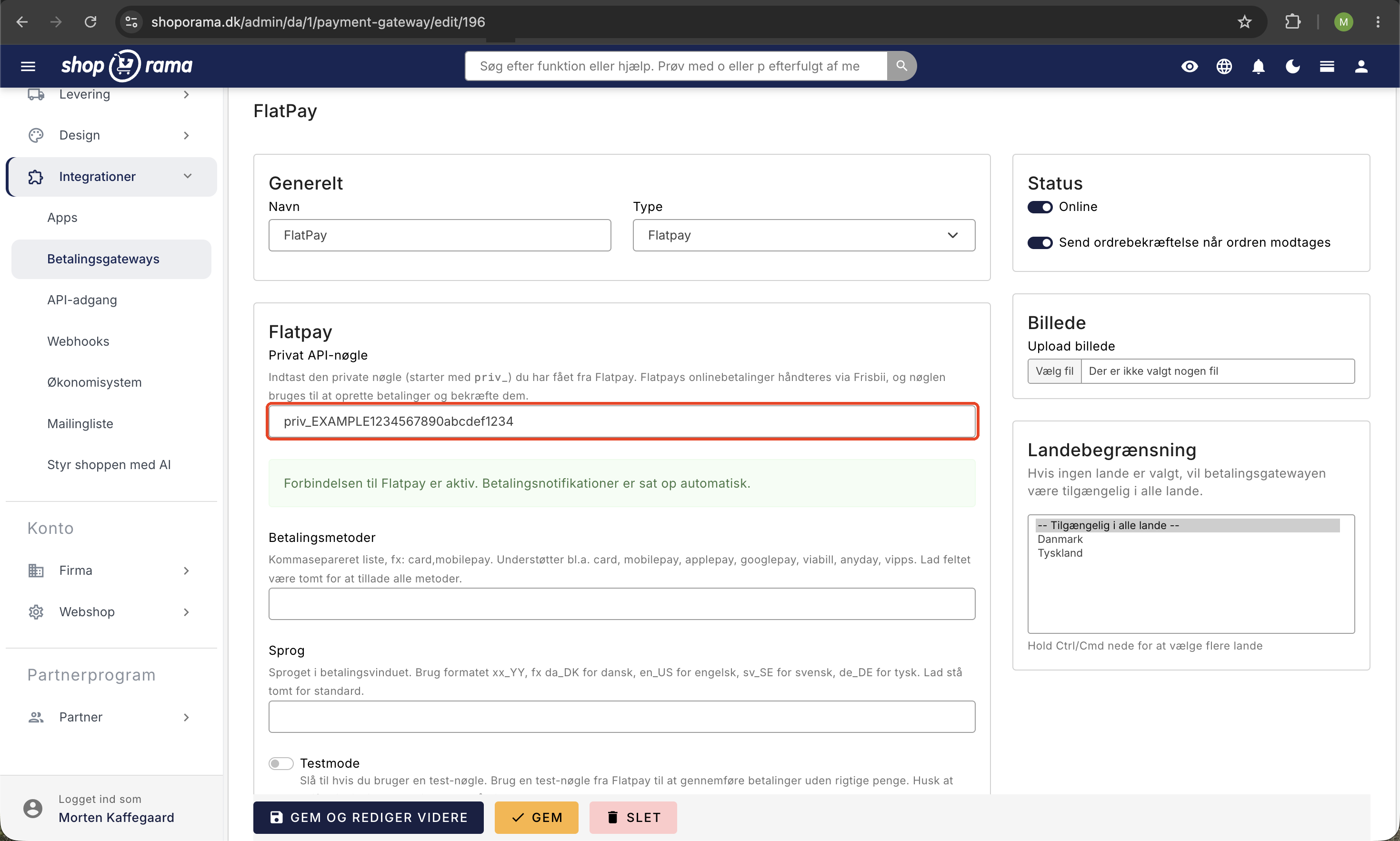
- Private API Key. The key from Flatpay that starts with priv_. It is used to create and confirm payments.
- Payment methods. Specify which methods you want to offer, separated by commas, e.g. , card,mobilepay. Supports, among others, cards, MobilePay, Apple Pay, and Google Pay. Leave the field blank to allow all methods.
- Language. The language of the payment window in the format xx_YY, e.g., da_DK for Danish or en_US for English. Leave blank for the default.
Payment Reversal Settings
- Test Mode. Enable this if you’re using a test key from Flatpay. This allows you to make test purchases without charging real money. Remember to switch to your live key and disable test mode before going live.
- Autocapture. Debits the amount immediately when the customer pays. Suitable for digital goods that are delivered instantly.
- Charge automatically when the item is shipped or picked up. The amount is reserved at the time of purchase and is not charged until you mark the order as shipped or picked up. Recommended for physical goods.
Note: Autocapture and “debit upon shipment” cannot be enabled at the same time. Choose the one that best suits your products.
Payment notifications are set up automatically
When you save your Flatpay gateway, Shoporama verifies your key and automatically sets up the connection to Flatpay so your online store is notified every time a payment is processed. This means you don’t need to log in to any Flatpay dashboard to manually enter addresses or keys. If you see a green confirmation on the setup page, the connection is active.
Here’s what Flatpay offers in Shoporama
- Card payments and digital wallets: Visa, Mastercard, MobilePay, Apple Pay, and Google Pay.
- Capture payments. Manually from the order, automatically upon payment, or automatically when the item is shipped.
- Refund. Issue a full or partial refund directly from the order in Shoporama.
- Cancel. Cancel a reserved payment that has not yet been captured.
- Subscriptions. Supports recurring payments for subscription orders.
- Payment links. Send a payment link to the customer directly from the order page.
- Open and closed cart. Works with both checkout types.
- REST API. Create payment links via Shoporama’s REST API.
Subscriptions
If you want to sell subscriptions, the customer saves their card the first time through Flatpay’s payment window. After that, subsequent payments are automatically charged without the customer having to do anything. The customer must therefore complete the first payment for the subscription to continue automatically.
Security
Every time Flatpay notifies your online store of a payment, Shoporama verifies the payment’s status and amount directly with Flatpay before marking the order as paid. The amount is also cross-checked against the order. This means that payments cannot be forged, and an order is only marked as paid once the funds have actually been processed.
Test Your Setup
With a test key from Flatpay and test mode enabled, you can make test purchases without using real money. Use a test card such as 4111 1111 1111 1111 with any future expiration date and any CVV number. Feel free to test the entire process: complete a purchase, withdraw the amount, issue a refund, and cancel a payment so you’re familiar with the order flow before going live.
Frequently Asked Questions
Can my customers pay with MobilePay?
Yes. Flatpay supports MobilePay, standard debit and credit cards, Apple Pay, and Google Pay. Whether your customers prefer to use their phone or a card, they’re covered. You decide which payment methods appear in the payment window.
Where can I see if an order has been paid?
Open the order in Shoporama. On the order, you can see the payment status and whether the amount has been reserved or debited. If the payment went through, the order will show as paid. If no payment has been made, it will typically show as pending.
A customer says the payment failed. What should I do?
First, check the order in Shoporama. If no payment has been recorded, the customer can safely try again, perhaps using a different method such as MobilePay or another card. If the payment itself fails, the order will not be processed, and no money will be deducted.
Can I choose which payment methods the customer sees?
Yes. In the “Payment Methods” field in the gateway setup, you can select which methods are displayed. Show the methods your customers actually use. Fewer, relevant options often provide a better and faster shopping experience than a long list.
Can the payment page be in Danish?
Yes. You set the language for the payment window in the gateway setup, e.g., da_DK for Danish. A payment window in the customer’s own language creates a sense of security at that crucial moment and reduces cart abandonment. If you have many international customers, you can select a different language.
How do I record my Flatpay sales in my books?
Shoporama displays the full order amount and your debits and refunds on the order itself. The actual payment to your bank account and the deducted transaction fees are handled by Flatpay and do not appear in Shoporama. For bookkeeping, use Flatpay’s settlement report, which lists gross sales, fees, and net payout, and reconcile it with the orders in Shoporama.
I have multiple online stores. Can I use the same Flatpay agreement?
You can use the same Flatpay business agreement, but each online store must be set up separately with its own private key under “Payment Gateways.” It only takes a few minutes per store, and the connection is set up automatically for each individual store.
I’m switching from another payment gateway. Is there anything I need to be aware of?
New orders, subscriptions, and payment links will go through Flatpay as soon as the key is active, and the switch itself won’t cause any downtime for your store. Existing subscriptions on your old gateway won’t automatically transfer over, since saved cards can’t be transferred between providers. Therefore, keep the old gateway running until the final payments have been processed.
Need help?
If you have any questions about the setup, you’re always welcome to contact us at support@shoporama.dk.
Related articles
Setting up PensoPay
Step-by-step guide to setting up PensoPay as a payment gateway on your Shoporama online shop.
Setting up OnPay
Step-by-step guide to setting up OnPay as a payment gateway on your Shoporama online store. Supports payment links, capture, refund and cancel.
Setting up Nets Easy
Guide to setting up Nets Easy (Nexi) as a payment gateway on your Shoporama online shop.