Setting up the front page
Lær hvordan du sætter forsiden op i din Shoporama-webshop. Forsiden er en kategori, som du kan tilpasse med Sidedesigner i understøttede temaer.
Forsiden er en kategori
I Shoporama er forsiden ikke en separat side. Den er en helt almindelig produktkategori med et særligt flag. Det betyder, at alt hvad du kan gøre med en kategori (tilføje produkter, billeder, beskrivelser og underkategorier), kan du også gøre med forsiden.
Når en kategori er markeret som forside, vises den på din webshops rod-adresse (fx dinshop.dk/) i stedet for under sit kategorinavn.
Vælg forsidekategori
Du vælger hvilken kategori der skal være forsiden under webshop-indstillingerne:
- Gå til Webshop i venstremenuen
- Find feltet Forsidekategorien
- Vælg den kategori du ønsker som forside i dropdown-menuen
- Klik Gem
Når du opretter en ny webshop, oprettes der automatisk en kategori kaldet "Forsiden" som er sat som forside. Du kan omdøbe den eller vælge en anden kategori.
I kategorilisten kan du se hvilken kategori der er forsiden. Den er markeret med et blåt Forside-badge.
Tilføj produkter til forsiden
Da forsiden er en kategori, tilføjer du produkter til den på samme måde som enhver anden kategori:
- Gå til Produkter og åbn det produkt du vil vise på forsiden
- Under Kategorier markerer du forsidekategorien
- Gem produktet
Produkterne vises så på forsiden i den rækkefølge dit tema bestemmer (typisk efter vægt eller sortering).
Sidedesigner, byg forsiden visuelt
Hvis dit tema understøtter Sidedesigner (også kaldet Sideopsætning), kan du bygge forsiden visuelt med sektioner i stedet for blot at vise en produktliste. Sidedesigner giver dig mulighed for at sammensætte forsiden af forskellige blokke som hero-bannere, produktkarruseller, kategorilister, tekst og meget mere.
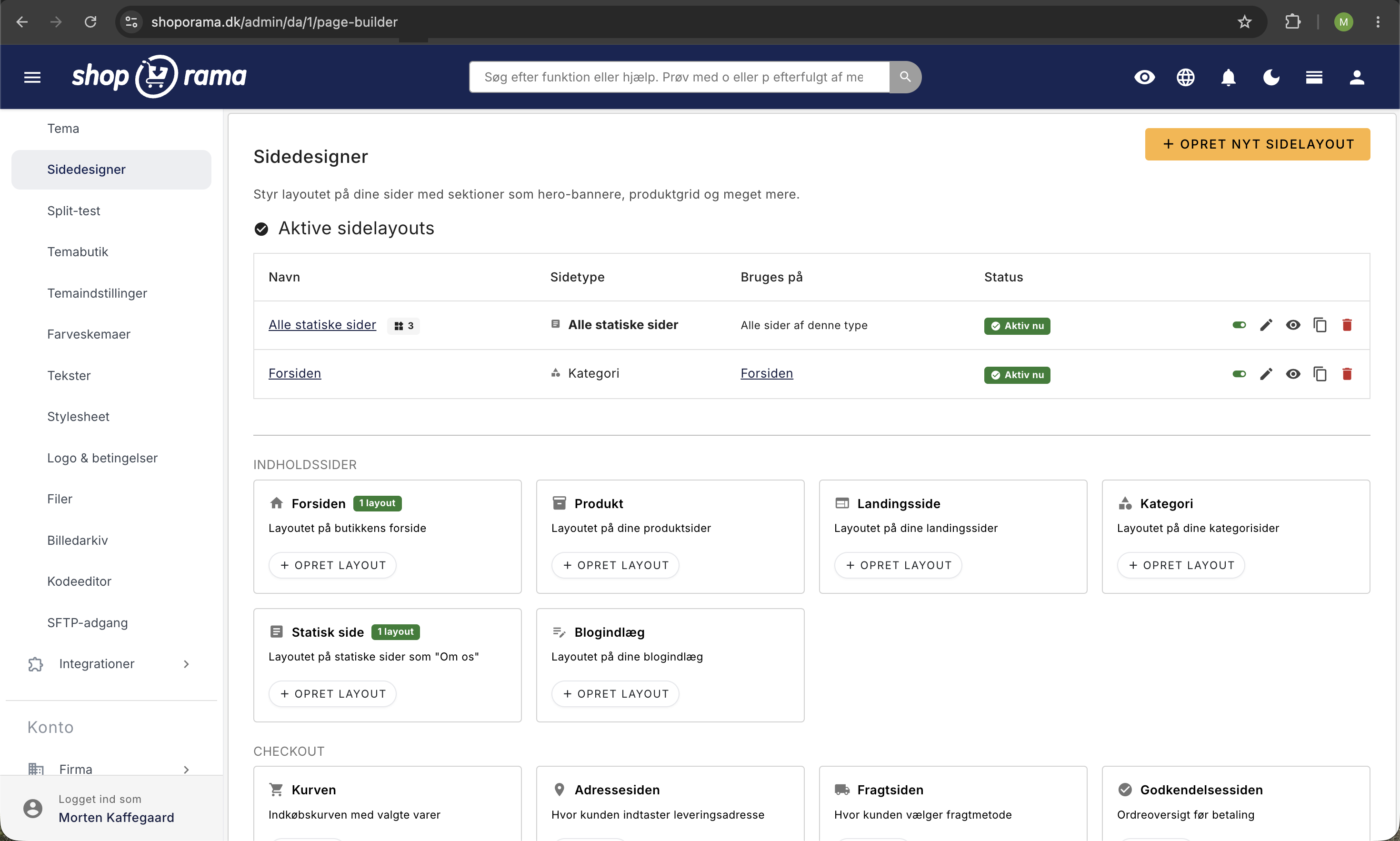
Sådan bruger du Sidedesigner på forsiden:
- Gå til Kategorier og find din forsidekategori
- Klik på Sideopsætning (linket vises kun hvis dit tema understøtter Sidedesigner)
- Tilføj sektioner ved at vælge fra listen af tilgængelige bloktyper
- Konfigurer hver sektion med billeder, tekst, produkter osv.
- Træk sektionerne i den rækkefølge du ønsker
- Gem dine ændringer
Hvis du ikke har opsat Sidedesigner for forsiden, viser temaet automatisk et standard-layout (typisk en produktliste fra forsidekategorien).
Baggrundsvideo i hero-banneret
Du kan give hero-banneret på forsiden en levende baggrundsvideo i stedet for et stillbillede. Det giver et professionelt førstehåndsindtryk. Funktionen findes i temaer der har et videofelt på hero-sektionen, fx Montana. Delaware har desuden en dedikeret “Hero med video og kategorier”-sektion.
Sådan tilføjer du en baggrundsvideo:
- Åbn forsidens Sideopsætning og redigér hero-sektionen
- I feltet Baggrundsvideo klikker du Upload video for at uploade en MP4- eller WebM-fil, eller Vælg video for at genbruge en video du allerede har uploadet
- Vælg et billede i samme sektion. Det bruges som poster, altså stillbilledet der vises mens videoen loader
- Klik Gem
Videoen afspilles automatisk, lydløst, og i loop på alle enheder, også mobil. Gode råd: brug en kort loop på 5-15 sekunder, helst under 5 MB, i MP4-format. Videoen gemmes i fuld kvalitet uden komprimering, så komprimér den gerne inden upload.
Temaer med Sidedesigner-understøttelse
Ikke alle temaer understøtter Sidedesigner. Her er en oversigt over de temaer der har Sidedesigner til forsiden:
Delaware / DelawareDK
Det mest avancerede tema med flest sektionstyper. Understøtter bl.a.:
- Hero, stort banner med billede, overskrift og call-to-action-knap
- Hero med video og kategorier, videobanner med kategorinavigation
- Produktliste, vis udvalgte produkter i et grid
- Produktkarrusel, vandret scroll af produkter
- Produktfeature, fremhæv et enkelt produkt med stort billede
- Kategoriliste, vis underkategorier med billeder
- Kategorislider, vandret scroll af kategorier
- Banner, billedbanner med link
- Billedgrid, collage af flere billeder
- Tekst, fritekst-sektion
- Tekst i to kolonner, tekst fordelt i to kolonner
- Tekst og billede, tekst og billede side om side
- Blogliste, vis seneste blogindlæg
- Trustpilot, vis Trustpilot-anmeldelser
- Værdier/USP'er, fremhæv butikkens fordele med ikoner
California
Bootstrap-baseret tema med mange specialiserede sektioner:
- Slideshow, billedkarrusel med tekst
- Kategorislider, vandret scroll af kategorier
- Produkter, produktgrid, slider og fremhævede produkter
- Kampagnebilleder, promoveringsbannere med nedtælling
- Testimonials, kundeanmeldelser
- FAQ, ofte stillede spørgsmål
- Brands, logo-karrusel af mærker
- Gavekort, fremhæv gavekort
- Blogindlæg, vis seneste blogindlæg
- Kontaktformular, kontaktinformation og formular
Alaska2
Minimalistisk tema med grundlæggende Sidedesigner-understøttelse. Har færre sektionstyper og er velegnet til simple webshops der ikke har brug for avancerede layouts.
Temaer uden Sidedesigner
Ældre temaer (fx det originale Alaska og Massachusetts) understøtter ikke Sidedesigner. På disse temaer viser forsiden automatisk produkterne fra forsidekategorien i temaets standardlayout. Du kan stadig tilpasse forsiden ved at:
- Tilføje og sortere produkter i forsidekategorien
- Redigere kategoriens navn, beskrivelse og billede
- Bruge Custom CSS til at tilpasse udseendet
Gode råd til forsiden
- Hold det simpelt, undgå for mange sektioner. Fokuser på de vigtigste produkter og kategorier
- Brug hero-banneret, et flot hero-billede med en tydelig call-to-action gør et godt førstehåndsindtryk
- Vis populære produkter, brug en produktliste eller karrusel til at fremhæve bestsellere
- Tilføj kategorinavigation, en kategoriliste hjælper kunderne med at finde rundt
- Trustpilot/USP'er, vis tillid og fordele tidligt for at øge konverteringsraten
- Test på mobil, sørg for at forsiden ser godt ud på alle enheder
Ofte stillede spørgsmål
Kan jeg have flere forsider?
Nej, der kan kun være én forsidekategori per webshop. Du kan dog skifte forsidekategori når som helst under webshop-indstillingerne.
Kan forsiden være en underkategori?
Teknisk set er der ikke et krav om, at forsidekategorien er en rodkategori. I praksis bør du dog vælge en rodkategori, da forsiden er det første kunderne ser, og det giver det reneste setup. Hvis du vælger en underkategori, vil den stadig fungere som forside, men eventuelle bredkrumme-stier og menu-strukturer i temaet kan opføre sig uventet.
Hvad sker der hvis jeg skifter forsidekategori?
Den nye kategori overtager forsiden med det samme. Den gamle kategori bliver en almindelig kategori med sin egen URL.
Understøtter mit tema Sidedesigner?
Gå til en kategori og se om linket "Sideopsætning" vises. Hvis det gør, understøtter dit tema Sidedesigner.
Har du brug for hjælp? Kontakt os på support@shoporama.dk.
Related articles
Page designer
Lær hvordan du bruger Sidedesigner i Shoporama til at opbygge sidelayouts med blokke som hero-sektioner, produktlister, bannere og meget mere, helt...
Implement Theme Builder in your theme
Guide to implementing Shoporama's Theme Builder in your theme so the merchant can build pages visually.
Delaware-themed configuration and customization
Complete guide to setting up the Delaware theme on your Shoporama online store. Footer, mega menu, colors, payment icons, Trustpilot, Instagram...
Own stylesheet (Custom CSS)
Add custom CSS to your Shoporama online store and admin backend. Customize colors, fonts, layout and hide elements without changing theme files.