Print shipping labels without an order
Create and print shipping labels without first placing an order, using your own account with PostNord, GLS, or DAO. Clone multiple labels at once and print the entire shipment in one go, send a QR code to senders without a printer, and create your own packing slip.
Sometimes you need to send a package that isn’t part of an order from the store. Perhaps a product sample, a return, a refund, or a package for a supplier. With Print Labels, you can create and print a shipping label right away—without having to create an order first—using your own shipping agreement with PostNord, GLS, or DAO.
You’ll find this feature in the menu under Delivery → Print Labels.
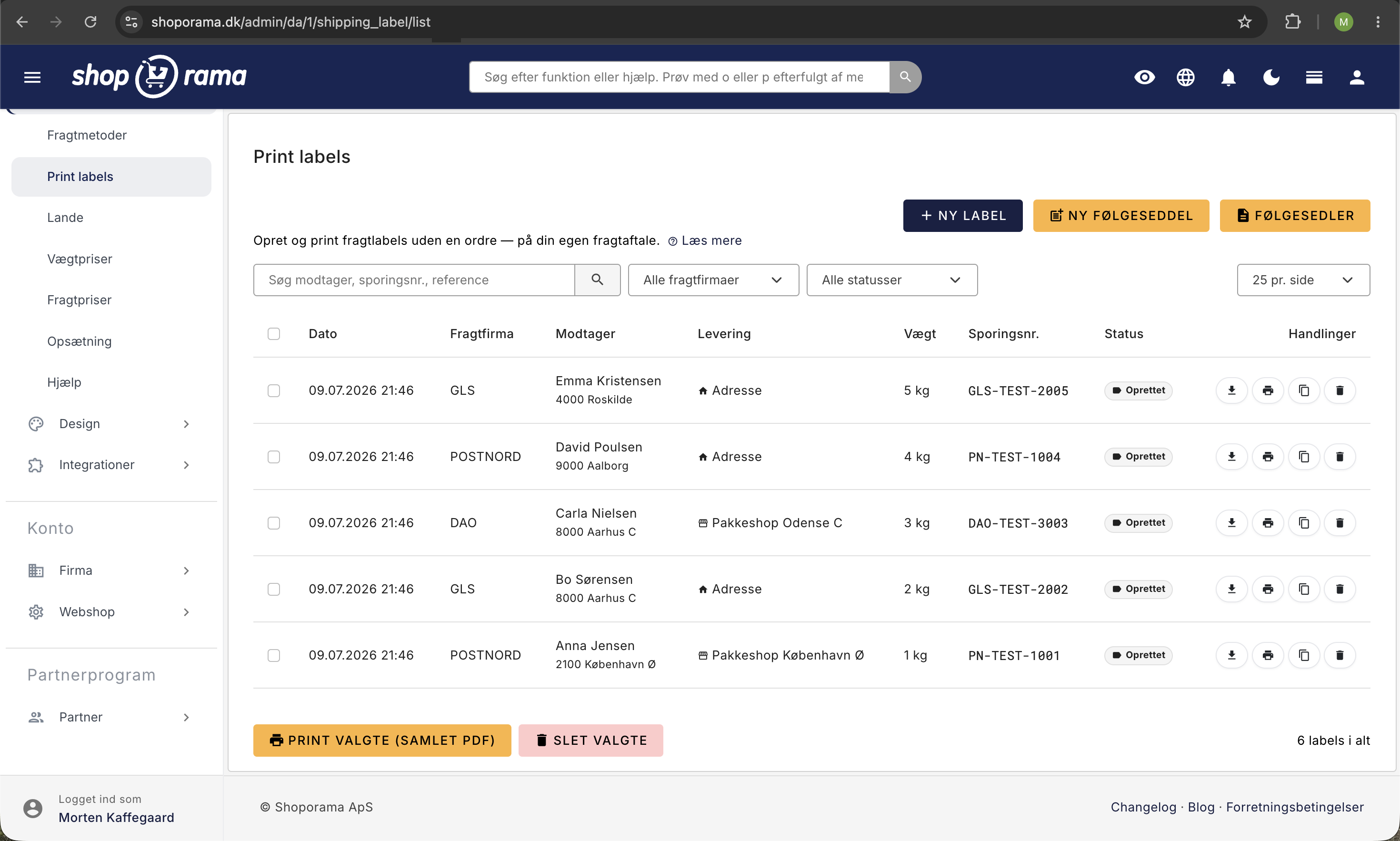
What can you use “Print labels” for?
"Print Labels" is for all shipments that don’t go through the shopping cart. Instead of creating a pro forma order just to get a shipping label, you can generate the label directly:
- A single package or product sample
- A return shipment or complaint
- A package for a supplier or business partner
- A shipment on behalf of another sender
How to create a label
- Go to Delivery → Print Labels and click New Label.
- Select a shipping carrier. You can choose from the carriers you’ve set up yourself under Delivery → Setup (PostNord, GLS, or DAO).
- Check the sender. It is pre-filled with your store’s business information, but you can edit it if you’re shipping on behalf of others.
- Fill in the recipient’s information. You can search for the recipient among your customers and past orders, and the fields will be filled in automatically.
- Select the delivery type: to an address or to a package pickup location. If you select a package pickup location, you can search for the nearest one in real time based on the recipient’s address.
- If applicable, enter the weight and a reference. Both are optional.
- Click “Create Label.” The label is generated immediately, and you can download the PDF and print it.
The label is always generated based on your store’s own shipping agreement, regardless of what is entered in the sender field. Therefore, you must have an agreement set up with at least one shipping carrier before you can use this feature.
PostNord always displays the sender you enter in the fields. However, on some GLS and DAO agreements, your store’s registered address is always printed as the sender. If a different sender is important to you, create a test label and check the result before shipping for real.
Do you need to specify a weight?
No, the weight is optional. If you don’t know it, leave the field set to “Not specified.” PostNord weighs the package itself when it’s dropped off, so that field doesn’t affect the price.
GLS and DAO, on the other hand, charge based on weight. If you know the weight, it’s a good idea to enter it so the shipping price matches what you’re sending. If you don’t, the label will still be generated, and your shipping carrier will adjust the price based on the weight they measure themselves.
Send a QR code instead of printing
Sometimes you’re not the one sending the package. If you’re buying an item from a private seller, they’ll need a label, and very few people have a printer at home. If you check the box for “Send QR code instead of printing,” PostNord will send a QR code to the sender. The sender simply shows the code on their phone at the shipping store, where the label will be printed for them.
Here’s how to do it:
- Select PostNord as the shipping carrier. QR codes are only supported by PostNord.
- Check the box for “Send QR code instead of printing.”
- Enter the sender’s email address or cell phone number. This is where the code will be sent, so at least one of these fields must be filled out.
- Enter the recipient’s information as usual and click “Create Label.”
Note that the sender here is the person who will drop off the package, not you. If you’re sending a QR code to someone you’re buying from, enter their name, address, email, and cell phone number in the sender fields, and your own information as the recipient.
The package is dropped off at a package shop and then delivered to the recipient’s address. That’s why the delivery type option disappears when you enable the QR code: it’s already specified.
In the overview, QR labels are marked with a sticker, and you can see which email address or cell phone number the code was sent to. If the message was lost, you can resend it using the QR button on the far right of the line.
QR codes require that the PostNord Return service be enabled in your PostNord agreement. If it isn’t, you’ll get an error when you create the label. In that case, you’ll need to contact PostNord and ask them to enable it.
Track the package automatically
All labels you create are displayed in the overview with the date, carrier, recipient, tracking number, and status. If you’re shipping to a package shop, Shoporama automatically retrieves the pickup status a few times a day and displays it using the same label you’re familiar with from your package shop orders. This means you can see whether the package is ready for pickup, about to expire, has been picked up, or has been returned—without having to do anything yourself.
Manage multiple labels at once
If you need to send many packages, you can manage them all at once from the overview. Check the boxes next to the labels you want to work with, and:
- "Print Selected (Combined PDF) " combines all the selected labels into a single PDF, ready to print in one go.
- "Clone Selected " creates a new label for each one, with the same sender, recipient, weight, and carrier.
- "Delete Selected " removes multiple labels at once.
At the top of the overview, you can search and filter by carrier, status, and date range to quickly find the right labels. You can only check the boxes for labels on the page you’re currently viewing, so feel free to set the number per page to 250 or 500 first if you want to process a large batch all at once.
Clone multiple labels at once
If you’re sending the same packages over and over again to the same recipients, cloning is the quickest way to go. Check the labels you want to repeat and click “Clone Selected.” You’ll first see a confirmation with the number, followed by a progress bar while the labels are being generated.
Remember: each clone is a brand-new, actual shipment with your shipping carrier, just as if you had created the label manually. If you clone 24 labels, you’ve ordered 24 shipments, which will be billed to you under your own shipping agreement.
Labels are generated one at a time because each one is a real request sent to PostNord, GLS, or DAO, which takes a few seconds. Therefore, you must keep the window open until the process is complete. You can process up to 500 at a time. As you go, you can track how many have been created and how many, if any, have failed.
To prevent you from accidentally ordering the same shipment twice, a label is skipped if it has already been cloned within the last 10 minutes. This protects against double-clicking, reloading the page, or having two tabs open. In the overview, you’ll also see a small “Cloned” marker with the date on labels that have already been duplicated.
If you need to make corrections before the label is generated, use the clone icon on the individual row instead. This opens the create form with the sender, recipient, and other fields pre-filled, and you can make your corrections before clicking “Create.”
Retrieve a clone run
Every time you clone multiple labels, they are grouped into a cloning run. The run is automatically named based on the time and number of labels, for example, “August 16, 2026, 2:32 PM (24 labels),” so you don’t have to come up with a name each time. When the run is complete, you’ll be taken directly to its page, where the new labels are all gathered together.
From there, you can:
- "Download Combined PDF " retrieves all the run’s labels as a single file, named after the run, so that multiple downloads can be distinguished from one another.
- "Print the entire run " opens the same combined PDF in a new window, ready to print. Both options work across pages, even if the run spans more than one page in the list.
If you want to return to a previous shipment, select it from “All Cloned Shipments ” in the filter bar at the top. Runs with only one label do not appear in the list, and if you’ve deleted all labels in a run, it will disappear automatically. If something went wrong with the shipping company, the failed labels will appear in the run along with the others, so you can view the message and try again.
Create Your Own Packing Slip
If you want to include a nice packing slip in the package, you can create your own packing slip under Packing Slips → New Packing Slip. You decide how it looks:
- Turn sections on and off: logo, sender, recipient, and date.
- Write your own text: a note, a return policy, and a footer.
- Add an item list with item number, quantity, description, and unit price.
- Select whether prices are inclusive or exclusive of VAT and specify the VAT rate. The packing slip will then display “Excl. VAT,” “VAT,” and “Total” at the bottom.
By default, the sender on the packing slip is your store’s own company information, so you don’t need to fill anything in there. The recipient is filled in automatically when you print the packing slip from a label. Alternatively, you can set a fixed recipient (and search for them among your customers and orders) if the packing slip is always intended for the same person. The packing slip is saved so you can reuse and reprint it later, and it opens in a new window ready to print.
Good to know
- Custom shipping agreement: Labels are generated based on your agreement with PostNord, GLS, or DAO, and shipping costs are calculated accordingly. Set up the agreement under Delivery → Setup.
- Downloadable for 10 days: The label PDF itself is available for download for 10 days. After that, it will say “PDF expired,” and you won’t be able to download it again, so be sure to print or save it right away.
- The label is a shipping label, not an accounting document. Your accounting document is the invoice from your shipping carrier.
Frequently Asked Questions
Do I need to create an order first to print a shipping label?
No, that’s the whole point of “Print Labels.” Go to Delivery → Print Labels, click “New Label,” fill in the recipient’s information, and click “Create Label.” The label will be generated immediately, without needing an order in the system.
What if I can’t select a shipping carrier at all in the form?
Then you need to set up a shipping agreement. You can only select the shipping carriers you’ve created yourself under Shipping → Setup. For example, if you only have a GLS agreement, you can only create labels with GLS.
Can I ship on behalf of a sender other than my own store?
Yes. The sender fields are pre-filled with the store’s business information, but you can edit them before creating the label. PostNord always displays the sender you specify. However, with some GLS and DAO agreements, the store’s own registered address is always printed, so create a test label and check the result if this is important. The label is always generated based on your own shipping agreement, regardless of what’s entered in the sender field.
Can I send the package to a package shop instead of an address?
Yes. Under “Delivery Type,” select “To a Package Shop” and search for the nearest package shop in real time based on the recipient’s location. If you want to send it to a home address, select “To an Address” instead.
Can I track whether the package has been picked up at the package shop?
Yes. The pickup status is automatically updated a few times a day and displayed using the same label you’re familiar with from your package shop orders. The tracking number is also listed there.
How long can I access the label PDF?
You can download the PDF for 10 days after the label is created. After that, it will say “PDF expired,” and you won’t be able to download it again. We recommend printing or saving it right away.
How is VAT displayed on a packing slip?
When you create a packing slip using a product table, you choose whether the prices include or exclude VAT and which VAT rate to use. The slip displays three lines at the bottom: Excl. VAT, VAT, and Total.
Is a shipping label an accounting document that I need to save?
No, the label is a shipping/packaging label. The shipping cost is settled through your shipping agreement with PostNord, GLS, or DAO, and the invoice from them serves as your accounting document.
When does it make more sense to use “Print Labels” instead of printing the label on an order?
Use the order label when the shipment is part of an actual order. Use “Print Labels” for everything else: a product sample, a return, a complaint, or a package for a supplier that never went through the shopping cart.
Can I reuse a packing slip so I don’t have to set it up every time?
Yes. Once you’ve created your packing slip with the blocks and fixed text you want, you can save it and reuse it. This saves time when you need the layout to look the same every time.
Can I print multiple labels at once?
Yes. Check the boxes next to the labels you want to print in the overview and select “Print Selected (Combined PDF).” This will combine them into a single PDF that you can print all at once. You can also delete multiple labels at a time in the same way.
Do I need to specify a weight when creating a label?
No, the weight is optional. If you don’t know it, leave the field set to “Not specified.” PostNord weighs the package itself upon drop-off. GLS and DAO charge based on weight, so it’s a good idea to enter it there if you know it. The label will be generated regardless.
What if I guess the weight incorrectly?
In that case, the shipping company will adjust the price based on the weight they measure upon drop-off. The weight on the label is information for the shipping company, not a price agreement.
Can I send a label to someone who doesn’t have a printer?
Yes. Select PostNord and check the box for “Send QR code instead of printing.” PostNord will then send a QR code to the sender’s email and cell phone, and the shipping store will print the label when the code is scanned. Remember to enter the sender’s email address or cell phone number, as that’s where the code will be sent.
Who should be listed as the sender when I send a QR code?
The person who will drop off the package. If you’re buying an item from a private individual, enter their information in the sender fields and your own as the recipient. That way, they’ll receive the QR code, and the package will be delivered to you.
The recipient didn’t receive the QR code. What should I do?
Find the label in the overview and click the QR button on the far right of the line. PostNord will then resend the code. In the overview, you can also see which email address or cell phone number it was sent to, so you can check if it was entered correctly.
Why can’t I select a QR code for GLS or DAO?
QR codes are only supported by PostNord. If you select GLS or DAO, the field disappears, and you’ll receive a standard label as a PDF instead.
Do I have to enter the recipient’s information every time?
No. Under “Recipient,” you can search among your customers and past orders and select one, so that the name, address, and other fields are pre-filled. If you frequently ship to the same recipient, you can also clone a previous label.
If I check the box for 20 labels and clone them, am I ordering 20 actual packages?
Yes. Each clone is a brand-new shipment with PostNord, GLS, or DAO under your own shipping agreement, just as if you had created the label manually. That’s why you’ll first receive a confirmation stating how many new labels are being created. The original labels won’t be deleted or changed—you’ll just get new ones on top of them.
I think I accidentally clicked twice. Did I just order everything twice?
No. If a label has already been cloned within the last 10 minutes, it’s skipped instead of being ordered again, and you’ll see that as you go. This covers double-clicks, a page reload, and two open tabs. If more than 10 minutes have passed, the same label can be cloned again, and in that case, you should look for the “Cloned” marker in the overview.
The report shows fewer labels than I selected. Where did the rest go?
That means those labels were never created, and therefore they weren’t ordered or invoiced either. This typically happens if the shipping agreement for the relevant carrier hasn’t been set up, or if a label is missing something—for example, a pickup location. The error message appears in the window while the shipment is processing, and you’ll remain there until you’ve seen it, rather than being redirected.
What happens if I close the window in the middle of a run?
The browser will warn you first. If you close it anyway, the labels that have already been generated are valid shipments and will not be canceled. The rest simply won’t be created, and the system won’t attempt to generate them again on its own. You can find the run again in “All Cloned Runs ” and see how many were successfully processed.
How many labels can I clone at a time, and how long does it take?
Up to 500 at a time. They’re created one by one because each label is a real request sent to the shipping company that typically takes a few seconds, so 50 labels will take a few minutes. Remember that you can only select labels on the page you’re currently viewing, so set the number per page first if you want to process a large batch in a single run.
What do I do with the labels that failed in a batch?
They’ll appear in the batch along with the others, marked as failed and accompanied by a message from the shipping company. A failed label hasn’t been ordered, so there’s nothing to pay for it. Correct the cause—which is usually an address or a ZIP code—check the original labels again, and clone them once more. A failed clone doesn’t count toward the 10-minute lockout, so you don’t need to wait.
Do the failed labels get included in the combined PDF, leaving us with blank pages at the packing table?
No. Both “Download Combined PDF” and “Print Entire Run” only include the labels that actually have a PDF. Failed labels are skipped, as are labels where the PDF is older than 10 days and has therefore been deleted. If there are no PDFs left at all, you’ll receive a message instead of an empty file.
Will I cancel the shipment if I delete a label or an entire shipment?
No. Deleting a label only removes the line item from Shoporama. If the shipment has already been booked with the carrier, it still exists in their system and will be billed; to cancel it, you must contact the carrier. If you delete all labels in a shipment, the shipment will automatically disappear from the list, and the combined PDF will no longer be available for download.
Can I clone an old label where the PDF has expired?
Yes. The cloning process retrieves the sender, recipient, weight, and pickup location from the label itself, not from the PDF, so an old label can easily be recreated. The new label will have a fresh PDF that can be downloaded for 10 days. If the original was a PostNord QR label, PostNord will send a new QR code to the sender, so there’s nothing to print for that one.
If you have any questions, feel free to email us at support@shoporama.dk.
Related articles
Print PostNord parcel labels from Shoporama
Guide to setting up PostNord integration and creating parcel labels directly from the Shoporama admin.
Følg levering og pakkeshop-afhentning i Shoporama
Shoporama viser leveringsstatus direkte i ordrelisten, både for pakkeshop og levering til adressen. Se om pakken er undervejs, klar til afhentning,...
Delivery Note Templates: Create Your Own Layout
Create your own shipping labels in Shoporama. Select the form sections, sender, recipient, item lines, and sales tax; save the template; and reuse...