Nu klarer din webshop panten helt af sig selv
Sælger du øl, sodavand, eller andre drikkevarer med pant? Efter reglerne skal panten opkræves, og varens pris skal samtidig vises uden pant. Det klarer Shoporama nu automatisk: panten lægges i kurven, står som sin egen linje på fakturaen, følger med i regnskabet, og refunderes ved retur. Du sætter det op på få minutter.
Have you stopped selling canned beer, soda, or energy drinks online because the deposit system was too much of a hassle? If so, you’re far from alone. According to the rules, you’re required to collect a deposit when selling beverages subject to a deposit, while at the same time displaying the price of the item without the deposit. These two requirements pull in opposite directions, and this is exactly where many online stores run into trouble.
That’s why Shoporama has now built-in support for deposits and returnable containers. You assign a deposit type to your products, and the system handles the rest: the deposit is displayed to the customer, automatically added to the cart, listed as separate line items on the invoice, tracked in your accounting, and automatically refunded when the item is returned. And this doesn’t just apply to bottle and can deposits. Keg deposits, crate deposits, and deposits on CO2 cylinders work exactly the same way, because you get to decide the name and amount for your deposit types.
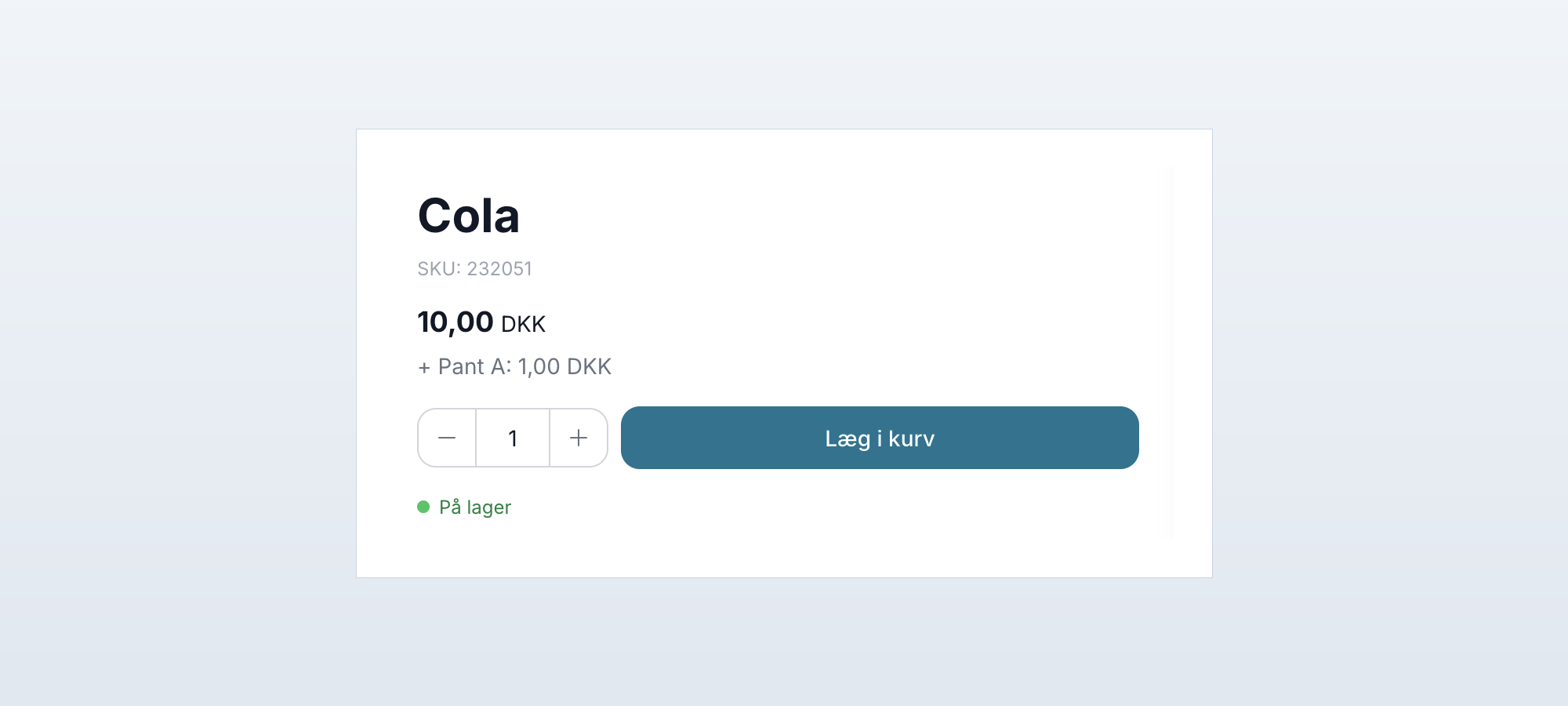
The price is displayed excluding the deposit, as required by regulations
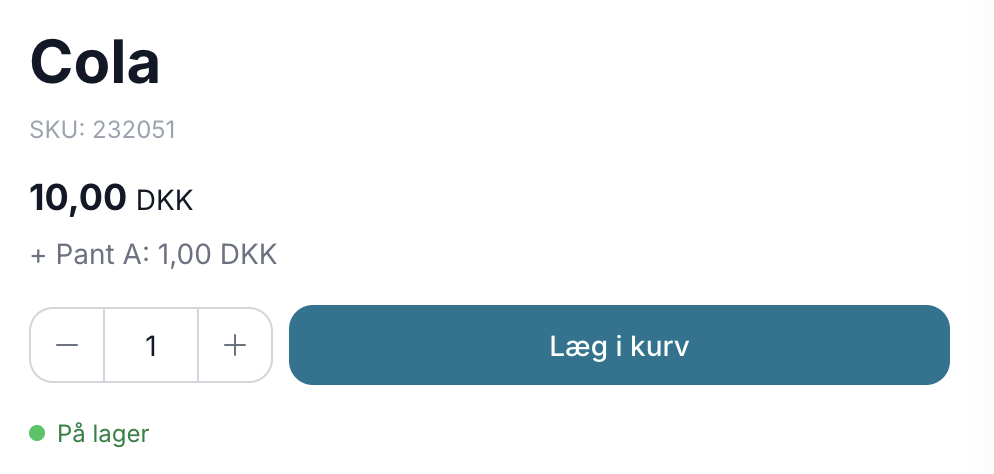
Price labeling regulations require that the price of the item be displayed without the deposit, and that’s exactly how Shoporama always displays it. In the latest themes, the customer also receives a discreet hint on the product page, so the deposit never comes as a surprise later:
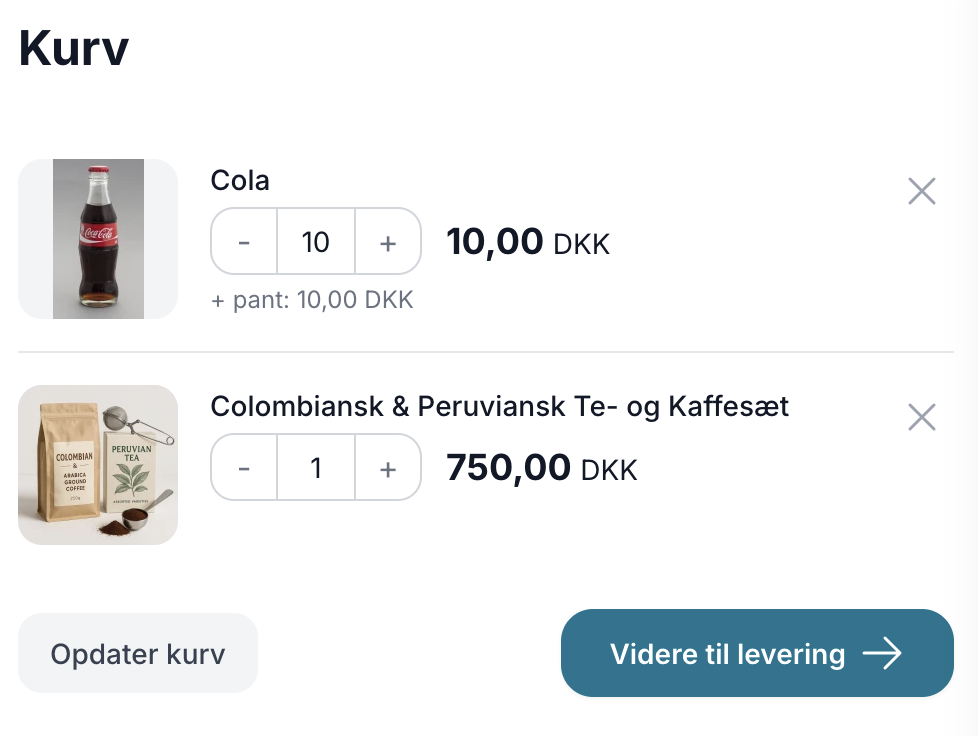
Here’s how the customer sees it in the cart and at checkout
In the shopping cart, the customer can see the deposit next to the item, so it’s clear that 10 Cokes also incur a 10-kroner deposit:
And at checkout, the deposit appears as its own line item in the order summary, just like on a supermarket receipt:
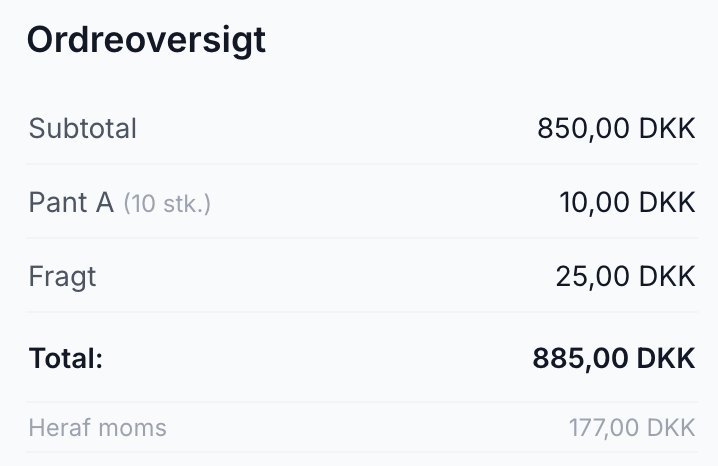
The display varies slightly between themes. In some of the built-in themes, the deposit appears as a separate line in the shopping cart totals instead of next to the individual item, but the amount is always the same, and the totals are calculated by Shoporama regardless of the theme.
Here’s how to set it up
- Create your deposit types under Settings, where you’ll find the “Deposits & Refunds” section. If your store has Denmark as the default country, the official rates are available as buttons: Deposit A (1.00 DKK), Deposit B (1.50 DKK), and Deposit C (3.00 DKK). You can assign the deposit its own item number for accounting purposes; otherwise, an automatic one will be used.
- Apply the deposit to the product in the Customs, VAT, and Legal section. Here, select the deposit type and the quantity per sales unit, e.g., 24 for a case of 24 cans.
- Override the setting per variant if you sell the same product in multiple sizes: 1 for a single can, 24 for the case, and 0 for a variant that doesn’t require a deposit at all.
- Use the table editor for large product ranges so you can set deposits on many products at once. The product list can also display a deposit column via “Customize View,” so you can quickly see what’s missing.
The rest takes care of itself
- The accounting takes care of itself. The deposit appears as its own line items and is automatically included in the order confirmation, invoice, packing slip, credit memos, and accounting integrations such as e-conomic and Billy. The VAT portion of the deposit amount is automatically calculated using the rate of the country of delivery.
- The amount matches all the way through to payment. The deposit is correctly included in the payment solution, even in systems that show the customer a detailed shopping cart.
- Promotions do not affect the deposit. Discount codes and promotions are calculated based only on the item’s price; the deposit does not count toward the free shipping threshold, and no loyalty points are earned on the deposit.
- Returns without a calculator. The returns center automatically refunds the deposit on a pro-rata basis. If the customer returns 1 of 2 cases, the deposit is refunded for exactly 24 cans.
- This also applies in physical stores. If you use Shoporama’s point-of-sale system, the deposit is automatically added when the item is scanned and appears as a separate line item on the receipt.
- Subscriptions. If you sell beverages on a subscription basis, the deposit is charged per delivery and is included in the displayed subscription price.
- Pure statistics. Deposits are not counted as revenue in “Cost of Goods Sold & Profit,” so your contribution margin is not skewed by deposit amounts.
A few things you should know
This feature is for bottle deposits and security deposits, not for excise taxes. Packaging taxes, chocolate taxes, and similar charges must, according to the rules, be included in the item’s displayed price and therefore cannot be added as a deposit type.
If you’re using a custom-developed or modified theme, the theme must be updated before the deposit lines appear on the product page, in the cart, and on the order confirmation. The actual charging, totals, and bookkeeping work regardless of the theme, but we recommend updating the theme before you enable the deposit. Contact support at support@shoporama.dk or your theme developer.
Get started today
All of Shoporama’s built-in themes are ready to go, and setup takes just a few minutes. Read the full guide in the support article on deposits and refunds, or learn more about the concept in the glossary under “deposit.” So there’s no longer any reason to leave the canned beers, sodas, and kegs sitting out in the physical store all by themselves.
More from the blog
Add-ons on the product page can now have variants
If you sell coffee, the obvious add-on item is a French press, and the French press is available in black, stainless steel, and copper. Those were...
13. august 2026
Send part of the order now and the rest later
Two of the three items are on the shelf. The last one is on backorder, and the customer has been waiting for four days. Now you can ship what you...
12. august 2026
New: Let customers personalize their purchases
Do you sell products that customers personalize? Now you can add fields directly to the product page for customers to fill out themselves: a name,...
08. august 2026