Import products from DanDomain
Guide to importing products, categories, variants and images from DanDomain to Shoporama via XML export.
Shoporama gør det nemt at flytte din webshop fra DanDomain. Du eksporterer dine data som XML-filer fra DanDomain og uploader dem til Shoporama, som automatisk opretter produkter, kategorier, varianter og henter billeder.
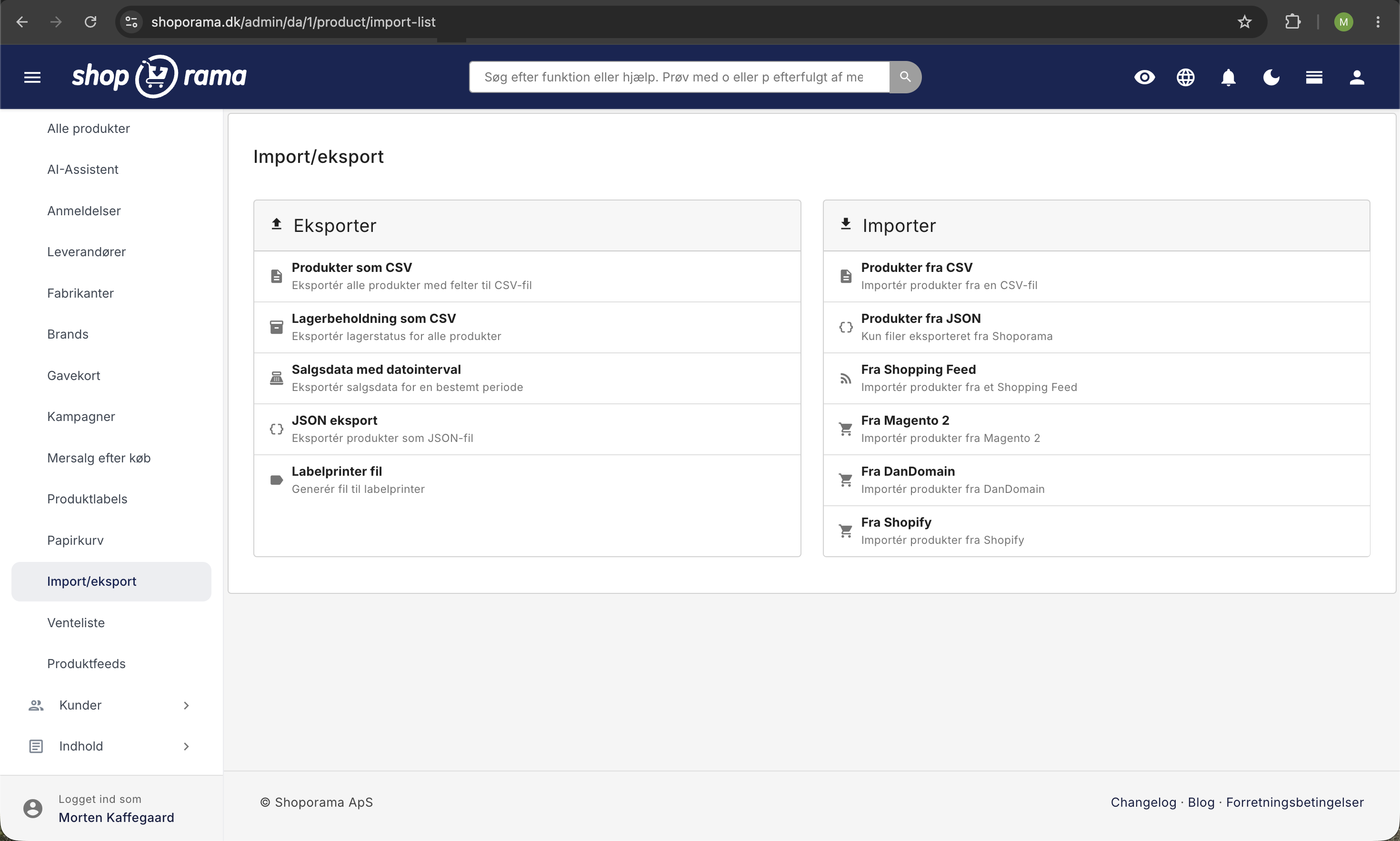
Sådan gør du
- Eksportér fra DanDomain — Log ind i DanDomain Admin, gå til Produkter → Alle → Eksport og hent de fire XML-filer
- Upload til Shoporama — Gå til Produkter → Import/Eksport → Importer produkter fra DanDomain
- Angiv din DanDomain shop-URL — Så Shoporama kan hente billederne korrekt
- Upload de fire XML-filer — Produkter, varianter, variantdata og kategorier
- Start importen — Processen kører i baggrunden, og du modtager en e-mail når den er færdig
De fire XML-filer
DanDomain eksporterer data i fire separate XML-filer:
- Produktfilen — Alle produkter med navn, pris, beskrivelse, varenummer, lager m.m.
- Varianttyper — Definitioner af varianttyper (fx "Størrelse", "Farve")
- Variantdata — De specifikke variantværdier (fx "Small", "Medium", "Large")
- Kategorier — Kategoristruktur med navn, beskrivelser og SEO-data
Hvad importeres?
- Produkter — Navn, beskrivelse, priser, varenummer, EAN, leverandørnummer, vægt og lagerstatus
- Priser — Salgspris, tilbudspris og indkøbspris
- Varianter — Varianttyper og -værdier med individuelle priser, varenumre og lagertal
- Kategorier — Fuld kategoristruktur med underkategorier, beskrivelser og SEO-data
- Billeder — Hentes automatisk fra DanDomains billedserver
- SEO-data — Meta-titler og -beskrivelser på både produkter og kategorier
- Online/offline status — Bevares fra DanDomain
- Relaterede produkter — Krydshenvisninger mellem produkter oprettes automatisk
- Google Shopping-kategorier — Overføres hvis de er udfyldt
Gode råd
- Kontrollér at alle fire XML-filer er eksporteret korrekt fra DanDomain
- Angiv den korrekte shop-URL, så billeder kan hentes fra den rigtige server
- Importen kører i baggrunden — du kan fortsætte med at arbejde imens
- Gennemgå produkter og kategorier efter importen for at sikre alt er korrekt
Tip
Har du brug for hjælp til at flytte din shop fra DanDomain, er du velkommen til at kontakte os på support@shoporama.dk.
Related articles
Import extra fields on products
Guide to importing extra fields via CSV import of products in Shoporama.
Import products from Shopify
Guide to importing products, variants, categories, and images from Shopify to Shoporama via CSV file.
Import products via CSV
Complete guide to importing products with a CSV file in Shoporama - including format, fields and tips.
Related features
Shoporama vs DanDomain
Compare Shoporama and DanDomain on price, speed, AI features and integrations. See which Danish webshop platform is best for your business.
Import features - move your shop or update thousands of products
Import via CSV or migrate from Shopify, DanDomain and Magento 2. Products, categories, prices, stock and extra fields.