Copy a product
Guide to copying a product in Shoporama - including variants, images and descriptions.
Skal du oprette et produkt der ligner et eksisterende, kan du kopiere det i stedet for at starte forfra. Kopien får alle det originale produkts data, men med nyt varenummer.
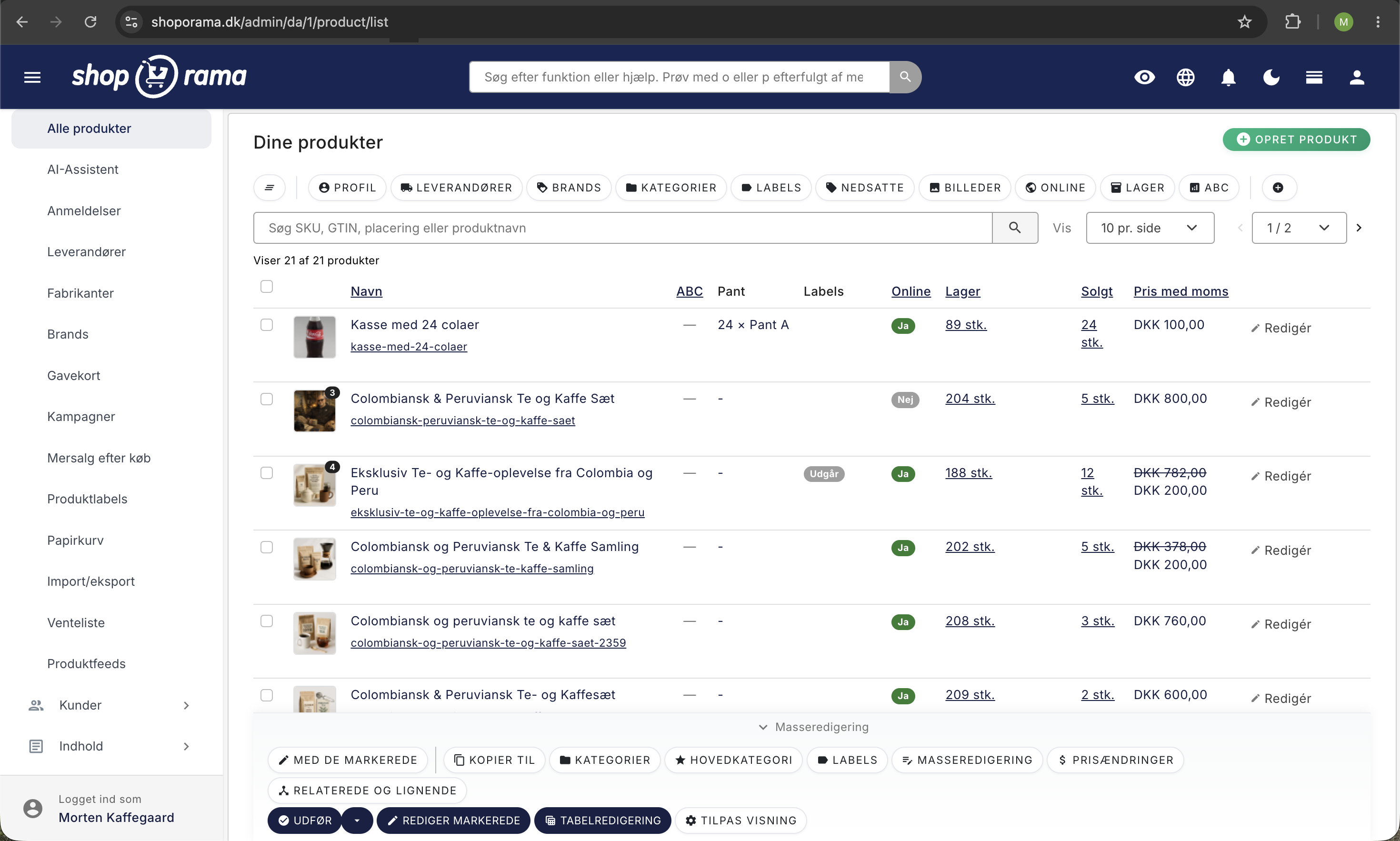
Sådan kopierer du et produkt
- Gå til Produkter i din admin
- Find det produkt du vil kopiere
- Klik på Kopiér-knappen (to overlappende firkanter)
- Et nyt produkt oprettes med alle data fra originalen
- Rediger titel, varenummer, pris og andre felter efter behov
- Klik Gem
Hvad kopieres?
Når du kopierer et produkt, medfølger:
- Titel og beskrivelser (beskrivelse A og B)
- Priser — inkl. tilbudspris og kostpris
- Billeder — alle produktbilleder kopieres med
- Kategorier — produktet placeres i de samme kategorier
- Ekstrafelter — alle ekstrafelter og deres værdier
- SEO-felter — meta title og meta description
Hvad kopieres ikke?
- Varenummer — du skal angive et nyt unikt varenummer
- URL — det nye produkt får sin egen URL baseret på titlen
- Lagerstatus — lageret nulstilles på den nye kopi
- Salgsstatistik — antal solgte og visninger starter fra 0
Tip
Kopiér-funktionen er ideel, når du har mange lignende produkter — fx samme produkt i forskellige farver. Opret det første produkt grundigt, og kopiér derefter til de øvrige varianter.
Har du brug for hjælp? Kontakt os på support@shoporama.dk.
Related articles
Export customers who have purchased a specific product
Guide to export a list of customers who have purchased a specific product and send them an email.
Set noindex on a page, product or category
Guide to setting noindex in Shoporama so that search engines do not index certain pages.
See the number sold of a product
Guide to see how many units you have sold of a specific product in Shoporama.