Følg levering og pakkeshop-afhentning i Shoporama
Shoporama viser leveringsstatus direkte i ordrelisten, både for pakkeshop og levering til adressen. Se om pakken er undervejs, klar til afhentning, leveret eller returneret, og mind kunder om at hente inden fristen.
Shoporama viser leveringsstatus direkte på dine ordrer, så du kan følge en pakke hele vejen fra den bliver afsendt til den er leveret. Det gælder både pakker der leveres til en pakkeshop, og pakker der køres direkte ud til kundens adresse. Ved pakkeshop-levering hjælper det dig med at fange de pakker, der ligger og venter, inden de bliver sendt retur med ekstra fragt og håndtering til følge. Ved levering til adressen kan du se, om pakken er undervejs eller allerede afleveret.
Hvor ser jeg det?
Gå til Ordrer. På hver ordre står der en lille farvet mærkat med leveringsstatus ved siden af ordren. Du skal ikke sætte noget op. Så snart Shoporama har dannet fragtlabelen med GLS, PostNord, eller DAO, henter systemet automatisk status et par gange dagligt og opdaterer mærkaten.
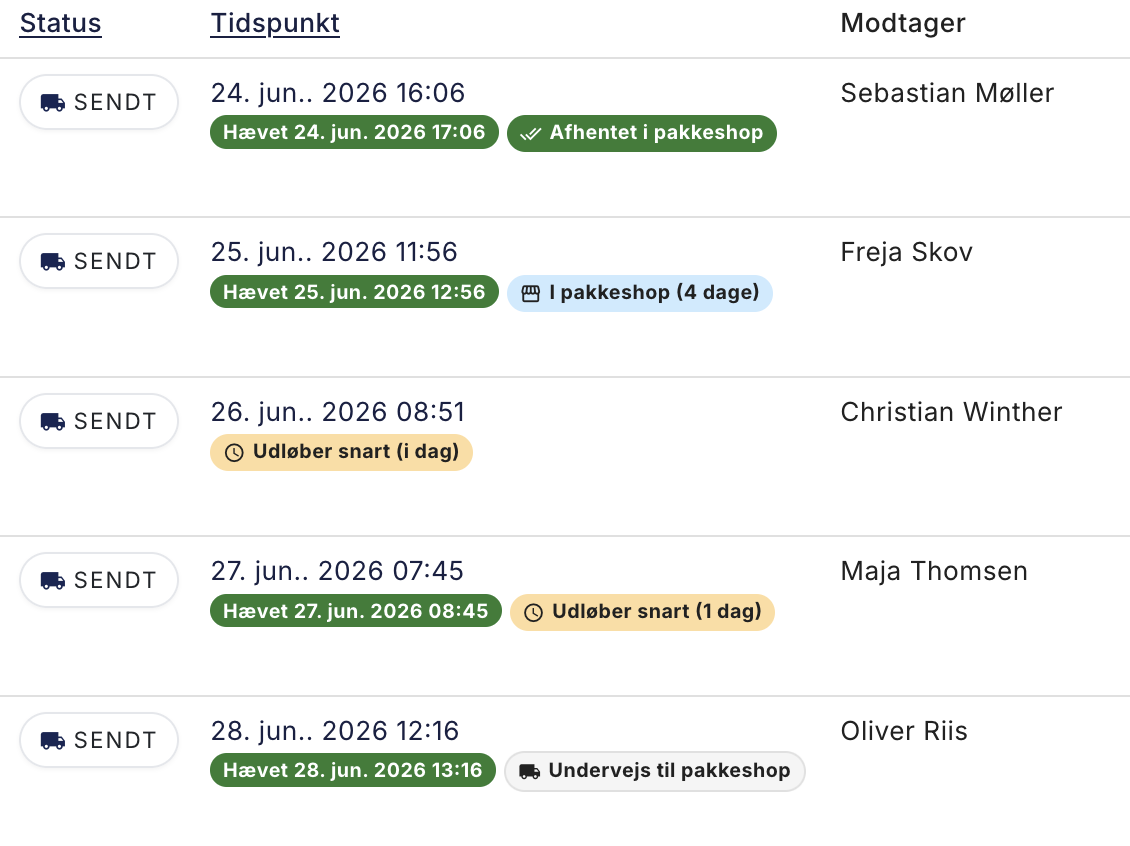
Hvad betyder mærkaterne?
Mærkaten tilpasser sig automatisk, om pakken leveres til en pakkeshop eller direkte til kundens adresse.
Levering til pakkeshop
- I pakkeshop (blå): pakken ligger klar til afhentning, og der er god tid endnu. Tallet i parentes er antal dage til fristen.
- Udløber snart (gul): der er få dage tilbage. Overvej at minde kunden om at hente pakken nu.
- Udløbet i pakkeshop (rød): fristen er overskredet, og pakken er på vej retur til dig.
- Afhentet i pakkeshop (grøn): kunden har hentet pakken.
- Returneret fra pakkeshop (rød): pakken er sendt retur til dig.
- Undervejs til pakkeshop (grå): pakken er endnu ikke ankommet til pakkeshoppen.
Levering til adressen
- Undervejs (grå): pakken er afsendt og på vej ud til kunden.
- Leveret på adressen (grøn): pakken er afleveret på kundens adresse.
- Returneret til afsender (rød): pakken kunne ikke leveres og er sendt retur til dig.
Filtrér på leveringsstatus
Vil du kun se de ordrer der venter på afhentning, eller kun dem der er leveret, kan du filtrere på status. Klik på fragt-filteret over ordrelisten. Nederst i vinduet finder du Leveringsstatus, hvor du kan sætte flueben ved fx "I pakkeshop", "Leveret på adressen", eller "Returneret". Klik Anvend filter, og listen viser kun de valgte statusser.
Hvilke fragtførere virker det med?
Leveringsstatus hentes automatisk for GLS, PostNord, og DAO, både til pakkeshop og til levering på adressen. Det virker for de ordrer hvor du har dannet fragtlabelen gennem Shoporama, fordi det er dér vi kender pakkenummeret. Danner du labels i et andet system, eller taster du tracking-numre ind manuelt, kan vi ikke følge status automatisk.
Sådan minder du kunden om at hente pakken
- Filtrér ordrelisten på "I pakkeshop" eller "Udløber snart".
- Åbn ordren, og find kundens e-mail og telefonnummer.
- Send en venlig påmindelse om at pakken ligger klar og hvornår fristen udløber.
Ofte stillede spørgsmål
Jeg kan ikke se nogen mærkat på mine ordrer. Hvorfor?
Mærkaten vises på ordrer hvor labelen er dannet med GLS, PostNord, eller DAO gennem Shoporama, uanset om pakken går til pakkeshop eller til kundens adresse. Har du dannet labelen i et andet system, eller tastet tracking-nummeret ind manuelt, kommer der ingen mærkat, for så kender vi ikke pakkenummeret. Der kommer heller ingen mærkat, hvis fragtførerens API-oplysninger ikke er udfyldt under Levering → Opsætning, for så kan Shoporama ikke danne labelen. Se Opsæt GLS-integration og Opsæt PostNord med pakkeshop. Nyoprettede pakker kan desuden mangle status indtil næste automatiske opdatering.
Virker det også for pakker der leveres til kundens adresse?
Ja. For levering til adressen viser mærkaten om pakken er "Undervejs" eller "Leveret på adressen", og om den er "Returneret til afsender". Det kræver, at fragtlabelen er dannet gennem Shoporama med GLS, PostNord, eller DAO.
Hvad er forskellen på "Afhentet i pakkeshop" og "Leveret på adressen"?
Begge betyder at kunden har fået sin pakke. "Afhentet i pakkeshop" bruges når pakken blev leveret til en pakkeshop og hentet der. "Leveret på adressen" bruges når pakken blev afleveret direkte på kundens adresse.
Hvor tit opdateres status?
Et par gange i døgnet. En pakke der lige er afhentet eller leveret, kan derfor stå med den forrige status i nogle timer, indtil status er hentet igen.
Er "Afhentet i pakkeshop" det samme som ordrestatussen "Afhentet"?
Nej. "Afhentet i pakkeshop" kommer fra fragtføreren og betyder at kunden har hentet pakken i pakkeshoppen. Ordrestatussen "Afhentet" bruges til click and collect i din egen fysiske butik og sætter du selv. De to ting er uafhængige.
Sender Shoporama automatisk en påmindelse til kunden?
Ikke i denne omgang. Du får overblikket og kan selv kontakte kunden. Automatisk påmindelse er noget vi kigger på til en senere version.
Hvorfor står der forskellige antal dage i parentesen?
Tallet er antal dage til fristen for afhentning i pakkeshoppen udløber, regnet ud fra hvornår pakken ankom. Jo lavere tal, jo mere haster det. Ved levering til adressen er der ingen frist, og derfor heller ingen parentes.
Kan jeg få de haster-ordrer øverst?
Filtrér på "Udløber snart", så ser du netop de ordrer hvor der er få dage tilbage, og kan tage dem først.
Har du spørgsmål, er du velkommen til at skrive til os på support@shoporama.dk.
Related articles
Set up GLS integration
Guide to setting up GLS integration in Shoporama so you can print GLS labels directly.
Set up PostNord with parcel shop
Guide to setting up PostNord with parcel shop as a shipping option in your Shoporama online shop.
Print shipping labels without an order
Create and print shipping labels without first placing an order, using your own account with PostNord, GLS, or DAO. Clone multiple labels at once...
Manage your orders in Shoporama
Guide to managing orders in Shoporama - from receiving to shipping and status updates.
PostNord tracking and parcel labels
Guide to PostNord tracking links and parcel labels in Shoporama, including troubleshooting common issues.