Address suggestions at checkout: The customer selects the address, and the ZIP code and city are filled in automatically
Now, six of the built-in themes can suggest Danish addresses as the customer types. The customer selects their address from the Danish Address Registry, and the ZIP code and city are filled in automatically. This reduces errors in your orders, and if you’re using your own theme, you can add this feature with just a few lines of code.
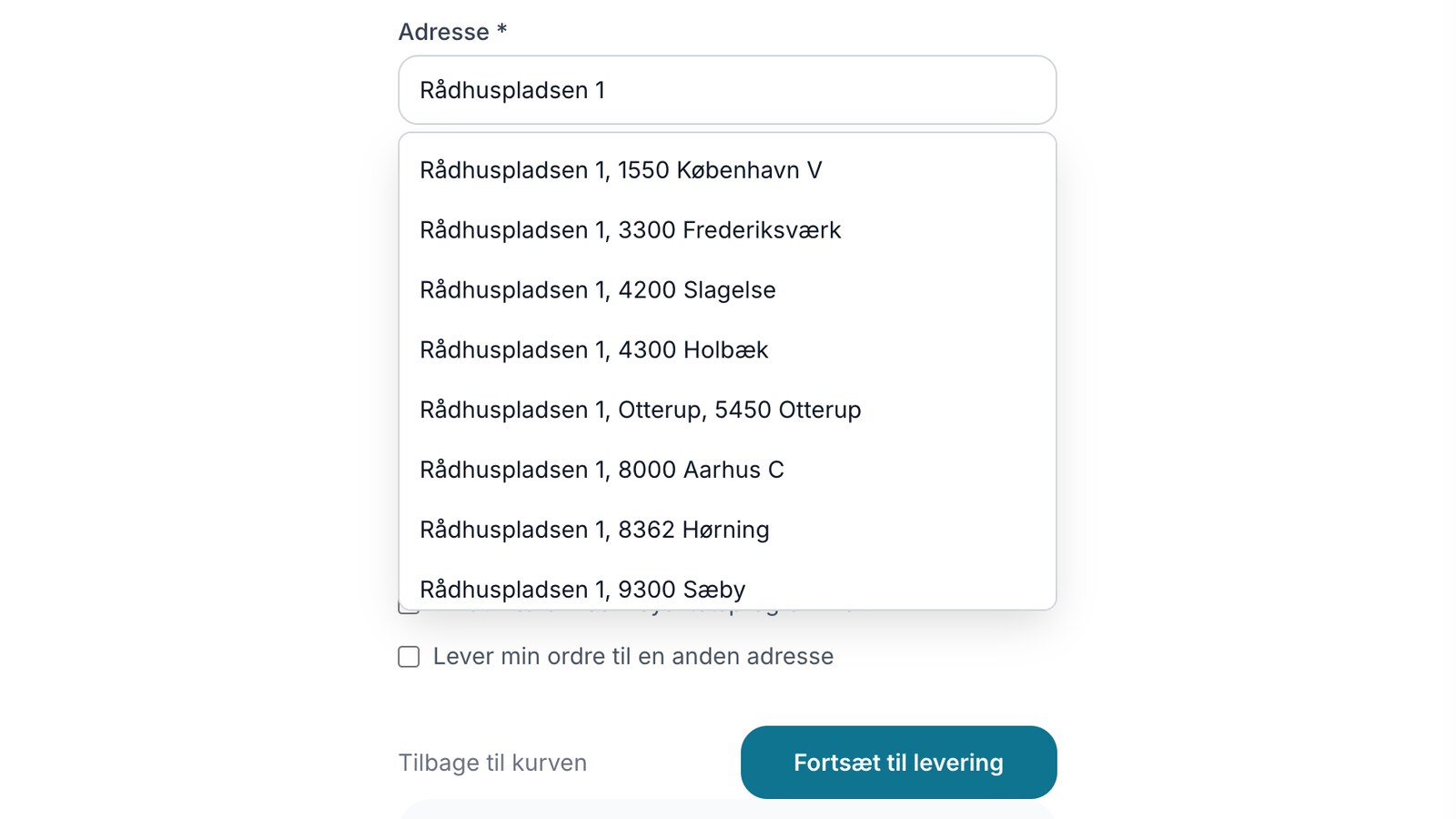
A spelling mistake in the street name, two digits swapped in the ZIP code, a missing floor number. Small errors in the address result in packages being returned, shipping costs having to be paid twice, and customers waiting. Now the checkout can help the customer enter the address correctly the first time: the customer types the first few letters, selects their address from the list, and the address, ZIP code, and city are filled in automatically.
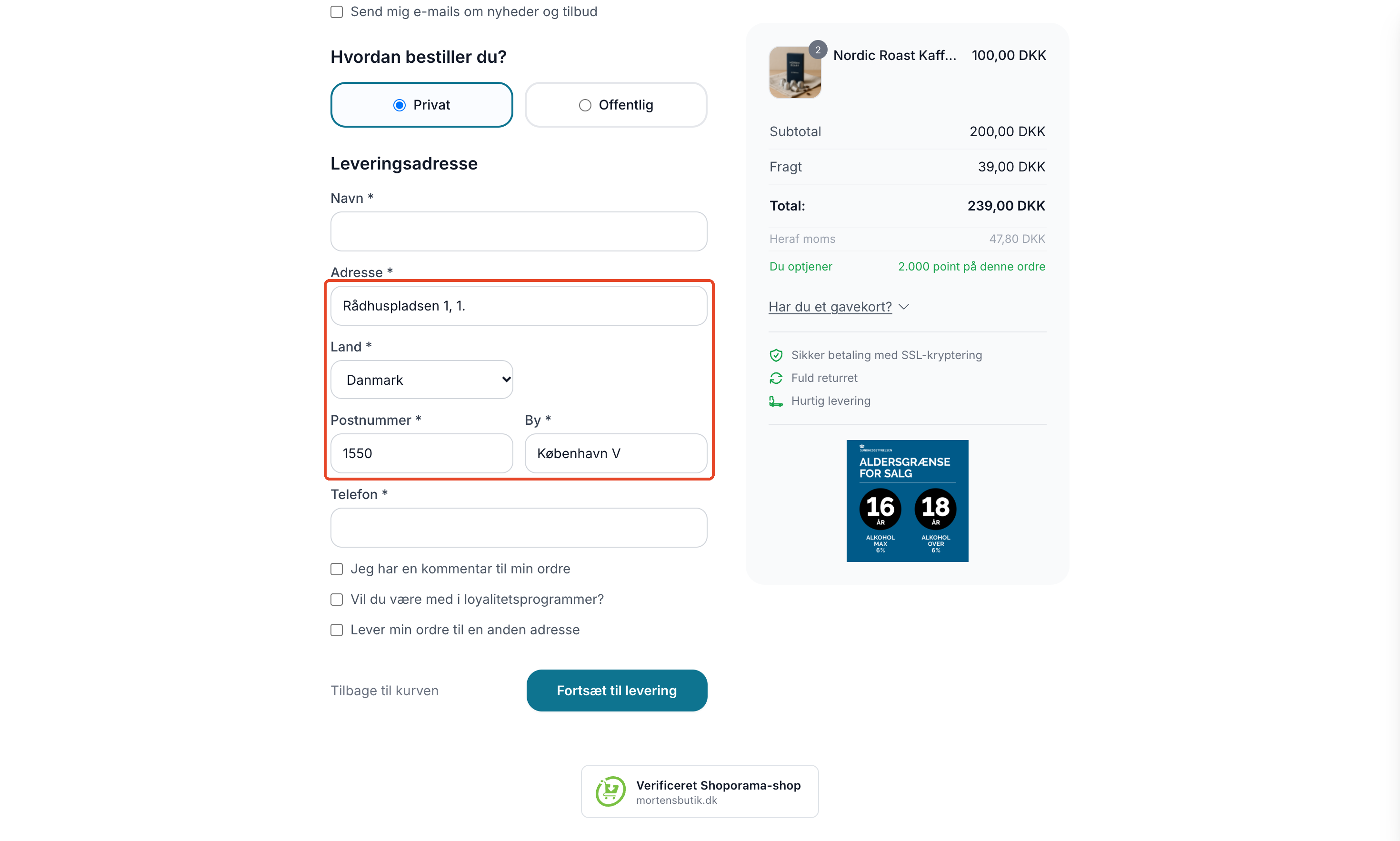
Here’s how it works for the customer
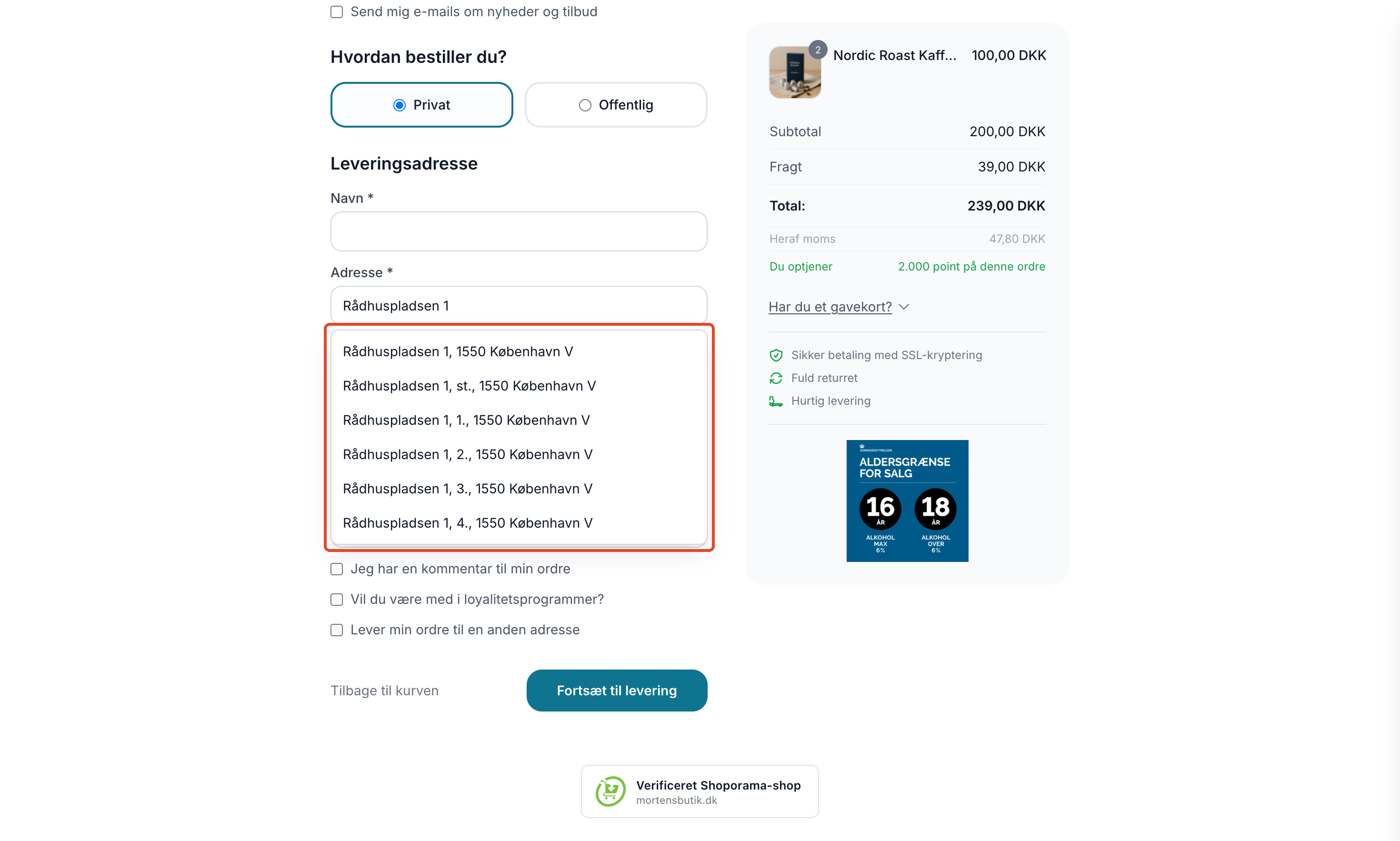
The suggestions follow the address step by step. If the customer types “Rådhuspladsen 1,” “Rådhuspladsen 1” appears in all the cities that have one. If the customer selects “Rådhuspladsen 1, 1550 Copenhagen V,” the ZIP code and city are filled in immediately. If the building has multiple floors or apartments, they are displayed afterward so the customer can select theirs. If the customer has already entered the floor and door number, e.g., “4 tv,” the apartment is selected directly when the customer selects the building, if it exists.
- The suggestions come from the Danish Address Register, the official list of all Danish addresses, via the Climate Data Agency’s address service.
- The address is entered exactly as it appears in the registry, including the floor and unit number, such as “st. tv” or “1. 101.”
- The customer can still enter the address manually, for example, using “c/o” or a company name. The suggestions are a guide, not a requirement.
- It works with the keyboard (arrow keys and Enter), with the mouse, and on a mobile device.
- Suggestions appear only when the country is Denmark. For other countries, the address field remains exactly as before.
- The browser’s own autofill feature works as before.
- If the address service is down, the customer simply enters the address as usual.
Why it’s worth implementing
Every incorrect address costs money, either as a returned package or as time spent correcting the order before it’s shipped. Address suggestions prevent the most common mistakes: spelling errors in the street name, an incorrect ZIP code, and a missing floor number. On mobile devices, this also saves the customer keystrokes, since three fields are filled in at once.
Here’s how to enable it
- Go to Design → Theme Settings.
- Find the “Checkout: Address” group (in the English version of Delaware: “Checkout: Address”). In Montana and MontanaB2B, click the group to expand it.
- Check the box next to Enable Address Suggestions (Denmark), and click Save.
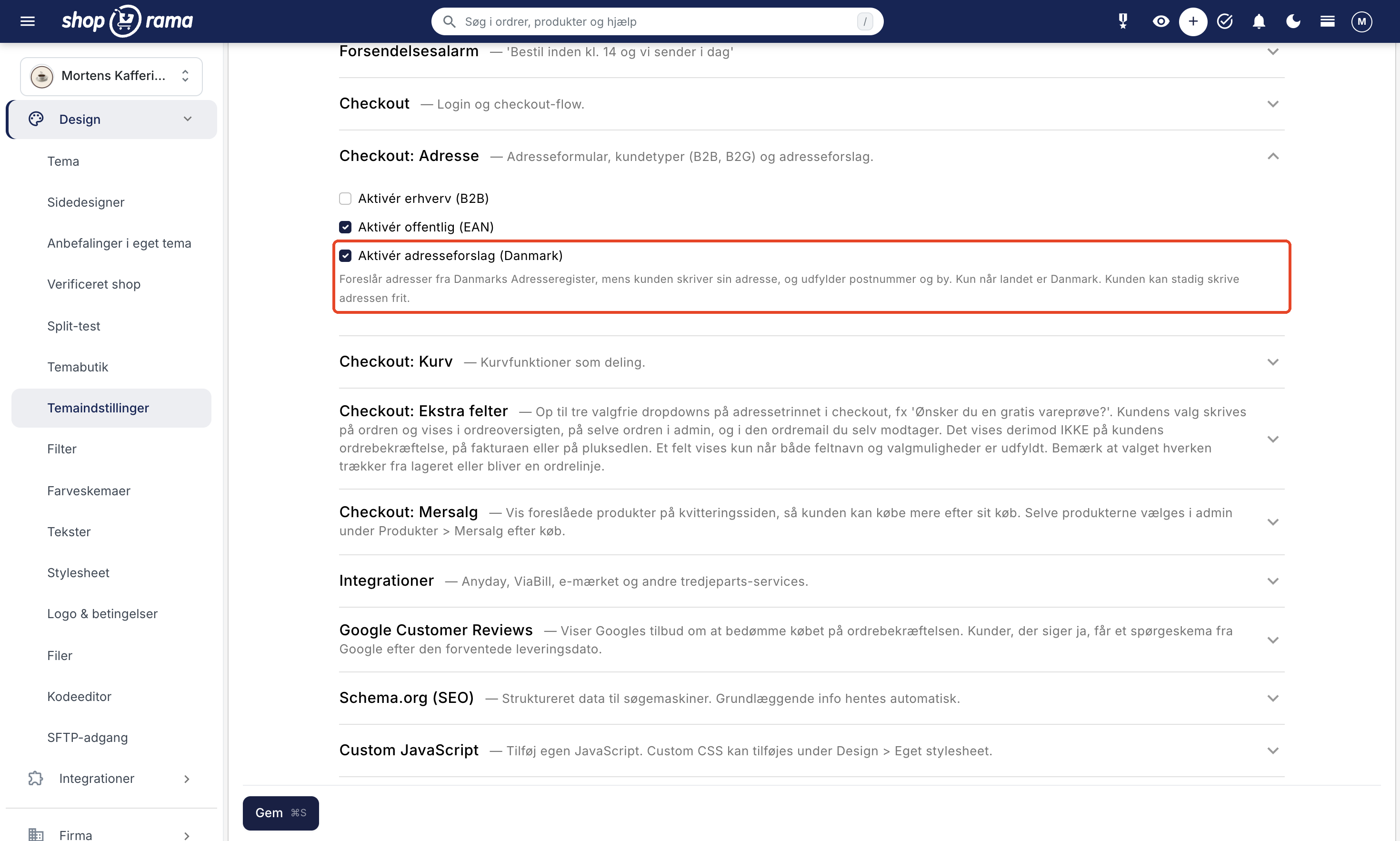
It works in the built-in themes Montana, MontanaB2B, Delaware, DelawareDK, California, and Alaska2. In DelawareDK, the field is called Enable Address Suggestions (Denmark), and in the English version of Delaware, it’s called Enable Address Suggestions (Denmark). The setting is turned off until you turn it on yourself.
If you can’t find the field, your store is running a theme without address suggestions: one of the older themes, a custom theme, or a copy of one of the themes. A copy does not automatically include new features, so address suggestions must be built into the theme. The section for developers below shows how to do this, and if you have any questions, please email support@shoporama.dk.
The Replacement for DAWA
Until October 1, 2026, many online stores looked up addresses and ZIP codes in DAWA, Denmark’s Address Web API. DAWA has been shut down, and the Climate Data Agency has created Address Selector as its replacement. The address suggestions in the checkout are based on Address Selector. At the same time, we’ve corrected the parts of the themes where the city was automatically filled in based on the ZIP code using DAWA. These now look up a list in Shoporama and are working again.
For developers: Add address suggestions to your own theme
This section is for those of you who are building or maintaining a theme. If your store is running one of the six themes listed above—and not a copy of it—you do not need to do any of the following.
The built-in themes use a shared component that Shoporama places on all store domains: /javascript/dk-address.js. It displays the list, looks up the address in the Address Selector, and fills in the fields. You can use it in your own theme in three steps.
1. Add the setting in theme_settings.json
Place the field in the checkout_address group so that it has the same name as in the built-in themes. By default, it is disabled until the store owner enables it. If your theme already has the checkout_address group—for example, because it’s a copy of Montana or Delaware—then just add the field under fields.
{
    "path": "checkout_address",
    "name": "Checkout: Address",
    "description": "The address form in checkout.",
    "fields": [
        {
            "path": "enable_address_autocomplete",
            "name": "Enable Address Suggestions (Denmark)",
            "description": "Suggests addresses from the Danish Address Register as the customer types their address.",
            "type": "bool"
        }
    ]
}
2. Assign a country code to the country fields
The suggestions are only displayed when the country is Denmark. The component reads the country from the `data-countrycode` attribute of the selected option in the country field, so add it to both the billing and shipping country options in `address.html`:
<{* Billing country (order_country_id) *}>
<option value="<{$countries[i]->getCountryId()}>" data-countrycode="<{$countries[i]->getCode()|escape}>">...</option>

<{* Delivery Country (del_country_id) *}>
<option value="<{$delivery_countries[i]->getCountryId()}>" data-countrycode="<{$delivery_countries[i]->getCode()|escape}>">...</option>
Keep your own conditions for " selected." Only the attribute is new.
3. Load the component into address.html
Place the block at the bottom of address.html. The loop finds the store’s default country, which is used when there is no country field—typically in a store with only one country.
<{if $settings.checkout_address.enable_address_autocomplete}>
    <{assign var="default_country_code" value=""}>
    <{section name="i" loop=$countries}>
        <{if !$default_country_code || $countries[i]->getIsDefault()}>
            <{assign var="default_country_code" value=$countries[i]->getCode()}>
        <{/if}>
    <{/section}>
    <script src="/javascript/dk-address.js?v=4" defer></script>
    <script>
        document.addEventListener('DOMContentLoaded', function() {
            if (!window.ShoporamaDkAddress) {
                return;
            }
            ShoporamaDkAddress.attachCheckout({
                countryCode: '<{$default_country_code|escape:"javascript"}>',
                label: '<{"Address Suggestions"|t|escape:"javascript"}>'
            });
        });
    </script>
<{/if}>
attachCheckout() automatically locates the fields `order_address`, `order_zipcode`, `order_city`, and `order_country_id`, as well as the corresponding fields starting with `del_` for the shipping address. It finds them by ID or name, so the same names that Shoporama receives in the form are sufficient. The shipping address uses the billing country when no shipping country has been selected.
Other field names
If your fields have different names, or if you want to use the suggestions elsewhere, call `attach()` for each address field:
ShoporamaDkAddress.attach({
    input: 'billing_street',          // id or element: the address field
    zip: 'billing_zip',               // ZIP code field
    city: 'billing_city',             // city field
    countries: ['billing_country'],   // country fields (select) in order of priority
    countryCode: 'DK',                // the country when no country field has a value
    label: 'Address Suggestions'           // read aloud by screen readers
});
Customize the appearance
The list has its own simple style, so it looks nice without additional CSS. If you want it to match the rest of your theme, set the CSS variables, for example, in your stylesheet:
.dk-address-list {
    --dk-address-bg: #ffffff;          /* background */
    --dk-address-text: #1f2937;        /* text */
    --dk-address-border: #e5e7eb;      /* border */
    --dk-address-active-bg: #eff6ff;   /* selected suggestion */
    --dk-address-radius: 0;            /* corners */
}
Good to Know
- When the component populates the fields, it sends input and change events. Alpine.js (x-model) and your own scripts are therefore updated as if the customer had typed the text themselves.
- The address field is given role="combobox" and the list role="listbox, " so the suggestions also work with screen readers.
- Do not call the Address Selector directly from your theme. The Climate Data Agency will introduce an access key around the turn of the year, and Shoporama will then update the key in the component. Use the address with ?v=4 as shown in the example. The browser caches the file for a long time, so if the documentation for theme developers specifies a new version number, you’ll need to update it in your theme as well.
- You’ll also find the example in the documentation for theme developers.
Get Started
Turn on “Enable Address Suggestions (Denmark) ” under Design → Theme Settings, and try it out yourself in your own checkout with your own address. You can read more in the support article “Address Suggestions in the Checkout.” If you have any questions, please email support@shoporama.dk.
Related articles
What themes are there on Shoporama?
Complete overview of all free themes on Shoporama: Delaware, DelawareDK, California, Alaska 2, Washington, Montana, and the classic Smarty 2 themes...
The Delaware Theme: Configuration and Customization
A complete guide to Delaware and DelawareDK on your Shoporama online store: theme settings, footer, mega menu, colors, payment icons, Trustpilot,...
Address suggestions at checkout: The customer selects their address from the address directory
Enable address suggestions at checkout so that customers can select their address from the Danish Address Registry, and the ZIP code and city are...
More from the blog
Now Claude can change your theme, and you'll see it before your customers do
Ask Claude to add a "Only 3 left" message to the last few items, a countdown to Black Week, or a Christmas theme that you can turn off again in...
07. november 2026
Order Check flags incorrect ZIP codes and potential credit card fraud before you submit your order
An incorrect ZIP code can result in a fee from the shipping company, and a string of nearly identical orders placed in quick succession could...
06. november 2026
New Free App Sends Online Store Orders to Business Central
If you use Microsoft Dynamics 365 Business Central, Shoporama can now transfer orders from your online store as sales invoices or sales orders....
31. oktober 2026