Recommendations: Automatically display the products your customers are looking for
Recommendations automatically display relevant products, such as "Others also viewed" on the product page and "Others also bought" in the shopping cart. Here's how to set them up in the Page Builder.
Recommendations automatically show relevant products to your visitors. These are the boxes you’re familiar with from larger online stores: “Others also viewed” below the product, and “Others also bought” in the shopping cart. You don’t have to choose which items to display or where. Shoporama figures it out based on what your own customers are actually viewing and buying.
The feature is built right into the platform. There’s nothing to install, no external account required, and it doesn’t cost extra.
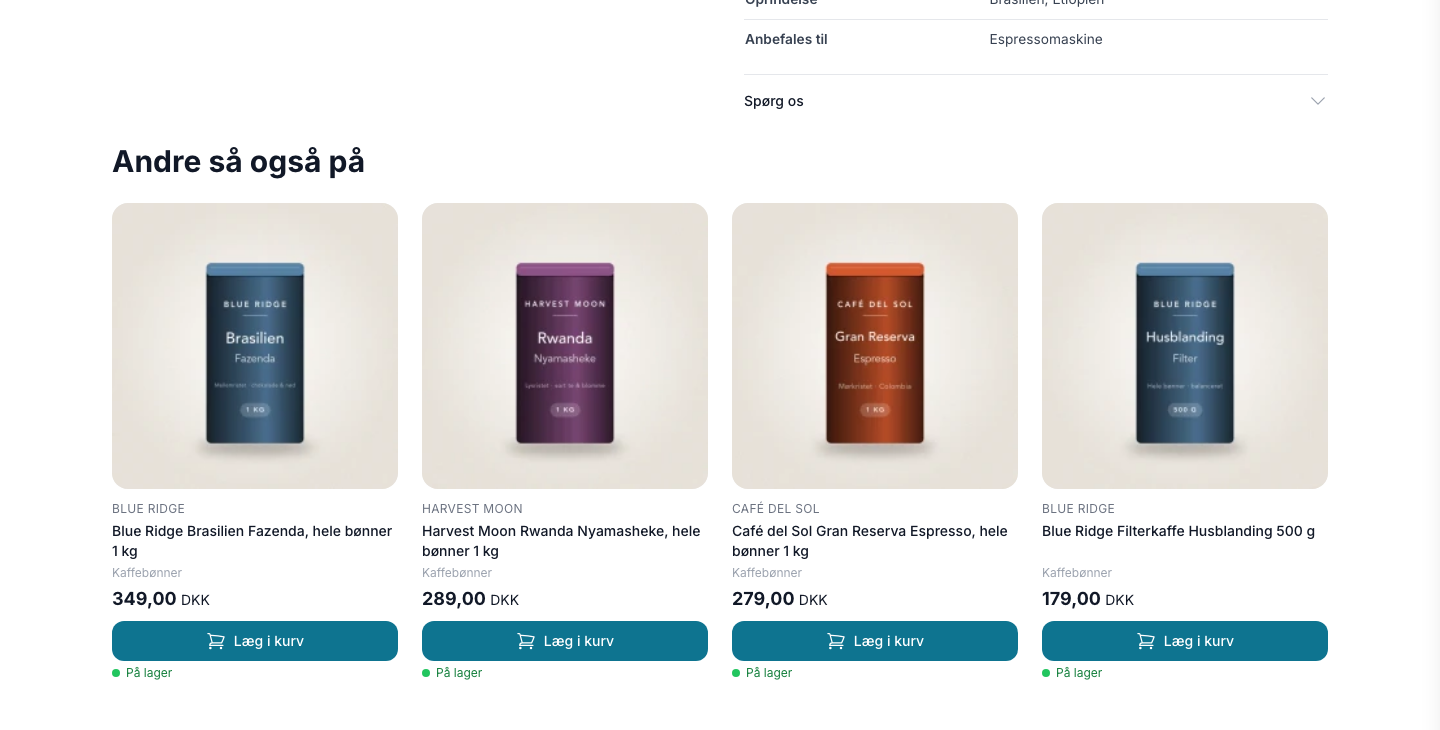
The Five Types of Recommendations
When you set up a recommendation box, you choose what kind of recommendation it should display:
- Others also viewed —products that other visitors viewed during the same visit as the product the customer is currently viewing. This is the type that feels the most “intelligent” and has the greatest impact on product pages.
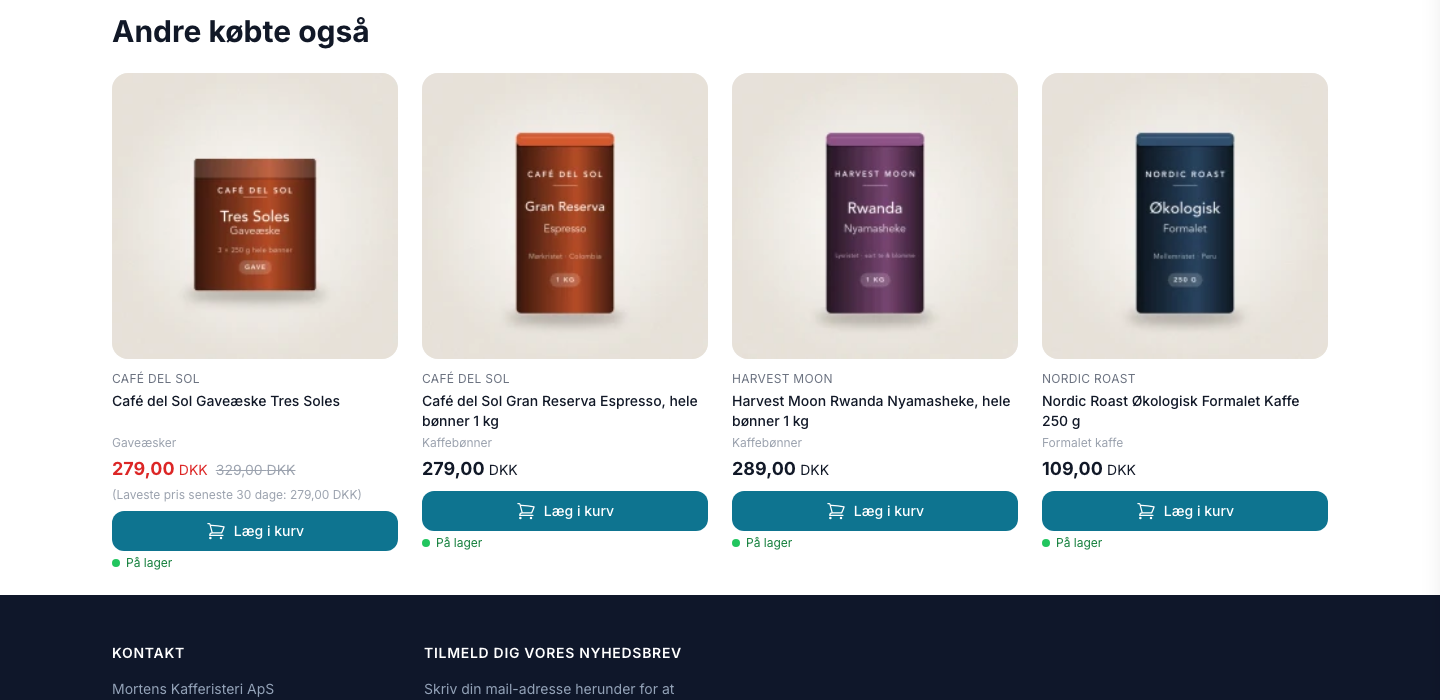
- Others also bought – products that were purchased together with the item in actual orders. Most effective in the shopping cart and on the upsell page, where the customer has already made up their mind.
- Related Products —the products you’ve personally selected as related to the item. Here, you’re in complete control.
- Popular Right Now —the store’s best-selling items over the past 90 days. Works well on the homepage, in an empty cart, on an empty search results page, and on the 404 page.
- Customer’s Recently Viewed – the items each individual visitor has viewed. If there’s no history, the box won’t appear at all.
Here’s how to set them up
Recommendations are set up in the Page Designer, in the same place where you build the rest of your pages.
- Go to Design → Page Designer.
- Select the page layout where you want to display recommendations, or create a new one. You can use them on the homepage, product pages, category pages, landing pages, the shopping cart, the add-on page, the search page, and the 404 page.
- Click Recommendations in the module list on the right-hand side.
- Fill in the headline, select the recommendation type, number of products, and number of columns.
- Click Save.
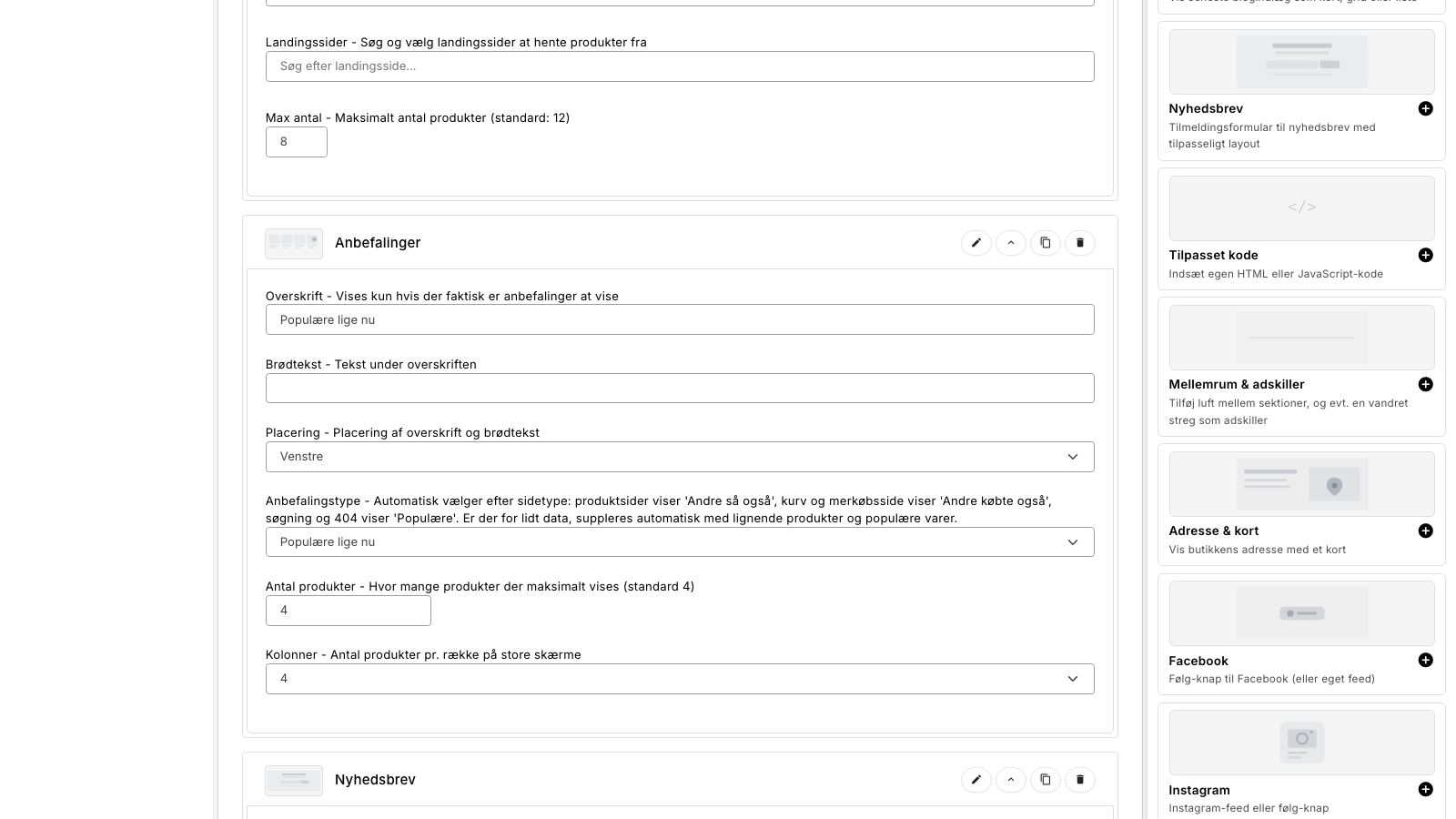
The box uses your own product card design, so images, prices, sale tags, stock status, and the "Add to Cart" button look exactly the same as in the rest of the store.
Automatic setting
If you’re unsure which type to choose, leave it set to Automatic. The module will then select the appropriate type based on the type of page it’s on:
- Product pages display “Others also viewed”
- The cart and add-on page displays “Others also bought”
- The search page and 404 page display “Popular Right Now”
- All other pages display “Others also viewed”
One thing must be enabled
"Others also viewed" is calculated based on what your visitors are viewing. Therefore, it requires that visitor statistics be enabled under Account → Webstore. If it is disabled, we cannot track what your visitors are viewing, and thus neither the calculation nor the numbers can be displayed.
The other types work regardless: “Others also bought” is based on your orders, “Related products” on your own selections, and “Popular right now” on your sales.
What happens when there isn’t enough data?
A new store, a new product, or a slow season doesn’t provide enough behavioral data to calculate “Others also viewed.” The box won’t be empty for that reason. If we can’t find enough matches in the behavioral data, we’ll fill it in this order:
- Items purchased together with the item the customer is viewing
- Items similar to it, based on category, brand, features, and price range
- Popular items in the same category
- The store’s best-selling items
This means the box makes sense from day one, even for a product that was created yesterday. If there’s absolutely nothing to display—which happens, for example, with “Customer’s Most Recently Viewed” for a first-time visitor—the box hides itself so there isn’t an empty space on the page.
Sold-out items
Items that are out of stock and cannot be sold on backorder are automatically moved to the bottom of the recommendations. They aren’t removed entirely, because in a small shop it’s better to show a sold-out item than nothing at all, but they never appear before items that are available for purchase. Products that have been taken offline or deleted are never displayed.
Do you have your own theme?
If you’re using one of Shoporama’s built-in themes, the module is ready in the Page Designer. If you’ve had your own theme created or customized a powerful one, you can still add recommendations without touching a single line of code. Go to Design → Recommendations in Your Own Theme, specify where on the page the box should appear, and save. See Recommendations in Your Own Theme.
What are the benefits?
Under Statistics → Recommendations, you can see how many times the boxes have been displayed, how many people have clicked on them, and how much revenue the clicks have generated. The figure is conservative: a recommendation must be clicked, and the item must be purchased within seven days for the amount to be counted. See How to Read the Recommendations Statistics.
Frequently Asked Questions
Can I choose which products are suggested?
Yes, if you select the “Related Products” type. This shows exactly the items you’ve added to the product yourself. The other types are calculated by the system, and you cannot edit them individually. However, you can control what appears: items marked as “Offline” are never displayed, and sold-out items are moved to the bottom of the list.
I’ve just started, and there aren’t many visitors yet. Will there just be an empty field?
No. If there isn’t enough behavioral data, the box fills with similar items, popular items in the same category, and the store’s bestsellers. If there’s absolutely nothing to display, the box removes itself from the page, so there’s neither an empty field nor a blank banner.
How long does it take for “Others Also Viewed” to start working well?
The calculation runs every night based on behavior over the past 90 days. For the first few weeks, some of the slots will be filled with similar and popular items, and the proportion of “real” recommendations will increase thereafter. How quickly this happens depends on traffic: a store with a few hundred visits per day will get usable data in a few weeks.
Can I display recommendations without having visitor statistics enabled?
Yes, but not the “Others also viewed” type. “Others also bought,” “Related products,” and “Popular right now” are based on orders and your own selections and work regardless. The statistics page also requires visitor statistics, as it counts views and clicks.
Do the recommendations slow down my store?
No. The box is loaded after the page is displayed, and space is reserved for it in advance so the page doesn’t jump when the products load. No external files are downloaded, and the response itself is cached so that repeated views don’t incur database lookups.
How many boxes can I have on the same page?
As many as you like, but having two boxes showing nearly the same content is rarely beneficial. A good starting point is one box per page: “Others also viewed” on the product page, “Others also bought” in the cart, and “Popular right now” on the homepage.
Can I measure whether the recommendations actually lead to more sales?
Yes. The statistics page shows the revenue attributable to a click. If you want a direct comparison, you can run an A/B test under Design → A/B Test with two versions of the same page—one with the module and one without—and see the difference in revenue per visit.
Does it cost anything?
No. Recommendations are part of Shoporama and don’t cost extra, no matter how many views and clicks you have.
Related articles
How to Interpret the Recommendation Statistics
Impressions, clicks, CTR, orders, and attributed revenue: what each number on the recommendations statistics page means, and how we calculate revenue.
Recommendations in Your Own Theme
Here's how to add recommendations to a theme that isn't one of Shoporama's own: either using a CSS selector from the admin panel or using the...
Related features
Recommendation engine
A recommendation engine suggests relevant products based on customer behavior. Learn about types, placement, impact and how to use it to increase...
Recommendations
"Others also viewed" and "Others also bought" built right into the online store. Five types, setup in the Page Designer, measurable revenue, and no...
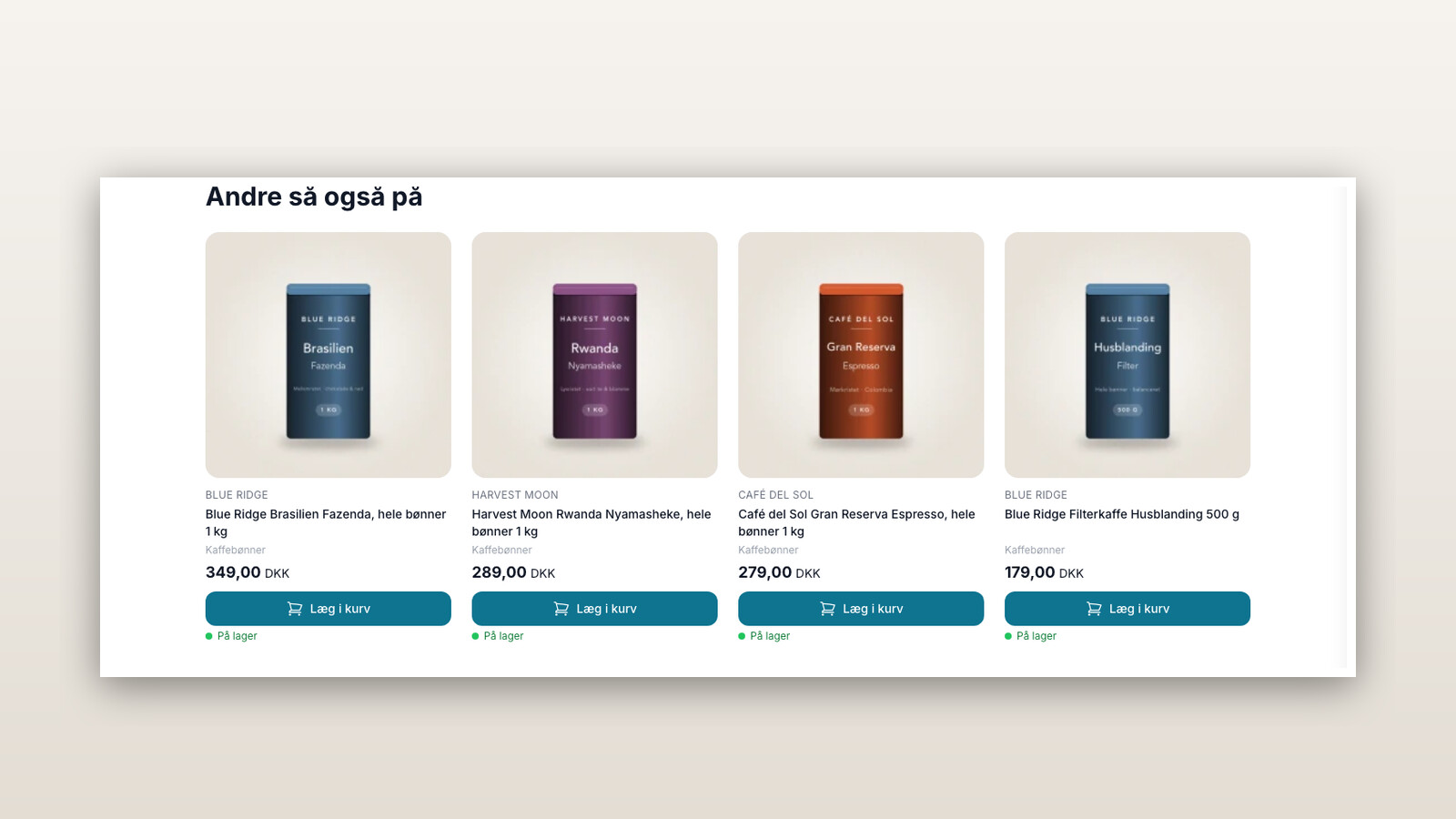
Recommendations are now built into Shoporama
"Others also viewed" and "Others also bought" are now built into Shoporama. Five templates, configurable in the Page Designer, are available from...
Recommendation Engine for an Online Store
Product recommendations built right into the online store. Five types, setup in just a few minutes, measurable revenue, and no extra cost. Also...
Cross-selling
Cross-selling is when you offer a product that complements what the customer is already buying. Learn the difference between cross-selling and...
The upsell-step
Up-selling is when you get a customer to choose a more expensive version of the item they’re already looking at. Learn the difference between...
Product Recommendations
Product recommendations are the automatically selected products displayed by an online store, such as "People also viewed" and "People also...
Add-ons: Sell accessories with a single checkmark
Montana and MontanaB2B: All Modules in the Page Designer
A guide to all 25 modules in the page designer for Montana and MontanaB2B: banners, products, categories, text, content items, and...
Delaware and DelawareDK: All modules in the page designer
A guide to all 25 modules in the page builder for Delaware and DelawareDK: hero, products, categories, text, content items, and...