Recommendations are now built into Shoporama
"Others also viewed" and "Others also bought" are now part of Shoporama. No external service, no extra cost, and setup in the Page Designer takes just a few minutes. Here’s what it can do, how we’ve solved the problem of the first few weeks without data, and why we calculate revenue more conservatively than you’re used to.
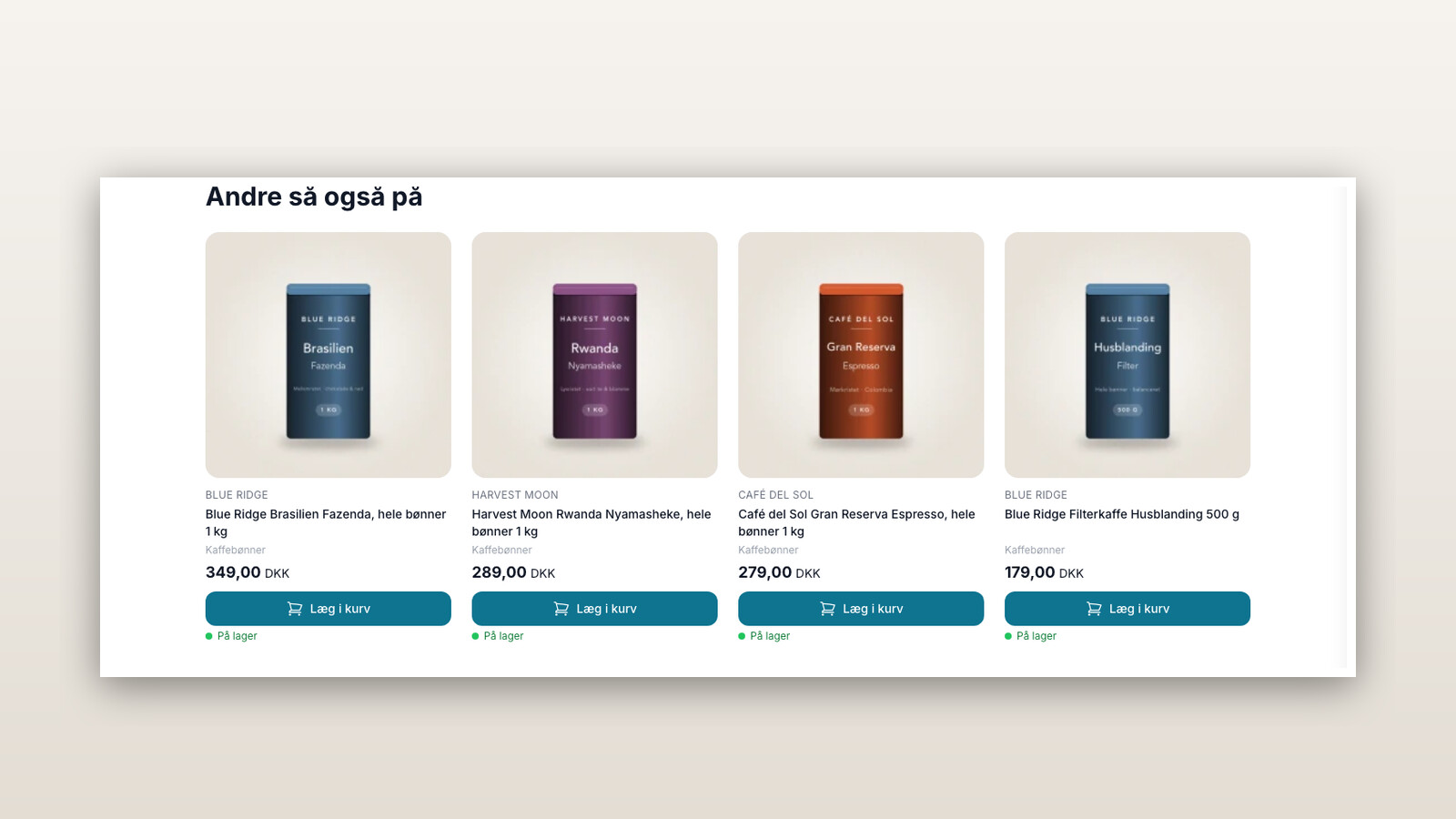
Most online stores are missing the same thing: a way to show customers the next product. Not what you think they should see, but what they’re actually heading toward. Until now, you’ve had to purchase this from a third-party provider, pay a monthly fee, and integrate it using a product feed.
Now it’s built right into Shoporama. It’s called Recommendations, it’s included in the price, and you can set it up in the Page Designer in just a few minutes.
Five types, one module
You choose what the box should display:
- "Others also viewed "—what other visitors viewed during the same visit. Most effective on product pages.
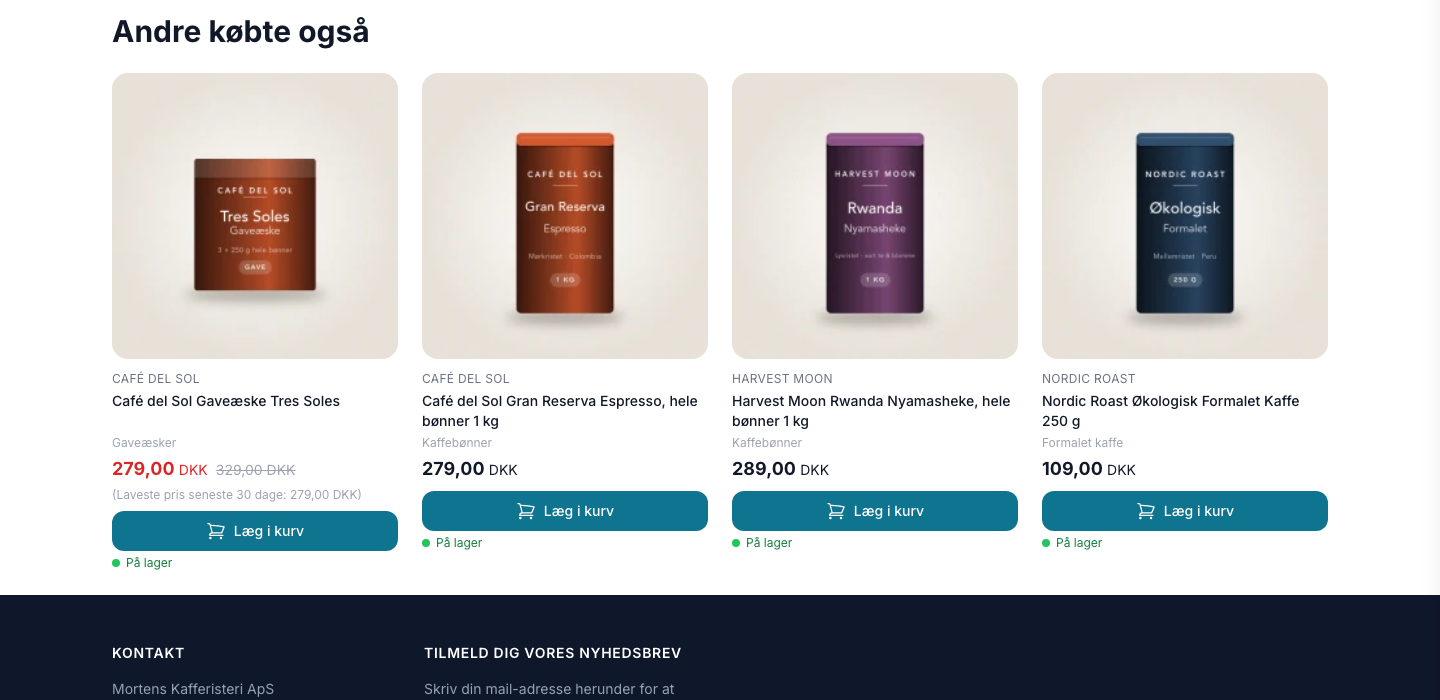
- "Others also bought "—items that were actually purchased together in real orders. Works best in the shopping cart.
- Related products —your own selections, if you’d rather decide for yourself.
- Popular Right Now —top sellers over the last 90 days. Works well on the homepage and on blank pages.
- Customer’s Recently Viewed – each visitor’s own history.
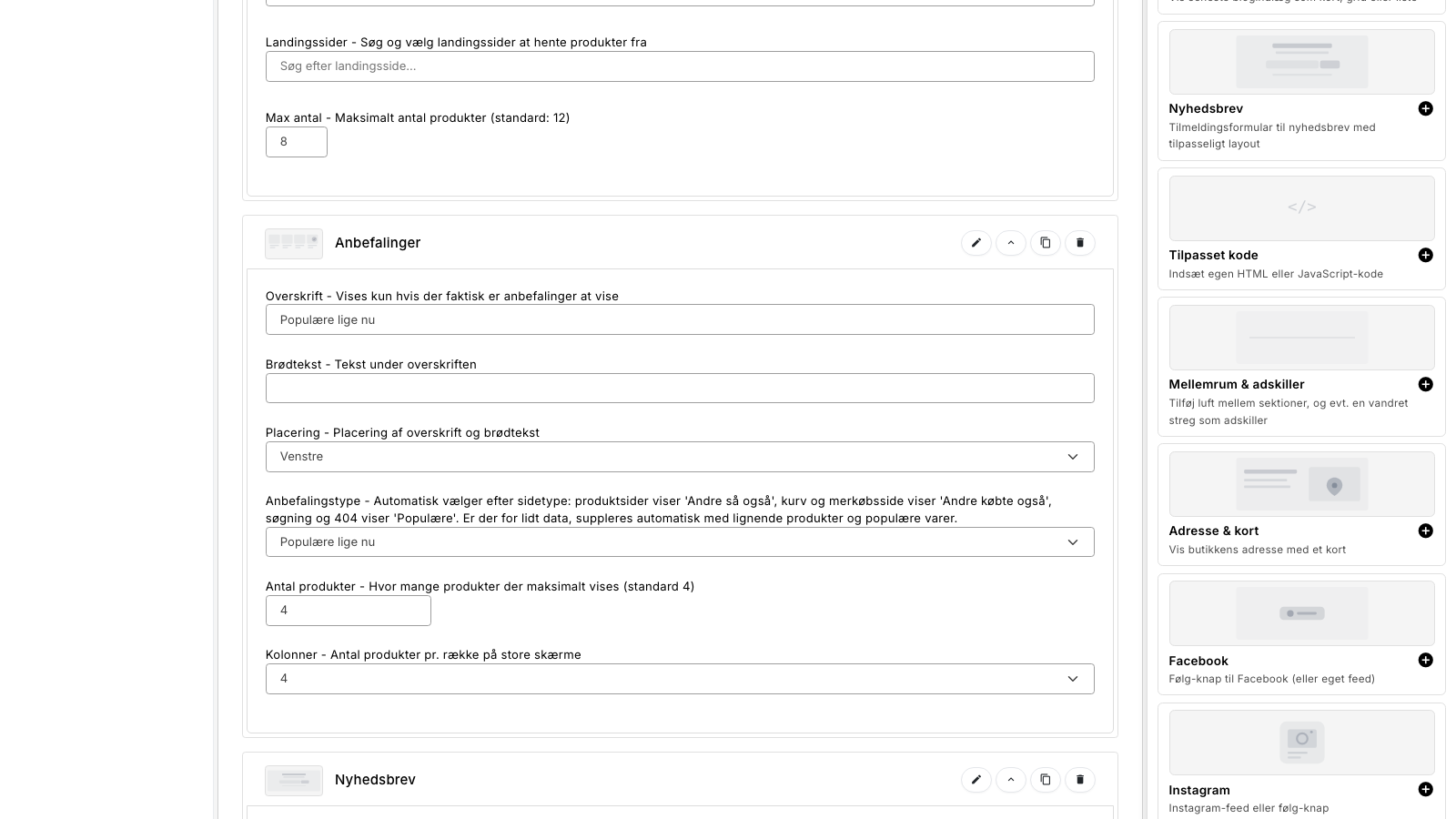
If you’re unsure, the module is set to “Automatic” and selects based on page type: product pages show “Others also viewed,” the shopping cart shows “Others also bought,” and search and 404 pages show “Popular.”
The hard part is the first few weeks
Any recommendation engine can figure out how to suggest something sensible once it has half a year’s worth of data to work with. The hard part is the day after you’ve turned it on, and on a product you created yesterday. There’s no behavior to analyze, so most solutions fall back on the store’s bestsellers. Then every page shows the same thing, and the recommendations feel generic right when you’re trying to decide if they’re worth anything.
We’ve put a lot of work into solving this problem. If we can’t find enough similar items in the behavioral data, the recommendations are filled in by layers: first with items purchased together with the product, then with similar products, then with popular products in the same category, and only at the very end with the store’s bestsellers.
The “similar” layer is the interesting one. It’s based on the product’s own characteristics: categories, brand, features, and price range. So even a brand-new product with not a single visitor will still have relevant “neighbors” because they share characteristics with it. The calculation runs every night alongside the behavioral analysis, and the two are never combined into the same score.
We count conservatively—on purpose
Recommendations are easy to overstate in statistics. You could count sales simply because the customer had the box on their screen. You could set the attribution window to 30 days. That would make the number large, but it wouldn’t really mean much.
We’ve chosen a different approach. An item only counts if the customer has clicked on it in a recommendation box and purchases that exact item within seven days. Then the item line total is counted, once per product per order. Views without clicks never generate revenue, and the other items in the order aren’t counted.
Views aren’t counted simply because the page was opened either. The box must have been at least half visible on the screen. And if you’re logged into the admin panel yourself, your own visits are completely excluded from the numbers so that your own testing doesn’t skew the statistics.
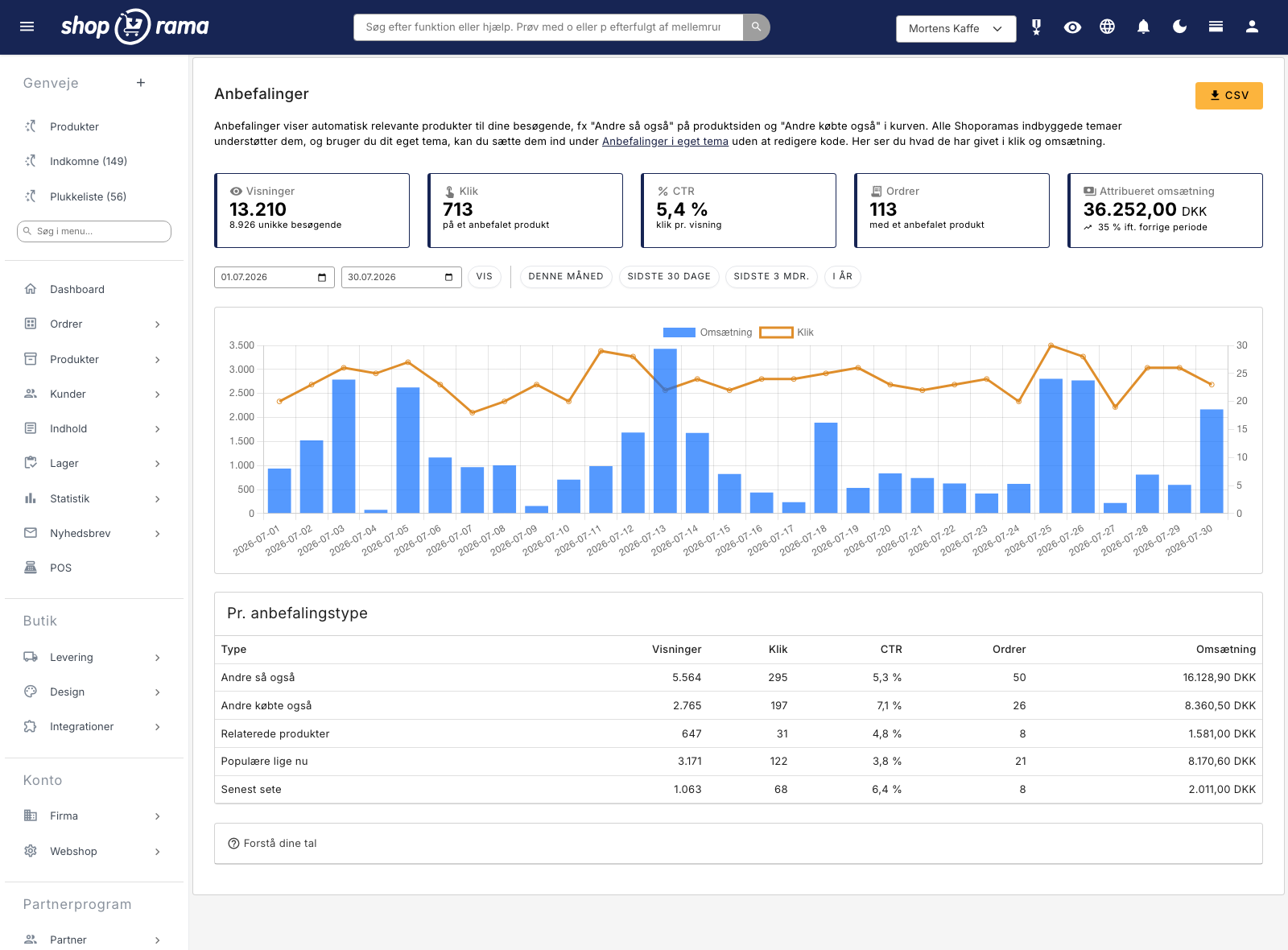
As a result, this figure represents a minimum, not a maximum. If you’re switching from another tool, our numbers will appear lower. This isn’t because sales are lower; it’s because the counting method is different. If you want to compare two solutions fairly, measure the store’s total revenue, or run a split test with and without the module. You can do this directly under Design → Split Test.
It must not slow down the site
A recommendation box that slows down the product page has cost more than it’s worth. That’s why the page itself is loaded without recommendations, and the box is loaded afterward. Space is reserved in advance with a gray placeholder the same size as the actual cards, so the page doesn’t jump when the content loads.
No external files are loaded. The code is inline and takes up about 5 KB in total. The response is cached for one hour, so two visitors to the same product page within the same hour only incur one database lookup. And because the placeholder delivered with the page is the same for everyone, pages with recommendations can still be cached statically just as before.
Even if you have your own theme
In Shoporama’s own themes, recommendations are a module you drag into the Page Designer. But a significant number of our stores run on themes that have been built or heavily customized by an agency, and in those cases, “just add the module” would mean “call your developer.”
That’s why there’s another way. Under Design → Recommendations in your own theme, specify a CSS selector (e.g., footer), choose whether the box should appear before, after, or inside that element, and save. The box will then be inserted there. If the element isn’t present on a given page, nothing happens, and the box removes itself instead of leaving a gap. This makes it safe to experiment.
If you’re a developer, you can instead position it precisely using a Smarty tag in the template and give the theme its own template for the product cards.
Get Started
If you want to use “Others also viewed,” visitor statistics must be enabled under Account → Webshop. Without it, we can’t track what your visitors are viewing, so the calculation can’t be made. The other types work regardless.
Next: Design → Page Designer, select a page layout, add the Recommendations module, select a type, and save. A good starting point is three boxes: “Others Also Viewed” on the product page, “Others Also Bought” in the cart, and “Popular Right Now” on the homepage.
We’ve written three guides on this: Getting Started with Recommendations, How to Read the Statistics, and Recommendations in Your Own Theme.
Related articles
Recommendations: Automatically display the products your customers are looking for
Recommendations automatically display relevant products, such as "Others also viewed" on the product page and "Others also bought" in the shopping...
How to Interpret the Recommendation Statistics
Impressions, clicks, CTR, orders, and attributed revenue: what each number on the recommendations statistics page means, and how we calculate revenue.
Recommendations in Your Own Theme
Here's how to add recommendations to a theme that isn't one of Shoporama's own: either using a CSS selector from the admin panel or using the...
More from the blog
Order Check flags incorrect ZIP codes and potential credit card fraud before you submit your order
An incorrect ZIP code can result in a fee from the shipping company, and a string of nearly identical orders placed in quick succession could...
06. november 2026
New Free App Sends Online Store Orders to Business Central
If you use Microsoft Dynamics 365 Business Central, Shoporama can now transfer orders from your online store as sales invoices or sales orders....
31. oktober 2026
New free Billy app replaces the built-in integration
Shoporama has a new, free app for Billy, now called Shine Accounting. It replaces the built-in Billy integration: customer information is reused,...
31. oktober 2026