Show Facebook and Instagram on your online store
With the Facebook and Instagram modules, you can display your social media feeds directly on your online store. You add them in the Page Builder, just as you would add any other blocks. They require no API key, no token, and no additional account. You simply enter your profile or page URL.
How to add the modules
- Go to Page Designer and open (or create) the page layout you want to edit.
- Add a new block and select Facebook or Instagram from the list of block types.
- Enter your profile or page URL, select settings, and save.
If you leave the URL fields blank, the Facebook and Instagram URLs you’ve saved in your store’s business settings will be used.
The Instagram module
Enter your Instagram profile URL (e.g., https://www.instagram.com/ditfirma), and the module will display your profile along with your latest posts. The feed updates automatically, so new posts are added automatically.
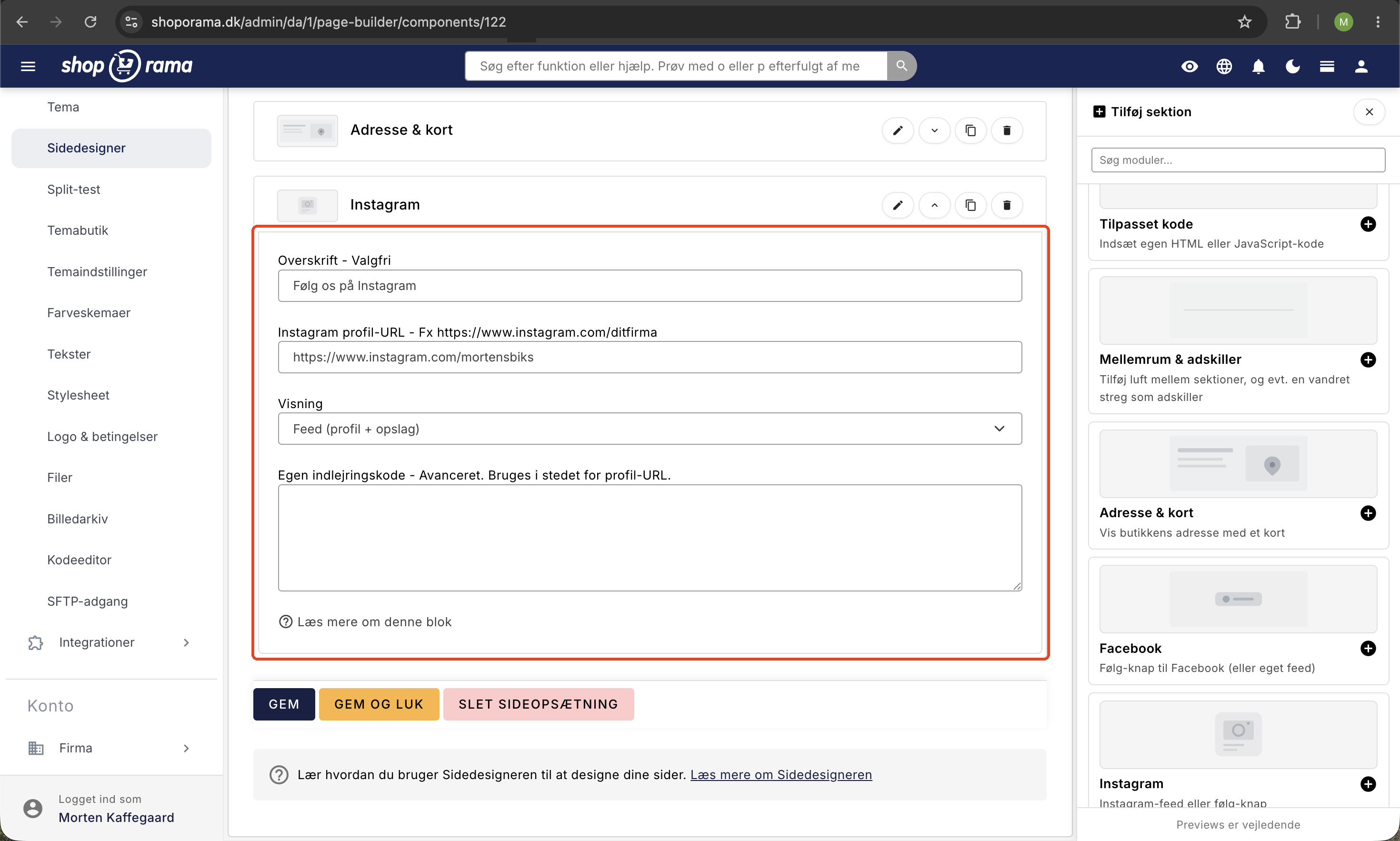
You can choose between three display options:
- Feed (profile + posts): displays your profile and your latest posts.
- Follow button: a simple button that links to your profile.
- Feed and button: both options, so there’s always at least a button if the feed can’t be loaded for a visitor.
Two requirements must be met for the feed to appear: your Instagram profile must be public, and embedding must be enabled in Instagram under Settings and then Embedding. In the “Custom Embed Code (Advanced)” field, you can instead paste code from a third-party feed widget or a single post.
The Facebook module
The Facebook module displays a neat “Follow us on Facebook” button that links to your page. The button works for all visitors.
A live Facebook feed is intentionally not the default. Facebook’s embedded feed (Page Plugin) requires third-party cookies and is blocked by ad blockers and tracking protection on many visitors’ devices, so it often ends up as an empty, broken box. A “Follow” button is therefore the most reliable option. If you still want a real feed, you can insert a third-party widget into the “Custom Embed Code” field.
Frequently Asked Questions
Do I need an API key or an account to use the modules?
No. You add the modules as blocks in the Page Builder, enter your profile URL, and it works. There’s no API key, token, or extra account required.
Can the modules be placed on any page?
Yes. You’ll find Facebook and Instagram as blocks in Page Builder and can place them on any page type, such as the homepage, a campaign page, or an “About Us” page.
Does the Instagram feed update automatically?
Yes. When you post something new on Instagram, it automatically appears in the feed on your page. You don’t need to do anything manually.
My Instagram feed isn’t showing up. What’s wrong?
Check that your profile is public and that embedding is enabled in Instagram under Settings and then Embedding. Both are required. In rare cases, a visitor with strict tracking protection may block Instagram’s script, so feel free to select the “Feed and Button” view.
Why isn’t there a real Facebook feed, just a button?
A live Facebook feed requires third-party cookies and is blocked by ad blockers for many visitors, so it often appears as an empty box. A “Follow” button always works. If you want a feed, you can insert a third-party widget into the “Custom Embed Code” field.
What does the “Custom Embed Code” field do?
It’s an advanced field where you can paste code from a third-party feed widget or a single post. You don’t need to use it if you just want the standard view.
Where does the module get the link from if I don’t enter a URL?
If the URL fields are left blank, the modules will automatically use the Facebook and Instagram URLs you’ve entered in the store’s business settings.
Do the modules cost anything extra?
No, they are blocks in the Page Builder just like the others. Note, however, that feeds rely on Instagram’s script and, in some cases, a third-party widget in the browser, so a “Follow” button is always the safest choice.