Firma-konti med flere brugere og roller
Sælger du til virksomheder, oplever du tit, at flere personer fra det samme firma handler hos dig. Indkøberen bestiller, en kollega supplerer, og bogholderen vil have det hele på den samme virksomhed med korrekt CVR og adresse. Med firma-konti i Shoporama kan flere brugere ligge under ét firma og dele firmaets identitet, priser, og betingelser. Denne artikel forklarer, hvordan firma-konti virker, og hvordan du opsætter dem.
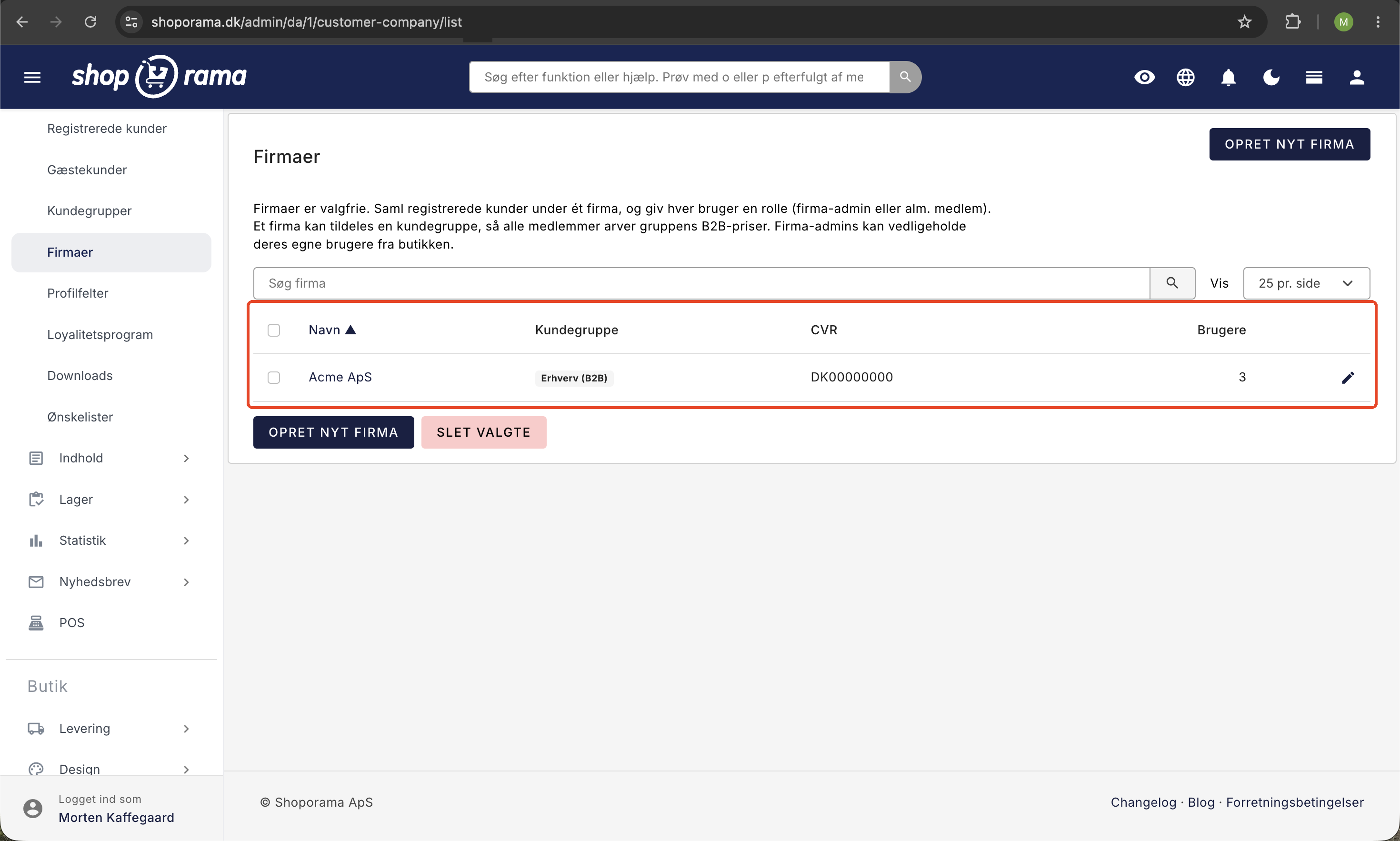
Firma-konti bygger oven på Shoporamas øvrige B2B-funktioner. Er du ny i B2B-salg, så start med B2B-salg i Shoporama og læs mere om dine muligheder på siden B2B webshop.
Hvad er en firma-konto?
En firma-konto samler flere brugere under det samme firma. I stedet for at hver indkøber har sin egen løse kundeprofil, hører de alle til ét firma og deler firmaets oplysninger og betingelser. Hver bruger har en rolle, der bestemmer, hvad vedkommende må:
- Firma-administrator kan administrere firmaets brugere, altså tilføje kolleger, ændre roller, og fjerne brugere.
- Medlem kan handle på firmaets konto og arver firmaets oplysninger, priser, og betingelser, men kan ikke administrere de andre brugere.
To slags administratorer: butiksejer og firma-administrator
Det er vigtigt at holde to roller adskilt, fordi de arbejder to forskellige steder:
- Dig som butiksejer arbejder i Shoporamas admin. Det er her, du opretter firmaer, tildeler kundegrupper, og tilføjer de første brugere.
- Firma-administratoren er kundens egen administrator. Vedkommende arbejder ikke i admin, men inde i din butik under Mit firma, og kan selv tilføje og fjerne kolleger samt ændre deres roller.
Det betyder, at virksomheden i høj grad kan administrere sig selv, så du slipper for at oprette og rette i firmaets brugere manuelt, hver gang der kommer en ny medarbejder, eller en gammel stopper.
Firmaets identitet arves af medlemmerne
Når en bruger hører til et firma, arver vedkommende automatisk firmaets stamoplysninger. Det vil sige:
- Firmanavn
- CVR-nummer, som kan valideres mod EU's VIES-tjeneste, hvis du har slået validering af momsnumre til i butikkens indstillinger
- EAN-nummer til offentlige indkøb og fakturering
Det smarte er, at medlemmerne ikke selv skal udfylde CVR eller de øvrige firmaoplysninger. De udfyldes ét sted på firmaet og gælder for alle. Når et medlem afgiver en ordre, sættes firmaets navn, CVR, og EAN automatisk på ordren, så oplysningerne er korrekte på hver eneste bestilling, uanset hvem i firmaet der bestilte.
Firmaets adresse noterer du på selve firmaet i admin, men den arves ikke af medlemmerne. Hver bruger har fortsat sin egen faktura- og leveringsadresse, så en kollega på en anden afdeling kan få varerne leveret det rigtige sted.
Priser arves fra firmaets kundegruppe
Et firma kan tildeles en kundegruppe. Kundegruppen styrer de priser, rabatter, og betingelser, som firmaet handler til. Pris-arven fungerer sådan her:
- Et medlem uden egen kundegruppe arver firmaets gruppe og får dermed firmaets priser, rabatter, og betingelser.
- Har et medlem sin egen kundegruppe, vinder medlemmets egen gruppe over firmaets.
På den måde kan du give en hel virksomhed de samme aftalepriser ved blot at sætte firmaets kundegruppe ét sted, samtidig med at du stadig kan give en enkelt person en særlig aftale, hvis det er nødvendigt.
Sådan opretter du et firma i admin
Du opretter og styrer firmaer i admin under Kunder og derefter Firmaer:
- Gå til Kunder og vælg Firmaer.
- Opret et nyt firma og udfyld firmaets oplysninger, altså firmanavn, CVR, EAN, og adresse.
- Tildel eventuelt firmaet en kundegruppe, så medlemmerne arver de rigtige priser og betingelser.
- Tilføj firmaets medlemmer. Du kan enten oprette en helt ny bruger, der inviteres på mail, eller tilknytte en kunde, der allerede findes i din butik.
- Udpeg, hvem der skal være firma-administrator, så virksomheden selv kan styre sine brugere fremover.
Opretter du en helt ny bruger, modtager personen et login-link på e-mail. Linket logger vedkommende ind uden adgangskode, så det er nemt at komme i gang første gang. Tilknytter du i stedet en kunde, der allerede findes i butikken, sendes der ingen mail, for kunden har jo allerede sit eget login.
Send ordrebekræftelse og faktura til flere adresser
I mange virksomheder er det ikke kun den, der bestiller, som skal have mailene. Den fælles indbakke vil gerne se ordrebekræftelsen, og bogholderiet skal have fakturaen. Det sætter du op én gang på firmaet, så det gælder alle ordrer fra alle firmaets brugere.
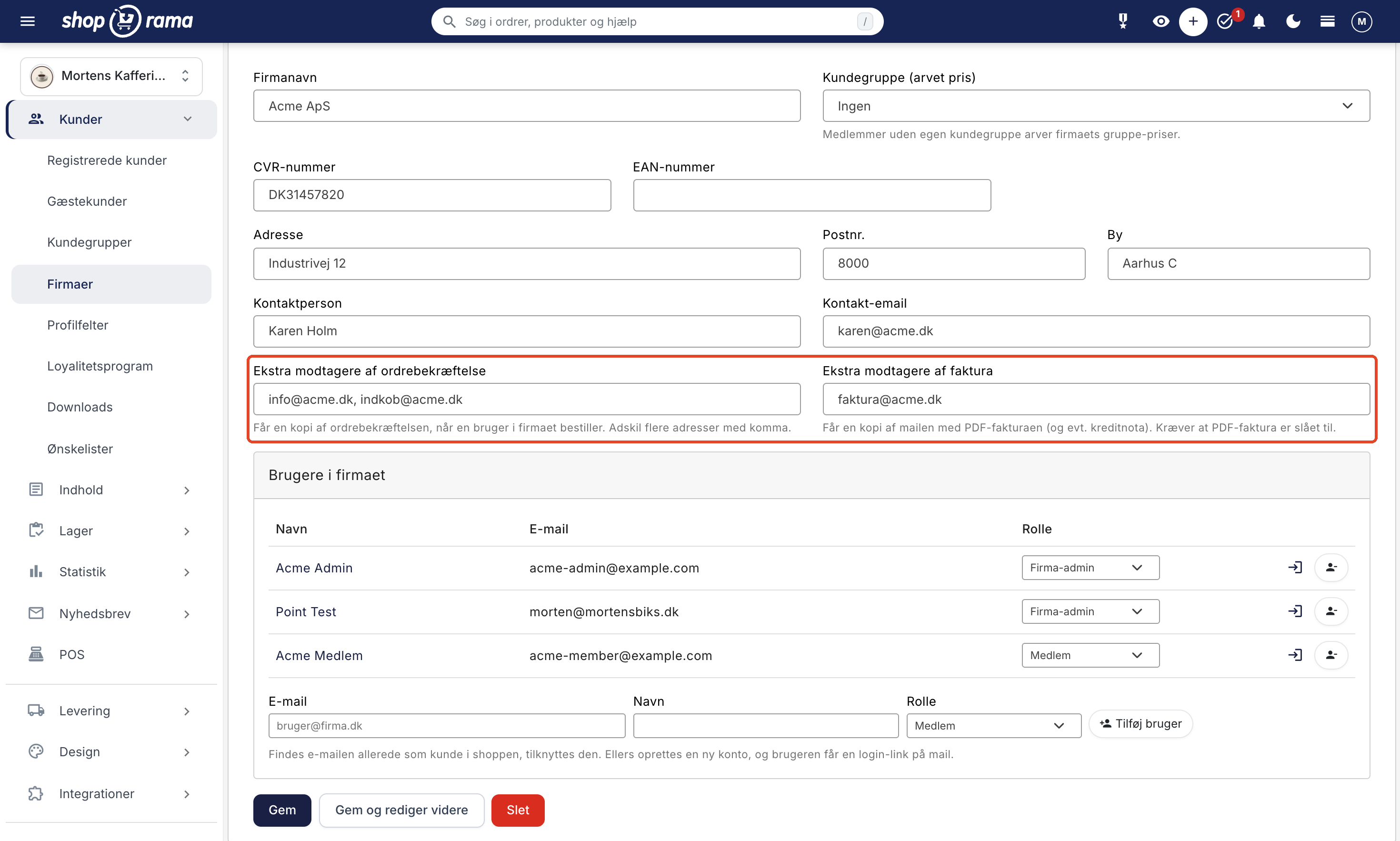
Gå til Kunder, vælg Firmaer, og åbn firmaet. Lige under Kontaktperson og Kontakt-email finder du to felter:
- Ekstra modtagere af ordrebekræftelse får en kopi af ordrebekræftelsen, når en bruger i firmaet bestiller. Det gælder også, når du sender ordrebekræftelsen igen fra admin.
- Ekstra modtagere af faktura får en kopi af de mails, der har PDF-fakturaen vedhæftet, altså mailen om at ordren er afsendt, mailene om klar til afhentning og afhentet, og mailen med en eventuel kreditnota.
Skriv for eksempel firmaets info-adresse i feltet til ordrebekræftelsen og firmaets faktura-adresse i feltet til fakturaen, og tryk Gem. Flere adresser adskiller du med komma. En adresse, der ikke er gyldig, bliver ikke gemt, og admin viser en gul besked med de adresser, det gælder. Lader du et felt stå tomt, sendes der ikke til nogen ekstra modtagere.
Det er godt at vide:
- Den bruger, der bestiller, får stadig selv sine mails som hidtil. De ekstra modtagere får en kopi oven i.
- Hver ekstra modtager får sin egen mail, så modtagerne ikke kan se hinandens adresser. Alle kopierne står i ordrens mail-log.
- På selve ordren i admin kan du i boksen Kontakt se, hvem der får en kopi af ordrebekræftelsen og fakturaen. Adresserne hentes fra kunden og firmaet, når mailen sendes. Retter du dem på firmaet, gælder det derfor også mails, der sendes senere på ældre ordrer.
- Faktura-delen kræver, at PDF-faktura er slået til i butikkens indstillinger. Er den ikke det, sendes der intet til faktura-modtagerne. Læs mere i PDF-faktura på ordrer.
- Sender du en ordre i flere pakker, kommer fakturaen først med, når hele ordren er sendt, og det er også først dér, faktura-modtagerne får mailen.
- Modtagerne af ordrebekræftelsen får ikke fakturaen, og omvendt, medmindre du skriver den samme adresse i begge felter.
- Det gælder ordrer, der er knyttet til en brugers kundekonto. Handler nogen som gæst uden at logge ind, sendes der ikke til de ekstra modtagere. Andre mails, for eksempel betalingsmails og anmeldelsesmails, går kun til den, der bestilte.
Den enkelte kunde har de samme to felter på sin egen profil, se Redigér en kundes profil og oplysninger. Er der udfyldt adresser både på kunden og på firmaet, lægges de sammen, så begge lister får mailen. Står den samme adresse flere steder, eller er den identisk med ordrens egen mail, sendes der kun én mail til den.
Bemærk, at feltet Kontakt-email på firmaet kun er til din egen reference. Adressen der får ikke ordremails. Skal kontaktpersonen have ordrebekræftelser eller fakturaer, skriver du adressen i et af de to nye felter.
Hvad firma-administratoren selv kan i butikken
Firma-administratoren styrer firmaet inde i din butik under Mit firma. Herfra kan vedkommende:
- Tilføje kolleger som nye brugere på firmaet.
- Ændre roller, altså gøre et medlem til firma-administrator eller omvendt.
- Fjerne brugere, der ikke længere skal have adgang.
- Logge ind som en medarbejder for at hjælpe vedkommende, og bagefter skifte tilbage til sin egen konto.
Funktionen log ind som er praktisk, når administratoren skal hjælpe en kollega, der er kørt fast, fordi administratoren kan se det, kollegaen ser, og derefter trygt vende tilbage til sin egen konto uden at logge helt ud.
Roller og rettigheder: hvad må et medlem, og hvad må en firma-administrator?
Hver bruger under et firma har præcis én rolle, enten medlem eller firma-administrator. Rollen bestemmer alene, hvad brugeren må gøre med firmaets andre brugere. Den ændrer ikke priser, rabatter, eller betingelser, for dem arver alle i firmaet på samme måde. En firma-administrator køber altså til nøjagtig de samme priser som sine kolleger.
Medlem
Medlemmet er den almindelige indkøber. Vedkommende kan:
- Handle på firmaets konto til firmaets priser og betingelser.
- Se sine egne ordrer under Ordrer i butikken.
- Rette sine egne oplysninger, altså navn, adresse, telefonnummer, leveringsadresse, og adgangskode.
Til gengæld kan et medlem ikke rette firmanavn, CVR, eller EAN. Felterne er låste og vises kun som tekst på profilen med en note om, at firmaoplysningerne administreres af firma-administratoren. Det samme gælder i checkout, hvor firmaets oplysninger sættes automatisk på ordren. Medlemmet ser heller ikke fanen Mit firma og kan derfor hverken se, tilføje, eller fjerne kolleger.
Firma-administrator
Firma-administratoren kan alt det, et medlem kan, og har derudover fanen Mit firma i butikken, hvor firmaets brugere styres. Der er tre begrænsninger, som beskytter både firmaet og dig:
- En firma-administrator kan ikke ændre sin egen rolle, fjerne sig selv, eller logge ind som sig selv. Dermed kan et firma ikke ved et uheld ende uden en administrator.
- Heller ikke firma-administratoren kan rette firmanavn, CVR, eller EAN. Det gør du som butiksejer i admin, så firmaets momsnummer bliver ved med at være det, du har godkendt.
- En firma-administrator kan kun se og redigere brugere i sit eget firma og i din butik. Firmaer og butikker holdes adskilt fra hinanden.
Et firma kan sagtens have flere firma-administratorer, og der er ingen øvre grænse. En bruger kan til gengæld kun høre til ét firma ad gangen.
Sådan får firmaet adgang til siden Mit firma
To ting skal være på plads, før en kunde kan administrere sit firma inde fra butikken:
- Butikken skal bruge B2B-temaet. Siden Mit firma følger med temaet. Kører din butik på et andet eller et specialbygget tema, skal din temaudvikler tilføje siden, før den kan bruges. Du finder overblikket over temaet i B2B-salg i Shoporama.
- Firmaet skal have mindst én firma-administrator. Har ingen af firmaets brugere rollen, er der ingen, der kan åbne siden. Udpeg selv en administrator under Kunder og Firmaer, eller på den enkelte kundes side, hvor feltet hedder Firma-rolle.
Når begge dele er på plads, dukker fanen Mit firma op i kundens egen profilmenu i butikken ved siden af Oversigt, Rediger profil, og Ordrer. Almindelige medlemmer ser den ikke.
Invitationsmailen med login-linket følger også med B2B-temaet. Bruger din butik et tema uden den mail, får nye brugere ingen invitation, og de skal i stedet bruge butikkens funktion til glemt adgangskode for at komme ind første gang.
Sådan administrerer firma-administratoren sine kolleger
På siden Mit firma møder administratoren firmaets navn, firmaets CVR-nummer, hvis det er udfyldt, og en tabel over firmaets brugere med kolonnerne navn, e-mail, og rolle. Administratorens egen række er markeret med ordet dig, så det er tydeligt, hvilken linje der er ens egen. Derfra er der tre ting at gøre.
Tilføj en kollega
Nederst på siden ligger boksen Tilføj bruger. Administratoren skriver kollegaens e-mail, eventuelt et navn, vælger rollen medlem eller firma-admin, og trykker Tilføj bruger. Kollegaen får med det samme en mail med et login-link, der logger vedkommende direkte ind uden adgangskode. Derefter kan kollegaen selv vælge en adgangskode under sin profil.
En detalje er værd at kende: fra butikken kan en firma-administrator kun oprette nye konti. Findes e-mailen allerede som kunde i din butik, bliver den afvist med en besked om at kontakte butikken. Det er med vilje, for ellers kunne man skrive en fremmed kundes e-mail ind, tilknytte den til sit firma, og bagefter logge ind som vedkommende. Skal en kunde, der allerede findes, kobles på et firma, gør du det selv i admin.
Skift rolle på en kollega
I rolle-kolonnen sidder en lille rullemenu ud for hver kollega med valgene medlem og firma-admin. Ændringen gemmes med det samme. Administratorens egen rolle står som ren tekst uden rullemenu, netop fordi man ikke kan degradere sig selv.
Fjern en bruger
Yderst til højre ligger knappen Fjern, som beder om en bekræftelse først. Vær opmærksom på, at Fjern ikke sletter kundens konto. Den løsriver kun brugeren fra firmaet. Personen kan altså stadig logge ind, men mister firmaets identitet og firmaets priser og handler derefter som en almindelig kunde. Det er præcis det, man vil, når en medarbejder skifter job: aftalepriserne følger ikke med ud af døren, og både konto, historik, og tidligere ordrer bevares.
Log ind som en kollega, og skift tilbage igen
Ud for hver kollega ligger linket Log ind som. Klikker administratoren på det, vises butikken præcis, som kollegaen ser den, altså med samme priser, samme kurv, og samme ordrehistorik. Øverst på alle sider ligger et tydeligt bånd, der fortæller, at man ser butikken som den pågældende kollega, så man aldrig er i tvivl om, hvis konto man sidder på.
I samme bånd ligger linket Tilbage til min konto. Brug altid det til at komme tilbage, ikke Log ud. Logges der ud i stedet, bliver man logget helt ud af butikken og skal logge ind som sig selv forfra.
Der er faste rammer om funktionen. Man kan kun logge ind som en bruger i sit eget firma i den samme butik, og man kan ikke logge ind som sig selv. Til gengæld er man reelt logget ind som kollegaen, så en ordre, der afgives undervejs, lander på kollegaens konto. Det er en fordel, når administratoren bestiller på en kollegas vegne, men det er værd at være opmærksom på, hvis man kun ville kigge med.
Du har en tilsvarende mulighed som butiksejer. På firmaets side i admin ligger der et lille login-ikon ud for hver bruger, som åbner butikken i en ny fane, hvor du er logget ind som netop den kunde. Det sparer meget tid i support, når en kunde ringer og siger, at en pris eller et produkt ikke ser rigtigt ud hos dem.
Ofte stillede spørgsmål
Skal hver medarbejder selv skrive firmaets CVR, når de bestiller?
Nej. CVR udfyldes ét sted på selve firmaet og arves automatisk af alle medlemmer. Den enkelte indkøber skal altså ikke huske eller skrive CVR ved hver bestilling. Ordren får firmaets oplysninger med automatisk.
Kan jeg give en hel virksomhed de samme aftalepriser på én gang?
Ja. Tildel firmaet en kundegruppe, så arver alle medlemmer uden egen gruppe automatisk gruppens priser, rabatter, og betingelser. Du behøver ikke sætte priser op for hver enkelt bruger. Har et medlem undtagelsesvis sin egen gruppe, vinder den over firmaets.
Hvordan ser jeg, hvilket firma en ordre hører til i regnskabet?
Hver ordre fra et medlem bærer firmaets navn, CVR, og EAN. Det betyder, at firmaoplysningerne følger med ordren, uanset hvem i virksomheden der bestilte, så bogføring og dokumentation peger på den rigtige virksomhed. Leveringsadressen er derimod den, medlemmet selv har angivet.
Vores indkøbere skifter tit. Skal jeg oprette og slette dem manuelt hver gang?
Nej, det kan virksomheden selv klare. Du udpeger en firma-administrator, og vedkommende kan derefter tilføje nye kolleger, fjerne dem, der stopper, og ændre roller direkte i butikken under Mit firma. Du slipper for det manuelle arbejde.
En kollega kan ikke finde ud af at handle. Kan jeg hjælpe vedkommende?
Ja. En firma-administrator kan logge ind som den pågældende medarbejder og se det, kollegaen ser. Når hjælpen er givet, skifter administratoren tilbage til sin egen konto igen. Det gør det nemt at guide en kollega uden at skulle dele adgangskoder.
Kan fakturaen gå til bogholderiet i stedet for den, der bestiller?
Bogholderiet kan få den med, men ikke i stedet for. Skriv bogholderiets adresse i feltet Ekstra modtagere af faktura på firmaet, så får bogholderiet en kopi af mailen med PDF-fakturaen ved hver ordre. Den, der bestilte, får stadig sin egen mail. Husk, at PDF-faktura skal være slået til i butikkens indstillinger.
Jeg har skrevet en adresse i Kontakt-email. Hvorfor får den ingen ordrebekræftelser?
Fordi Kontakt-email kun er til din egen reference og aldrig har fået ordremails. Skal adressen have ordrebekræftelser, skriver du den i feltet Ekstra modtagere af ordrebekræftelse på firmaet. Skal den have fakturaer, bruger du feltet Ekstra modtagere af faktura.
Hvad sker der, når jeg tilføjer en ny bruger på et firma?
Opretter du en helt ny bruger, får vedkommende et login-link på e-mail. Linket logger personen direkte ind uden adgangskode, så det er hurtigt at komme i gang første gang. Tilknytter du i stedet en kunde, der allerede findes i butikken, sendes der ingen mail, for kunden har allerede sit eget login.
Er CVR-nummeret kontrolleret, eller skriver kunden bare et tal?
Det afhænger af din butiks indstillinger. Slår du validering af momsnumre mod VIES til under butikkens indstillinger, tjekkes CVR-nummeret mod EU's VIES-tjeneste, og admin viser tydeligt, om nummeret er gyldigt. Er valideringen slået fra, gemmes nummeret uden kontrol. Bemærk, at VIES kun dækker momsnumre fra EU-lande.
Kan et firma have mere end én firma-administrator?
Ja, og der er ingen øvre grænse. Det er en god idé at udpege to, så firmaet ikke går i stå, når den ene er på ferie eller stopper. Fordi en firma-administrator ikke kan fjerne sig selv eller ændre sin egen rolle, kan et firma ikke komme til at afskære sig selv fra siden Mit firma.
Kan firmaets egen administrator ændre CVR-nummeret?
Nej. Firmanavn, CVR, og EAN er låste for alle firmaets brugere, også for firma-administratoren, både på profilen og i checkout. Felterne retter du som butiksejer i admin, hvor CVR-nummeret også kan valideres mod VIES. Det betyder, at momsnummeret på en firma-konto ikke kan skifte mellem to ordrer, og at bogføringen bygger på et nummer, du har godkendt.
Jeg har fjernet en kollega ved en fejl. Er kontoen slettet?
Nej. Kontoen findes stadig, og personen kan logge ind som før. Vedkommende er kun løsrevet fra firmaet og handler derfor til butikkens almindelige priser. Bemærk, at firma-administratoren ikke selv kan tilføje kollegaen igen fra butikken, fordi e-mailen nu findes som kunde. Du kobler kontoen på firmaet igen i admin under Kunder og Firmaer.
Kan firma-administratoren se alle firmaets ordrer ét sted i butikken?
Nej. Ordre-oversigten i butikken viser den enkelte brugers egne ordrer, også når man er firma-administrator. Skal administratoren se en kollegas ordrer, kan vedkommende bruge Log ind som. Som butiksejer finder du ordrerne i admin, hvor hver ordre bærer firmaets navn, CVR, og EAN, uanset hvem i firmaet der bestilte.
Related articles
B2B sales in Shoporama
How to sell to businesses (B2B) and public institutions (B2G) in Shoporama with CVR, EAN and differentiated VAT.
Kundegrupper og B2B-priser: giv forskellige kunder forskellige priser
Reverse charge og VIES-validering: sælg uden moms til erhverv i EU
Hurtig genbestilling for erhvervskunder
Customer Overview: Find and Manage Your Registered Customers
The Customer Overview lists all customers with profiles. Learn what the columns mean, how to search and sort, create orders, log in as a customer,...
Related features
B2B webshop
A B2B webshop sells to business customers with customer pricing, CVR validation and invoicing. Read about B2B e-commerce and features.
B2B webshop
Shoporama now offers a full-featured B2B solution: a login-based store, customer group pricing, volume discounts, company accounts with roles,...
B2B online store
Nu kan du drive en rigtig B2B-webshop med Shoporama
Shoporama now offers a full-featured B2B solution: a login-based store, customer group pricing, volume discounts, corporate accounts, VIES reverse...
Theme Settings in MontanaB2B: Fields and B2B Features
An explanation of all fields in MontanaB2B's theme settings, plus the login screen, prices excluding VAT, customer groups, company accounts, and...