Google Ads conversion tracking
How to set up Google Ads conversion tracking in Shoporama. Target Add to Cart, Begin Checkout and Purchase with Conversion ID and labels, as well as offline conversions for clicks that end up as orders.
Google Ads konverteringssporing fortæller dig, hvilke annonceklik der reelt fører til handling i din webshop. Med Shoporamas indbyggede integration kan du spore tilføj til kurv, start af checkout og gennemførte køb uden at skulle redigere temaer eller arbejde med Google Tag Manager. Denne guide tager dig hele vejen fra Google Ads-kontoen til opsætningen i Shoporama, og dækker også offline konverteringer for endnu mere præcise data og bruttofortjeneste pr. kampagne.
Forudsætninger
- En Google Ads-konto med rettigheder til at oprette konverteringshandlinger.
- Sporingsmodulet aktiveret i Shoporama (der kan være et månedligt gebyr).
- Adgang til admin-menuen Webshop i Shoporama.
Trin 1: Opret konverteringshandlinger i Google Ads
- Log ind i Google Ads.
- Gå til Goals > Conversions > Summary.
- Klik New conversion action og vælg Website.
- Opret en konverteringshandling for hvert event, du vil måle. Som minimum Purchase, og gerne også Add to Cart og Begin Checkout.
- Når handlingen er oprettet, finder du dit Conversion ID (starter med AW-) og et Conversion Label for hver handling. Begge dele skal du bruge i Shoporama.
Du behøver ikke installere Google Tag Manager eller indsætte tracking-kode på sitet. Shoporama sender selv signalerne, når du har indtastet ID og labels.
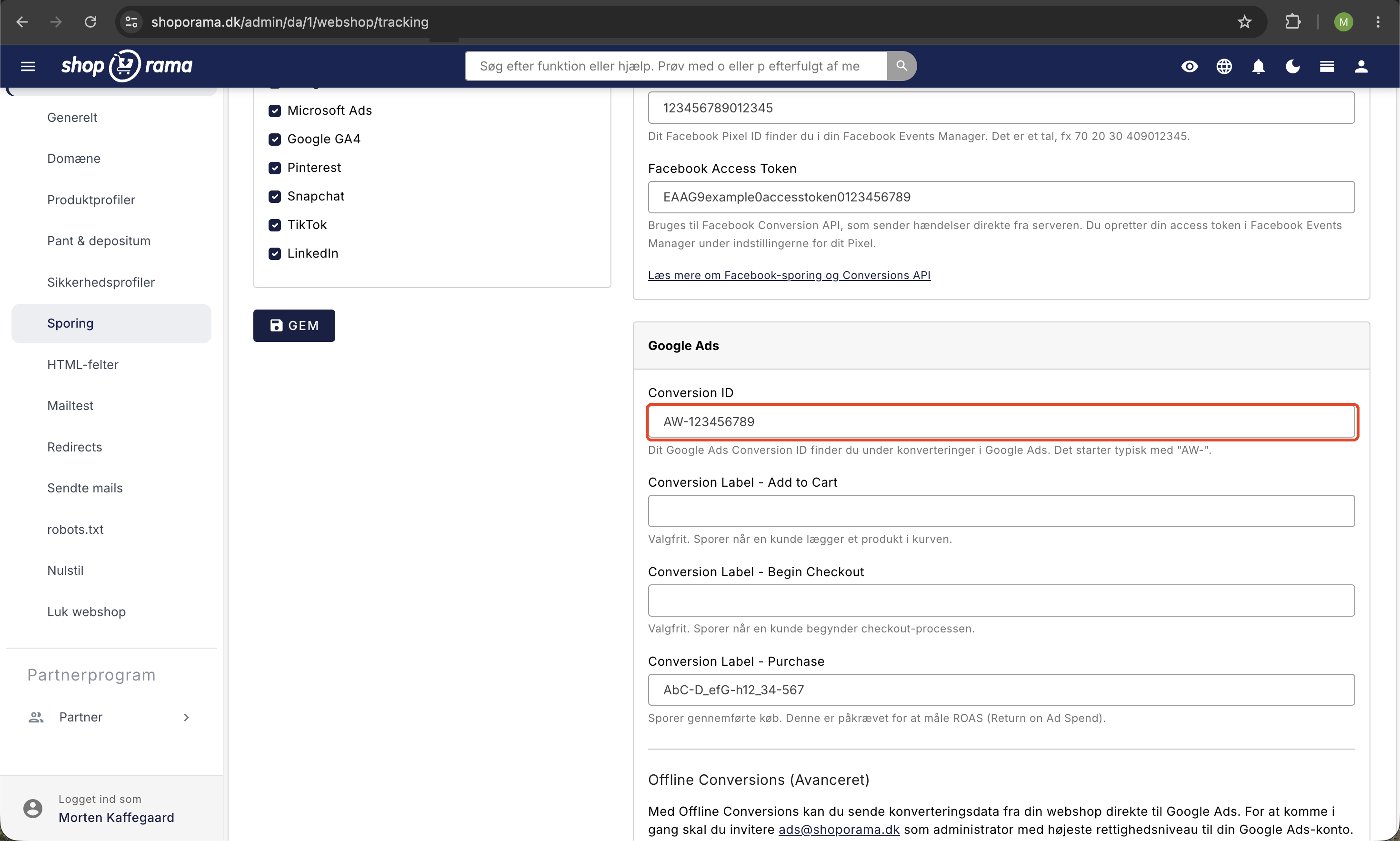
Trin 2: Aktivér sporing i Shoporama
- Gå til Webshop > Sporing i venstre sidebar (Webshop-sektionen har et tandhjul-ikon).
- Sæt flueben i Aktiver sporing.
- Sæt flueben ved Google Ads under Platforme. Så vises kortet Google Ads med felterne nedenfor.
- Udfyld felterne i Google Ads-sektionen, og klik Gem.
Trin 3: Indtast Conversion ID og labels
- Conversion ID (påkrævet) — dit Google Ads ID i formatet AW-123456789.
- Conversion Label - Add to Cart (valgfrit) — fyrer når en kunde lægger et produkt i kurven.
- Conversion Label - Begin Checkout (valgfrit) — fyrer når kunden starter checkout-processen.
- Conversion Label - Purchase (påkrævet for ROAS-måling) — fyrer når et køb gennemføres. Ordrebeløbet sendes med som konverteringsværdi.
- Google Merchant Center ID (valgfrit) sender købets varer med til Google Ads, så du kan se bruttofortjeneste og kostpris pr. kampagne og produkt. Se bruttofortjeneste og kostpris i Google Ads længere nede.
Hvad spores automatisk?
Når Conversion ID er udfyldt, fyrer Shoporama automatisk det relevante event på det rigtige tidspunkt:
- Add to Cart sendes når en kunde tilføjer et produkt til kurven (kræver label).
- Begin Checkout sendes når kunden starter checkout (kræver label).
- Purchase sendes på kvitteringssiden, med ordrebeløb og valuta. Har du udfyldt Google Merchant Center ID, sendes købets varer også med som kurvdata.
Felter du lader stå tomme, fyrer ingen events. Det er fint at starte med kun Purchase og tilføje de øvrige senere.
Bruttofortjeneste og kostpris i Google Ads (kurvdata)
Omsætning og ROAS viser, hvad en kampagne sælger for, men ikke hvad du tjener på den. Sender du kurvdata med dine køb, kan Google Ads også vise bruttofortjeneste (Gross profit) og kostpris (COGS) pr. kampagne og produkt. Så kan du fx vurdere en Performance Max-kampagne på avancen og ikke kun på omsætningen, og se om den mest sælger varer med lav margin.
Kurvdata betyder, at købet sendes til Google Ads med de varer, kunden har købt, og en henvisning til dit Merchant Center. Google Ads slår så varerne op i dit produktfeed i Merchant Center og bruger kostprisen derfra.
Sådan slår du det til
- Find dit Merchant Center ID. Det står øverst i Google Merchant Center.
- Gå til Webshop > Sporing i Shoporama.
- Indsæt ID'et i feltet Google Merchant Center ID i Google Ads-sektionen, lige under Conversion Label - Purchase.
- Klik Gem.
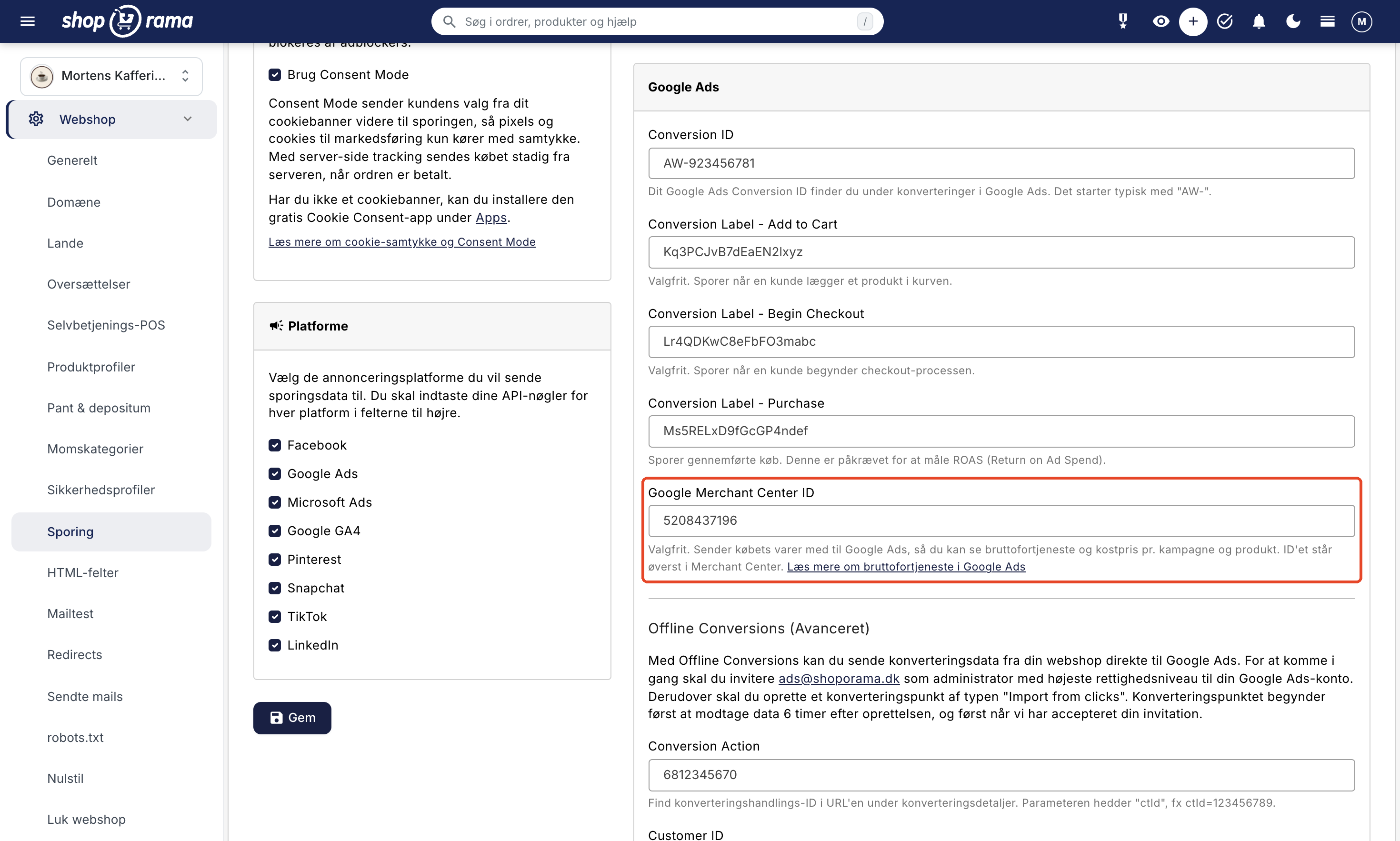
Herefter sender Shoporama købets varer med til Google Ads sammen med dit Merchant Center ID og købets land og sprog. Sælger du i flere lande med Lande, sendes landet og sproget for det land, kunden handler i.
Det skal være på plads
- Købskonverteringen er sat op på Sporing, dvs. Conversion ID og Conversion Label - Purchase er udfyldt.
- Din Merchant Center-konto er linket til din Google Ads-konto.
- Varerne i købet har samme id som i dit produktfeed. Det sørger Shoporama selv for, se produkt-id og katalogmatch.
- Merchant Center kender dine kostpriser. Det nemmeste er at sætte flueben i Send kostpris (cost_of_goods_sold) i feedet i afsnittet Google Shopping Feed under Feeds på Webshop > Generelt, se opsæt Google Shopping-feed. Du kan også give Merchant Center kostpriserne via et supplerende feed.
Sender du kostpriser i feedet, anbefaler vi at slå en feed-nøgle til for Google Shopping-feedet. Ellers kan alle, der kender feedets adresse, se dine kostpriser.
Kurvdata bruges til rapportering i Google Ads. Det ændrer ikke i sig selv dine bud eller kampagner.
Server-side tracking
Klassisk tracking via browseren bliver i stigende grad blokeret af adblockere, ITP i Safari og cookie-restriktioner. Aktiverer du server-side tracking under sporingsindstillingerne, sendes konverteringerne fra Shoporamas server i stedet, hvilket typisk øger antallet af registrerede konverteringer markant.
Server-side tracking kræver opsætning af et tracking-underdomæne og DNS-konfiguration. Læs mere i Server-side tracking i Shoporama.
Offline konverteringer (avanceret)
Selv med server-side tracking går der konverteringer tabt. Offline konverteringer løser det ved at sende den faktiske ordre tilbage til Google Ads og koble den til det oprindelige annonceklik via gclid (Google Click ID). Resultatet er færdige konverteringsdata, der ikke afhænger af cookies eller browser-tracking.
Sådan kommer du i gang:
- Inviter ads@shoporama.dk som administrator med højeste rettighedsniveau på din Google Ads-konto.
- Opret et konverteringspunkt i Google Ads af typen Import from clicks.
- I Shoporama under Webshop > Sporing, udfyld:
- Conversion Action — find værdien i URL'en under konverteringsdetaljer i Google Ads. Parameteren hedder ctId, fx ctId=123456789.
- Customer ID — dit kundenummer i Google Ads (vises typisk øverst til højre i Ads-grænsefladen).
- Operating Customer ID — kun nødvendigt hvis kontoen administreres via en MCC-konto (Manager Account).
- Klik Gem.
Shoporama genererer herefter en CSV-fil med dine konverteringer. Filen kan hentes på <din-webshop>/google_ads_offline_conversion.csv og er beskyttet med basic auth. Brugernavnet er ads, og adgangskoden står på sporingssiden, så Google selv kan hente filen efter en plan, du opsætter i Google Ads.
Bemærk
Konverteringspunktet begynder først at modtage data ca. 6 timer efter, det er oprettet, og først når Shoporama har accepteret invitationen til din konto. Vær tålmodig den første dag.
Læs den fulde guide i Google og Microsoft Ads offline konverteringer.
Consent Mode v2
Shoporama understøtter Google Consent Mode v2. Når du aktiverer Brug Consent Mode under sporingsindstillingerne, sendes consent-signaler automatisk til Google ud fra kundens valg i cookiebanneret. Det betyder, at tracking respekterer GDPR og kun sker med samtykke, mens Google fortsat kan modellere de manglende konverteringer ud fra anonymiserede signaler.
Tip
Brug Google Ads sammen med Google Analytics 4 for et komplet overblik over kundens rejse fra annonceklik til køb.
Ofte stillede spørgsmål
Hvor finder jeg menupunktet i Shoporama?
I venstre sidebar under Webshop (sektionen med tandhjul-ikonet) klikker du på Sporing. Det er den samme side, du bruger til Google Analytics, Meta Pixel og øvrige tracking-platforme.
Skal jeg installere Google Tag Manager?
Nej. Shoporama har en indbygget Google Ads-integration, og du behøver hverken Tag Manager eller manuel kode i temaet. Indtast Conversion ID og labels, så fyrer eventsene af sig selv.
Hvorfor matcher tallene i Google Ads ikke min ordreoversigt 1:1?
Google bruger attribution-modeller, der fordeler konverteringer over tid og kanaler. Derudover blokerer adblockere og cookie-restriktioner stadig en del browser-tracking. Aktivér server-side tracking og evt. offline konverteringer for at lukke gabet, men forvent altid en mindre afvigelse fra din egen ordrestatistik.
Hvad er forskellen på almindelig tracking og offline konverteringer?
Almindelig tracking sender konverteringen i samme øjeblik kunden gennemfører købet i browseren. Offline konverteringer henter dine ordrer fra Shoporama og kobler dem til det oprindelige annonceklik via gclid, så de tæller med, selv hvis browser-tracking blev blokeret. Offline data er typisk mere komplette, men kommer først ind med nogle timers forsinkelse.
Hvorfor skal jeg invitere ads@shoporama.dk til min konto?
For at uploade offline konverteringer kræver Google, at den part der sender data har administrator-adgang til kontoen. Adgangen bruges kun til at sende dine konverteringer ind via API. Du kan fjerne adgangen igen, hvis du nedlægger funktionen.
Påvirker Consent Mode mine annonceomkostninger?
Nej, Consent Mode ændrer ikke dine omkostninger. Det styrer kun, hvilke signaler der sendes til Google ud fra kundens samtykke. Når en kunde takker nej til marketing-cookies, modellerer Google konverteringen ud fra aggregerede data i stedet for at miste den helt.
Vores webshop bruger en MCC-konto. Hvad skal jeg gøre anderledes?
Udfyld både Customer ID (selve annoncekontoen) og Operating Customer ID (din MCC/Manager Account). Inviter ads@shoporama.dk til den underliggende konto, hvor konverteringerne hører hjemme.
Kan jeg teste opsætningen, før jeg lader den køre?
Ja. Brug Google Tag Assistant i Chrome eller fanen Network i udviklerværktøjer til at se, om eventene fyres. Lav en testordre og tjek, at Purchase-eventet sendes med korrekt beløb. Konverteringerne dukker først op i Google Ads-grænsefladen efter nogle timer.
Hvad sker der, hvis jeg kun udfylder Conversion ID?
Så fyrer der ingen events. Du skal som minimum udfylde Conversion Label - Purchase for at måle ROAS. De øvrige labels er valgfrie og kan tilføjes senere.
Hvorfor er kolonnerne med bruttofortjeneste tomme i Google Ads?
Gennemgå først punkterne under bruttofortjeneste og kostpris. Bruger du fluebenet til kostpris, skal Merchant Center hente dit Google Shopping-feed fra Shoporama, og det skal have hentet feedet igen, efter du slog kostprisen til. Varer uden kostpris i Shoporama sendes uden kostpris i feedet, og i lande med en anden valuta end shoppens sendes kostprisen ikke. Køb, der er foretaget, før du udfyldte feltet, har ingen kurvdata.
Kan andre se mine kostpriser, når de står i feedet?
Ja, alle der kender feedets adresse, kan se dem, hvis feedet ikke har en nøgle. Slå en feed-nøgle til for Google Shopping, så kan feedet kun hentes med nøglen. Husk at opdatere feedets adresse i Merchant Center bagefter. Mangler nøglen, viser fanen Feeds en advarsel, når kostprisen er slået til.
Jeg kan ikke se fluebenet til kostpris på fanen Feeds. Hvorfor?
Fluebenet vises kun for brugere med tilvalget Kostpriser og avance, fx rollen Fuld adgang. Bed en med den adgang om at slå det til. Gemmer en bruger uden tilvalget siden, bevares indstillingen, som den er.
Relaterede artikler
Har du brug for hjælp? Skriv til support@shoporama.dk.
Related articles
Tracking in your Shoporama webshop
Enable Shoporama's built-in tracking and send precise tracking data to Facebook, Google Ads, GA4, TikTok, and more. Server-side, GDPR-compliant,...
Server-side tracking in Shoporama
A Complete Guide to Server-Side Tracking in Shoporama. Better data quality, fewer ad-blocker losses, product IDs that match your feed, and...
Offline conversions for Google Ads and Microsoft Ads
Send your Shoporama orders as offline conversions to Google Ads and Microsoft Ads. Get full attribution of sales to clicks via a secure CSV feed.
Google Analytics 4 (GA4) on your Shoporama online store
How to set up Google Analytics 4 on your Shoporama online store. Built-in GA4 integration with e-commerce events, server-side tracking and Consent...
Cookie consent and Consent Mode v2
How to set up Shoporama's free cookie consent app: categories, automatic blocking, consent revocation, and Google Consent Mode v2.
Related features
CPC - Cost Per Click
CPC is the price you pay per click on your ad. Learn what CPC is, what affects the price and how to optimize your click price in Google Ads and...
Google remarketing
Google remarketing shows ads to people who have visited your online store. Learn about dynamic remarketing, RLSA, audiences and Shoporama's Google...
Conversion tracking
Conversion tracking measures actions like purchases and sign-ups. Read about tracking, ROI measurement and optimizing your online store.
PPC - Pay Per Click
PPC is an advertising model where you pay per click. Read about PPC, Google Ads, Facebook Ads and advertising for webshops.
ROAS
ROAS shows how much revenue you generate per ad dollar. Learn about calculation, good ROAS levels, optimization and limitations for your online shop.
Google Smart Shopping
Google Smart Shopping has been replaced by Performance Max. Learn how PMax works, what the requirements are and how to use it with your online store.
Retargeting
Retargeting shows ads to people who have visited your online store. Learn about dynamic product retargeting, platforms, best practices and setup in...
Campaign tracking
Campaign tracking with UTM parameters and conversion tracking shows which campaigns are driving sales. Learn about UTM, tracking setup and...
Server-side tracking - accurate tracking without cookies
Server-side tracking for Google, Facebook, Pinterest, TikTok, LinkedIn and Microsoft Ads. Unaffected by adblockers. Included in Shoporama Pro.