Hurtig genbestilling for erhvervskunder
Business customers often reorder the same items over and over again. If they have to search for each product and add it to the cart one by one, it takes time and patience. With quick reordering in Shoporama’s B2B theme, your business customers can build a large order in seconds—whether they’re searching for items, uploading a list, or reordering from a previous order.
This article explains how quick reordering works for your logged-in business customers and how you, as a store owner, can prepare your products to make reordering as fast as possible. This feature is part of the B2B online store. If you’re new to B2B, we recommend starting with the “Get Started with B2B” guide.
What is quick ordering?
The B2B theme has a separate page for quick ordering. This page requires the customer to be logged in and is designed to help them place a large order quickly. Instead of clicking through categories and product pages, the customer can add many items in a single session. This is especially useful for customers who order fixed product ranges, large quantities, or the same items at regular intervals.
Search by SKU, EAN, or product name
On the quick order page, customers can find items by searching by product code or name. The search covers:
- SKU (your internal product code)
- EAN (barcode)
- Product name
Customers can add multiple items to their cart at once instead of adding them one by one. This makes it quick to build even large orders and significantly reduces the number of clicks.
Quick Entry and Scanning with Enter
A warehouse employee can work very quickly on the page. If a search yields a single, unique result, the item can be added directly by pressing Enter. This works perfectly for scanning and quick entry: the employee scans or enters an item code, presses Enter, and the item is added to the cart. The field is then ready for the next item.
If a product has variants—such as different sizes—a variant selector appears in the search results. The customer selects the correct variant before adding the item to the cart, ensuring that exactly the right item is always ordered.
Upload and Download as a CSV File
If the customer already has a list of the items to be ordered, it can be uploaded directly as a CSV file. CSV is a simple file format that can be opened and edited in spreadsheets such as Excel or Google Sheets.
The file must contain two columns:
- Item code, i.e., the SKU or EAN of the item to be ordered.
- Quantity, i.e., how many units the customer wants of the item.
For example, a row might look like this: 5710001234567;10, which means ten units of the item with that product code. The customer can also download their list as a CSV file. This is useful if the customer wants to save a standard order, share it with a colleague, or use it as a starting point for the next order.
Reorder from a Previous Order
The customer can reorder directly from a previous order. With just a few clicks, the items from an old order are copied into a new one, so the customer doesn’t have to search for them again. This is the fastest way when the customer wants to order the same items as last time.
Please note that it is not possible to reorder from a credit memo or a return order. Reordering is based on the regular orders the customer has placed.
Reorder File on the Order Confirmation
Each order confirmation can include a reorder file. This is a CSV file containing the item codes and quantities from that specific order. The next time the customer needs to order the same items, the file can be uploaded on the quick-order page, and the entire order is generated in seconds. This creates a simple and fast process where each order automatically makes the next one easier.
Reordering from the warehouse using self-service POS
In addition to the standard quick-order page, your business customers can reorder via self-service POS. A warehouse employee logs in to a dedicated self-service terminal or scans a QR code with their phone, and then orders the items that are out of stock directly at the company’s own B2B prices. This is convenient when the order needs to be placed right next to the items in the warehouse rather than in front of a computer. Read more in Self-Service POS.
Prepare Your Products for Quick Reordering
Quick reordering works best when your product codes are set up correctly. We recommend using SKU as the primary product code and EAN (the barcode) for scanning. So make sure your products have the correct SKU and EAN codes. That way, your customers will always find the right item, whether they’re searching, scanning, or uploading a list.
- Assign each product a unique SKU so that searches and uploads match the correct item.
- Enter the EAN for items that need to be scannable in the warehouse.
- Verify that variants have their own correct codes so customers can select the right one in the variant selector.
Frequently Asked Questions
Can my staff scan items directly into an order?
Yes. When a search for an item code returns a single, unique result, the item is added to the cart by pressing Enter. This means that a warehouse employee can scan the EAN barcode, press Enter, and move on to the next item. Make sure your EAN codes are correct so that the scan is always accurate.
Can the customer reorder the same items as last time without having to create the order from scratch?
Yes. The customer can reorder directly from a previous order, so the items are copied into a new order with just a few clicks. Alternatively, the customer can upload the reorder file from the order confirmation. Both methods save time on regular, recurring orders.
I’m new here. Where can I find the page for quick ordering?
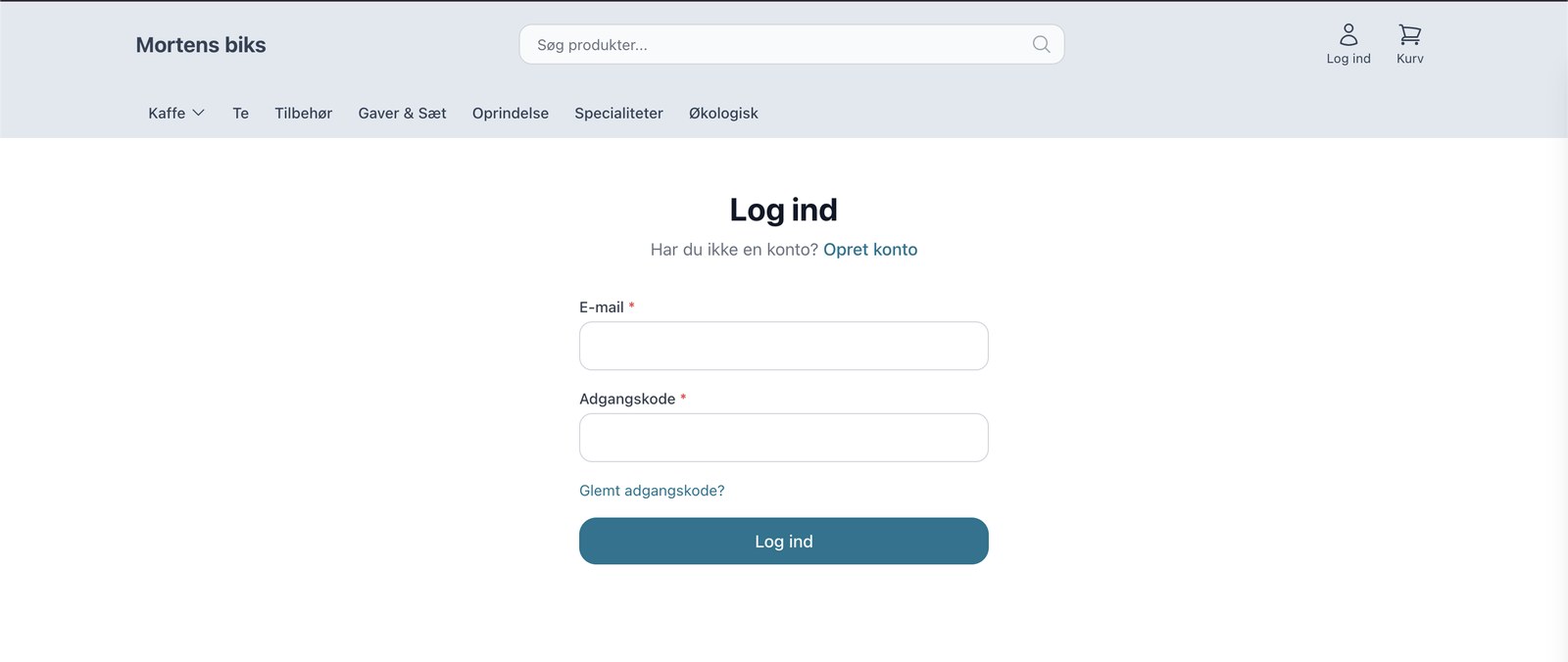
The page is located in the B2B section and requires the customer to be logged in. Once the customer is logged into their business account, they can go to Quick Order and start searching for items by SKU, EAN, or product name. If you’re new to B2B, be sure to read Getting Started with B2B.
What should my CSV file look like?
The file must have two columns: item code and quantity. The item code is either the SKU or the EAN, and the quantity is the number of units desired. A line might look like this: 5710001234567;10. The customer can also download their list as a CSV and use it as a template.
Can the customer reorder from a credit memo or a return order?
No. Reordering is only possible from regular orders. It is not possible to reorder from a credit memo or a return order. If the customer needs to order the same items again, the system uses the original order or an uploaded list as the basis.
What happens with products that come in multiple variants?
If a product has variants—such as different sizes—a variant selector will appear in the search results. The customer selects the correct variant before adding the item to the cart. Make sure your variants have the correct codes so they’re easy to find and select.
Should I use SKU or EAN as the product code?
We recommend using SKU as the primary product code because it serves as your internal, unique reference. EAN, or the barcode, is ideal for scanning in the warehouse. Both work in searches and CSV uploads, so it’s best to have both codes correctly filled out for your products.
Can customers add multiple items to their cart at once?
Yes. The site supports multi-add, so customers can add multiple items to their cart at once instead of one at a time. Combined with search, scanning, and CSV upload, this makes it quick to assemble even large orders.
Can my customers reorder directly from the warehouse?
Yes. With self-service POS, a warehouse employee can log in and reorder at the company’s own prices, either on a dedicated terminal or via a QR code on their phone.
Related articles
B2B sales in Shoporama
How to sell to businesses (B2B) and public institutions (B2G) in Shoporama with CVR, EAN and differentiated VAT.
Kundegrupper og B2B-priser: giv forskellige kunder forskellige priser
Firma-konti med flere brugere og roller
Reverse charge og VIES-validering: sælg uden moms til erhverv i EU
Related features
Self-service POS—customers scan and pay on their own
Theme Settings in MontanaB2B: Fields and B2B Features
An explanation of all fields in MontanaB2B's theme settings, plus the login screen, prices excluding VAT, customer groups, company accounts, and...
B2B webshop
Shoporama now offers a full-featured B2B solution: a login-based store, customer group pricing, volume discounts, company accounts with roles,...
B2B online store
Nu kan du drive en rigtig B2B-webshop med Shoporama
Shoporama now offers a full-featured B2B solution: a login-based store, customer group pricing, volume discounts, corporate accounts, VIES reverse...