Mass editing of products
Guide to bulk editing products in Shoporama - edit prices, inventory, SEO fields and more in a spreadsheet-like interface.
Med masseredigering kan du redigere mange produkter på én gang i et regnearkslignende interface. Det er ideelt til at opdatere priser, lagerbeholdning, SEO-felter eller andre produktdata hurtigt og effektivt.
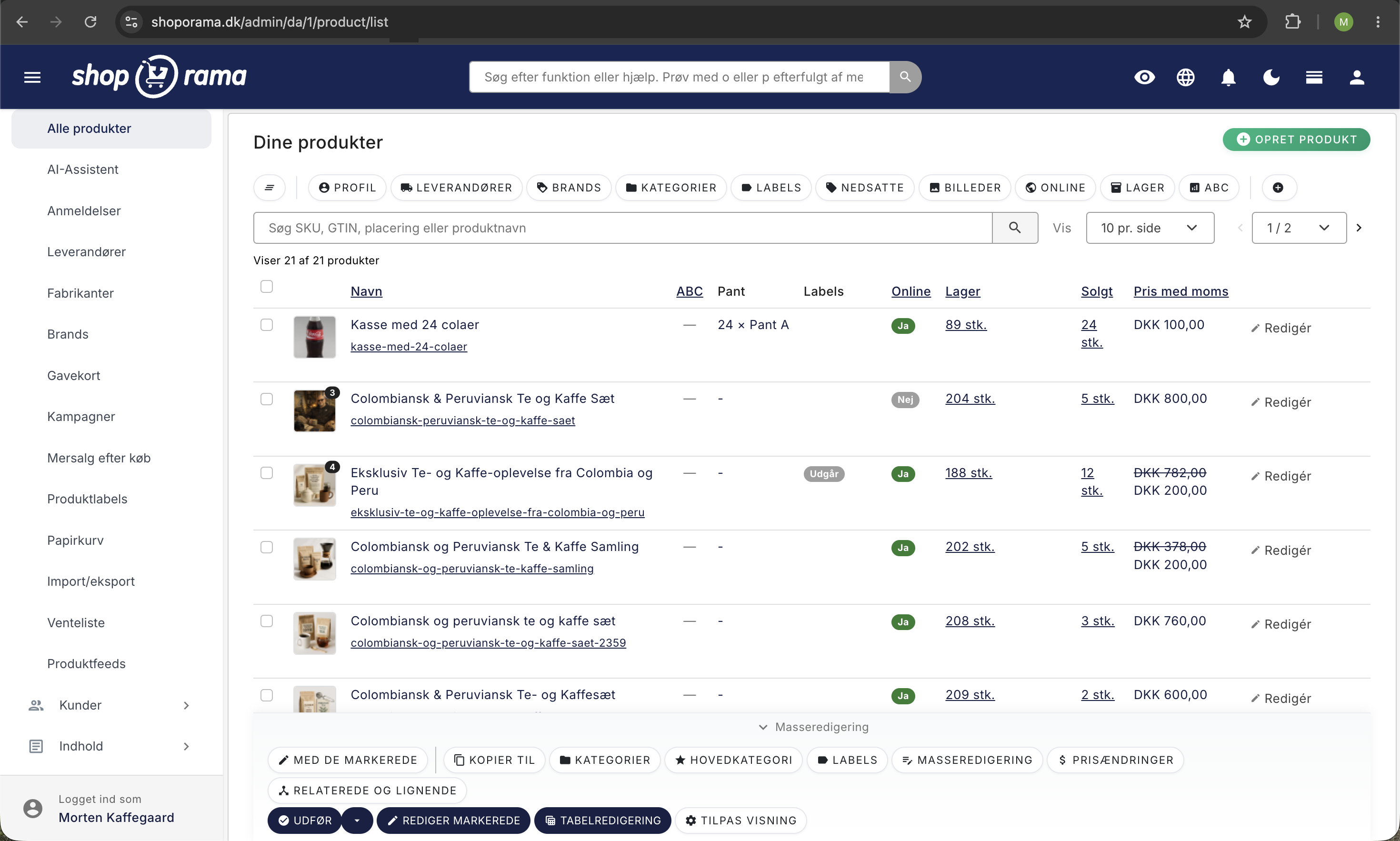
Åbn masseredigering
- Gå til Produkter i menuen
- Markér de produkter, du vil redigere
- Klik Masseredigering i handlingsmenuen
Vælg felter
Først vælger du, hvilke felter der skal vises som kolonner i regnearket. Du kan vælge blandt:
- Priser – Pris, tilbudspris, indkøbspris
- Lager – Lagerbeholdning, lagerplacering, kolli
- Identifikation – Varenummer (SKU), sekundært varenummer, GTIN, MPN
- SEO – Meta-titel, meta-beskrivelse, Google Shopping-titel, adresse (URL)
- Visning – Online-status, noindex, skjul fra feeds
- Forsendelse – Vægt, forsendelsespris, leveringstid
- Pant & depositum – Pant-type og antal pant-enheder pr. salgsenhed (antallet kan også overstyres pr. variant-række; felterne vises kun, hvis shoppen har oprettet pant-typer. Læs mere i artiklen om pant og depositum)
- Miljødata – Emballagematerialer, WEEE, batterier, EPR-nummer
- Produktattributter – Felter fra din produktprofil
Dine feltvalg huskes automatisk til næste gang, du bruger masseredigering.
Redigér i regnearket
Regnearket fungerer som et regneark, hvor du kan klikke direkte i cellerne og redigere værdierne. Du kan også:
- Sortere kolonner ved at klikke på kolonneoverskrifterne
- Scrolle vandret, hvis du har valgt mange felter
- Tilføje nye produkter ved at klikke Tilføj række
- Slette produkter ved at markere slet-kolonnen
Varianter
Hvis du markerer Inkluder varianter, vises produkternes varianter som separate rækker i regnearket, så du kan redigere pris og varenummer pr. variant.
Gem ændringer
Tryk Cmd+S (Mac) eller Ctrl+S (Windows) for at gemme alle ændringer. Du kan også klikke på gem-knappen. Regnearket opdateres automatisk efter gem.
Tabelredigering (tidligere masseredigering)
Funktionen er omdøbt fra "Masseredigering" til Tabelredigering og har fået flere nye funktioner:
- Opret produkter direkte — du kan oprette nye produkter direkte i tabellen uden at forlade regnearket.
- Slet produkter — en slettekolonne gør det muligt at fjerne produkter direkte fra tabellen.
- Online/offline — sæt produkter online eller offline direkte i tabellen.
Hvis du har ugemte ændringer og forsøger at navigere væk, vises en advarsel så du ikke mister dit arbejde.
Related articles
Image name in the URL
Guide to getting the product image name in the URL for better SEO.
How to create redirects on Shoporama
Guide to creating redirects in Shoporama - from simple redirects to regex and CSV import.
Set noindex on a page, product or category
Guide to setting noindex in Shoporama so that search engines do not index certain pages.