Opsæt Pricerunner-produktfeed i Shoporama
Guide til at aktivere og tilpasse Pricerunner-produktfeedet i Shoporama, så Pricerunner kan hente dine varer.
Pricerunner is one of Denmark’s most widely used price comparison services, where customers compare prices before making a purchase. With Shoporama’s Pricerunner product feed, you can make your products visible on Pricerunner completely automatically. In this guide, we’ll show you how to activate the feed, customize your products, and protect the feed with a key.
What is the Pricerunner feed?
A product feed is a list of all your products in a format that Pricerunner can read. The feed is a web address on your online store that Pricerunner retrieves at regular intervals. Once the feed is activated, Pricerunner automatically retrieves your products—including name, price, image, stock status, and delivery time—so they can be displayed in price comparisons.
You don’t need to maintain anything manually. When you create, edit, or remove products in your online store, the feed updates automatically so that Pricerunner always has the latest information.
Note: This article is about the product feed itself, which sends your products to Pricerunner. Pricerunner tracking, which measures sales and conversions from Pricerunner, is a completely different feature with its own guide to Pricerunner tracking.
How to enable the feed
You can enable the Pricerunner feed in your online store’s settings. Follow these steps:
- Go to Settings → Webstore in your Shoporama admin panel.
- Click the Feeds tab.
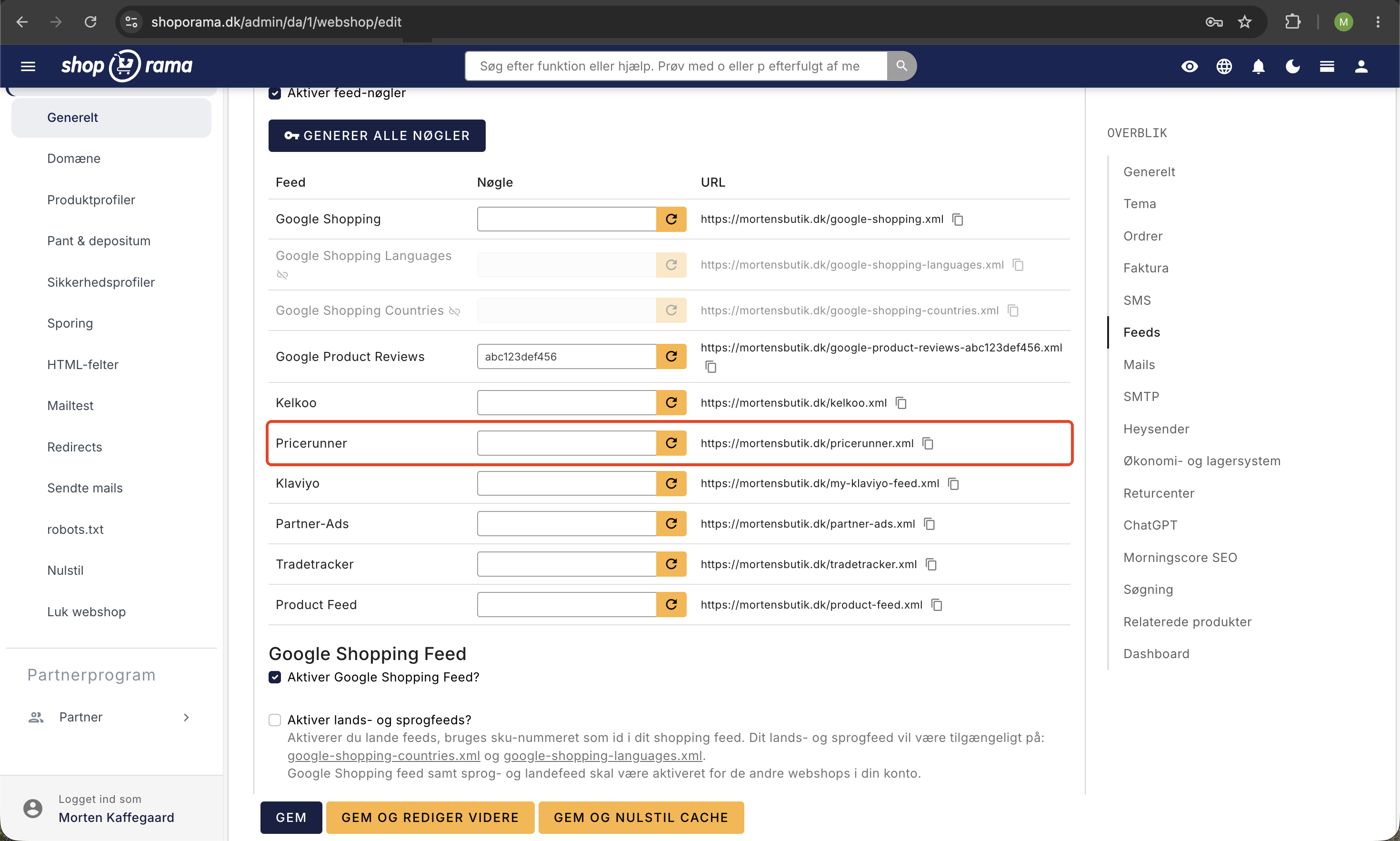
- Find the Pricerunner section.
- Check the box next to “Enable Pricerunner product feed.”
- Save your settings.
Once the feed is enabled, Pricerunner can retrieve your products via this address:
your-domain.dk/pricerunner.xml
If you want to exclude out-of-stock items from the feed, you can check the optional " Exclude out-of-stock products" checkbox. Then, only items in stock will be sent to Pricerunner.
Customize products in the feed
By default, the feed automatically sends your products’ name, description, category, and condition. However, for each individual product, you can fine-tune how the item appears on Pricerunner using some additional fields. This is completely optional but can yield better results.
Select Pricerunner Category
Pricerunner uses its own categories. With the `pricerunner-category` field, you can specify exactly which Pricerunner category the product belongs to, for example, Clothing > Women > Skirts. This helps customers find your products in the right place. Pricerunner has a guide to categories that you can use to find the right one.
Customize the product description
If you want a different description on Pricerunner than the one you use in your online store, you can fill in the `pricerunner-description` field. Keep the description short and precise—no more than 30 words—so it works well in the price comparison.
Specify the product’s condition
If you’re selling items other than brand-new products, you can specify the condition using the `pricerunner-condition` field. This overrides the product’s default condition. You can choose from:
- new: new items
- refurbished: refurbished items
- used: used items
Hide individual products
If you want to keep certain items completely out of Pricerunner, you can check the “Hide in Pricerunner feed” box for that specific product. That way, that particular item won’t be included, even if the feed is enabled for the rest of the online store.
Protect your feed (optional)
By default, the feed is located at a public address that anyone can access. If you want only Pricerunner to be able to retrieve it, you can protect the feed with a feed key. This gives the feed a secret address that you share only with Pricerunner. Read more in our guide to feed keys.
Frequently Asked Questions
Where can I find the address of my feed?
The feed is located at your-domain.dk/pricerunner.xml. Once you’ve enabled the feed under Settings → Webstore → Feeds, the full address will be displayed on the page so you can easily copy it.
Do I need to update the feed manually every time I change a product?
No. The feed is updated automatically based on your products. When you change the price, inventory, or other details, Pricerunner retrieves the latest information the next time it accesses the feed.
Do I need to fill out the additional product fields for the feed to work?
No. The fields for category, description, and condition are completely optional. If you don’t fill them out, the feed automatically uses the product’s own information. These fields are only for fine-tuning if you want something displayed differently on Pricerunner.
Can I exclude out-of-stock items from the feed?
Yes. Check the “Exclude out-of-stock products ” box in the Pricerunner section under Feeds. Then only items in stock will be sent to Pricerunner.
Can I ensure that only Pricerunner can see my feed?
Yes. You can protect the feed with a feed key, which gives it a secret address. Read how in our guide to feed keys.
Does Shoporama offer feeds for other price comparison services?
Yes. In addition to Pricerunner, you can also create feeds for other services. See our guides for the Google Shopping feed and the Kelkoo feed.
Related articles
Implement Pricerunner tracking
Guide to implementing Pricerunner conversion tracking on your Shoporama online shop with proper Smarty code.
Build your own feeds
Guide to building your own product feeds in CSV, XML or JSON format with Shoporama's custom feed feature.
Opsæt Kelkoo-produktfeed i Shoporama
Guide til Kelkoo-produktfeedet i Shoporama: aktivering, feed-adresse, styring af Kelkoo-kategori, og beskyttelse med en feed-nøgle.
Opsæt TradeTracker-feed i Shoporama
Sådan aktiverer du TradeTracker-feedet i Shoporama, så dit affiliate-netværk kan hente dine produkter.
Feed-nøgler: Beskyt dine produktfeeds med en hemmelig nøgle
Sådan slår du feed-nøgler til i Shoporama og beskytter dine produktfeeds, så kun Google, Pricerunner, og andre godkendte tjenester kan hente dine...