Product IDs and Catalog Match: How to Ensure Your Ads Match Your Product Feed
An explanation of which product ID Shoporama’s tracking sends, why it always matches the Google Shopping feed, what “catalog match” means for your ads on Meta and Google, and how to check and troubleshoot your match rate.
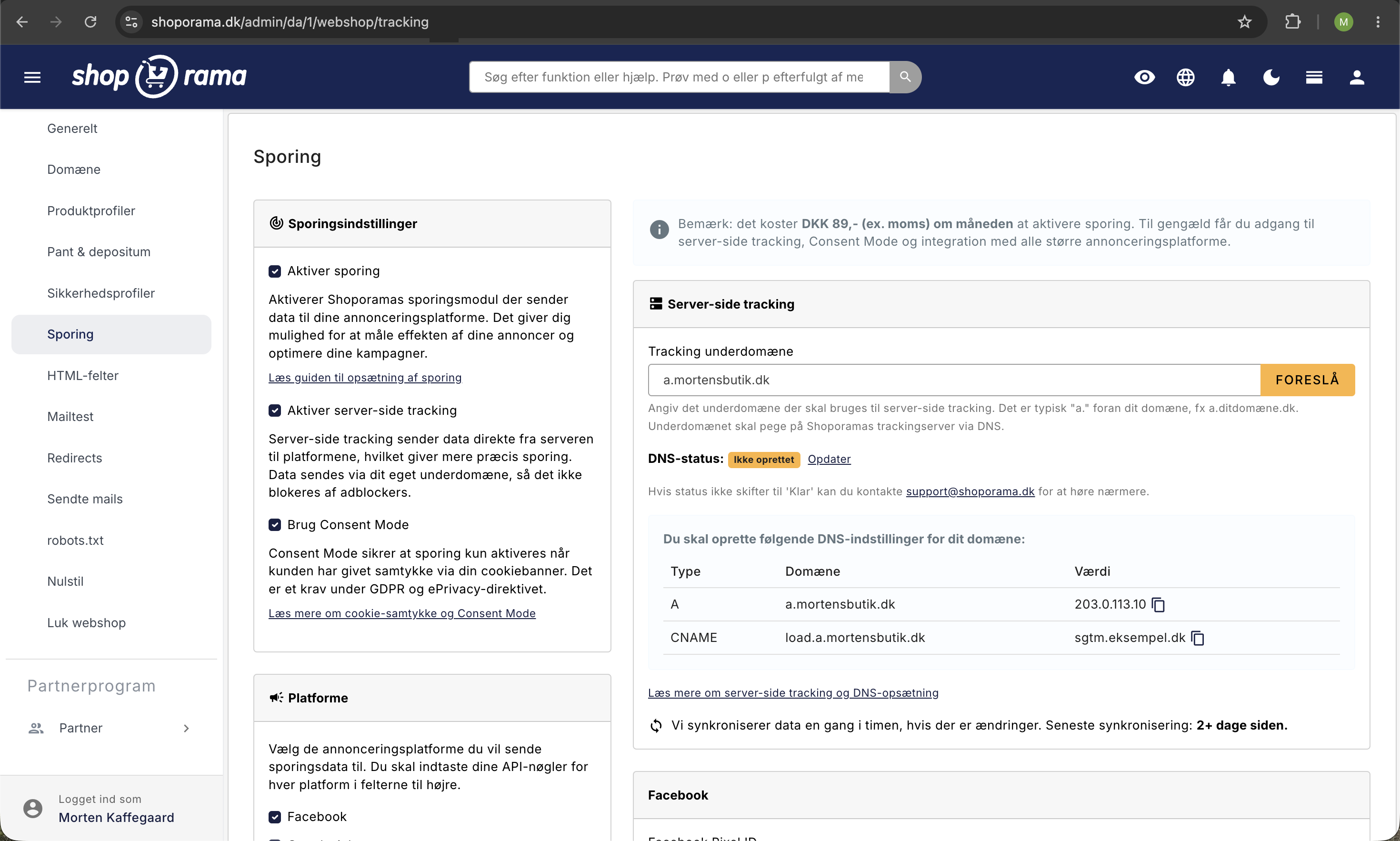
When you run ads using dynamic product ads on Meta (Facebook and Instagram) or Google, there’s one thing that determines whether it all works: the product ID sent by your tracking events must be exactly the same as the ID in your product feed. This is called catalog matching. Without a match, the platforms can’t link a customer’s behavior to the right products, and then retargeting and dynamic ads simply won’t work.
The good news is that Shoporama handles this automatically. If you use Shoporama’s built-in server-side tracking along with the built-in Google Shopping feed, the tracking and the feed will always send the same product ID. In this article, we explain which ID is sent, why it matches the feed, how to check your match rate, and what to do if something doesn’t match.
What is catalog matching?
Meta and Google each maintain their own product catalog for your store. The catalog is typically populated with your Google Shopping feed, where each product has a unique ID. At the same time, your online store sends tracking events when customers view products, add items to their cart, and make a purchase. Each event also contains a product ID (on Meta, this field is called “content_ids”).
The platform compares the ID from the event with the IDs in the catalog. When they match, the platform knows exactly which product the customer was interested in and can use that information for:
- Dynamic product ads, where the customer sees exactly the products she viewed
- Retargeting customers who abandoned their cart without making a purchase
- Automatic optimization, where the algorithm learns which products convert best
- Accurate attribution of sales to individual products and campaigns
If the IDs don’t match, the platform is left with an event it can’t link to a product. The result is a low match rate, poorer ads, and ultimately wasted ad spend.
Which product ID does Shoporama send?
Shoporama’s built-in tracking sends product IDs in all relevant events, both in the browser (e.g., view_item, add_to_cart, and purchase) and in the additional purchase event sent directly from Shoporama’s tracking server when an order is paid for.
By default, this ID scheme is used:
- Products without variants: the product’s numeric ID, e.g., 154585
- Variants: the product’s ID followed by a colon and the variant’s ID, e.g., 154585:45789
This is exactly the same schema that your Google Shopping feed uses in the ID field (g:id). Tracking and the feed are designed to work together, so the IDs match 1:1 without you having to configure anything. If you upload Shoporama’s feed to Meta Commerce Manager and Google Merchant Center, your events will match the catalog from day one.
Stores with language and country feeds use the product number (SKU)
If you have multiple online stores in your account—for example, a Danish, a Swedish, and a German version of the same store—you can enable country and language feeds. In that case, the product’s stock-keeping unit (SKU) is used as the ID in the feed instead of the numeric ID. This makes sense because the same product has different numeric IDs in each country-specific store, while the SKU is the consistent identifier across all stores.
You’ll find this setting under Webshop → General on the “Feeds” tab in the “Google Shopping Feed” section. It’s called “Enable country and language feeds?” and only appears when your account has more than one webshop.
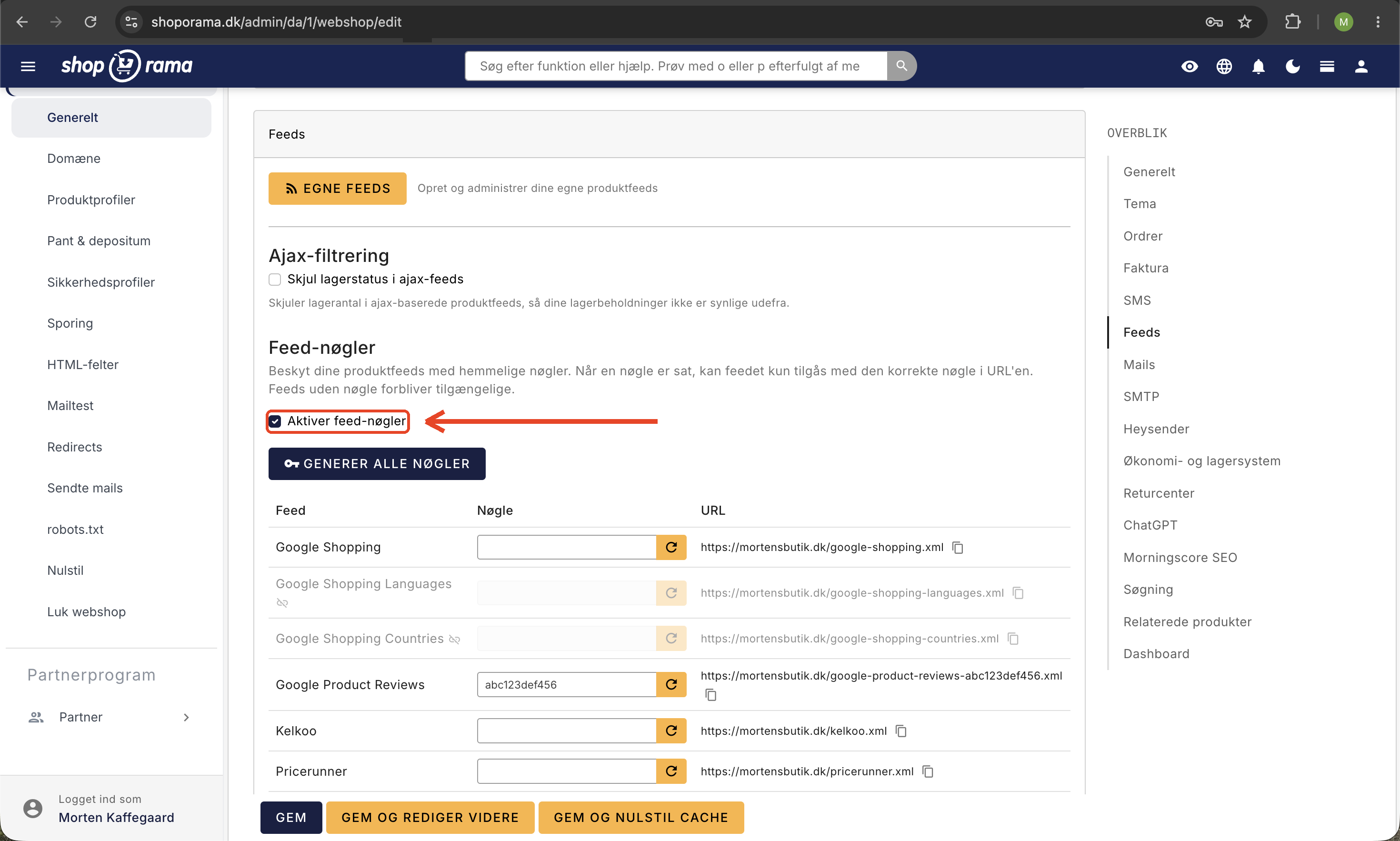
When this setting is enabled, the built-in tracking is automatically activated and also sends the item number as the product ID:
- For variants, the variant’s own SKU is used if it has been entered
- Otherwise, the product’s item number is used
Important: If a product does not have an item number in a store using country and language feeds, it cannot be matched to the catalog. The feed sends an empty ID for the product, and tracking falls back to the numeric ID, which is then not found in the catalog. Therefore, make sure that all products (and variants) have a product ID if you use country and language feeds.
That’s why the match rate matters for your ad spend
The match rate is the percentage of your events that the platform can link to a product in the catalog. It’s not just a technical number. It directly determines how well your ads perform:
- Retargeting misses the mark: The customer viewed a specific jacket, but the platform doesn’t know which one. As a result, it can’t show that jacket again, and the ad becomes generic instead of personalized.
- The algorithm learns more slowly: Without product data on events, Meta and Google have fewer signals to optimize based on. This results in more expensive clicks and poorer targeting.
- Your budget is being wasted: You’re paying for ad impressions that could have been far more precise. A low match rate is one of the most overlooked causes of disappointing returns on product ads.
With Shoporama’s built-in tracking and feed, the match rate is usually close to 100% because both send the same ID. If you see a low match rate, it’s almost always a sign that a custom tracking setup is in play, or that products are missing SKUs in a store with country and language feeds.
How to Check Your Match Rate and Troubleshoot
In Meta
- Match Rate: Open Meta Commerce Manager, select your catalog, and look under Events/Diagnostics. Here you’ll see what percentage of your events match the catalog.
- Test Events: In Meta Events Manager, under “Test Events,” you can view your events in real time as you navigate the store yourself, including which content IDs are being sent.
- Meta Pixel Helper: A free browser extension for Chrome that shows which events and IDs your store is sending from the browser.
A typical error message from Meta is “No content IDs received.” This means your events are arriving without product IDs. This usually happens when a store is running an older or custom tracking setup that doesn’t send the IDs. The solution is to switch to Shoporama’s built-in tracking or to ensure that your custom setup sends the correct IDs (see the developer section below).
On Google
- GA4 DebugView: Displays your events in real time in Google Analytics 4, so you can see exactly which product IDs are being sent.
- Google Tag Assistant: Google’s own tool for inspecting tags and events directly on your store.
Checklist for Low Match Rate
- Are you using both Shoporama’s built-in tracking and the built-in Google Shopping feed? If so, the IDs should match automatically.
- Do you have country and language feeds enabled? Make sure all products and variants have a product ID.
- Is the catalog on Meta or Google populated with a feed other than Shoporama’s, such as a manually uploaded spreadsheet? If so, the IDs are likely in a different format.
- Is the theme running its own tracking code alongside it? Custom events must use the same ID scheme as the feed.
- Have you recently switched between standard IDs and product IDs? Give the platforms some time, and make sure the feed has been reloaded into the catalog.
Technical Section for Developers
This section is intended for theme developers and technicians. If you’re using Shoporama’s built-in tracking, feel free to skip this.
If you’re building your own tracking within a theme—for example, a data layer push to your own Google Tag Manager setup or the Facebook Conversions API—your events must use the exact same product ID as the feed. Never construct the ID yourself. Instead, use the `getTrackingId()` method on the product object. It always returns the ID used by the feed and automatically accounts for whether the store is running the standard schema or the SKU schema:
<script>
    dataLayer.push({
        event: 'view_item',
        ecommerce: {
            currency: 'DKK',
            items: [{
                item_id: '<{$product->getTrackingId()}>',
                item_name: '<{$product->getName()|escape:"javascript"}>',
                price: <{$product->getPrice()}>
            }]
        }
    });
</script>
If you need to send the ID for a specific variant, include the variant’s attribute value ID as the second argument:
item_id: '<{$product->getTrackingId(null, $attribute_value_id)}>'The method then returns the variant’s ID in the active schema: productID:variantID by default, or the variant’s SKU in stores with country and language feeds. This ensures that your own events always match the feed, even if the store later changes its settings.
Frequently Asked Questions
Do I need to do anything myself to ensure my ads match my feed?
No. If you use Shoporama’s built-in tracking and the built-in Google Shopping feed, they automatically send the same product ID. You just need to make sure that the catalog on Meta or Google is set up with Shoporama’s feed.
Meta displays the error “No content IDs received.” What should I do?
This error means your events are being sent without product IDs. This is typically caused by an older or custom tracking setup. Switch to Shoporama’s built-in tracking, or ask your developer to include the IDs in the theme’s own events. Use Test Events in Meta Events Manager to see what’s actually being sent.
I have multiple country-specific stores. Which ID is used across them?
With country and language feeds enabled, the stock keeping unit (SKU) is used as the ID in both the feed and tracking. The SKU is the same across your country-specific stores, so it serves as the stable key, even though the numeric product IDs differ in each store.
What happens if a product doesn’t have a product number?
In stores with country and language feeds, the product cannot be matched to the catalog. The feed sends an empty ID, and the event falls back to the numeric ID, which does not exist in the catalog. Assign a product number to the product (and its variants), and the issue will be resolved with the next feed update.
Can I choose which ID format is used for tracking?
No, and that’s by design. Tracking always follows the feed’s settings: numeric IDs by default, product numbers when country and language feeds are enabled. If there were a separate setting for tracking, the two could become out of sync, and catalog matching would fail.
Where can I see how many of my products are matched?
On Meta, you’ll find the match rate in Commerce Manager under your catalog. Here, you can also see which events couldn’t be matched and why. On Google, you can use GA4 DebugView and Google Tag Assistant to inspect the IDs your events are sending.
Does catalog matching also work for variants?
Yes. Variants have their own IDs in both the feed and tracking: by default, the product ID plus the variant ID separated by a colon, and in stores with country- and language-specific feeds, the variant’s own SKU. This means customers can be retargeted with the exact variant they viewed.
Does catalog match cost extra?
No, there is no separate fee for Catalog Match. The Google Shopping feed is included in Shoporama, and the built-in tracking costs 89 DKK per month, excluding VAT, and requires a Pro or Flex plan. Read more in the guide to server-side tracking.
If you have any questions about product IDs or Catalog Match, you’re always welcome to email support@shoporama.dk.
Related articles
Server-side tracking in Shoporama
A Complete Guide to Server-Side Tracking in Shoporama. Better data quality, fewer ad-blocker losses, product IDs that match your feed, and...
Set Up a Google Shopping Feed
Guide til at opsætte Google Shopping Feed i Shoporama: kategorier, custom labels, produkt-id og katalogmatch samt lands- og sprogfeeds.
Facebook Conversions API
Guide to the Facebook Conversions API on Shoporama: setup with Pixel ID and access token, automatic deduplication of purchases, content_ids that...
Tracking in your Shoporama webshop
Enable Shoporama's built-in tracking and send precise tracking data to Facebook, Google Ads, GA4, TikTok, and more. Server-side, GDPR-compliant,...