Change your password in Shoporama
How to change your Shoporama admin password. Step-by-step guide and tips for a secure password.
You can change your Shoporama admin password at any time. It’s a good habit to do this periodically, and always if you suspect that others know it.
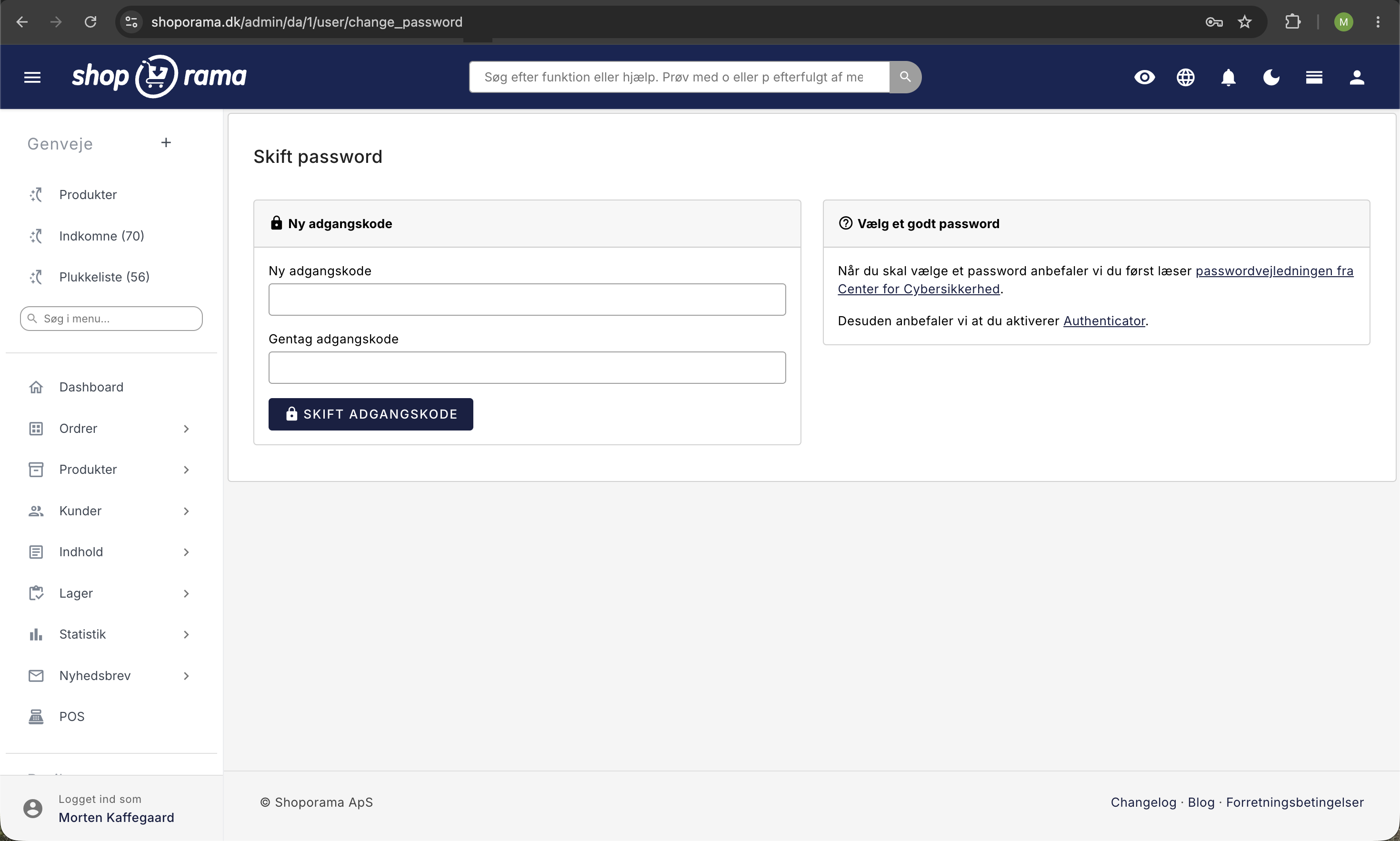
How to Change Your Password
- Click the round button with your initial in the top-right corner of the admin panel.
- Select “Change Password” from the dropdown menu.
- Enter your new password in the “New Password” field.
- Enter the same password again in the “Repeat Password” field.
- Click the " Change Password" button.
Once the new password is saved, the message “Your new password has been saved” will appear . You’ll remain logged in on the computer you’re using, but you’ll be logged out everywhere else—such as on your phone—and will need to log in with the new password on those devices.
Tip: We recommend that you also enable two-factor authentication. This adds an extra layer of security so that no one can log in to your account, even if your password is compromised. Read more in “Login and Two-Factor Authentication (2FA).”
Choose a Strong Password
A strong password protects your store, your customer data, and your sales. The password must be at least 10 characters long, and we also recommend:
- At least 12 characters, preferably more.
- A mix of uppercase and lowercase letters, numbers, and special characters, or a long phrase you can remember.
- Use a password manager so you don’t have to remember it yourself.
- Never reuse passwords from other services.
The Center for Cybersecurity has written a helpful password guide that’s worth reading.
If you’ve forgotten your password
Click “Forgot your password?” on the login page. Enter your email address and click “Send link.” You’ll receive an email with the subject line “Choose a new password for Shoporama.” Click “Choose a new password ” in the email and select your new password. The link is valid for 24 hours and can only be used once. After that, log in with your email address and the new password. If you don’t receive the email, check your spam filter; otherwise, contact support@shoporama.dk.
Important: If you use the Authenticator app, the “Forgot Password” feature also works. The link does not log you in, so you’ll still need to use the code from the app when logging in with your new password. This means no one can bypass 2FA simply by gaining access to your inbox. If you’ve enabled SMS authentication, for security reasons we won’t send a link—instead, we’ll send an email asking you to contact us. If you’ve lost your phone or use SMS, please email support@shoporama.dk from the email address associated with your account, and we’ll assist you manually.
Frequently Asked Questions
Where can I find the button to change my password?
Click on your name in the top-right corner of the admin panel. In the dropdown menu, select “Change Password.” This will take you directly to the page where you can enter your new password.
What are the requirements for my new password?
The password must be at least 10 characters long, and the “New Password” and “Confirm Password” fields must match. There are no specific character requirements, but we strongly recommend at least 12 characters and preferably a mix of uppercase and lowercase letters, numbers, and special characters. A long phrase that you can remember is often both more secure and easier to use than a short code made up of random characters.
How often should I change my password?
If you use a strong, unique password and have two-factor authentication enabled, you don’t need to change it often. Change it immediately if you suspect it has been compromised, or if someone who no longer needs access has known it.
Does the system also change passwords for my employees?
No. Each user has their own password. Each employee must log in and change their own password. If an employee has forgotten their password, a company administrator can send a link to a new password under Company → Users. Read about creating multiple users if you share a single login. It’s much better to give each employee their own.
Will I be logged out when I change my password?
Not on the computer you’re currently using. On all other devices where you’re logged in—such as your phone or another computer—you’ll be logged out and will need to log in with the new password. The same thing happens when you choose a new password via the “Forgot Password” link.
I’ve forgotten my password and use two-factor authentication. What should I do?
If you use the Authenticator app, click “Forgot your password? ” on the login page and choose a new password via the link in the email. When you log in afterward, you’ll need to use the code from the app as usual. If you use SMS authentication or have lost your phone, send an email to support@shoporama.dk from the email address associated with your account. We’ll then manually reset your 2FA.
What should I do if an employee leaves?
Remove the user’s access under Company → Users in the admin panel. Read “Remove a user from your shop.” Also, be sure to change your own password if you’ve previously shared logins.
Can Shoporama see my password?
No. Passwords are stored encrypted using bcrypt, so even Shoporama’s employees cannot view or retrieve your password. If you’ve forgotten it, choose a new one via “Forgot your password?” on the login page.
What’s the difference between a password and two-factor authentication?
A password is something you know. Two-factor authentication is something you have, such as a code from the Authenticator app or a text message. Even if someone gets their hands on your password, they cannot log in without also having your two-factor authentication code. The two complement each other, and we strongly recommend that you use both.
If you need help, please email support@shoporama.dk.
Related articles
Login and two-factor authentication (2FA)
Two-factor authentication (2FA) is optional extra security on your Shoporama login. Choose between the Authenticator app or free SMS and secure...
Create more users in your shop
A guide to creating multiple user logins for your Shoporama admin panel and assigning each user a role that determines what they can do.
Remove a user from your shop
Guide to removing a user from your business in Shoporama admin.
Create security profiles
Guide to creating security profiles for products in Shoporama according to EU regulations.