Products Sold: Sales Report and Reorder
The "Product Sales" report shows your sales by product for a selected time period, along with current inventory and sales rate, so you can plan your purchases and reorders.
Rapporten "Solgte produkter" er din salgsstatistik pr. vare. I stedet for at grave i enkeltordrer samler den salget for hvert produkt ét sted, så du med det samme kan se, hvad der er røget over disken i en valgt periode. Rapporten er både en salgsrapport og et indkøbsværktøj, fordi den ved siden af salgstallene også viser dit aktuelle lager og salgshastighed.
Rapporten er især til dig, der står for indkøb og lager. Du får et konkret grundlag for at se, hvilke produkter der sælger godt, hvilke der sælger langsomt, og hvad du reelt tjener på hver vare via dækningsbidrag og margin. Du kan læse mere om, hvordan avancen beregnes, i artiklen om vareforbrug og avance.
Netop derfor er rapporten et godt værktøj til at planlægge dine indkøb og genbestillinger. Med et klart billede af salget kan du bestille hjem i tide på de varer, der løber hurtigt, og undgå at binde penge i lager, der bare bliver stående.
Sådan finder du salgsrapporten
Rapporten "Solgte produkter" finder du under Statistik i venstremenuen. Klik på "Solgte produkter" for at åbne oversigten over, hvad du har solgt i den valgte periode.
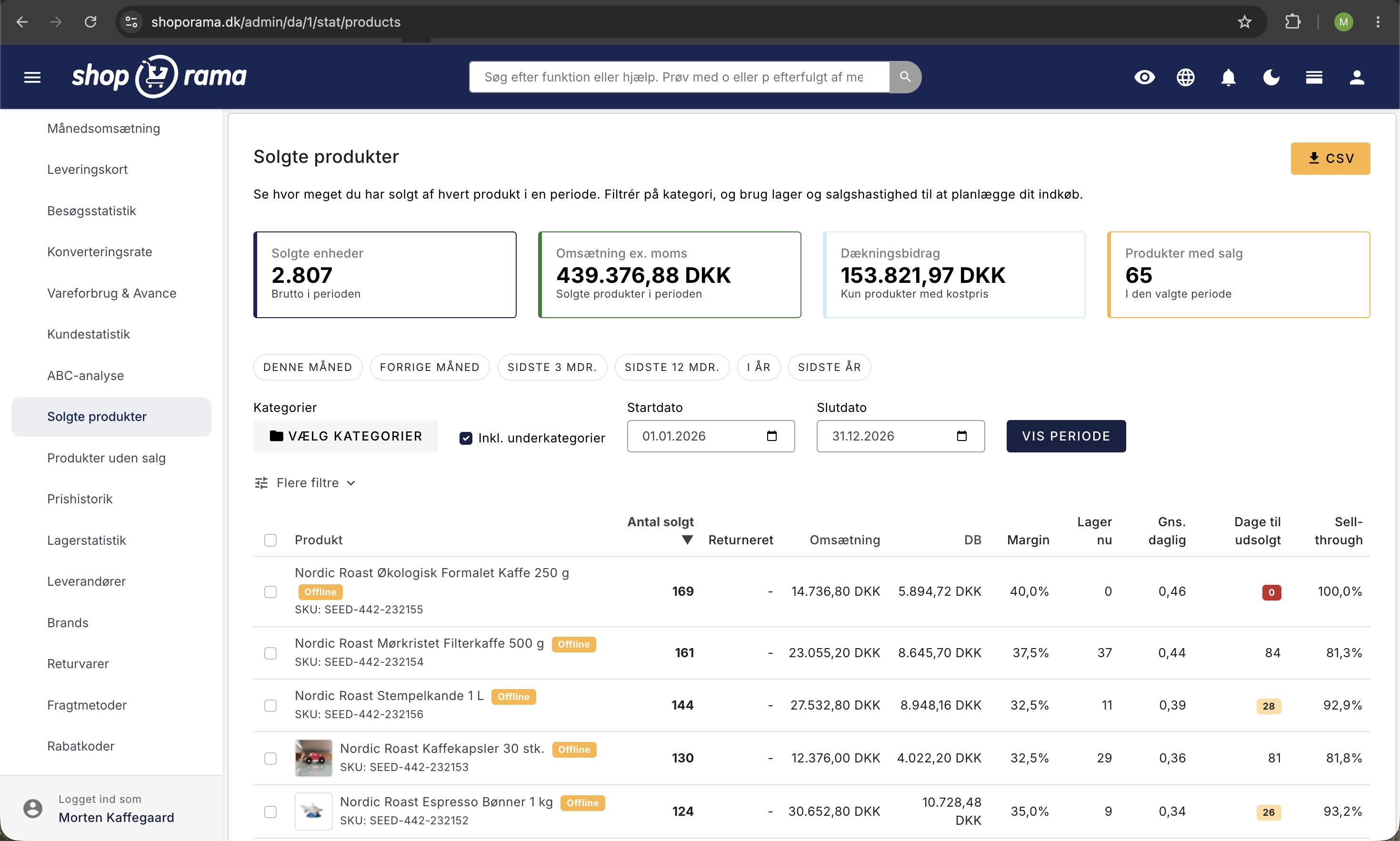
Øverst på siden vises fire nøgletal-kort, der giver dig et hurtigt overblik over den valgte periode og de aktive filtre:
- Solgte enheder: det samlede bruttosalg i perioden, opgjort i antal enheder.
- Omsætning ex. moms: den samlede omsætning for de solgte produkter, uden moms.
- Dækningsbidrag: det samlede dækningsbidrag. Kun produkter med en registreret kostpris tæller med her.
- Produkter med salg: antal forskellige produkter, der er blevet solgt i perioden.
Sådan bruger du rapporten trin for trin
- Vælg periode: Angiv en startdato og slutdato, så rapporten kun viser salg inden for det ønskede tidsrum. Der er også hurtigknapper til fx "Denne måned", "Sidste 3 mdr." og "Sidste år".
- Filtrér på kategori (valgfrit): Vælg en eller flere kategorier. Med "Inkl. underkategorier" bestemmer du, om underliggende kategorier skal regnes med.
- Brug flere filtre (valgfrit): Under "Flere filtre" kan du afgrænse rapporten yderligere på leverandør eller mærke.
- Sortér listen: Klik på en kolonneoverskrift for at sortere. Kolonnerne Produkt, Antal solgt, Omsætning og DB er klikbare.
- Eksportér data: Klik "CSV" for at hente hele den filtrerede liste, eller markér udvalgte rækker og klik "Eksportér valgte" for kun at få de valgte med. Du kan læse mere i artiklen om at eksportere salgsdata.
Kolonnerne forklaret
- Produkt: Navnet på produktet, som det hedder i din shop. Har produktet et SKU-nummer, vises det under navnet.
- Antal solgt: Hvor mange enheder af produktet der er solgt i den valgte periode. Returnerede varer trækkes ikke fra dette tal, så det viser det samlede antal, der oprindeligt blev solgt.
- Returneret: Hvor mange enheder der er kommet retur via kreditnotaer i perioden. Tallet vises separat og påvirker ikke kolonnen Antal solgt.
- Omsætning ex. moms: Den samlede salgsværdi for produktet uden moms.
- DB: Dækningsbidraget, altså omsætningen minus produktets kostpris. DB kan kun beregnes, hvis der er angivet en kostpris på produktet. Uden kostpris vises "-".
- Margin: Dækningsbidraget i procent af omsætningen. Marginen fortæller, hvor stor en del af salgsprisen der bliver til fortjeneste. Også denne kolonne kræver, at der er angivet en kostpris.
- Lager nu: Din aktuelle lagerbeholdning netop nu, ikke et historisk tal.
- Gns. daglig: Det gennemsnitlige antal enheder du sælger pr. dag i perioden. Tallet giver et billede af salgstempoet for produktet.
- Dage til udsolgt: Et estimat for, hvor mange dage der går, før lageret er tomt, hvis salget fortsætter i samme tempo. Beregnes ud fra Lager nu og Gns. daglig. Tallet farves rødt ved 14 dage eller mindre og gult ved 30 dage eller mindre, så du hurtigt spotter de varer, du snart skal bestille hjem igen.
- Sell-through: Andel af (solgt + resterende lager) der blev solgt i perioden, angivet i procent. Det er en approksimation baseret på det aktuelle lager. En høj sell-through betyder, at produktet sælger godt i forhold til den mængde, du har liggende.
Sådan bruger du rapporten til indkøb
Rapporten "Solgte produkter" er et af dine vigtigste værktøjer, når du skal beslutte, hvad der skal på lager. I stedet for at gætte kan du læne dig op ad de faktiske salgstal og undgå både tomme hylder og penge, der står bundet i varer, som ikke sælger. Herunder får du fire konkrete arbejdsgange, du kan bruge i hverdagen.
1. Daglig genbestilling
Start dagen med at åbne rapporten og kig efter de varer, der er tættest på at være udsolgt. Kolonnen Dage til udsolgt fortæller dig, hvor længe lageret rækker med det nuværende salgstempo, og farverne gør det nemt at prioritere:
- Rød: her haster det, varen løber tør inden for kort tid.
- Gul: hold øje, lageret begynder at blive lavt.
Gå de røde og gule varer igennem hver dag, og læg det, der skal genbestilles, i din indkøbsordre. På den måde når du at bestille hjem, før varen bliver udsolgt, og mister ikke salg på dine bedst sælgende produkter. Vil du arbejde mere struktureret med genbestilling, kan du kombinere rapporten med bestillingslisten og lagerstyringen.
2. Lav en indkøbsliste pr. leverandør
Når du alligevel skal bestille, giver det mening at samle det hele pr. leverandør, så du kun sender én ordre afsted til hver. Filtrér rapporten på den enkelte leverandør, så du kun ser deres varer, og klik derefter på den almindelige "CSV"-knap. Så får du en fil med præcis den leverandørs varer, som du kan sende direkte til leverandøren eller bruge som din egen bestillingsliste.
Vil du kun bestille en delmængde, kan du i stedet markere netop de rækker, du vil have med, og klikke "Eksportér valgte". Gentag for hver leverandør, og du har på få minutter alle dine indkøbsordrer klar.
3. Find vindere og tabere
Rapporten viser ikke kun antal, men også hvor godt varerne tjener ind. Kig på Sell-through for at se, hvor stor en del af lageret der er blevet solgt, og på dækningsbidraget og marginen for at se, hvad du reelt tjener på hver vare.
Brug det til at træffe klare beslutninger: vinderne med højt salg og god margin skal du sikre dig altid er på lager, mens taberne med lav sell-through og dårlig indtjening måske skal sættes på udsalg, bestilles hjem i mindre mængder eller helt tages ud af sortimentet. Vil du gå mere systematisk til værks, kan du dele sortimentet op efter værdi med en ABC-analyse.
4. Sæsonplanlægning
Skal du forberede jul, sommerferie eller en anden sæson, så kig tilbage på, hvordan det gik sidste år. Vælg den samme periode sidste år i rapporten, så ser du præcis, hvilke varer der solgte, og hvor meget. Det giver dig et solidt udgangspunkt for at bestille de rigtige mængder hjem i god tid, så du hverken løber tør midt i højsæsonen eller sidder tilbage med et fyldt lager, når sæsonen er slut.
Godt at vide om tallene
Rapporten er et stærkt værktøj, men tallene skal tolkes med de rette forbehold. Her er de vigtigste ting at være opmærksom på, så du ikke drager forkerte konklusioner:
- Dækningsbidrag og margin kræver en kostpris. Har du ikke registreret en kostpris på produktet, kan systemet ikke regne dækningsbidrag og margin ud, og felterne vises som "-" for de produkter. Læs mere om, hvordan kostprisen indgår i beregningen af lagerværdi.
- Sell-through og dage til udsolgt bruger dagens lager. Disse tal tager udgangspunkt i det lager, produktet har lige nu, ikke det lager det havde i den valgte periode. Kigger du på en gammel periode, sammenholdes salget derfor med det nuværende lager.
- Returer trækkes ikke fra Antal solgt. Har en kunde sendt en vare retur, tæller den stadig med i Antal solgt. Returer vises i stedet i kolonnen Returneret, så det reelle nettosalg kan være lavere end det viste antal.
- Gennemsnitligt dagligt salg fordeles over hele perioden. Tallet regnes ud som et jævnt gennemsnit hen over hele den valgte periode. For sæsonvarer, der næsten kun sælger i en kort del af perioden, giver det derfor et misvisende billede.
- Omsætning og dækningsbidrag er ekskl. moms. Alle beløb vises uden moms, så de ikke skal forveksles med de beløb, kunden har betalt inkl. moms.
- Kun betalte ordrer tælles med. Ordrer, der endnu ikke er betalt, indgår ikke i rapporten.
- Samlepakker tælles både som pakke og som komponenter. Sælger du en samlepakke, optræder både selve pakken og de enkelte produkter i den, ligesom i de øvrige salgsrapporter. Vær opmærksom på det, så du ikke kommer til at tælle det samme salg to gange.
- Et produkt i flere valgte kategorier tælles kun én gang. Har du valgt flere kategorier, og ligger et produkt i mere end én af dem, tælles produktets salg kun én gang. Rapporten dobbelttæller altså ikke på tværs af kategorier.
Ofte stillede spørgsmål
- Hvorfor mangler DB og margin på nogle produkter? Dækningsbidrag og margin kan kun beregnes, når produktet har en registreret kostpris. Mangler kostprisen, vises "-" i de to kolonner. Tilføj en kostpris på produktet, så regner rapporten dækningsbidraget ud næste gang.
- Tæller returnerede varer med i Antal solgt? Ja. Returer trækkes ikke fra Antal solgt, men vises i den separate kolonne Returneret. Vil du kende nettosalget, trækker du selv Returneret fra Antal solgt.
- Er tallene med eller uden moms? Både omsætning og dækningsbidrag vises ekskl. moms. Det er derfor ikke de samme beløb, som kunden har betalt inkl. moms.
- Hvorfor passer "dage til udsolgt" ikke, når jeg kigger på en gammel periode? Dage til udsolgt og sell-through bruger altid dit aktuelle lager, ikke det lager du havde dengang. Ser du på en periode langt tilbage, sammenholdes salget derfor med lageret, som det er nu.
- Indgår ubetalte ordrer? Nej. Rapporten medregner kun betalte ordrer, så salget afspejler faktisk gennemførte køb.
- Tælles samlepakker dobbelt? En samlepakke optræder både som pakken og som de enkelte komponenter, ligesom i de øvrige salgsrapporter. Hold øje med det, hvis du sælger meget via samlepakker, så du ikke tæller det samme salg to gange.
- Hvordan får jeg kun én leverandørs varer ud i en fil? Filtrér på leverandøren under "Flere filtre" og klik på "CSV". Filen indeholder så præcis den leverandørs varer. Vil du kun have et udvalg med, markerer du rækkerne og klikker "Eksportér valgte".
- Hvad er forskellen på denne rapport og lagerstatistikken? "Solgte produkter" fokuserer på, hvad der er solgt i en periode, og kobler det til lager og salgshastighed. Vil du dykke ned i selve lageret og lagerbevægelser, er lagerstatistikken et bedre sted at starte. Du finder et overblik over alle rapporterne i artiklen om statistik og analyse.