Hvorfor en webshop med MobilePay sælger bedre
MobilePay er den mest brugte betalingsmetode i Danmark, og forskellen i konverteringsrate mellem en webshop med MobilePay og en uden er markant. Især på mobil, hvor brugeren ellers skal finde sit betalingskort frem og taste 16 cifre, udløbsdato og CVC. Med MobilePay godkender kunden betalingen med fingeraftryk, ansigt eller pinkode, og er igennem checkout på under 10 sekunder.
Shoporama understøtter MobilePay som fuldt integreret betalingsmetode gennem din betalingsgateway.
Sådan virker MobilePay i Shoporama
MobilePay er ikke en selvstændig betalingsgateway. Det er en betalingsmetode, du aktiverer gennem den gateway, der i forvejen håndterer dine kortbetalinger. På Shoporama er den primære vej til MobilePay QuickPay, hvor du kan vælge mellem MobilePay Online og Vipps MobilePay. MobilePay kan også slås til via fx OnPay, Pensopay, Flatpay, Nets Easy, og Stripe.
Når en kunde vælger MobilePay i din webshop:
- Kunden bliver sendt til MobilePay-flowet (app eller browser med QR-kode på desktop)
- Kunden godkender betalingen med fingeraftryk, ansigt eller pinkode
- Beløbet trækkes med det samme eller reserveres til ordren afsendes (du vælger selv)
- Ordren oprettes i Shoporama med betalingsstatus godkendt og MobilePay-transaktions-ID på ordrekortet
For dig som butiksejer er forskellen til en almindelig kortbetaling minimal. Pengene afregnes via din QuickPay-aftale, refunds håndteres samme sted, og statistikken vises i Shoporama-admin sammen med dine andre betalingsmetoder.
Hvad får du som butiksejer?
- Højere konvertering på mobil. MobilePay reducerer friktionen i checkout markant. Den gennemsnitlige danske webshop ser 30 til 60 procent højere mobil-konvertering, når MobilePay tilføjes som betalingsmetode.
- Refund med ét klik. Fuld og delvis refund håndteres fra ordrekortet i Shoporama-admin. Pengene returneres til kundens MobilePay-konto.
- 3D Secure inkluderet. Stærk kundeautentifikation håndteres af MobilePay-app'en. Ingen ekstra opsætning, ingen ekstra friktion.
- Statistik på betalingsmetoder. I Shoporama-admin kan du se hvor stor en andel af salget der kommer fra MobilePay versus kort, og filtrere ordrelisten på betalingsmetode.
- Samme aftale, alle kort plus MobilePay. Med én QuickPay-aftale kan du modtage Dankort, Visa, Mastercard, MobilePay, ViaBill og Anyday. Du behøver ikke flere gateway-aftaler.
Sådan kommer du i gang
- Opret en QuickPay-aftale, hvis du ikke allerede har en. Tilføj MobilePay som tilvalg på aftalen direkte i QuickPay-manager.
- Indtast dine QuickPay API-nøgler i Shoporama under Integrationer og betalingsgateways.
- Aktivér MobilePay som betalingsmetode under samme menu.
Vi har detaljerede vejledninger til opsætning af QuickPay og en guide til MobilePay på din webshop, der også hjælper, hvis MobilePay ikke vises i betalingsvinduet. Brug for hjælp? Skriv til support@shoporama.dk, så hjælper vi dig i gang.
Læs også om alle Shoporamas betalingsgateways for et fuldt overblik over featuren og hvordan den passer ind i resten af platformen.
Gebyrer og hvad du skal være opmærksom på
MobilePay opkræver et særskilt transaktionsgebyr ud over QuickPays almindelige kortgebyrer. Gebyret afhænger af din MobilePay-aftale og er uafhængigt af Shoporama. Du kan se de aktuelle takster i din MobilePay-aftale eller læse vores oversigt over gebyrer for MobilePay og Fraudfighter.
Tre ting der er værd at vide, før du går live:
- Abonnementer understøttes ikke via MobilePay. Hvis du sælger abonnement, skal de tilbagevendende betalinger ske via kort gennem QuickPay eller PensoPay. Selve det første køb kan godt være MobilePay, men ikke de efterfølgende. Læs mere om abonnement på din webshop.
- Telefonnummer i checkout. Sæt telefonnummer som obligatorisk felt. MobilePay returnerer typisk telefonnummeret, men ikke i alle scenarier, og du har brug for det til ordrebekræftelse og fragt. Læs mere om telefonnummer-håndtering.
- Kunden skal have MobilePay-app'en. Ja, også selv hvis kunden checker ud fra en computer. Computer-checkout sker via en QR-kode, kunden scanner med mobilen. Det er en god idé at have flere betalingsmetoder aktive parallelt, så kunder uden MobilePay også kan handle.
Ofte stillede spørgsmål om MobilePay i webshop
Skal jeg bruge en anden gateway, eller kan QuickPay alene klare det?
QuickPay alene er nok. QuickPay understøtter både kort, MobilePay, ViaBill, Anyday og en lang række andre betalingsmetoder. Du behøver ikke flere gateways for at tilbyde MobilePay i din webshop.
Skal jeg vælge MobilePay Online eller Vipps MobilePay i QuickPay?
Begge vises som MobilePay for dine danske kunder. MobilePay Online kører gennem din kortindløser, fx Clearhaus, og er typisk den korteste vej, hvis du allerede tager imod kort. Vipps MobilePay kræver en aftale direkte med Vipps MobilePay, og QuickPay beder om aftalens MSN-nummer. Læs mere i MobilePay på din webshop.
Kan jeg tilbyde MobilePay uden også at tilbyde kort?
Ja. Du kan vælge i Shoporama-admin præcist hvilke betalingsmetoder kunden får vist. Hvis du kun ønsker MobilePay, slår du blot kortbetalinger fra. De fleste shops tilbyder dog både MobilePay og kort, da en del af kunderne stadig foretrækker at betale med Dankort eller Visa.
Hvor ser jeg om en betaling er gennemført med MobilePay?
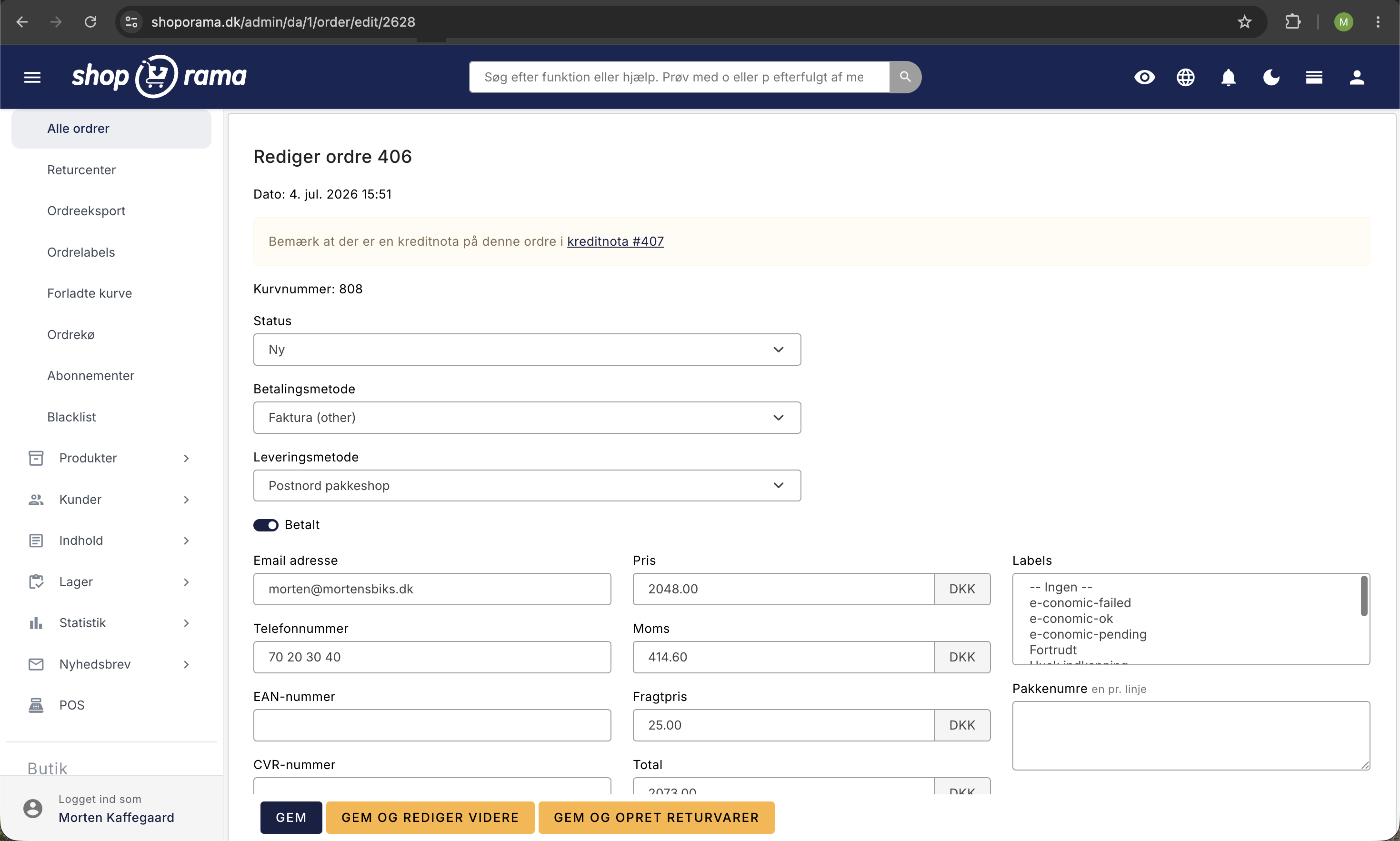
På ordrekortet i Shoporama-admin vises betalingsmetoden eksplicit som MobilePay sammen med transaktions-ID fra QuickPay. Du kan også filtrere ordrelisten på betalingsmetode for kun at se MobilePay-ordrer.
Hvad sker der hvis MobilePay er nede?
Kunden får en fejlmeddelelse i checkout og kan vælge en anden betalingsmetode. Det er en af grundene til at det giver mening at have flere metoder aktive parallelt. Driftsforstyrrelser hos MobilePay rammer typisk hele Danmark, ikke specifikt din shop.
Får jeg pengene direkte ind på min konto?
Pengene afregnes via din QuickPay-aftale ligesom kortbetalinger. Afregningsperioden er typisk 1 til 3 bankdage afhængigt af din QuickPay-aftale. Pengene fra MobilePay går ikke uden om QuickPay.
Skal kunden have MobilePay-app'en for at betale?
Ja, betaleren skal have MobilePay installeret på sin telefon. Også selv hvis kunden checker ud fra en computer. Når kunden vælger MobilePay i en computer-checkout, scannes en QR-kode med mobilen.
Kan jeg bruge samme MobilePay-aftale på flere shops?
Det kan du, men hver Shoporama-shop skal have sin egen QuickPay-aftale. MobilePay-aftalen ligger på QuickPay-niveau, så hvis du har én QuickPay-aftale, kan du bruge MobilePay i alle shops, der er knyttet til den.
Hvad gør jeg hvis en MobilePay-betaling ikke kommer tilbage til Shoporama?
Det sker meget sjældent, men kan ske ved netværksfejl. Tjek QuickPay-manager: hvis betalingen ligger der men ikke i Shoporama, kan du manuelt sætte ordren til betalt i admin. Skriv til support@shoporama.dk, hvis du oplever det gentagne gange.
Hvor lang tid tager det at få MobilePay live på min shop?
Hvis du allerede har QuickPay sat op, kan du have MobilePay live på under 10 minutter. Selve godkendelsen af MobilePay-aftalen hos MobilePay tager typisk 1 til 3 hverdage. De fleste nye Shoporama-kunder har MobilePay aktivt fra dag ét.
Klar til at komme i gang med MobilePay?
En webshop med MobilePay er en af de billigste konverteringsoptimeringer, du kan lave. Hvis du har en eksisterende QuickPay-aftale, kan du have MobilePay aktiveret på under 10 minutter. Har du brug for hjælp til opsætningen, skriver du til support@shoporama.dk. Vores danske support svarer typisk inden for en time i kontortiden.
Opret en gratis Shoporama-prøveperiode og test selv, hvor hurtigt du kan have en webshop med MobilePay oppe at køre. Ingen binding, ingen oprettelse, ingen kreditkort krævet.