Recommendations in Your Own Theme
Here's how to add recommendations to a theme that isn't one of Shoporama's own: either using a CSS selector from the admin panel or using the Smarty tag in the template.
Recommendations are built into all of Shoporama’s native themes, where they are set up as a module in the Page Builder. If you’ve created your own theme or heavily customized one of ours, you can still add recommendations. There are two ways to do this: one without code, and one for developers.
No coding required: just point to a spot on the page
Go to Design → Recommendations in your custom theme. Here, enter one line per recommendation box you want to include, then save. You don’t need to edit the theme’s files.
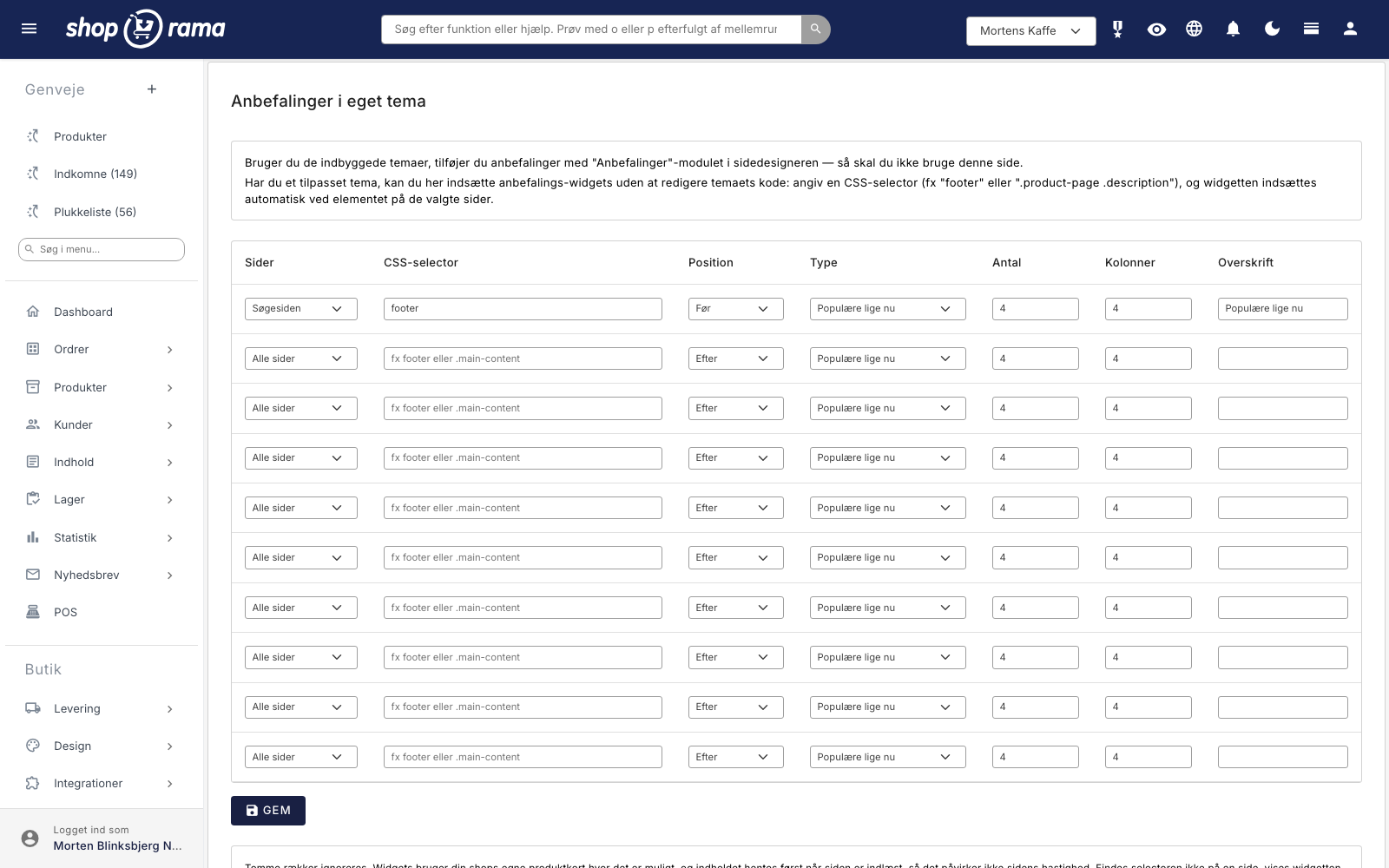
The fields mean:
- Pages – which pages the box should appear on. Select “All pages,” or limit it to, for example, only product pages or only the cart.
- CSS selector – which element on the page the box should be positioned relative to. It can be as simple as “footer,” or more specific , such as “.product-page .description.”
- Position – whether the box should appear before the element, after it, or inserted into it as the last piece of content.
- Type – what kind of recommendation. The same five options as in the module.
- Number and Columns – the maximum number of products to display, and how many will appear side by side on large screens.
- Heading – the text above the box. If you leave it blank, no heading will be displayed.
How to Find the Right Selector
If you don’t know what to enter in the selector field: right-click where you want the box to appear in your store, select “Inspect,” and check which class or ID the element has. It’s better to start broad rather than narrow. A footer with the “Before” position creates a box at the very bottom of the page, just above the page edge, and it works on virtually all themes.
If the element isn’t present on a given page, nothing happens. The box removes itself instead of leaving a gap. This makes it safe to experiment.
Using code: The Smarty tag
If you want to control the placement precisely within the template, you can use the tag directly:
<{recommendations type="also_viewed" product=$product limit=4 columns=4 title="Others also viewed"}>The parameters are:
- type – also_viewed, also_bought, similar, popular, or recently_viewed
- product – the product object on a product page. Omitted on pages without a specific product
- limit – maximum number of products (default 4)
- columns – number of columns on large screens (default 4)
- title – the heading above the box
This tag outputs a placeholder and fetches the actual products afterward. If you want to control the appearance of the cards yourself, the theme may have its own components/reco-loop.html file. If it exists, it is used. If it does not exist, we fall back to the theme’s standard product card, and otherwise to a simple built-in display.
How does it work under the hood?
Regardless of which of the two methods you use, the behavior is the same:
- The page itself is loaded without recommendations, and the box is fetched afterward. This ensures that the recommendations never delay the initial rendering of the page, even if they’re placed at the top.
- Space is reserved for the box in advance with a gray placeholder the same size as the actual cards, so the page doesn’t jump when the content loads.
- No external files are loaded. All code is inline and totals about 5 KB.
- The response is cached for one hour. Thus, two visitors to the same product page within the same hour require only one database lookup.
- "Customer’s Most Recently Viewed" is stored in the browser’s localStorage on the customer’s own device and is only sent when that specific item is to be displayed.
Frequently Asked Questions
What happens if JavaScript fails or the selector doesn’t exist?
In that case, the box removes itself, and the theme’s own section frame is also cleared if it’s left empty. This means there won’t be an empty space or a blank strip. Each box is handled separately, so an error in one box doesn’t affect the others on the page.
I take a product offline in the middle of the day. Can it still be displayed?
Yes, for up to an hour. The recommendation results are cached for an hour, so a box that has already been calculated can continue to display the product until the cache expires. If the customer clicks on it, they’ll be taken to the product page, which will handle the fact that the item is unavailable. If you need the change to take effect immediately, you can clear the store’s cache.
How much space does it take up, and what is the impact on speed?
Approximately 5 KB of inline code, no external files, and no blocking requests. The measurement is sent via `navigator.sendBeacon`, which is asynchronous and never waits for a response. On a store without recommendations set up, nothing is outputted.
Can I have multiple boxes on the same page?
Yes. Both the selector method and the tag can be used multiple times on the same page. The selector method allows up to ten lines in total.
Does it work with page caching?
Yes. What is delivered with the page is the same placeholder for all visitors, and everything specific to the visit is fetched afterward. Therefore, pages with recommendations can be cached statically just as before.
Can I style the box myself?
Yes. The box has the classes `sr-reco`, ` sr-reco-head`, ` sr-reco-title `, and ` sr-reco-body`, which you can style in your own stylesheet. The height of the placeholder can be adjusted using the CSS variables --sr-reco-img and --sr-reco-text if your product cards are taller or shorter than the standard.
See also Recommendations: Automatically Show the Products Your Customers Are Looking For and How to Read the Recommendation Statistics.
Related articles
Recommendations: Automatically display the products your customers are looking for
Recommendations automatically display relevant products, such as "Others also viewed" on the product page and "Others also bought" in the shopping...
How to Interpret the Recommendation Statistics
Impressions, clicks, CTR, orders, and attributed revenue: what each number on the recommendations statistics page means, and how we calculate revenue.
Related features
Recommendation engine
A recommendation engine suggests relevant products based on customer behavior. Learn about types, placement, impact and how to use it to increase...
Recommendations
"Others also viewed" and "Others also bought" built right into the online store. Five types, setup in the Page Designer, measurable revenue, and no...
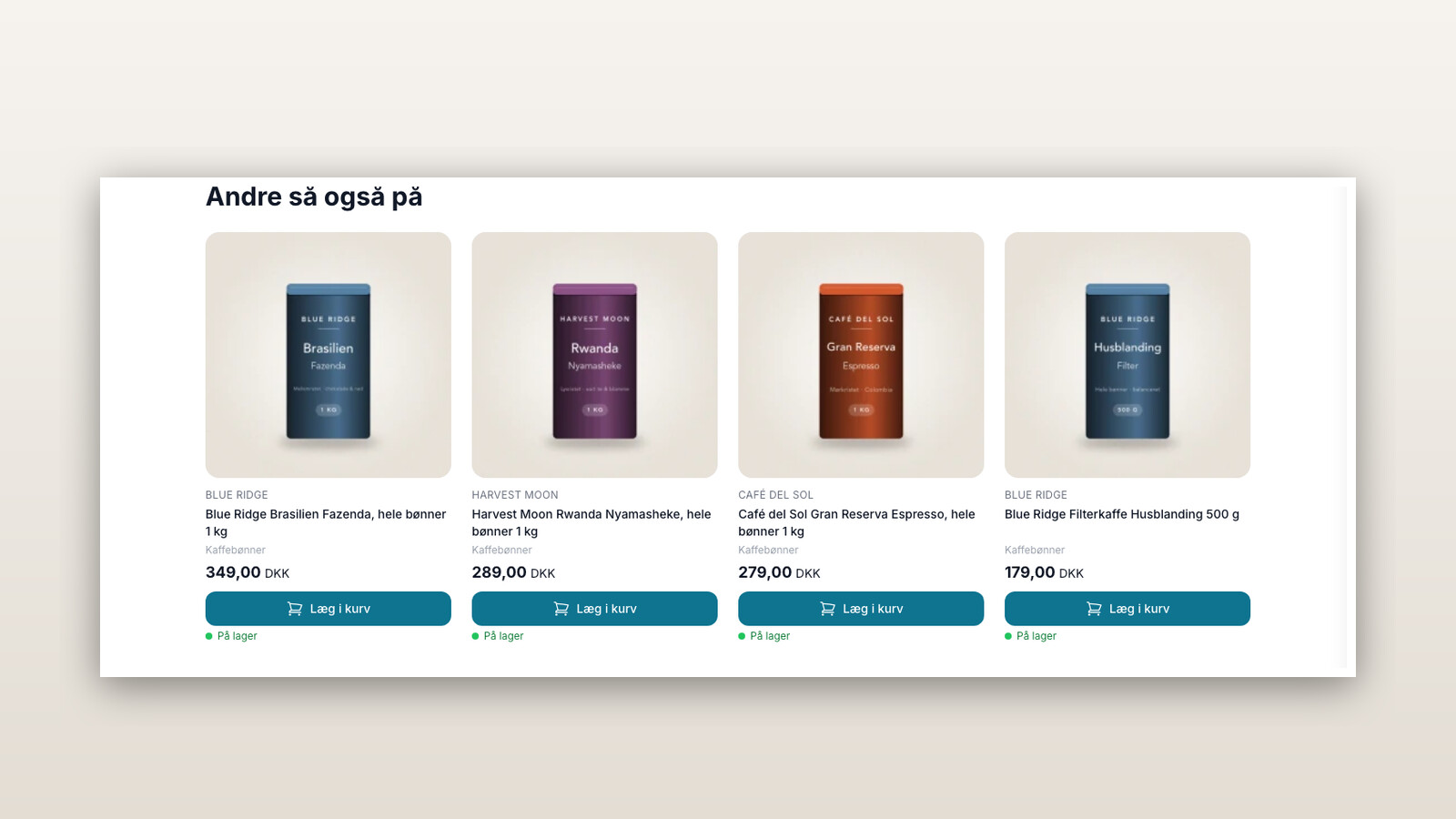
Recommendations are now built into Shoporama
"Others also viewed" and "Others also bought" are now built into Shoporama. Five templates, configurable in the Page Designer, are available from...
Recommendation Engine for an Online Store
Product recommendations built right into the online store. Five types, setup in just a few minutes, measurable revenue, and no extra cost. Also...
Cross-selling
Cross-selling is when you offer a product that complements what the customer is already buying. Learn the difference between cross-selling and...
The upsell-step
Up-selling is when you get a customer to choose a more expensive version of the item they’re already looking at. Learn the difference between...
Product Recommendations
Product recommendations are the automatically selected products displayed by an online store, such as "People also viewed" and "People also...