Collect payments on orders (capture)
Guide to capture payments on orders in Shoporama. Understand the difference between authorization and capture and learn how to capture manually or automatically.
When a customer pays by card in your online store, the amount is first reserved on the customer’s account (authorization). The funds are not debited until you capture the payment. This guide explains how to capture payments in Shoporama.
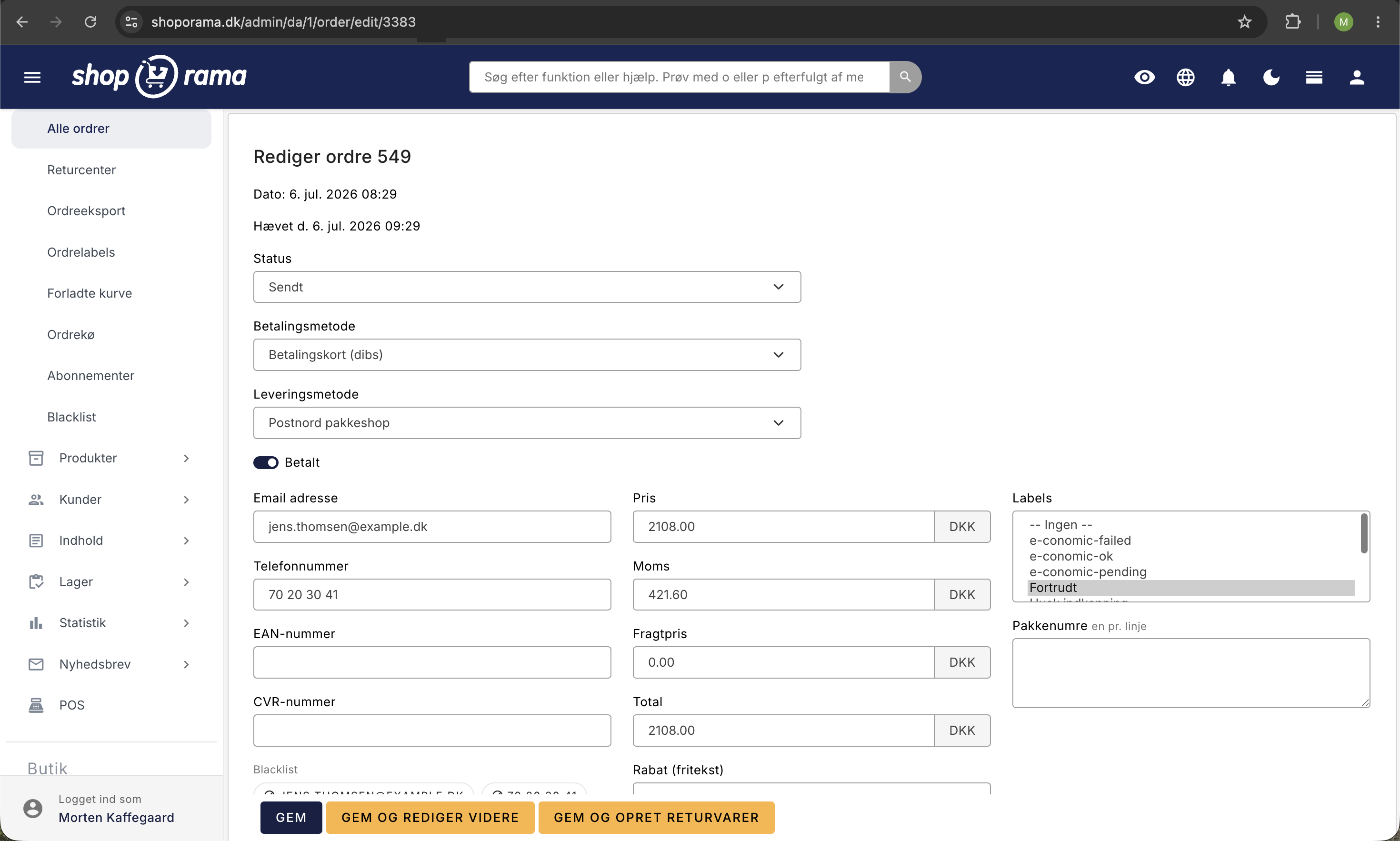
The order page is also where you can edit all other aspects of an order. The second half of this guide covers the other actions you can take: editing line items, changing the customer’s information and address, manually updating the order status, resending emails, and using the order’s three comment fields. If you need a comprehensive overview of the order list, we have a complete guide on how to manage your orders in Shoporama.
Authorization vs. Charge
- Authorization – The amount is reserved on the customer’s card but is not yet charged. You typically have 7 days to capture the payment.
- Capture – The amount is deducted from the customer’s account and transferred to you.
It is a legal requirement that you do not capture the payment until the item has been shipped or is ready for pickup.
Capture payments manually
- Go to Orders in the menu
- Select the orders for which you want to capture payment
- Click the action menu and select Capture
- The orders are queued and captured automatically
View capture status
In the order list, you can filter by capture status to see which orders have been captured and which are still pending. Captured orders are displayed with the date and time of capture.

You cannot withdraw more than the authorized amount
When the customer approves the payment, a specific amount is authorized—namely, the order total at that time. You can only charge up to this amount. If the order total exceeds the authorized amount, the payment provider will reject the charge, and the funds will not be deducted.
This typically happens if, after the customer has paid, you:
- Add more items to the order
- Increase the quantity of an existing item
- Increase a price or the shipping cost, causing the total to rise
As a result, the order remains unpaid even if it has been shipped. The order’s technical note will typically show the error “amount is too large.”
How to fix it
You have two options:
- Reverse the order and process the original amount. Remove the extra items or lower the total so that the order total matches the amount the customer originally approved. Then you can process the payment as usual.
- Create a new order for the additional items. Copy the existing order, add the new items to the copy, and send the customer a payment link for the new order. The customer will then pay the additional amount separately, and both orders can be processed individually.
The opposite scenario isn’t a problem. If the order total falls below the authorized amount—for example, because you remove an item—simply process the lower amount, and the rest of the hold will be automatically released on the customer’s card.
Important Things to Know
- An authorization typically expires after 7 days—process the payment before then
- Canceled orders cannot be charged
- You can never charge more than the amount the customer originally authorized. If you add items after payment, the additional amount must be charged on a new order
- Not all payment methods use authorization—for example, MobilePay typically debits the amount immediately
- You can see if an order has been charged on the order page, where “Charged” is displayed along with the date
Edit the item lines on an order
You can edit the items directly on the order. Go to Orders, open the order, and scroll down to the Products section. Each item line has the fields Quantity, Unit Price (incl. tax), Tax per Unit, SKU Number, and Stock Change. If you sell the item in variants, there’s also a variant selector on the line so you can edit details such as size or color.
Remove or edit an item
- Find the item line in the Products table
- Enter the new quantity in the Quantity field
- Click Save
If you set the Quantity to 0, the entire product line will be deleted when you save. You can also edit the unit price or tax on the line if you’ve agreed on a different price with the customer.
Add an item
- Scroll down to “Add Products” below the product table
- Select one or more products from the list
- Click Save
The products are added to the order when you save, and they are assigned the product’s current price. The list only shows products that are available online in your store.
Remember to update the total
The Order Price, Sales Tax, and Total are not automatically updated when you edit an item line. Check the box next to “Calculate new total price” and click Save. The line items will then be combined, the shipping cost will be added, and the discount amount and any promotional discount will be subtracted. The shipping cost itself is not recalculated but remains at the value shown in the " Shipping Cost" field. You can also enter the numbers directly into the fields.
If the order’s new total exceeds the amount the customer originally authorized, the payment cannot be charged. See the section above regarding the authorized amount.
Remember the inventory
Shoporama does not automatically update inventory when you add or remove a line item. You do this in the “Inventory Change” column on the line item itself: enter -1 to deduct one from inventory, and 1 to add one back. The entry is created when you save, and if you use inventory management, you can view it in the Inventory Entries table for this order, right below the products. If you’d like to learn more about how these entries work, we have a guide to inventory entries and batch management.
Change customer information or the address on an order
If the customer calls and made a mistake when entering their information, or if the package suddenly needs to be sent to a different address, you can correct it on the order. At the top, you’ll find Email Address, Phone Number, EAN Number, and CVR Number.
Further down, you’ll see two addresses side by side:
- Order Address – the address listed on the order and invoice
- Shipping Address – the address to which the package is sent
Both include Name, Company Name (if applicable), Address, Address 2, ZIP Code, City, and Country. If the customer has selected delivery to a package pickup location, the pickup location’s information is listed in the third column under “Package Pickup Location (if applicable).” Correct the fields and click Save. If you use PDF invoicing, the old file will be discarded, and a new one will be generated with the corrected information.
Please note two things. First, an order cannot be transferred to another customer. If you edit the email address and name, you are only editing the order’s own fields. The order will remain associated with the customer account on which it was created and will still be included in that customer’s order history. Second, Shoporama will alert you directly on the order if the email address is invalid. In that case, the customer will not receive an order confirmation, invoice, or tracking notifications.
If you’ve already shipped the package, the tracking number appears in the “Tracking Numbers” field, where you can enter one number per line.
Change the order status manually
The “Status” field is at the top of the order. You can choose between New, Pending, In Progress, Ready, Ready for Pickup, Picked Up, Shipped, Credit Memo, and Canceled. Select the new status and click “Save.”
A status change is more than just a label. Several of the statuses trigger actions, and these take effect as soon as you save:
- Shipped – the order receives its invoice number, the customer receives the shipping notification email if the shipping method is set up to send it, the order is marked for transfer to your accounting or point-of-sale system if you transfer upon shipment, and the payment is queued if you process payment automatically upon shipment
- Ready for Pickup – the customer receives an email notifying them that the package is ready for pickup, if the shipping method is configured to do so
- Picked Up – Same as Shipped: invoice number, email to the customer if the shipping method is configured to send it, transfer to the accounting system, and payment processing
- Canceled – the items are returned to inventory, used loyalty points are refunded to the customer, earned points are removed, and any gift cards the customer purchased with the order are reset
If you change the status back from “Canceled” to another status, the items are deducted from inventory again so that the inventory count is correct.
If the customer should not receive the shipping email, check the box next to “Do NOT send any email when changing status” before saving. Please note that this checkbox only applies to the shipping confirmation email—that is, the email triggered by the “Shipped” status. Emails for “Ready for Pickup” and “Picked Up” are controlled by the shipping method, so if you want to avoid them, you must disable them within the shipping method settings. Shoporama also remembers whether the shipping notification has already been sent, so the customer doesn’t receive it twice. If you move an order away from “Shipped” and back again, that record is reset, and the email is sent again.
If you want to see exactly which emails each status triggers, we have a guide to order flow and automated emails. If the order needs to be credited, you should generally not just select the “Credit Memo” status, but instead create an actual credit memo so the numbers in your accounting match.
Resend emails from the order
Further down on the order, you’ll find the “Emails on the Order” section with a number showing how many emails have been sent for this specific order. Click “View” to expand the list. Each email is listed with its subject and time stamp.
If you click “View” on a single email, you’ll see the sender, recipient, time, status, and the actual content—exactly as the customer received it. This is invaluable when a customer calls and says the email said something different. At the bottom, you’ll find “Resend.” The “Recipient” field is pre-filled with the original recipient, but you can enter a different address if the email needs to be forwarded to a colleague or to the customer’s new email address. There’s a built-in limit on how many emails you can resend in a row. This is a security measure that prevents a compromised account from sending out a flood of emails.
If the customer just needs the order confirmation again, you don’t need to go into the list. Check the box next to “Resend order confirmation” at the bottom of the order and click “Save.” The confirmation is sent only to the customer, not to you as the store owner. We have a brief guide on how to resend the order confirmation.
If the customer needs a completely new message, click “Write new email.” There, you can enter a subject line and text, and you can insert merge fields such as [NAME], [FIRST_NAME], [ORDER_ID], [PRICE], [LINK], [PAYMENT_LINK], and [REVIEW_LINK], which are populated with the order’s specific data for each recipient. You’ll see a preview for each order before sending. The email is sent as plain text, so HTML tags won’t work.
Remember to save your changes to the order before clicking through to the email page. Otherwise, they will be lost. If you want to see everything the store has sent across all orders, you can view the emails Shoporama has sent.
The three comment fields on an order
Just above the email overview, there are three text fields next to each other. They look similar, but they have very different visibility settings, and it’s worth knowing the difference before you write anything about a customer:
- Public comment – the field where the customer’s own message from checkout appears. It’s displayed to the customer again on the order confirmation, in the order email, and on the printable invoice. So if you write in this field, you’re writing something the customer can read
- Internal comment – for your team in the admin panel only. It appears with a yellow highlight on the order list, is included on the picking list, and can be edited directly in the list without opening the order. The customer never sees it
- Internal note (technical log) —the log that the system automatically generates. This is where messages from the payment gateway, cancellations, and your integrations are recorded
The technical note is also where you should look when a withdrawal hasn’t gone through. That’s where the error “amount is too large” appears. If you’d like to know more about when to use which field, we have an article on adding comments to an order.
Frequently Asked Questions
Why was my order shipped, but the funds weren’t debited?
The most common reason is that the order total has exceeded the amount the customer originally authorized, typically because items were added after payment was made. The payment provider does not allow more than the authorized amount to be charged, so the charge is declined. Adjust the order back to the original amount, or create a new order for the additional items.
I’ve shipped the first packages of a split shipment. Why hasn’t the payment been processed?
Because the payment is contingent on the status changing to “Shipped,” and an order with partial delivery only changes to “Shipped” once the last item has been shipped. Until then, the order remains in “In Progress” status, and neither the invoice number, the payment, nor the transfer to accounting has taken place. Everything happens all at once, and exactly once, when the last package leaves the warehouse.
Can I charge a higher amount if the customer agrees?
No. The limit is set by the card processor, not by Shoporama. Even if the customer is willing to pay more, the additional amount must be collected via a new payment, such as a payment link on a new order.
Can I process less than the full amount?
Yes. If you process an order where the total is lower than the authorized amount—for example, because an item was removed—only the current amount will be charged, and the rest of the reservation will be automatically released.
What happens if I don’t process the charge within the deadline?
The authorization typically expires after 7 days, and the hold on the customer’s card is released. You will then no longer be able to process the original payment and must instead send the customer a new payment link.
How can I tell if an order has been collected?
On the order page, “Withdrawn” will appear along with the date and time once the withdrawal is complete. In the order list, you can filter by withdrawal status to find orders that are still pending withdrawal.
I removed an item from the order. Does it automatically return to inventory?
No. When you edit or delete an item line, you’re only changing the order itself. To adjust inventory, use the “Inventory Change” column on the item line, where you enter 1 to return one item to inventory. However, if you set the entire order to " Canceled," all items on the order will automatically be returned to inventory.
I accidentally marked an order as “Shipped.” Will the customer receive an email?
Yes, if the shipping method on the order is set to send a shipping notification email and the order hadn’t already been shipped. To avoid this, check the box for “Do NOT send an email when status changes” before saving. If the email has already been sent, you can open “Emails” on the order to see exactly what the customer was notified of.
Can I correct the customer’s address after the order has been created?
Yes. Edit the “Order Address”(i.e., the billing address) and the “Shipping Address” on the order, then click “Save.” If you use PDF invoices, a new one will be generated with the corrected information. Note that the order still belongs to the same customer account. You cannot transfer an order to another customer by changing the email address and name.
Which of the three comment fields can the customer see?
Only the “Public Comment.” It appears on the order confirmation, in the order email, and on the printable invoice, and it’s also the field where the customer’s own message from checkout is displayed. The customer never sees the “Internal Comment ” or “Internal Note.” These are only visible in the admin panel.
Related articles
Protect your webshop from spam orders
Guide to protecting your Shoporama webshop from spam orders and fraud using blacklist, captcha and 3D Secure.
Billy's Billing integration
Guide to setting up Billy's Billing in Shoporama. Automatically transfer orders to your accounts, synchronize products and post payments.
Customers skip payment and land directly on the order confirmation
Troubleshooting when customers skip the payment in your webshop and land directly on the order confirmation. Almost always due to the EAN field in...
Split Delivery: Ship part of the order now and the rest later
Can't you ship the entire order at once? With split shipping, you ship what you have in stock, and the rest will be shipped when it arrives. The...
Related features
Payment window
A payment window is where the customer pays in the online shop. Read about payment windows, types and payment gateways for webshops.
13+ payment gateways for your webshop
Choose from OnPay, Quickpay, Stripe, Mollie, Nets Easy, ePay and many more. Automatic capture, country restrictions and partial payment.