Import products via CSV
Complete guide to importing products with a CSV file in Shoporama - including format, fields and tips.
Du kan nemt importere dine produkter fra en CSV-fil ind i Shoporama. I denne artikel kan du læse hvordan du gør, og hvordan det virker.
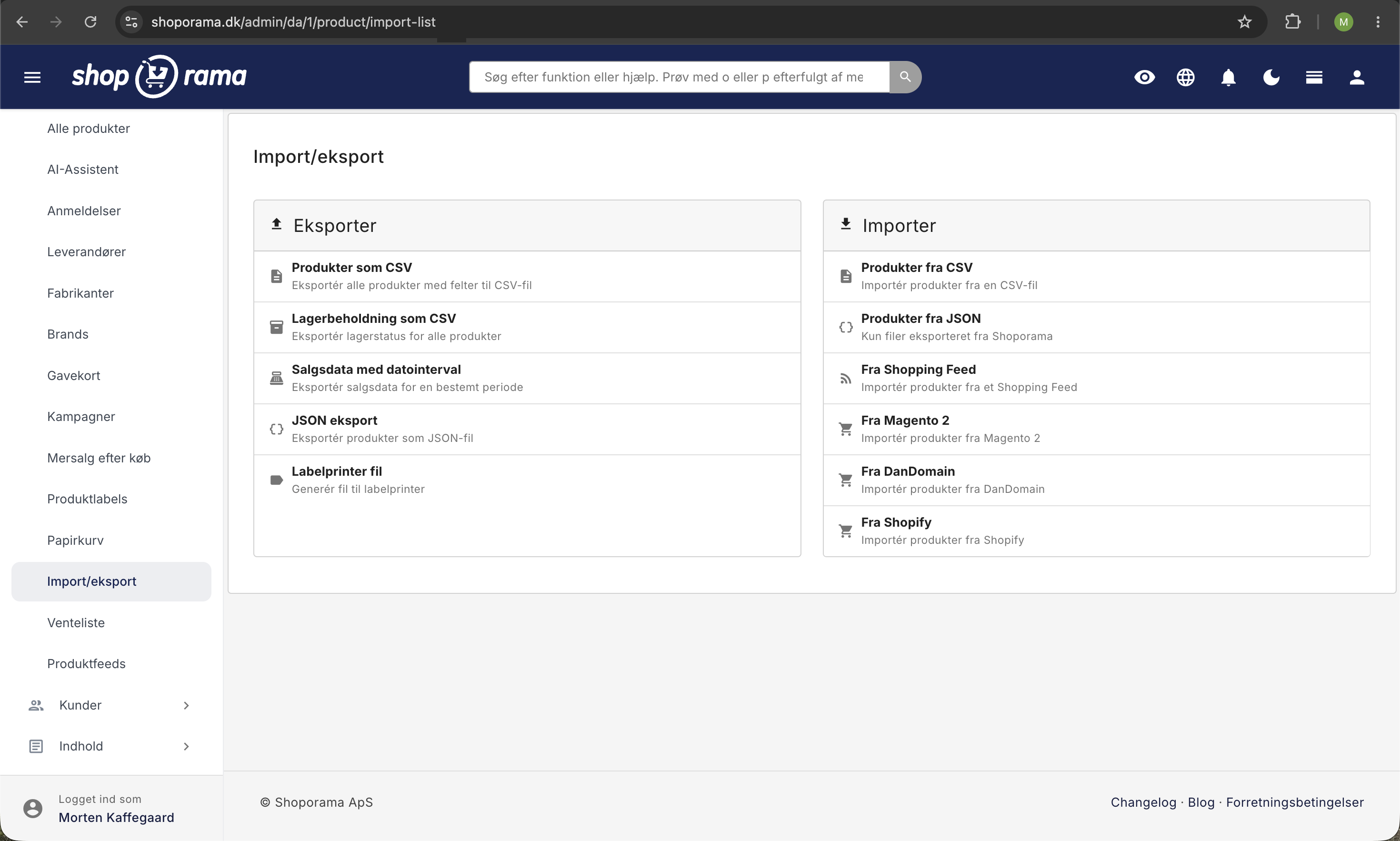
Forskellen på CSV og JSON import
Shoporama har to typer import. CSV er produkter, der kommer fra en komma-separeret fil (men i praksis oftest semikolon-separeret). JSON er et andet format, hvor du kun kan importere en fil du tidligere har eksporteret fra Shoporama. Resten af denne artikel handler udelukkende om CSV-import.
Hvad kan man bruge CSV-import til?
CSV-import er en nem måde at oprette eller redigere mange produkter på i Shoporama. Det bruges typisk når man flytter sin shop til Shoporama. Så kan man eksportere produkterne fra sin gamle shop og importere dem i Shoporama. Det kan også bruges hvis du ønsker at opdatere dine produkter.
Hvordan skal CSV-filen være udformet?
En CSV-fil er ret simpel. For at Shoporama kan læse den, skal den være i et format som dette:
own_id;price;name
334455;48.00;Brun t-shirt
667788;170;Sort t-shirt
Det du ser herover er det mest simple format. Den første linje angiver hvilke felter der er tale om (her SKU, pris, og navn). Du må også gerne lave filen sådan her:
produktid;pris;navn
334455;48.00;Brun t-shirt
667788;170;Sort t-shirt
Shoporama genkender også danske kolonnenavne. Pris, Lagerstatus, Leveringstid, Kategori, Mærke, Leverandør, og Beskrivelse virker direkte. Auto-matchet er også uafhængigt af store og små bogstaver samt overskydende mellemrum, så "Pris", "price", " price ", og "PRICE" giver samme resultat. Hvis et felt ikke matcher automatisk, kan du altid vælge det manuelt i import-wizardens dropdown.
Hvordan importerer man billeder?
Skal du importere billeder, skal du angive URL'en til billedet. Bemærk at det skal være en absolut URL som vores server kan tilgå. Der skal stå https://www.ditdomæne.dk foran. Du kan ikke bare angive /images/product533.jpg — så ved vores server ikke, hvor den skal lede efter billedet. Billedet må heller ikke ligge bag et password.
Du kan her se et eksempel på import, der også indeholder billeder:
own_id;price;name;image
334455;48.00;Brun t-shirt;http://minshop.dk/img/brun-tshirt.jpg
667788;170;Sort t-shirt;http://minshop.dk/img/sort-tshirt.jpg
Hvordan importerer man produktets profilattributter?
Har du oprettet en profil hvor du skal angive fx materiale og hvor det er produceret, kan du angive produktets profilattributter som parametre i en URL. Det vil se sådan ud hvis man har to profilattributter, som hedder hhv. "materiale" og "madein":
materiale=bomuld&madein=denmark
materiale=polyester&madein=portugal
Skal vi genbruge vores eksempel herover, vil filen se sådan ud:
own_id;price;name;attributes
334455;48.00;Brun t-shirt;materiale=bomuld&madein=denmark
667788;170;Sort t-shirt;materiale=polyester&madein=portugal
Det er i øvrigt samme måde du angiver ekstrafelter og trapperabat på (altså i URL-format).
De to "Profil"-felter: hvad er forskellen?
På import-siden møder du "Profil" to steder, og de gør ikke det samme. Forskellen er vigtig, hvis du vil styre præcis hvilken produktprofil hvert enkelt produkt får.
- Profil-kolonnen (mapping øverst): Mapper du en kolonne i din CSV til feltet profile, vælges profilen pr. række. Findes profilen allerede på din shop, bruges den. Findes den ikke, oprettes den automatisk. Det virker både når du opretter nye produkter, og når du opdaterer eksisterende.
- Profil i importindstillingerne (nederst): Denne dropdown er kun en standardprofil. Den bruges udelukkende på nye produkter, og kun når rækken ikke selv har en værdi i Profil-kolonnen. Eksisterende produkter får ikke ændret deres profil af denne indstilling.
Kort sagt: Vil du vælge en specifik profil pr. produkt, så tilføj en kolonne med profilnavnet i din CSV, og map den til "Profil". Vil du blot have, at alle nye produkter uden profil-værdi havner på den samme profil, så nøjes med dropdown'en i importindstillingerne.
Eksempel med en profil-kolonne pr. produkt:
own_id;price;name;profile
334455;48.00;Brun t-shirt;T-shirts
667788;1200;Lædertaske;Tasker
Hvordan importerer man produkter helt praktisk?
- Klik på "Produkter".
- Klik på "Import / eksport".
- Vælg hvilken type import der er tale om. Du skal vælge CSV import (nederst til venstre). Der står "Importér produkter".
- Scroll ned i bunden og klik på knappen "Vælg fil" under "Upload CSV fil". Vælg filen på din computer.
- Inden upload skal du vælge separator (om dine værdier er adskilt af komma, semikolon, eller noget tredje). Du kan også angive om dine felter er omkranset af "" eller noget andet, samt hvilken encoding filen er i. Efterlad det på "auto" hvis du er i tvivl, så vil Shoporama prøve at detektere det.
- Klik på "Upload".
- Mapp de enkelte værdier til de felter de skal have i Shoporama. Har du angivet den første linje med navne vi kan genkende (se listen længere nede), så vil vi have valgt dem for dig.
- Når alle felter er valgt, skal du vælge hvilken produktprofil produkterne skal oprettes med, samt hvor mange linjer du vil importere. Som default importeres alle linjer. Du har også mulighed for at angive om priserne er inkl. 25% moms eller ej.
- Klik på "Importer". Efter et par minutter er dine produkter i Shoporama. Bemærk dog, at hvis serveren skal hente billeder fra en anden server, kan det tage adskillige minutter.
Hvilke felter kan importen genkende?
Herunder er en liste over de felter Shoporama genkender:
Felter med 1/0 værdier
Nogle felter forventer 1 eller 0 (eller tom celle). Her er hvad værdierne betyder:
| Felt | 1 | 0 eller tom |
|---|---|---|
| online | Produktet er synligt på shoppen | Produktet er skjult |
| offline | Produktet er skjult | Produktet er synligt |
| auto_online | Sættes automatisk online når der kommer lager | Slået fra |
| auto_offline | Sættes automatisk offline når lageret er tomt | Slået fra |
| allow_negative_stock | Lageret må gå i minus | Stop salg ved 0 på lager |
| no_shopping | Vis ikke i Google Shopping-feed | Vis i feed |
| remove | Slet produktet | Behold produktet |
Bemærk at online og offline er to sider af samme sag. Du behøver kun ét af felterne i din CSV. Vælg det der passer bedst til hvordan dine data ligger.
Felter med fritekst
- related_products og similar_products: liste af produkt-ID'er adskilt af komma
- category og main_category: flere kategorier adskilles af |, hierarki angives med > (fx Tøj > T-shirts)
- image: flere billeder adskilles af |
- extra_fields, attributes, og discount: URL-format (fx materiale=bomuld&madein=denmark)
Ofte stillede spørgsmål
Hvorfor er der to "Profil"-felter, og hvilket bruges?
Profil-kolonnen (som du mapper øverst) bestemmer profilen for hver enkelt række og virker på både nye og eksisterende produkter. Dropdown'en "Profil" i importindstillingerne er kun en standardprofil for nye produkter uden en profil-værdi. Vil du vælge profil pr. produkt, skal du bruge kolonnen.
Hvad værdi skal stå i online- og offline-felterne for at produktet er synligt?
I online-feltet skal der stå 1 for synligt og 0 (eller tom) for skjult. I offline-feltet er det omvendt. 1 betyder skjult, og 0 (eller tom) betyder synligt. Du behøver kun bruge ét af de to felter.
Skal jeg bruge engelske kolonnenavne?
Nej, både danske og engelske navne fungerer. Shoporama genkender "Pris" og "price", "Lagerstatus" og "stock", "Leveringstid" og "delivery_time" osv. Store og små bogstaver samt overskydende mellemrum gør heller ingen forskel.
Hvorfor matcher mit kolonnenavn ikke automatisk?
Hvis Shoporama ikke kan genkende en kolonne, er det fordi navnet ikke findes på listen. Du kan altid vælge feltet manuelt i import-wizardens dropdown, eller omdøbe kolonnen i din CSV til et af de understøttede navne og uploade igen.
Kan jeg importere uden at have alle felter med?
Ja. Du behøver kun de felter du vil opdatere. Du skal dog have ét unikt felt (SKU, ProductId, eller URL) så Shoporama ved hvilket eksisterende produkt der skal opdateres. Ellers oprettes nye produkter.
Hvad sker der med produkter der ikke er i CSV'en?
De bliver ikke rørt. Importen opdaterer kun de produkter der findes i filen. Vil du fjerne produkter, kan du tilføje kolonnen remove og sætte 1 på de linjer du vil slette.
Hvilken filtype skal jeg uploade?
CSV — en almindelig tekstfil med komma- eller semikolon-separerede felter. Du kan eksportere den fra Excel, Numbers, Google Sheets, eller dit nuværende butikssystem. Shoporama detekterer automatisk separator, indkapsling, og encoding hvis du efterlader felterne på "auto".
Skal jeg lave en backup inden jeg importerer?
Det er en god idé hvis du opdaterer mange produkter på én gang. Du kan eksportere en JSON-fil med dine nuværende produkter under "Import / eksport" og bruge den hvis noget skulle gå galt.
Related articles
Import categories via CSV
Guide to importing categories as a CSV file in Shoporama.
Import extra fields on products
Guide to importing extra fields via CSV import of products in Shoporama.
Import products from DanDomain
Guide to importing products, categories, variants and images from DanDomain to Shoporama via XML export.
Related features
Import features - move your shop or update thousands of products
Import via CSV or migrate from Shopify, DanDomain and Magento 2. Products, categories, prices, stock and extra fields.
Mass editing
Edit many products at once. Loop Edit, stock update, bulk actions and queued bulk edits in the background.
Export all your data - free and unlimited
Export products, orders, customers and discount codes in CSV format. Free, unlimited and always available. Your data belongs to you.