Bought together - find products that sell better side by side
The 'Bought together' statistics page shows which products are most often ordered in the same order. Use the data to add related products and increase your average purchase.
What is "Bought Together"?
Under Statistics → Bought Together, you can see which products your customers most often add to their carts together. The page analyzes all your orders, identifies the product pairs that most frequently appear together, and presents them in a clear table.
This is a goldmine if you want to recommend relevant products on your product pages. Instead of guessing what naturally goes together, you can see it directly in your own sales data.
How to Find the Page
Log in to your admin panel and go to Statistics in the left-hand menu. Click on “Bought Together.” The page immediately shows you the most popular product pairs based on your selected date range.
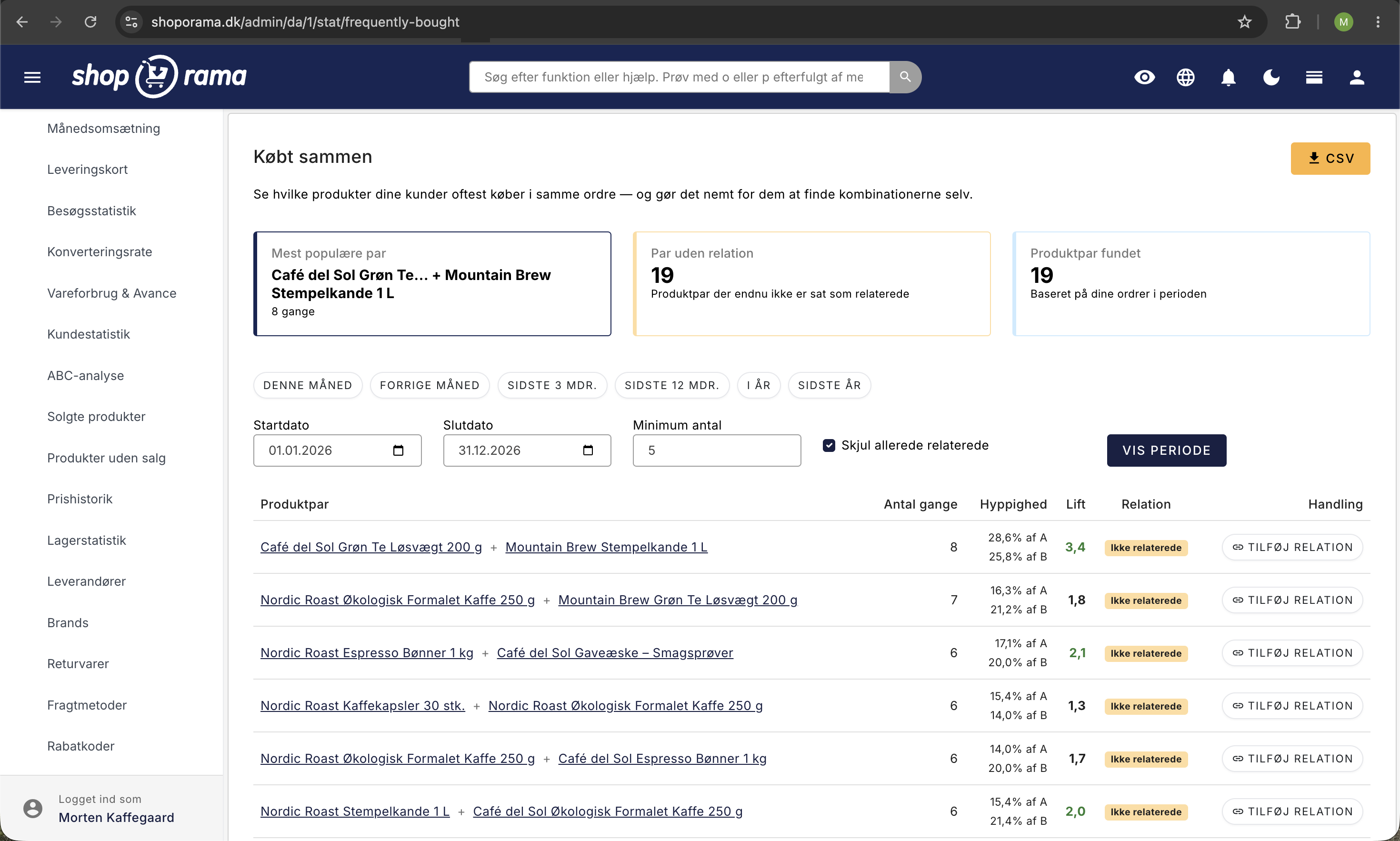
How to Read the Table
The table has six columns. Here’s what they mean:
- Product Pair: The two products purchased together. Click a product name to open the product in your store (opens in a new tab).
- Number of times: How many orders contain both products during the selected period. The higher the number, the more reliable the data.
- Frequency: Out of all orders with Product A, what percentage also includes Product B? And vice versa. For example, “23% / 8%” means that 23% of orders with A also include B, but only 8% of orders with B include A. This tells you in which direction the recommendation is strongest.
- Lift: This number is key to understanding whether the correlation is genuine or merely coincidental. A lift above 1 means that the two products are purchased together more often than you’d expect if customers were choosing at random. The higher the lift, the stronger the actual correlation. A lift of, say, 4.5 is a strong indication that the products naturally go together.
- Relation: Shows whether the two products are already set up as related products in your store. If there is no relation yet, you can add it directly from here.
- Action: The “Add Relationship” button lets you make the products mutually related with a single click. The button is only visible if there isn’t already a relationship.
The overview cards at the top of the page
At the top of the page, you’ll find three summary cards:
- Most Popular Pairs: The product pairs most frequently purchased together in the same order.
- Unrelated pairs: The number of product pairs that are frequently purchased together but haven’t yet been linked as related in your store. This is low-hanging fruit.
- Product pairs found: The total number of unique product pairs during the selected period.
Use the filters to find what you’re looking for
You can customize the view with these filters:
- Date range: Select a specific period, or use the quick buttons: This month, Last month, Last 3 months, Last 12 months, This year, or Last year.
- Minimum count: Set a lower limit for how many times a pair must have been purchased to appear in the table. This is useful if you want to filter out noise and see only pairs with solid evidence.
- Hide already related pairs: Turn this on to focus on new opportunities—that is, only the pairs you haven’t yet linked as related products.
Add related products directly from the page
Once you’ve found a product pair with high lift and no relationship yet, it only takes one click to fix it. Click “Add Relationship” in the “Action” column for that pair.
Shoporama will now create a mutual relationship between the two products. This means that Product A will appear as a recommendation on Product B’s page, and Product B will appear as a recommendation on Product A’s page. Customers will therefore see the recommendation no matter which product they land on.
Mutually related products typically appear in a section such as “Other customers also buy” or “Goes well with” on the product page, depending on the theme your store uses.
Export Data as CSV
Want to continue working with the data in Excel or a spreadsheet? Use the CSV export button at the top of the page. You’ll get a file containing all product pairs and their associated metrics for the selected time period.
Practical tips to get started
- Start with “Pairs with no relationship”: The cards at the top tell you exactly how many opportunities you’re missing. Scroll down through the table and find the pairs with high lift.
- Use lift as your prioritization key: Mentally sort by lift and start with pairs above 3–4. These are the ones with the strongest natural correlation in your own data.
- Choose an appropriate time period: For seasonal stores, it may make sense to analyze the most recent season on its own, so you don’t mix summer sales with Christmas sales.
- Check the page regularly: Customer behavior changes. Review the page once a month or once a quarter and add new relationships as patterns emerge.
- Use “Hide Already Related”: Once you’ve added a bunch of relationships, you can hide them and focus exclusively on new opportunities.
Related Articles
Learn more about how related products work in your store:
- Reverse-related products: Understand the difference between related and reverse-related products, and how to set them up.
- Statistics and Analysis: An overview of all the statistics features in Shoporama.
Have questions? Email us at support@shoporama.dk.
Related features
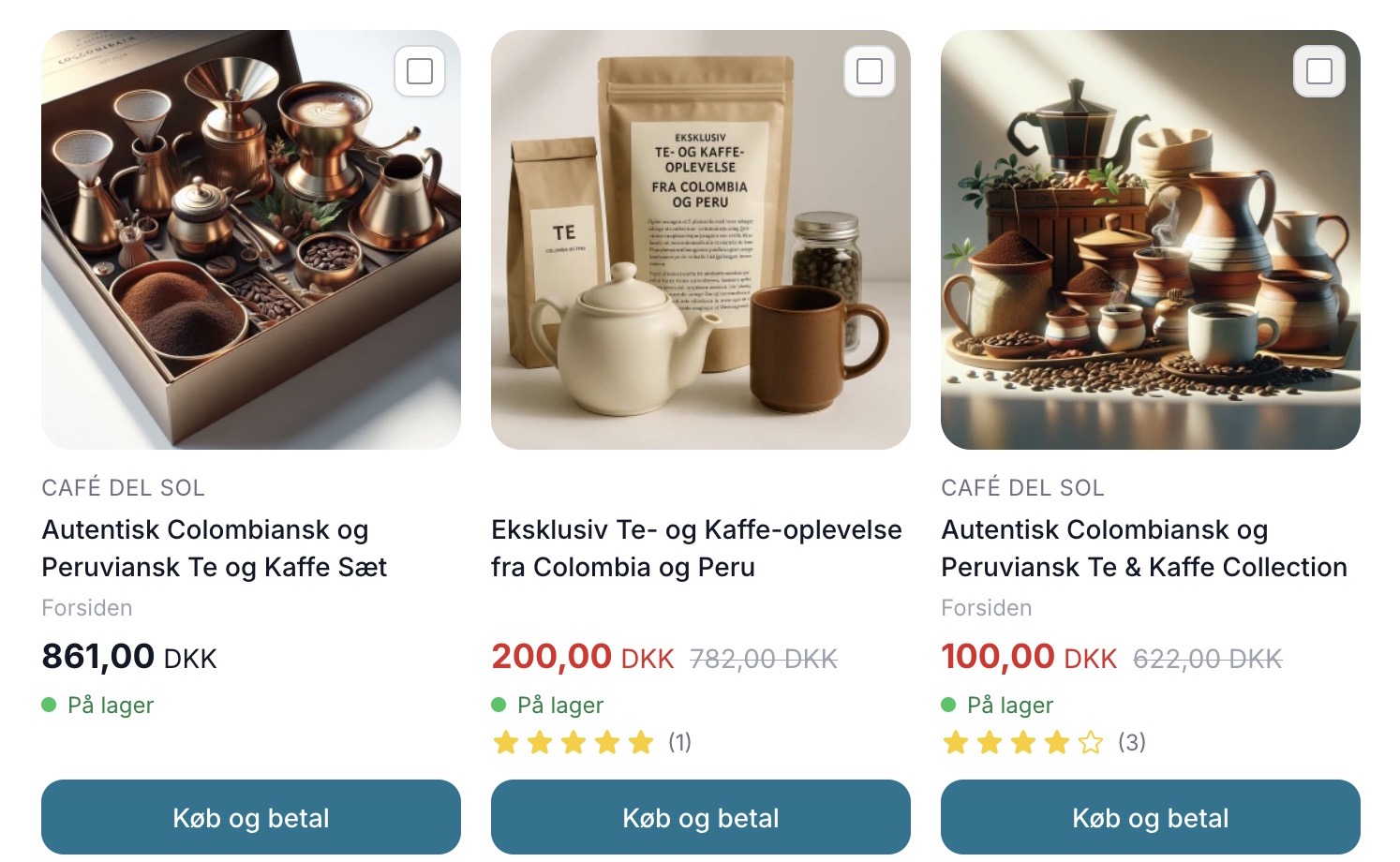
Upselling after purchase
Display product recommendations on the receipt page and let customers continue shopping with a single click. Higher order amounts, no need to...
Sælg mere med Mersalg efter køb
Display suggested products on the receipt page that customers can add with a single click. Shoporama's built-in post-purchase upsell feature. No...
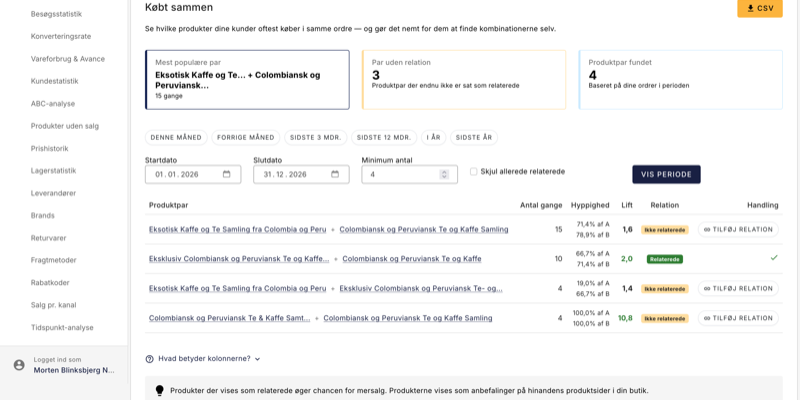
Your orders already know what customers want. Now you can see it
The Bought together statistics feature finds the product pairs your customers consistently buy in the same order. Add recommendations with one...