Conversion rate - understand and improve your stats
Understand what your conversion rate means and how to use the statistics page in Shoporama to track your progress over time.
What is a conversion rate?
The conversion rate tells you what percentage of your visitors end up buying something from your online store. If 1,000 people visit your store in a month and 20 of them place an order, your conversion rate is 2%. It’s one of the most important metrics in e-commerce because it shows how well your store is at turning visits into sales—regardless of how many visitors you have.
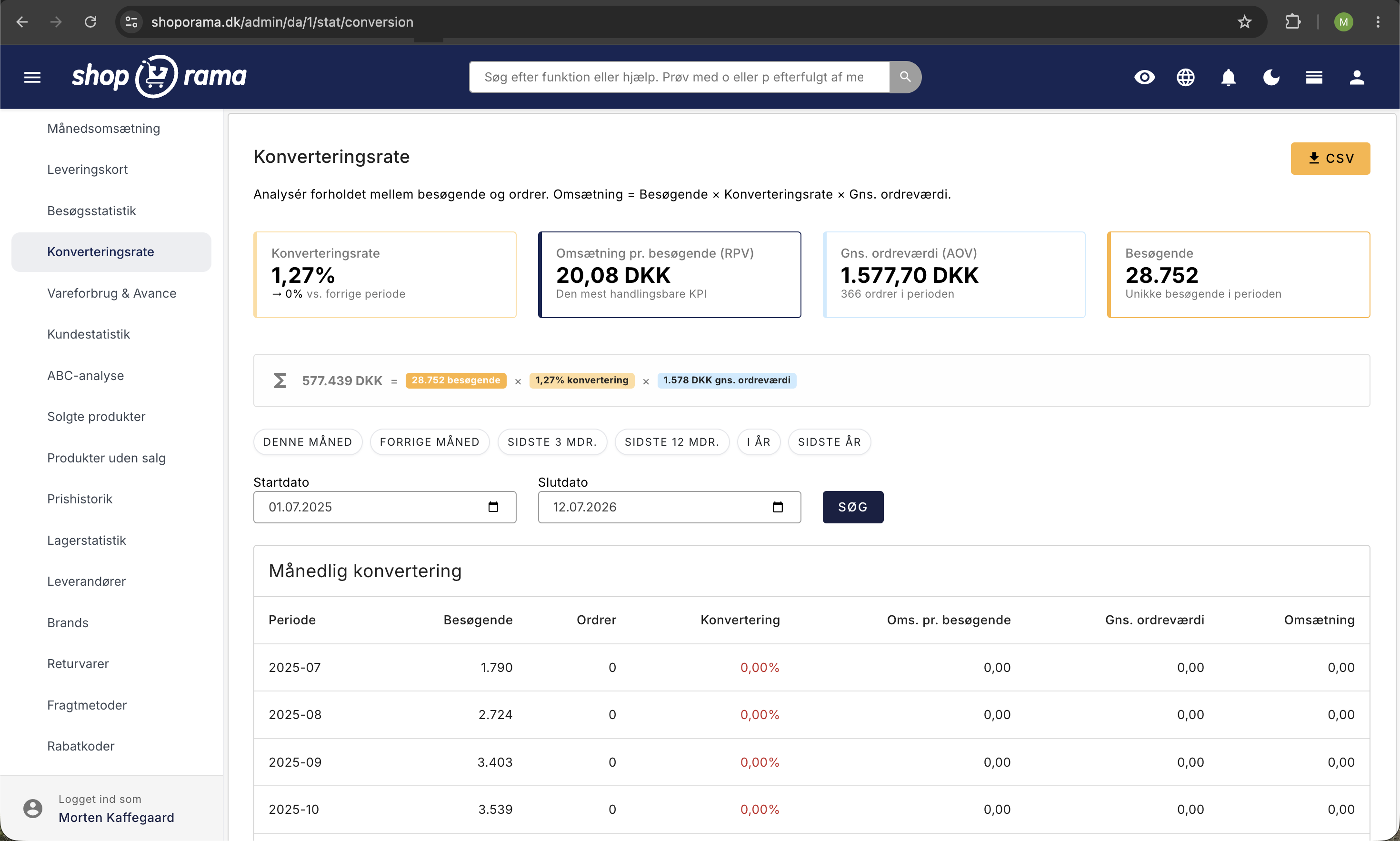
Under Statistics → Conversion Rate in the Shoporama admin panel, you’ll find a comprehensive overview of conversion rate, revenue, orders, and visitors—all broken down by day or month, so you can easily track trends and identify patterns.
Prerequisite: Visitor statistics must be enabled
For the Conversion Rate page to work correctly, you must have internal visitor statistics enabled in Shoporama. You can do this under Settings in the admin panel. If the statistics are not enabled, you’ll see a warning at the top of the page—and the visitor numbers will be missing.
Shoporama’s internal visitor statistics track visits directly within the system, without using third-party scripts. This means you don’t need to rely on Google Analytics or similar tools to view these figures.
The four key metrics at the top
At the top of the page, you’ll find four cards displaying the most important key metrics for the selected time period:
- Conversion Rate — The percentage of visitors who complete a purchase. The card is color-coded: green if the rate is 2% or higher, yellow if it’s between 1% and 2%, and red if it’s below 1%. You can also see whether the rate has increased or decreased compared to the previous corresponding period.
- Revenue Per Visitor (RPV) — This is your total revenue divided by the number of visitors. This figure shows the average value of each visit in kroner—a useful metric when assessing whether it’s worth spending money to attract more traffic.
- Average Order Value (AOV) — This is your total revenue divided by the number of orders. If this number increases, you’re earning more per order.
- Visitors — The total number of visits during the period, according to Shoporama’s internal statistics. If you want to dive deeper into your visitor statistics—including traffic sources, page views, and day-of-the-week analysis—you’ll find them under Statistics → Visitor Statistics.
The Revenue Triangle: How the Numbers Are Connected
This page shows a simple formula that is fundamental to all e-commerce:
Revenue = Visitors × Conversion Rate × Average Order Value
This means there are exactly three ways to increase your revenue: attract more visitors, increase the conversion rate, or sell for more per order. If you improve all three at once, the effect is multiplied.
Select a time period
You can select a time period in two ways:
- Quick intervals — Click directly on one of the shortcuts: This month, Last month, Last 3 months, Last 12 months, This year, or Last year.
- Date filter — Enter a specific start and end date and click the Search button.
Conversion table: day-by-day or month-by-month
If the selected period is 31 days or shorter, the figures are displayed day by day. If the period is longer, they are grouped by month. The table shows visitors, orders, conversions (color-coded), revenue per visitor, average order value, and revenue—with a total row at the bottom.
Traffic Sources
Further down the page, you’ll find an overview of your traffic sources—that is, where your visitors come from. For each source, the number of visitors and the source’s percentage of total traffic are displayed. Use the traffic sources to assess whether your marketing efforts are paying off. For a more detailed analysis of your traffic sources, including page views per source and bounce rate, see the dedicated visitor statistics.
Tips for Improving Your Conversion Rate
- Make it easy to pay. Offer the payment methods your customers prefer—MobilePay, card payments, and perhaps invoices for business customers.
- Build trust and reassure customers. Clearly display your return policy, contact information, and reviews.
- Fast loading times. A slow online store costs you conversions. Use compressed images and avoid heavy scripts.
- Mobile-friendly experience. Many people visit your store from a phone. Test to make sure it’s easy to shop on mobile.
- Clear product information. Good images, clear descriptions, and visible prices lead to fewer questions and more purchases.
- Compare time periods. Use the date filters to compare, for example, this month with last month. A drop in the conversion rate can indicate technical issues.
CSV Export
You can download conversion data as a CSV file by clicking the export button at the top of the page. The CSV file can be opened in Excel or Google Sheets.
If you have any questions about the conversion statistics, feel free to email support@shoporama.dk.
Related articles
Customer statistics - understand your customers' behavior
The Customer Statistics page in Shoporama gives you an overview of return rates, customer segments and your most valuable customers.
Warehouse statistics - overview of your warehouse
Stock statistics give you a complete overview of your stock situation - from tied up capital in dead stock to products that are running low.
ABC analysis: Find out which products make you money
Learn how to use ABC analysis to prioritize your assortment, optimize your inventory and focus on the products that actually drive your business.
Statistics and analytics in Shoporama
Get an overview of Shoporama's built-in statistics tools: dashboard, revenue, profit margin, ABC analysis and much more. Learn how to use data to...
Open baskets - View and restore abandoned shopping carts
Split testing in your Shoporama online store
Guide to setting up and running server-side split tests (A/B tests) in Shoporama.
Related features
Funnel - funnel
A funnel visualizes the customer journey from first visit to purchase in your webshop. Learn about the stages, measurement and optimization of your...
Conversion rate
Conversion rate (CR) is the percentage of visitors who buy from your online store. Learn what a good CR is and how to optimize it with A/B testing,...
Bounce rate
Bounce rate is the percentage of visitors who leave your online store after just one page. Learn what a good bounce rate is, the causes of high...
User testing (usability test)
A user test reveals usability issues by letting real people use your online store. Learn about test types, methodology and the most common findings...
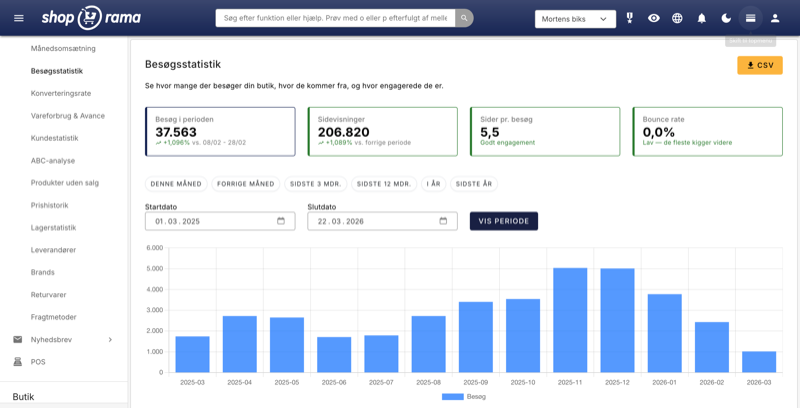
New visitor statistics - understand your eCommerce traffic
See who visits your online store, which days are busiest and where the traffic comes from. Shoporama's new visitor statistics give you the overview.