Credit notes and refunds
Complete guide to credit notes and refunds in Shoporama, including partial refunds, full credit notes and transfer to accounting systems.
Når en kunde returnerer en vare eller en ordre skal krediteres, opretter du en kreditnota i Shoporama. Kreditnotaen dokumenterer refunderingen og kan overføres til dit regnskabssystem.
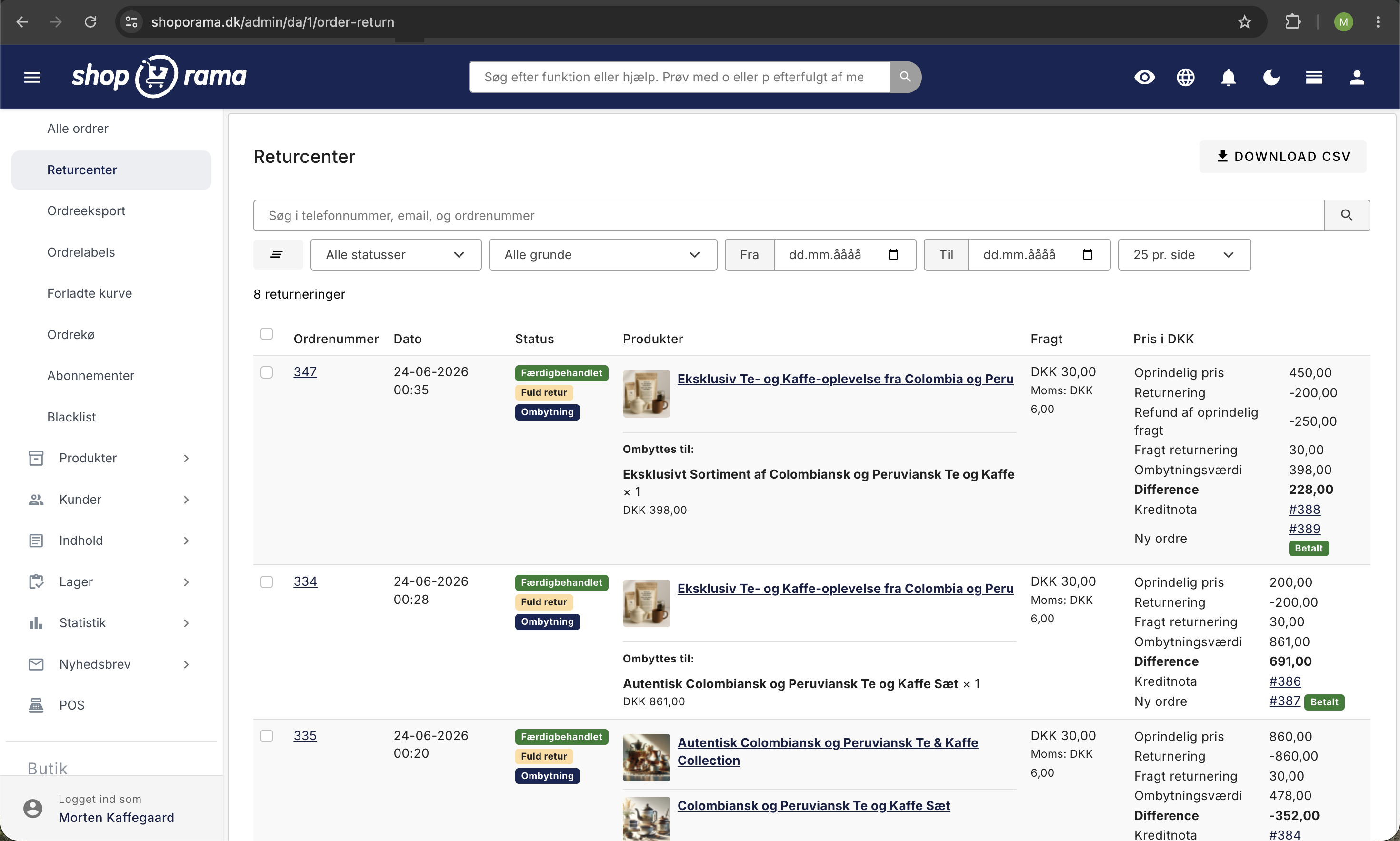
Opret en kreditnota
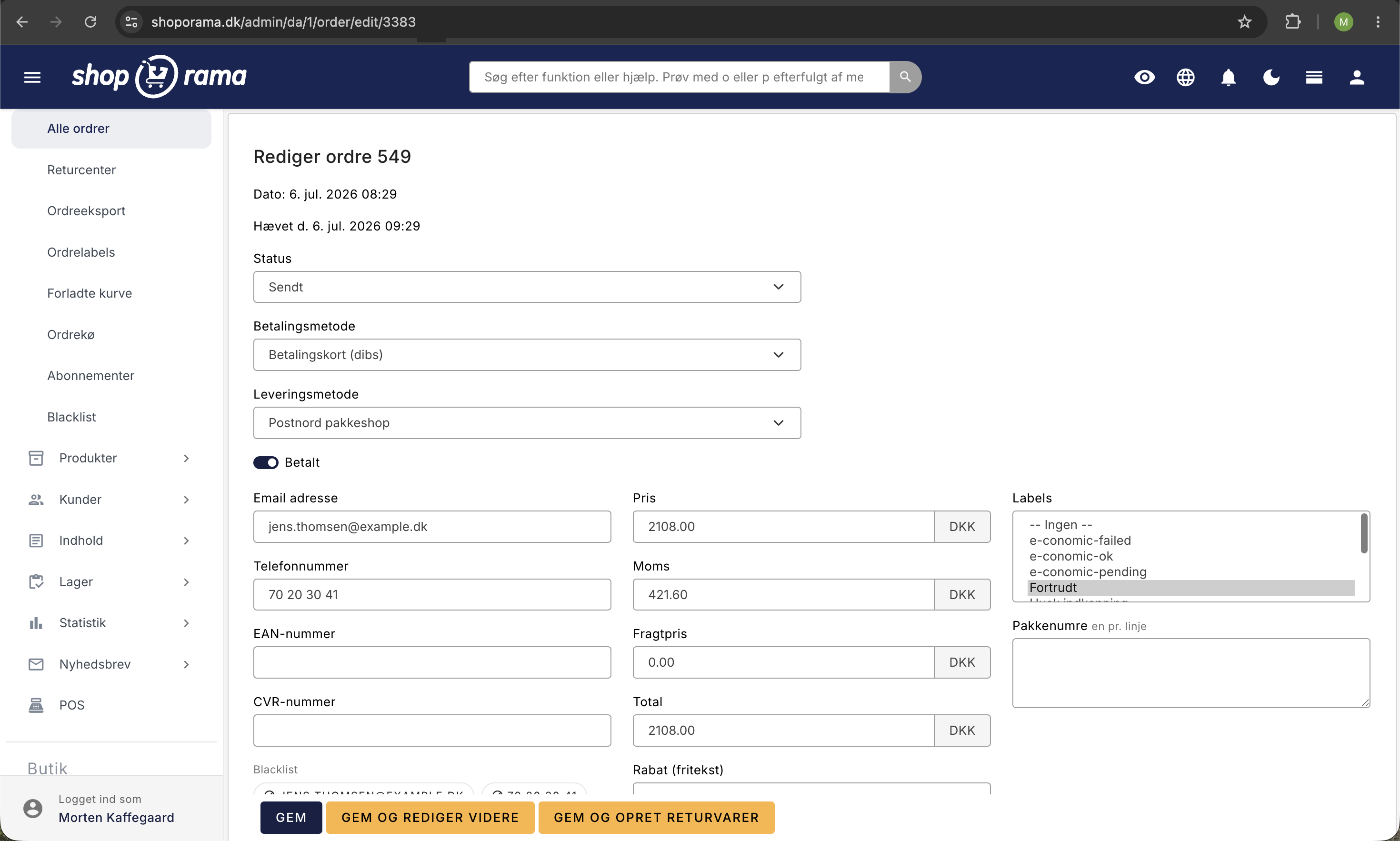
- Åbn den ordre, der skal krediteres
- Klik på Gem og opret returvarer nederst på ordren
- Vælg de produkter og antal, der skal krediteres
- Angiv eventuelt om fragtomkostninger også skal refunderes
- Gem kreditnotaen
Delvis kreditnota
Du behøver ikke at kreditere hele ordren. Du kan vælge specifikke produkter og angive det antal, der skal krediteres. Resten af ordren forbliver uændret.
Refundering via betalingsgateway
Kreditnotaen håndterer dokumentationen. Selve refunderingen af pengene til kunden skal typisk ske via din betalingsgateway (fx QuickPay, Stripe eller OnPay). Log ind i din gateways dashboard for at refundere beløbet.
Kreditnotaer og regnskab
Hvordan kreditnotaer overføres til dit regnskabssystem afhænger af, hvilken integration du bruger:
- Dinero — Kreditnotaen overføres automatisk til Dinero, knyttet til den oprindelige faktura
- e-conomic — Den nye e-conomic-app overfører ikke kreditnotaer automatisk. Du skal selv oprette den tilsvarende kreditnota i e-conomic ved refunds
- Billy — Tjek din specifikke integration og dokumentation for at vide, om kreditnotaer overføres automatisk
Uanset hvilken integration du bruger, anbefaler vi altid at kontrollere at kreditnotaen ser korrekt ud i dit regnskabsprogram efter oprettelse.
Tips
- Opret altid kreditnotaen i Shoporama før du refunderer via gatewayen, så dokumentationen er på plads
- Kreditnotaen får automatisk et kreditnotanummer
- Du kan se alle kreditnotaer tilknyttet en ordre i ordredetaljer
- For e-conomic-brugere: Gem ordrenummeret i e-conomic-kreditnotaens reference, så den kan linkes til den oprindelige faktura
Related articles
Billy's Billing integration
Guide to setting up Billy's Billing in Shoporama. Automatically transfer orders to your accounts, synchronize products and post payments.
Troubleshooting E-conomic integration
Guide to troubleshooting the e-conomic app in Shoporama. Fix sync issues, failed transfers and incorrect posting.
Find your invoice from Shoporama
Guide to finding and downloading your invoices from Shoporama.
Related features
Return center - handle returns professionally
Manage returns, issue credit notes and refunds to the customer's card. With return statistics and automatic inventory management.
Webshop with Dinero
Integrate Shoporama with Dinero and have orders and credit notes transferred automatically. Here's how to set up the integration - quickly and...