Upload supplier packing slips for inventory update
Upload delivery notes from your suppliers as a PDF or image and let AI automatically extract item numbers and quantities for stock updates.
Reading time: approx. {eight} minutes
Shopejer
Hvad er funktionen?
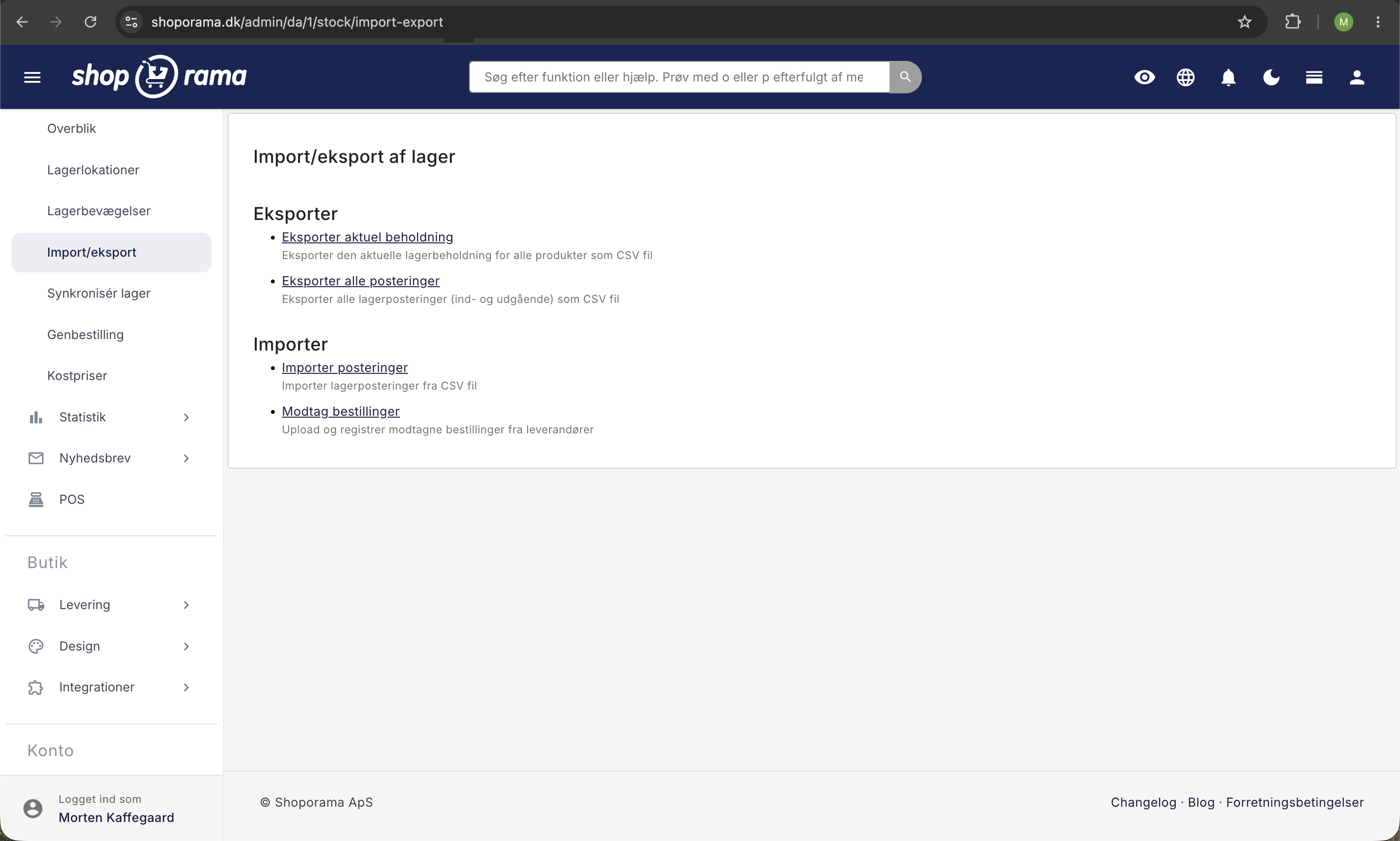
Når du modtager varer fra en leverandør, kan du uploade følgesedlen direkte i Shoporama. Systemet bruger AI (GPT-4o) til automatisk at aflæse varenumre (SKU) og antal fra dokumentet. Derefter kan du gennemgå de udtrukne data og lægge varerne på lager med ét klik.
Du finder funktionen under Lager → Import/eksport → Modtag bestillinger i admin.
Understøttede filformater
- PDF — følgesedler, fakturaer, pakkelister i PDF-format.
- Billeder — JPEG, JPG og PNG (fx et foto af en følgeseddel).
Du kan uploade flere filer ad gangen.
Sådan gør du
- Gå til Lager → Import/eksport og klik på Modtag bestillinger.
- Vælg en eller flere filer fra din computer (PDF, JPEG, JPG eller PNG).
- Klik Upload. Systemet analyserer filerne med AI og udtrækker varenumre og antal.
- Du får vist en tabel med de fundne produkter:
- Afkrydsningsfelt til at vælge/fravælge produkter.
- Varenummer (SKU) som AI har fundet.
- Det matchede produkt med billede (eller "Ikke fundet i webshop" hvis SKU ikke matcher).
- Antal — kan redigeres manuelt inden tilføjelse.
- Markér de produkter du vil lægge på lager, og klik Tilføj markeringer til lager.
Hvordan matcher systemet produkter?
Systemet matcher det fundne varenummer (SKU) mod dine produkter:
- Først søges der i varianters varenumre. Hvis en variant matcher, tilføjes lageret med de korrekte attributter.
- Derefter søges i produkters primære varenummer. Produkter med varianter springes over her (da det ikke er muligt at tilføje generisk lager til et variantprodukt).
Tips
- Sørg for at dine produkters SKU-numre i Shoporama matcher dem på leverandørens følgesedler.
- AI'en genkender mange typer varenumre, inkl. SKU, varenummer, produktnummer og style no.
- Gennemgå altid de udtrukne data inden du tilføjer til lager — AI kan tage fejl, især ved dårlig billedkvalitet.
- Du kan slette uploadede filer med knappen Slet alle uploadede filer når du er færdig.