Suppliers in Shoporama
Guide to suppliers in Shoporama: create and manage suppliers, associate them with products, use the order list, statistics and dropshipping feature.
Leverandører i Shoporama giver dig mulighed for at holde styr på, hvilke leverandører der leverer dine produkter. Du kan tilknytte en leverandør til hvert produkt og bruge informationen til bestillingslister, statistik, og dropshipping.
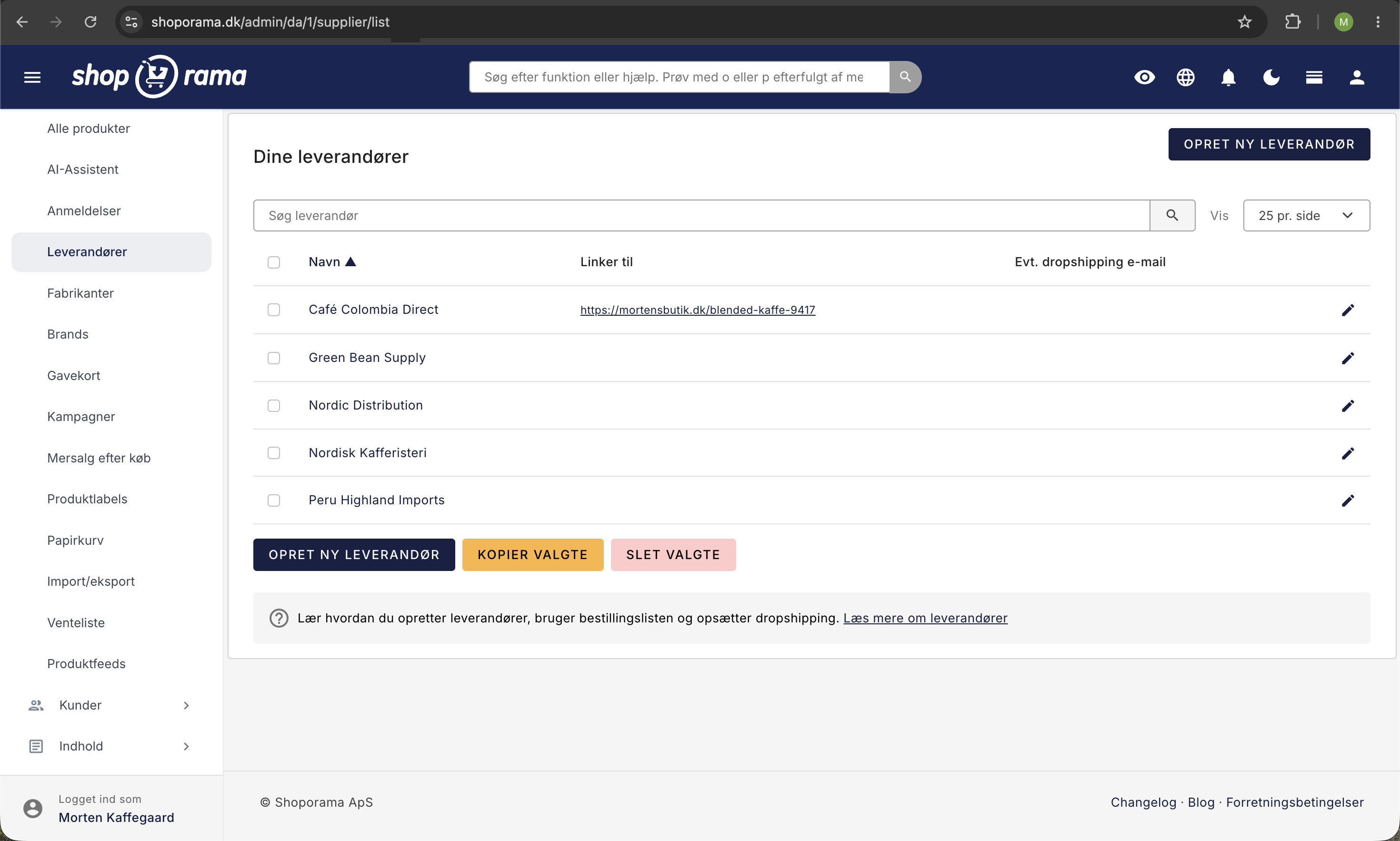
Sådan bruger du leverandøroversigten
Oversigten under Produkter → Leverandører er udgangspunktet for alt leverandørarbejde. Tabellen indeholder:
- Navn: klik på navnet for at åbne leverandøren. Blyant-ikonet yderst til højre gør præcis det samme.
- Linker til: den adresse i din webshop, som leverandøren peger på. Feltet er kun udfyldt, hvis du har valgt noget under "Link til" inde på leverandøren. Adressen åbner i et nyt faneblad, så du hurtigt kan se, hvad kunderne møder.
- Evt. dropshipping e-mail: den adresse, der får ordremailen ved dropshipping. Står feltet tomt, sendes der ingenting.
- Afkrydsningsfeltet yderst til venstre: bruges til handlingerne i bunden af siden.
Søgefeltet øverst søger i leverandørernes navne, og det er nok at skrive en del af navnet. Skriver du "kaffe", finder du også "Nordisk Kafferisteri". Krydset i søgefeltet nulstiller søgningen igen.
Klikker du på kolonneoverskriften Navn, skifter listen mellem A til Å og Å til A, og den lille pil ved overskriften viser, hvilken vej der sorteres. Til højre vælger du, om der skal vises 10, 25, 50, eller 100 leverandører pr. side, og det valg huskes, næste gang du åbner siden. Har du flere sider, skifter du mellem dem med pilene og sidevælgeren ved siden af.
I bunden af listen ligger to handlinger, der arbejder på de markerede leverandører. Kopier valgte laver en dublet i den samme shop med "(kopi)" bag navnet, og både "Link til" og dropshipping-e-mail følger med over på dubletten. Slet valgte spørger først, om du er sikker, og viser navnene på dem, der bliver slettet. Vil du markere alle på siden på én gang, kan du bruge afkrydsningsfeltet i tabelhovedet eller trykke Cmd + A (Ctrl + A på Windows).
Bemærk, at oversigten ikke viser, hvor mange produkter der ligger på hver leverandør. Det tal finder du i produktoversigten, som beskrevet længere nede.
Opret en leverandør
- Gå til Produkter → Leverandører i venstremenuen.
- Klik på Opret ny leverandør.
- Angiv leverandørens navn.
- Klik Opret leverandør.
Du kan også oprette leverandører direkte fra produkt-redigeringssiden, hvis du ikke har oprettet dem på forhånd.
Opret en leverandør midt i et produkt
Opdager du først undervejs, at leverandøren mangler, behøver du ikke forlade produktet:
- Åbn produktet under Produkter → Alle produkter.
- Find feltet Leverandør i kortet Generelt.
- Klik Opret ny lige under feltet.
- Skriv leverandørens navn i vinduet, og klik Opret.
Leverandøren oprettes med det samme og bliver valgt på produktet. Ved siden af ligger linket Administrer, der åbner leverandøroversigten i et nyt faneblad, hvis du hellere vil arbejde videre derinde.
Genvejen sætter kun navnet. Skal leverandøren også have en "Link til"-side eller en dropshipping-e-mail, udfylder du de felter bagefter på leverandørens egen side.
Redigér en leverandør
Klik på redigér-ikonet ud for en leverandør i listen. Her kan du ændre følgende:
- Navn — Leverandørens navn, som vises på produkter og i statistik.
- Link til — Tilknyt leverandøren til en kategori eller landingsside i din shop. Det giver leverandøren en side på webshoppen, som kunder kan besøge for at se alle produkter fra den pågældende leverandør.
- Dropshipping e-mail — Hvis leverandøren håndterer forsendelsen direkte (dropshipping), kan du angive en e-mail her. Når ordrebekræftelsen sendes, får leverandøren sin egen separate mail, og den indeholder kun varerne fra netop den leverandør, ikke hele ordren. Der er altså ikke tale om en kopi af kundens ordrebekræftelse. Emnet er det samme som på ordrebekræftelsen, men med butikkens navn i skarp parentes foran, så du kan kende dropshipping-mailene fra hinanden. Bemærk, at dit tema skal indeholde skabelonen invoice_dropshipping.html for at denne funktion virker.
Sådan virker "Link til" i praksis
"Link til" er en rulleliste med tre dele. Øverst står - ingen -, derefter kommer alle dine kategorier under overskriften Kategorier, og til sidst alle dine landingssider under Landingssider. Du kan pege på ét sted, ikke flere.
Du kan kun vælge kategorier og landingssider fra den webshop, du står i. Peger værdien et andet sted hen, gemmes feltet som tomt. Vælger du - ingen -, ryddes feltet, og kolonnen "Linker til" i oversigten står tom igen.
Den mest oplagte opsætning er at kombinere feltet med en landingsside. Opret en landingsside, tilføj kriteriet Leverandør, og vælg leverandøren. Du kan vælge flere leverandører på samme side, hvis du fx vil samle alle dine økologiske leverandører ét sted. Peg til sidst leverandørens "Link til" på den side. Så samler siden automatisk alle produkter fra leverandøren, også dem du tilføjer bagefter. Se Sådan laver du de mest almindelige landingssider.
Kun Navn skal udfyldes på en leverandør. "Link til" og dropshipping-e-mail kan roligt stå tomme. Nederst på siden ligger Gem og Gem og rediger, der begge gemmer og lader dig blive på leverandøren, samt Slet, der beder om en bekræftelse først.
Tilknyt leverandør til produkter
Når du redigerer et produkt, kan du vælge leverandør i produktformularen. Hvert produkt kan have én leverandør. Leverandøren kan vises som kolonne i produktoversigten i admin, så du hurtigt kan se, hvem der leverer hvad.
Tip: Du kan også sætte leverandør på mange produkter på én gang via masseredigering eller CSV-import.
Sæt leverandør på mange produkter ad gangen
Skal du rydde op i et helt sortiment, er det spild af tid at åbne produkterne ét ad gangen:
- Gå til Produkter → Alle produkter, og søg eller filtrér de rigtige produkter frem.
- Sæt flueben ved de produkter, der skal ændres. Cmd + A (Ctrl + A på Windows) markerer alle på siden.
- Klik på knappen Masseredigering i bjælken nederst på siden, så vinduet Masseredigering åbner.
- Find Sæt leverandøren til, og vælg leverandøren i rullelisten.
- Klik Udfør nu.
Samme rulleliste har valget Ingen, så du kan også fjerne leverandøren fra de markerede produkter i én arbejdsgang.
Importerer du produkter fra et regneark, hedder kolonnen supplier eller leverandør, og du skriver leverandørens navn i den. Findes leverandøren ikke i forvejen, bliver den oprettet automatisk. Det er den hurtigste vej, hvis du skal have hundredvis af produkter fordelt på leverandører fra bunden.
Bestillingsliste
En af de største fordele ved at bruge leverandører er bestillingslisten. Den viser dig, hvilke produkter der er ved at løbe tør på lageret, og du kan filtrere den pr. leverandør. Det gør det nemt at lave genbestillinger hos den rigtige leverandør. Læs mere i Bestillingsliste og lagerstyring.
Leverandører i statistik
Har du tilknyttet leverandører til dine produkter, kan du bruge Shoporamas statistikværktøjer til at analysere salg pr. leverandør. Det giver dig indsigt i, hvilke leverandører der sælger bedst, og hvor stor en del af din omsætning hver leverandør står for. Se Statistik og analyse i Shoporama for mere.
Hvad du kan se pr. leverandør bagefter
Når leverandørerne først sidder på produkterne, dukker de op som filter og kolonne flere steder i admin. Det er her, arbejdet betaler sig.
I produktoversigten
I filterrækken øverst ligger knappen Leverandører. Den åbner et vindue, hvor du kan sætte flueben ved flere leverandører på én gang, og der er et søgefelt i vinduet, hvis listen er lang. Tallet på knappen viser, hvor mange du har valgt. Når filteret er sat, står der over tabellen, hvor mange produkter der er tale om, så det er også sådan, du tæller produkter pr. leverandør.
Vil du have leverandøren med som fast kolonne, klikker du på tandhjulet yderst til højre i tabellens overskriftsrække, så Tilpas visning åbner, slår kontakten ved Leverandør til, og klikker Gem. Kolonnen kan sorteres ved at klikke på overskriften, og indstillingen gælder for alle brugere på webshoppen.
I ordreoversigten
Ordreoversigten har den samme slags filterknap, her bare kaldet Leverandør. Vælger du en eller flere leverandører, vises kun de ordrer, der indeholder produkter fra dem. Det er guld værd den dag en leverandør melder om en fejlleverance eller en tilbagekaldelse, og du skal finde præcis de kunder, der er berørt.
Under Lager
- Lager → Genbestilling: vælg leverandøren i rullelisten, så ser du kun det, du skal bestille hjem hos netop den. Leverandøren står også som kolonne i tabellen.
- Lager → Kostpriser: filtrér på leverandør for at finde de varer, hvor kostprisen mangler eller ser forkert ud, inden du regner avance ud.
- Lager → Overblik: leverandør er et af de filtre, du kan folde ud, når du vil se lagerbeholdningen for ét sortiment ad gangen.
Under Statistik
Statistik → Leverandører viser omsætning ekskl. moms, antal betalte ordrer, antal solgte enheder, andel af den samlede omsætning, og gennemsnitlig ordreværdi for hver leverandør i en periode, du selv vælger. Tallene kan hentes som CSV-fil. Andelen er især værd at holde øje med: ligger en meget stor del af omsætningen hos én leverandør, står du svagt, hvis samarbejdet stopper eller priserne stiger. Se Leverandørstatistik i Shoporama for en gennemgang af hver kolonne.
Upload leverandør-følgesedler
Når du modtager varer fra en leverandør, kan du uploade følgesedlen som PDF eller billede, og Shoporama udtrækker automatisk varenumre og antal via AI. Det gør lageropdatering hurtigere og reducerer fejl. Læs mere i Upload leverandør-følgesedler til lageropdatering.
Dropshipping
Dropshipping er en forretningsmodel, hvor leverandøren sender varen direkte til kunden. I Shoporama fungerer det sådan:
- Opret leverandøren og angiv en dropshipping e-mail.
- Tilknyt leverandøren til de relevante produkter.
- Når en kunde bestiller et produkt fra denne leverandør, sendes automatisk en ordremail til leverandørens e-mail.
Mailen bruger skabelonen invoice_dropshipping.html fra dit tema. Læs mere om e-mailskabeloner i Email-skabeloner i dit tema.
Kopiér leverandører til andre shops
Hvis du har flere webshops på Shoporama, kan du kopiere leverandører mellem dem. Markér de ønskede leverandører i listen, rul ned til kortet Kopier de valgte til anden webshop, sæt flueben ved den eller de shops, der skal have dem, og klik på knappen Kopier valgte nede i selve kortet. Vær opmærksom på, at der er to knapper med teksten Kopier valgte på siden: den i knapperækken lige under tabellen laver en dublet i den shop, du står i, mens den inde i kortet er den, der kopierer til de afkrydsede webshops. Kortet vises kun, hvis du har mere end én webshop.
Slet leverandører
Du kan slette leverandører enten fra redigeringssiden (klik Slet) eller ved at markere dem i listen og klikke Slet valgte. Produkterne påvirkes ikke: de bliver hverken slettet eller taget offline. Til gengæld ryddes tilknytningen ikke af sig selv. Leverandøren forsvinder fra rullelisten inde på produktet, men navnet kan stadig stå i produktoversigtens Leverandør-kolonne, indtil produktet bliver gemt igen. Vil du undgå det, så sæt leverandøren til Ingen på produkterne med masseredigering, før du sletter selve leverandøren.
Tips til god leverandørstyring
- Tilknyt altid leverandør til produkter — Det gør bestillingslisten og statistikken langt mere værdifuld.
- Udfyld kostpriser — Angiv en kostpris på dine produkter, så du kan se avancen pr. leverandør.
- Hold leverandørlisten opdateret — Slet leverandører, du ikke længere samarbejder med, så listen er nem at navigere.
- Link leverandører til sider — Brug "Link til"-funktionen til at give kunder en dedikeret leverandørside.
For udviklere: leverandøren i tema og API
Dette afsnit er kun relevant, hvis du selv arbejder i temafilerne eller henter data ud via API. Som butiksejer kan du roligt springe det over.
- $product->getSupplierName() giver leverandørens navn som ren tekst, eller en tom streng, hvis produktet ikke har en leverandør.
- $product->getSupplier() giver selve leverandøren (eller ingenting, hvis produktet ikke har en), og den har metoderne getName(), getSupplierId(), og getRemoteUrl().
- getRemoteUrl() returnerer adressen fra "Link til", eller false, hvis feltet ikke er udfyldt. Pak derfor altid kaldet ind i et tjek, før du laver et link ud af det.
Via REST-API'et kan du hente, oprette, og rette leverandører. Skal du sætte leverandør på et produkt, kan du enten sende leverandørens ID i supplier_id eller navnet i supplier_name. Bruger du navnet, oprettes leverandøren automatisk, hvis den ikke findes i forvejen, præcis som ved CSV-import.
Ofte stillede spørgsmål
Kan et produkt have flere leverandører?
Nej. Et produkt kan kun have én leverandør ad gangen. Køber du den samme vare hjem hos to leverandører, må du vælge den, du bruger mest, eller oprette varen som to produkter, hvis du vil kunne skelne dem i genbestilling og statistik.
Hvad sker der med mine produkter, hvis jeg kommer til at slette en leverandør?
De bliver hverken slettet eller taget offline, men tilknytningen ryddes ikke af sig selv, som beskrevet under "Slet leverandører" ovenfor. Opretter du leverandøren på ny med det samme navn, er det en ny leverandør i systemet, og du skal sætte den på produkterne igen. Det klarer du hurtigst med masseredigering.
Hvordan ser jeg, hvor mange produkter jeg har på hver leverandør?
Gå til Produkter → Alle produkter, klik filterknappen Leverandører, og vælg leverandøren. Antallet står over tabellen som "Viser X af Y produkter". Selve leverandøroversigten viser ikke antallet.
Følger dropshipping-e-mailen med, når jeg kopierer en leverandør til en anden webshop?
Nej. Når du kopierer til en anden webshop, følger kun navnet med, og du skal selv sætte "Link til" og dropshipping-e-mail op i den nye shop. Kopierer du derimod inden for den samme shop med Kopier valgte, får dubletten begge felter med, og navnet får "(kopi)" bagefter.
Kan jeg se, hvad jeg har købt ind for hos hver leverandør?
Leverandørstatistikken viser din omsætning ekskl. moms, altså hvad du har solgt varerne for, ikke hvad du har givet for dem. Vil du se indkøbssiden, skal produkterne have kostpriser. Så kan du bruge Lager → Kostpriser til at finde de varer, der mangler en kostpris, og Vareforbrug og avance til at regne dækningsbidraget ud.
Jeg har lige sat leverandører på alle produkter. Tæller de også for gamle ordrer?
Ja. Statistikken regner på de leverandører, der sidder på produkterne lige nu, ikke på hvordan det så ud den dag ordren blev lagt. Du får altså historikken med, så snart du har ryddet op i tilknytningerne. Er tabellen alligevel tom, skyldes det oftest perioden: siden viser i udgangspunktet indeværende år og tæller kun betalte ordrer. Prøv genvejen Sidste 12 mdr. eller Sidste år.
Kan mine kunder se, hvem leverandøren er?
Det afhænger af dit tema. Leverandøren er tænkt som en intern oplysning, men Delaware og DelawareDK viser den som en linje under Produktdetaljer på produktsiden, hvis du har slået fanen med produktattributter til under Design → Temaindstillinger. Feltet hedder Aktiver produktattributter-fane i DelawareDK og Enable Product Attributes Tab i den engelske Delaware. Vil du ikke vise den, skriver du supplier i feltet Vis produktattributter samme sted, så udelades linjen. I Delaware hedder det felt Show Product Attributes. Det ældre Smarty 2-tema Massachusetts, inklusive Massachusetts v2, viser leverandøren direkte på produktsiden som ordet "fra" efterfulgt af leverandørens navn, lige under varenummeret, og der er ingen temaindstilling til at slå den linje fra. Flere temaer bruger desuden leverandørnavnet som reserve for mærket i produktsidens strukturerede data, som Google læser. Vil du bevidst fremhæve leverandøren udadtil, er den nemmeste løsning at oprette en landingsside med leverandøren som kriterium og pege leverandørens "Link til" derhen.
Har du spørgsmål til leverandørhåndtering, er du velkommen til at kontakte os på support@shoporama.dk.
Related articles
Order list and inventory management
Learn how to use the Shoporama order list to keep track of inventory, generate shopping lists and receive goods efficiently.
Upload supplier packing slips for inventory update
Upload delivery notes from your suppliers as a PDF or image and let AI automatically extract item numbers and quantities for stock updates.
Statistics by Supplier: Who Are You Making Money From?
See what percentage of your revenue each supplier accounts for, what’s included in the figures, and how to calculate the contribution margin per...
Cost Prices and Inventory Value
Fill in any missing cost prices to get a more accurate inventory value and profit margin. Guide to the Cost Prices page.
Edit product
Guide til produktredigeringssiden i Shoporama: toppen med Rediger, Lager, og Salgsstatistik, hvordan du tilpasser siden med faner og skjulte kort,...
Related features
Dropshipping
Dropshipping is a business model where you sell products without having them in stock. Learn about the pros, cons and how to get started with...
Stock integrations
Stock records, stock locations, order list, stock value and automatic notifications. Avoid overselling with Shoporama inventory management.
Cost Prices
If you don't have cost prices, your inventory value and profit margin will be incorrect. See why cost prices are worth their weight in gold for...