Mailing List Integration: Connect Shoporama to Your Newsletter Provider
Automatically forward newsletter sign-up notifications from your online store to Klaviyo, Ubivox, Mailchimp, Campaign Monitor, or Brevo, and see when it’s better to use Shoporama’s own module.
If you already have a newsletter system, Shoporama can send your subscriptions directly to it. When a customer checks the "Subscribe to newsletter" box in your store, their email address is added to the list you’ve chosen within a moment. You won’t have to manually export and import lists, and you’ll avoid the duplicate entries and spelling errors that come with it.
Where can you find the setup?
The page is located in the admin panel under Integrations, Mailing List. At the top is the “Newsletter Provider” tab with the “Provider” field, where you select your provider, and below that are the fields specific to the provider you’ve chosen. If you switch providers, you must save first. Then the fields for the new provider will appear. For Klaviyo, the fields are divided into several tabs, while the other providers have them grouped together in the “Setup” tab. Click the “Save” button to save your changes. If you select “None,” subscriptions won’t be forwarded anywhere. If you’ve never set up a provider, the field can be set to “Mailchimp” without a key. In that case, nothing will be sent either.
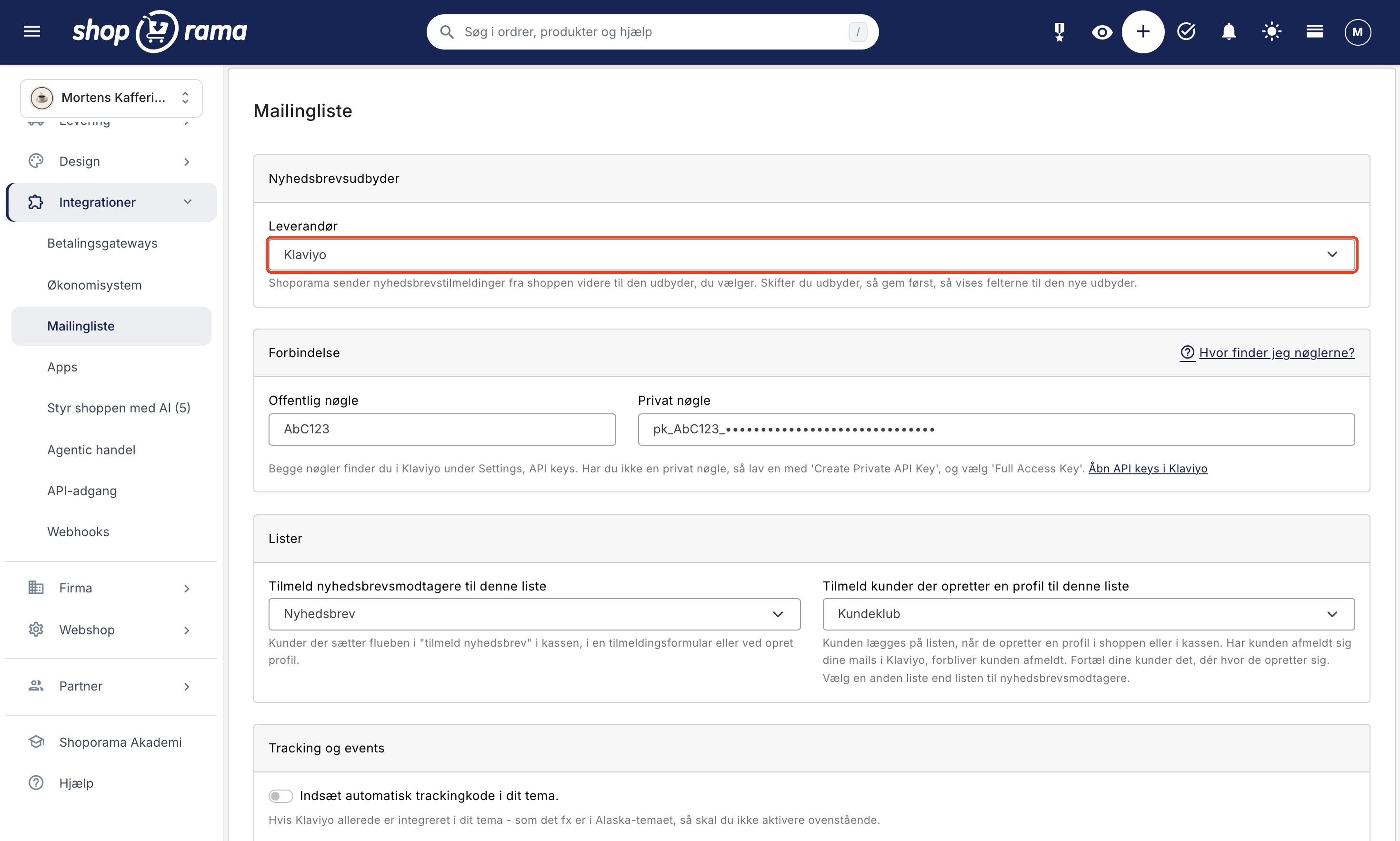
Which providers can Shoporama send to?
In the “Provider” field, you can choose from five services:
- Klaviyo
- Ubivox
- Mailchimp
- Campaign Monitor
- Brevo
There are no other options on this page. HeyLoyalty , for example, is available as an app under “Integrations” > “Apps,” and isn’t something you select here. If you use a service that isn’t on the list or available as an app, your developer can set up the connection via webhooks or the REST API.
What gets sent, and when?
Shoporama forwards a subscription request when the customer actively opts in. This happens in four places, provided your theme includes the following fields:
- At checkout, where the checkbox triggers the sign-up when the order is created.
- From a sign-up form in the theme, typically in the footer.
- On the “Create Profile” page, where the built-in themes have a checkbox for the newsletter.
- From the “Notify me when this item is back in stock” form, if the customer also checks the newsletter box.
If you use Klaviyo, customers who create a profile can also be added to a separate list without having to check the box. This is a separate setting, which you can read about under Klaviyo below.
The information sent includes the customer’s email address and name, if the store has it. Klaviyo, Mailchimp, and Brevo receive the name split into first and last name, while Campaign Monitor receives it as a single name. Ubivox receives only the email address and list selection. The data is sent via a background queue, so the customer never has to wait for your provider. However, it may take a moment for the contact to appear. This is completely normal.
Setup for Each Provider
Klaviyo
Klaviyo is the most comprehensive integration because it can both sign up customers and send events from the store. Once you’ve selected Klaviyo and saved, fill in the Public Key and Private Key in the Connection card. You’ll find both keys in Klaviyo under Settings, API keys. If you don’t have a private key, create one using “Create Private API Key” and select “Full Access Key.” The “Where do I find the keys?” link on the card leads to the guide, and below the fields, the page links directly to the API keys in Klaviyo. If you’d like to see a step-by-step guide with screenshots, read “Set Up Klaviyo Integration.”
Once the keys are saved, Shoporama will fetch your lists from Klaviyo and populate the “Lists” card. Until then, the card will indicate that you need to enter both keys and save. This message will also appear if you don’t yet have any lists in Klaviyo. So, first create the lists in Klaviyo—for example, one for your newsletter and one for your customer club—and then reopen the page. If we can’t retrieve your lists, the page will display a red error box with a message from Klaviyo—this is almost always due to an incorrect or expired private key. The card has two drop-down lists:
- "Sign up newsletter subscribers to this list" is the list for those who check the "Sign up for newsletter" box at checkout, on a sign-up form, or when they create a profile. This field was previously called "Sign up your customers to this list."
- "Add customers who create a profile to this list" is a separate list for customers with profiles, such as a customer club. By default, this field is set to - None -, and nothing happens.
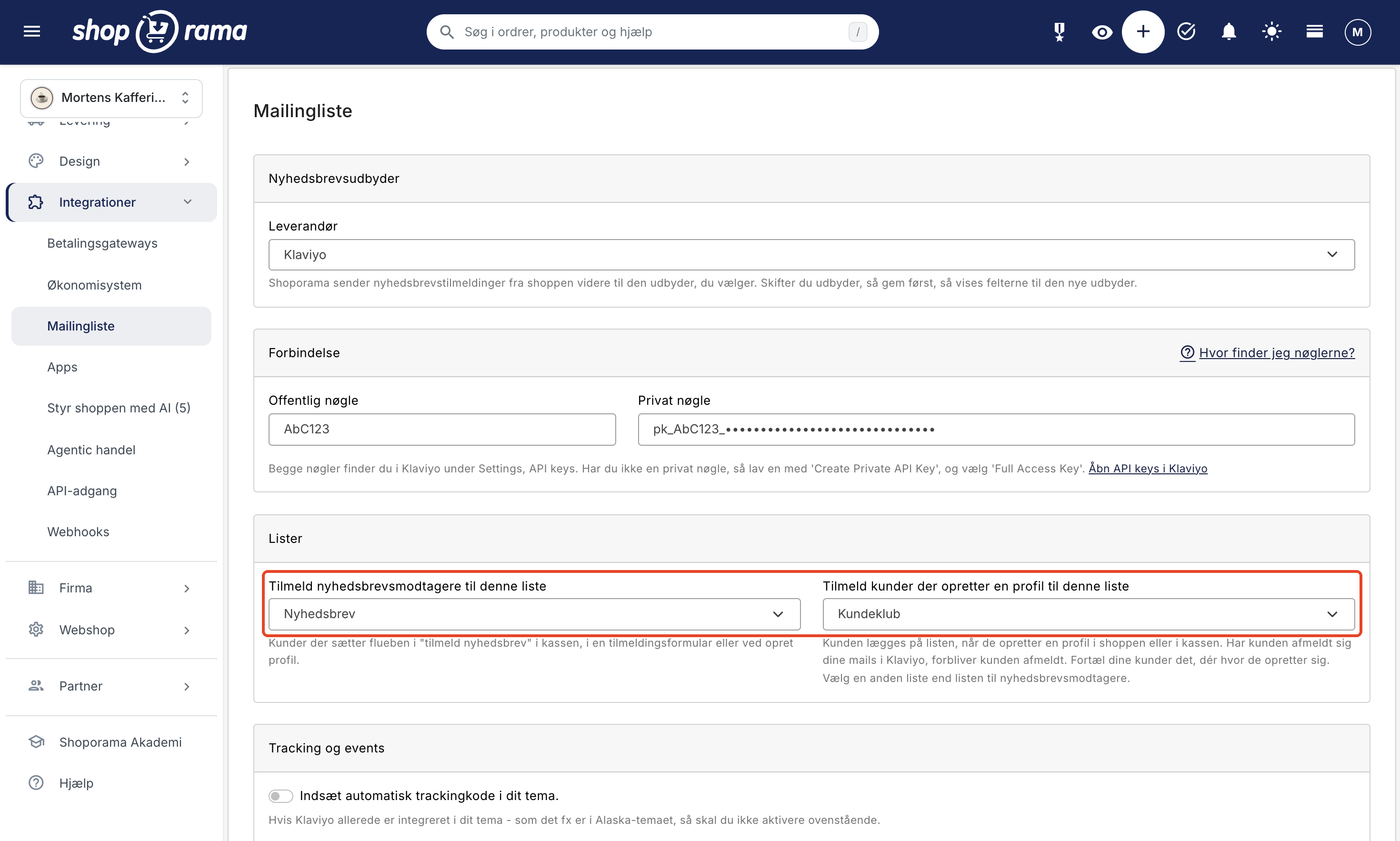
If you select a list in the second field, Shoporama will add the customer to that list in Klaviyo when the customer creates a profile. This applies both on the “Create Profile” page in the store and at checkout, when the customer checks the box to create an account on the address step. Klaviyo receives the customer’s email address and name, separated into first and last name. This happens in the background queue, typically within a minute, so the customer doesn’t have to wait for Klaviyo. If you have a customer club—for example, where customers earn points in the loyalty program on their profile—new members are automatically added to the list in Klaviyo, and you don’t have to manually export and import customers.
A few things are worth knowing about the list of customers with profiles:
- Only customers who sign up themselves are added to the list. If you create the customer in the admin panel, if the customer comes from an import or the REST API, or if a company administrator invites a colleague in a B2B store, nothing happens.
- This applies only to new profiles, starting from the moment you save them. Your existing customers are not automatically included. You can retrieve them under Customers > Registered Customers using the “Download All Customers” button and import them into the Klaviyo list once. They haven’t been notified that they’ll be added to the list, so make sure they’ve consented to receiving emails before you import them.
- You cannot use the same list in both fields. If you select the same list and save, the other field will be reset to “None.”
- The customer will be added to the list regardless of whether the “Subscribe to newsletter” checkbox is selected. The newsletter list requires a checkmark, while the list for customers with profiles is linked to their profile. If the customer also checks the box, they’ll be added to both lists. We therefore recommend that you include this information where customers sign up so they know what they’re signing up for. The help text next to the field also explains this.
- The customer is added directly to the list without a confirmation email, and Shoporama does not change the customer’s consent in Klaviyo. If the customer has unsubscribed from your emails, they remain unsubscribed and will not receive emails from the list.
In the “Tracking and Events ” tab, there are three options:
- "Automatically insert tracking code into your theme" adds Klaviyo’s tracking script to your pages and tells Klaviyo who the visitor is if the store knows their email address. The help text warns that you should not enable this if Klaviyo is already built into your theme, as is the case with the Alaska theme, for example. Otherwise, you’ll end up with the code twice.
- "Use events" allows Shoporama to send events to Klaviyo so you can build automated flows based on them.
- "Respect double opt-in" does not, in practice, change what we send to Klaviyo. As the help text states, whether the customer must confirm their subscription is controlled within Klaviyo, on the list, and under "Default opt-in settings" on the API keys page.
With events enabled, Shoporama sends "Added to Cart " when an item is added to the cart, " Placed Order " and " Ordered Product " per product line when the order is created, " Paid " upon payment, " Status: ..." upon status changes, as well as “Add label: ...” and “Remove label: ...” when you add or remove labels. The events contain the order data, including line items with price, quantity, SKU, image, category, and brand, as well as both shipping and billing addresses; if you use the loyalty program, the customer’s point balance is also included. Events are only sent when there is an email address to associate them with. See also Set Up Klaviyo Integration.
Brevo
For Brevo, enter your API key, and the page provides a link to where you can find it. Once the key is saved, Shoporama retrieves your Brevo lists and displays them in the “List” field. Checking the “Respect double opt-in” box ensures that Brevo sends a confirmation email and that the contact is added to the list only after the customer has clicked the link. In the “Redirect URL for opt-in” field, you can specify where the customer should be redirected afterward. If the field is left blank, the customer will be redirected to your homepage.
Two things typically cause issues. The “Template ID for opt-in” drop-down list only shows the templates in Brevo that have been tagged with “optin”; if none of them have this tag, you’ll see a yellow warning instead. Also, the template must contain Brevo’s confirmation link {{ params.DOIurl }}; otherwise, the customer won’t have anything to click on. The page shows screenshots of how to add the tag.
Note that both the list and the opt-in template must be selected before Shoporama sends anything to Brevo. If either is missing, the sign-up process stops, and you’ll receive a notification in the admin panel. If double opt-in is disabled, the contact is added directly to the list, and existing contacts have their name and list membership updated. Read more in the article about the Brevo integration.
Mailchimp
For Mailchimp, enter the API key and List ID—the list ID is what Mailchimp calls the Audience ID. A common mistake is entering a key without the data center: Mailchimp keys end with a code such as -us19, and if you only copy the first part, we won’t be able to find your account. You’ll then receive a notification that the data center is missing. Always copy the entire key.
The first time, you’ll need to enter the list ID manually. Once both the key and the ID are saved, Shoporama will retrieve your audiences, and the field will become a drop-down list going forward. Contacts are created with first and last names in the FNAME and LNAME fields, and existing contacts are updated rather than recreated.
Campaign Monitor
Here, you enter the API key and List ID. Additionally, Campaign Monitor has a “Custom Fields” section where you can transfer purchase information to the contact. Enter the field’s Name as it appears in Campaign Monitor, and select a Value: Amount, Product, Purchase Date, Number of Purchases, or Vendor. The Add Field button provides more options. The values can only be populated when the sign-up is accompanied by an order; if someone signs up from the footer, there are no figures to retrieve.
Ubivox
For Ubivox, enter the Username, API password, and API URL. Checking the “Send sign-up confirmation ” box instructs Ubivox to send a confirmation email to the customer. When you save, Shoporama retrieves both your goals and your email lists, so the “Goal” and “List” fields become drop-down lists. If you don’t have a goal with “shoporama” in the name, one named “Shoporama” is automatically created.
External provider or Shoporama’s own newsletter module?
This is the most important choice on this page, and it’s an either/or decision. Shoporama also has its own newsletter module under “Newsletter” in the menu. On the “Newsletter” > “Setup” page , you’ll find the checkbox labeled “Use internal newsletter list.”
As long as this checkbox is selected, all newsletter sign-ups will go to Shoporama’s own list, and not to the provider you selected on the mailing list page. If you want to collect subscribers in Klaviyo, Mailchimp, Brevo, Campaign Monitor, or Ubivox, “Use internal newsletter list” must be unchecked. The Klaviyo list for customers who create a profile is not affected by this checkbox. It is used when Klaviyo is selected as the provider and a list has been chosen.
Select an external provider when:
- You already have flows, automations, or templates set up and don’t want to rebuild them from scratch.
- You’re sending emails for multiple stores or channels and want to keep recipients in one place.
- You need advanced segmentation or flows that respond to behavior. With Klaviyo and events enabled, you get store data fed directly into those types of flows.
- Your agency is already working in a specific system.
Choose Shoporama’s own newsletter module when:
- You want everything in one place and want to avoid yet another subscription and yet another login.
- You want to pull products, prices, and images directly into the newsletter from your own store.
- You need the sign-up pop-up, lists, segments, or a public newsletter archive. The pop-up only works with the internal module.
- You send relatively few emails and prefer to pay based on usage rather than a fixed monthly subscription.
Read more in the article about the Newsletter Module.
Consent and Documentation
Regardless of which provider you use, Shoporama stores proof of every single subscription: email address, IP address, browser, the page from which the subscription originated, and the time. This is exactly the documentation you’ll need to provide if someone disputes having subscribed. You can download the list as a CSV under Customers, Downloads using the “Download Newsletter Subscriptions” button.
Customers who appear only on Klaviyo’s list of customers with profiles have not subscribed to the newsletter and therefore do not appear in that file. If the customer has also checked the “Subscribe to newsletter” box, that subscription will appear there as usual.
When Something Doesn’t Work
Because subscriptions are processed in the background, Shoporama cannot display an error on the screen immediately. Instead, the messages appear under “Notifications” on the bell icon at the top of the admin panel. Here you’ll find the error message from the provider, such as an incorrect key or a missing list ID. Always check there first, and then go through the checklist:
- Is “Use internal newsletter list” turned off under Newsletter, Setup?
- Have you selected a provider, and have both the key and the list been saved?
- Does your theme even have a checkbox for the newsletter in the box on the “Create Profile” page or on a sign-up form?
- For Brevo: Have you selected both a list and an opt-in template tagged with “optin”?
- For Klaviyo’s list for customers with profiles: has a list been selected, does the list still exist in Klaviyo, and has the customer created a new profile themselves in the store or at checkout? Errors here do not appear under “Notifications.”
For those with a technical background
The sign-up field in the theme is called “mailinglist” and is sent along with the email. In the checkout, the checkbox remains selected until the order is created. The checkbox on the “Create Profile” page uses the same field name. On the stock notification form, both “mailinglist” and “newsletter” are accepted as field names. Built-in themes such as Delaware, Alaska2, and Montana already have these fields, while custom-built themes require them to be added.
Each subscription also triggers the `newsletter_subscribe` event, regardless of whether you use the internal module or an external provider. This is the event that apps like HeyLoyalty listen for, and it can be forwarded to your own webhooks. The Klaviyo list for customers with profiles does not trigger it, because it is not a newsletter subscription. Klaviyo events are managed independently by “Use Events” and continue to be sent even if recipients are added internally. If you use Mailchimp, the ` mailing_list_ids` field is also available on the product: if a customer purchases a product with list IDs in that field and has opted in to the newsletter, the customer is also subscribed to those lists. This field is set via product import, product export, or the REST API.
Frequently Asked Questions
Can I use both Mailchimp and Shoporama’s own newsletter at the same time?
No, not for regular sign-ups. As long as “Use internal newsletter list” is enabled, all sign-ups go to Shoporama’s own list, and the external provider receives nothing. Choose one place to collect your subscribers; otherwise, you’ll end up with only half a list in each place.
Why doesn’t my test subscription appear in Klaviyo right away?
Subscriptions are sent in a background queue, so it typically takes a moment. If it doesn’t appear at all, check that a list has been selected, that the private key has been saved, and whether the “Mailing List” page shows a red error box or there’s an error listed under “Notifications.” If the list uses double opt-in in Klaviyo, the contact will only appear on the list once the confirmation email has been approved. For the newsletter list, the checkbox in the store must be selected. If you’re testing the list for customers with profiles, you must instead create a new profile in the store, not in the admin panel.
A customer calls and wants to sign up. Can I do that for her?
Not from the mailing list page. It only forwards sign-ups when they come from the store. If you create her as a customer in the admin panel, she won’t be added to the Klaviyo list for customers with profiles either. If you need to add a contact manually, do so through your provider. If you’re using Shoporama’s own newsletter module instead, you can create recipients directly under Newsletter > Recipients.
Where is the “Subscribe to newsletter” checkbox in my shop?
It’s located in your theme, typically on the address step in the checkout, on the “Create Profile” page, and often also as a form in the footer. The built-in themes already have it. If you have a custom-built theme, it won’t appear automatically, and your developer will need to add the field.
Can I provide documentation to my accountant or the Danish Data Protection Agency that the customer has given consent?
Yes, for newsletter sign-ups. Download the file under “Customers,” “Downloads” using the “Download Newsletter Sign-ups” button, as described under “Consent and Documentation” above. The Klaviyo list for customers with profiles is not included.
Does the customer receive a confirmation email, i.e., a double opt-in?
On the mailing list page, you can enable confirmation for Brevo, where it says “Respect double opt-in,” and for Ubivox, where it says “Send sign-up confirmation.” For Brevo, you must also select the template. Klaviyo has a checkbox with the same wording as Brevo’s, but as the help text explains, confirmation is controlled by the list’s own settings within Klaviyo. The list for customers with profiles never sends a confirmation email. With Mailchimp and Campaign Monitor, you manage this within the provider’s platform.
I’m switching providers. Will my existing subscribers be transferred?
No. We only forward new sign-ups from the moment you’ve saved the new setup. Existing subscribers must be exported from the old provider and imported into the new one. If you need a list of those who signed up through the store, the CSV file is located under Customers, Downloads.
Can I transfer order data so I can create flows based on what people have purchased?
Yes, with Klaviyo. If you enable “Use events,” we’ll send events for items added to the cart, orders created, each line item, payments, status changes, and labels—including prices, SKUs, categories, and addresses. Campaign Monitor can retrieve individual values as custom fields. For everything else, use webhooks or the REST API.
Does the sign-up pop-up work with Mailchimp or Klaviyo?
No. The pop-up under “Newsletter” > “Signup Form” is part of Shoporama’s own newsletter module and requires that “Use internal newsletter list” be enabled. With an external provider, you can either use the provider’s own pop-up or have a form created within the theme.
We use HeyLoyalty. Why isn’t it on the list of providers?
HeyLoyalty is designed as an app instead. You install and set it up under Integrations, Apps, and it listens to the same newsletter sign-ups as the rest of the system. So you don’t need to select anything on the mailing list page.
Will the customer be removed from the list in Klaviyo if the profile is deleted?
No. Shoporama only adds new profiles and doesn’t remove anyone from the list. If you delete a customer in Shoporama, you’ll also need to remove the contact in Klaviyo.
Can customers who create a profile also be added to a list in Mailchimp or Brevo?
No. The list for customers who create a profile is only available in Klaviyo. With the other providers, a customer is only added to the list when they check the “subscribe to newsletter” box—for example, on the “create profile” page or at checkout.
Related articles
Set up Klaviyo integration
Here's how to find the public and private keys in Klaviyo, connect Klaviyo to your Shoporama online store, and select lists for newsletter...
Brevo integration newsletter signup integration from your webshop
How to connect your Shoporama webshop to Brevo (formerly Sendinblue) so that new newsletter subscriptions automatically land in Brevo. Read what...
The newsletter module
Complete guide to Shoporama's built-in newsletter module. Learn how to create campaigns, segment recipients, use A/B testing, set up automatic...
Stock notification: Notify your customers when items are back in stock
Learn how to set up email notifications so your customers can be notified when out-of-stock products are restocked in your Shoporama online store.
Unsubscribe links in automatic emails
Give your customers the option to unsubscribe from automatic follow-up emails after purchases and product reviews - with a simple link in the email.
GDPR - Data Processing Agreement
Information about data processing agreement with Shoporama according to GDPR.
Webhooks in Shoporama
Complete guide to webhooks in Shoporama. Get automatically notified on a URL when something happens in your online store. List of all events,...
Related features
Email marketing software
Email marketing software is the tool for sending newsletters and automated campaigns. Shoporama has a complete, built-in newsletter system with...
Email marketing
Integrate with Klaviyo, Brevo, Mailchimp, Ubivox or Campaign Monitor, or use Shoporama's own newsletter system. Automatic synchronization and event...
Newsletter system - send professional newsletters directly from Shoporama
Built-in newsletter system with A/B testing, segmentation, product blocks and statistics. Integrates with Brevo, Klaviyo and HeyLoyalty. Included...