Set up ViaBill on Shoporama
Guide to setting up ViaBill as a payment option on your Shoporama online shop. Learn how to add the ViaBill script, display the price on the product page and set up ViaBill as a payment gateway via Quickpay or ePay.
For at kunne bruge ViaBill som betalingsmetode skal du igennem tre trin. Dem guider vi dig til her.
Tip: Bruger du et af Shoporamas nyere temaer (fx Delaware), kan ViaBill aktiveres direkte i tema-indstillingerne under "Integrationer" uden at redigere kode. Du skal blot angive dit ViaBill Shop ID.
1. Indsæt ViaBill-koden
Fra ViaBill får du en unik kode, der ligner noget af det her:
<script>
  (function(){
    var o = document.createElement('script');
    o.type = 'text/javascript';
    o.async = true;
    o.src = 'https://app.ibill.dk:443/psp/web/webshop/pricetag/DIN_NØGLE';
    var s = document.getElementsByTagName('script')[0];
    s.parentNode.insertBefore(o,s);
  })();
</script>
Dette script tager din produktpris og beregner den månedlige pris gennem ViaBill. Prisen vises kun på produktsiden, så vi anbefaler, at du kun indsætter koden der. Dermed undgår du, at ViaBill-scriptet sløver dine øvrige sider unødigt.
Bemærk: Du kan ikke kopiere koden ovenfor direkte. Du skal bruge din egen unikke kode fra ViaBill. Kontakt din designpartner for at få koden indsat korrekt.
2. Tilføj en div til at vise ViaBill-prisen
Der hvor du vil have ViaBills pris vist på produktsiden, skal du tilføje en div. Du har to muligheder:
Grafisk version:
<div class="ViaBill_pricetag_product" price="<{$product->getRealPrice()}>"></div>Ren tekst-version:
<div class="ViaBill_pricetag_list" price="<{$product->getRealPrice()}>"></div>Du kan kopiere koden ovenfor direkte ind i dit produkttemplate.
3. Tilføj ViaBill som betalingsgateway
Fremgangsmåden afhænger af, hvilken betalingsudbyder du bruger.
Quickpay / PensoPay
- Opret en ny betalingsgateway i Shoporama
- Sæt den op som dine øvrige Quickpay-metoder (med API-nøgle og privat nøgle)
- Skriv viabill i feltet "Betalingsmetoder" (der hvor der ellers står creditcard eller mobilepay). Har du allerede andre metoder, tilføj ,viabill efter de eksisterende (fx creditcard,mobilepay,viabill)
- Klik "Gem"
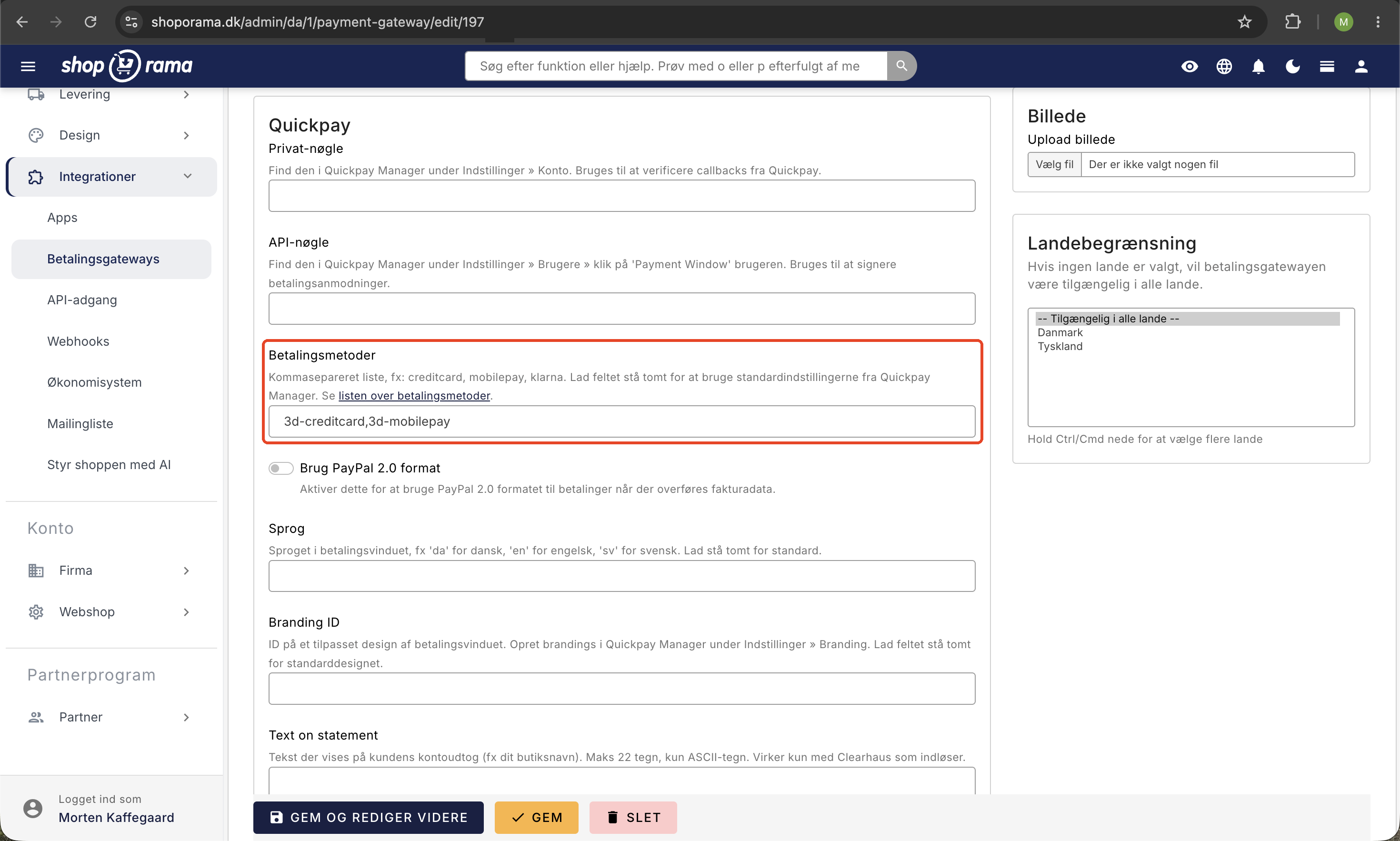
Herefter skal du sikre, at ViaBill er aktiveret i Quickpay. Gå ind under "Acquirers", vælg ViaBill, indsæt API-nøglen fra ViaBill og marker "Enable ViaBill".
ePay
Bruger du ePay, skal du ikke selv foretage dig noget i ePay. Opret en betalingsgateway i Shoporama, sæt den op som din øvrige ePay, men vælg "ViaBill" i dropdown-menuen "Payment Type". Klik derefter "Gem".
Husk at teste ViaBill i din shop, når opsætningen er færdig.
Related articles
Set up ePay as a payment gateway
Step-by-step guide to setting up ePay as a payment gateway in your Shoporama webshop. Fill in Merchant ID, Secret (MD5) and Password for capture...
Set up integration with Anyday
Guide to integrating Anyday installment on your Shoporama online store. Includes script insertion and pricetag implementation.
Set up Klarna as payment method
Learn how to set up Klarna as a payment method in your Shoporama webshop.
Related features
ViaBill - part payment and buy now, pay later
Offer ViaBill partial payment in your webshop. The customer pays in installments, you get the money right away. Easy integration via QuickPay.
Webshop with ViaBill
Offer ViaBill in your online shop and let customers pay in installments without fees. How to set up ViaBill on Shoporama via QuickPay.
13+ payment gateways for your webshop
Choose from OnPay, Quickpay, Stripe, Mollie, Nets Easy, ePay and many more. Automatic capture, country restrictions and partial payment.